
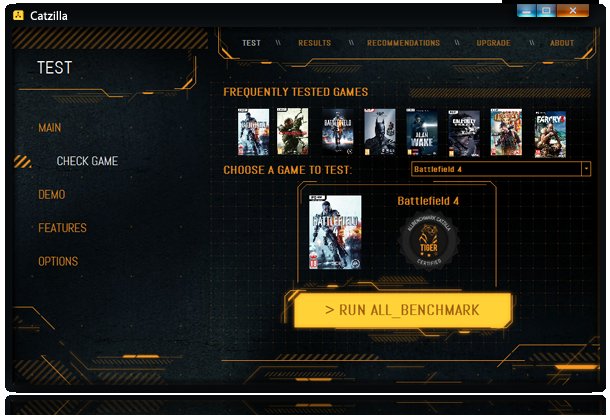
Yes, determining if you can run the game depends on comparing your computer’s specifications with the game’s requirements.
So, you’re excited about a new release, itching to jump in, but that nagging question lingers: can i run the game? It’s a common concern; we’ve all been there.
Figuring this out doesn’t need to be a tech headache. We will help you understand what to check. You’ll be gaming in no time.

Can I Run the Game? Understanding PC Gaming Requirements
Have you ever been super excited about a new video game, only to wonder, “Can my computer even play this?” It’s a question every PC gamer asks, and it’s important to figure out before you spend your money on a game that won’t work. This part of the guide breaks down all the important things you need to know to see if your computer is ready to play the game you want.
What are System Requirements?
System requirements are like a recipe for your computer. They tell you what ingredients (parts) your computer needs to have to run a specific game. These ingredients are things like your computer’s processor, graphics card, RAM, and how much space the game takes up on your hard drive. Game developers provide these system requirements, so we know what we’re getting into. Think of it like this: you wouldn’t try to make a cake without the right ingredients, right? It’s the same with video games!
Minimum vs. Recommended Requirements
You’ll usually see two lists of requirements: minimum and recommended.
- Minimum Requirements: These are the absolute bare minimum your computer needs to even start the game. The game might not look very good, it could be slow, and you might have some problems playing it, but it should technically work.
- Recommended Requirements: These requirements are what the game developer suggests for a smooth and enjoyable gaming experience. If your computer meets or exceeds these, you should be able to play the game looking good, running well, and without too many glitches.
Aiming for the recommended requirements is a good idea if you want a fun time without any frustrations.
Key Computer Components for Gaming
To understand if your computer can run a game, you have to understand the main parts that matter to gaming. Let’s take a look:
CPU (Central Processing Unit)
The CPU is often called the “brain” of your computer. It does most of the calculations and it is very important for games. When you look at a game’s system requirements, you will see a specific processor or processor family (like an Intel Core i5 or AMD Ryzen 5) listed. Your computer’s CPU should be of equal or better power than what the game suggests.
Think of the CPU as how quickly you can think through a problem. A faster CPU means the game can process the game’s logic and actions better, like how quickly can your player shoot the enemy, or how quickly can the car turn around?
GPU (Graphics Processing Unit) or Video Card
The GPU is responsible for drawing the images and videos on your screen. It is very important for the look of the games. It has a huge role in how smooth your game looks. Most games system requirements specify a particular graphics card model (like NVIDIA GeForce GTX 1660 or AMD Radeon RX 580). Just like the CPU, you should make sure your GPU is as good as or better than the one suggested for the game.
Your GPU is the artist in your computer. It’s responsible for rendering everything you see on the screen, including characters, backgrounds, and special effects. A more powerful GPU will make your game look more detailed and smoother. If your GPU is not good enough, the game may appear pixelated, slow down, or simply not work.
RAM (Random Access Memory)
RAM is like your computer’s short-term memory. It holds information that the CPU and GPU need right now to run your game. Games require a certain amount of RAM, and having enough is important to keep the game running smoothly, without loading screens or stutters.
It’s like having enough space on your desk to keep all of your current homework so you don’t have to go grab it from a storage every time you need it. The more RAM you have, the more quickly your computer can access important information for your game. If your system does not have enough ram, your game might slow down while playing.
Storage Space
This refers to how much space the game will take up on your computer’s hard drive or solid-state drive (SSD). Game files can get pretty large, so make sure you have enough storage space on your computer before downloading the game. If your hard drive is almost full, you might have trouble installing the game and your computer might even slow down.
Think of storage space as the giant storage room in your home. All the things you need stay there and are taken out as needed. Similarly all the game files are kept there and taken as needed for the game. Make sure you have enough space on your computer’s storage for the game to fit in.
Operating System
The operating system (like Windows 10 or macOS) is the software that runs your entire computer. Games are usually built to run on specific operating systems. You must have the right operating system in order for the game to run properly, make sure that the minimum requirements for the operating system match.
Think of an operating system as the language your computer speaks. If the game is programmed in English but your computer only speaks Spanish, it will not work properly. Most games these days run on Windows, but some may be compatible with macOS and/or other systems. So you always have to look out for this!
Where to Find System Requirements
Finding system requirements for a game is pretty easy. You can typically find them on these places:
- The Game’s Official Website: This is the best place to look for the most accurate info.
- Steam, Epic Games Store, or other game platforms: They usually have system requirements listed on the game’s page on their store.
- Game Review Websites: Many review sites will list the system requirements along with their reviews.
How to Check Your Computer’s Specs
Now that you know what system requirements are, you need to find out your computer’s specs. Here are a few ways to check:
Using System Information on Windows
- Press the Windows Key + R at the same time.
- In the run box, type msinfo32 and press Enter.
- This will open the System Information window. Here, you can find your operating system, processor, and RAM.
- To find out your graphics card, click on “Components” and then “Display.”
This information will tell you what CPU, Ram and GPU you have, this helps you to check with your game system requirements.
Using ‘About This Mac’ on macOS
- Click on the Apple logo in the top left corner.
- Select About This Mac.
- This will show you your macOS version, processor, and RAM.
- Click on System Report… to get more details about your graphics card under the “Graphics/Displays” section.
This information will tell you what CPU, Ram and GPU you have, this helps you to check with your game system requirements.
Using the DirectX Diagnostic Tool
- Press the Windows Key + R at the same time.
- In the run box, type dxdiag and press Enter.
- This will open the DirectX Diagnostic Tool. You can find information about your processor, RAM, and graphics card under the “Display” tab.
This tool gives detailed information and also will show you the Direct X version you have, which is used by your games for graphics.
Comparing Your Specs to Game Requirements
Once you have found out your computer’s specs and have the game’s system requirements, compare the two lists.
- CPU: If your CPU is the same model or a better one than the game’s minimum or recommended, you should be fine.
- GPU: Match your video card to the requirements. If it’s the same or better than what the game lists, you’re in good shape.
- RAM: Make sure your computer has at least the amount of RAM listed for the minimum and ideal, and a little extra will help.
- Storage: Make sure you have enough space available on your hard drive to install the game.
- Operating System: Check that your operating system is the same or newer than the one required.
If your computer meets or beats the recommended specs, you can be very confident that the game will work well. If your computer meets just the minimum specifications, the game will probably work, but it might not look great or perform that smoothly. If your specs don’t match even the minimum specs, the game might not run at all.
What If My Computer Doesn’t Meet the Requirements?
Okay, so maybe your computer doesn’t meet the requirements for the game you want. Don’t worry, here are your options:
Adjusting Game Settings
If your computer is close to the minimum specs, you can adjust the game’s graphics settings. Turning the graphics to “low” can help the game run smoother on older computers. Some settings that you can usually change include:
- Resolution.
- Texture Quality.
- Shadows.
- Special Effects.
Experimenting with these settings might help the game run better on your computer.
Upgrading Your Computer Parts
If the settings don’t do the trick, you can try adding some new parts to your computer. Upgrading parts like your graphics card, CPU, or RAM can help you to play more advanced games. This can be expensive, but it can be cheaper than buying a whole new computer. Be sure to do some research and see what upgrades are right for you.
Make sure to see what is compatible with your computer, there are some online tools that can help with that.
Cloud Gaming
Cloud gaming services allow you to play games through the internet, rather than running them on your computer. The games actually run on powerful servers somewhere else, and they stream the video to your computer. This can be good if you do not have the best hardware, but it requires very good internet connection.
Playing Games That Do Work
This one may be obvious but there are thousands of games out there. There are many old and new games that you may be able to play with your current computer. Always make sure to check the system requirements.
Tools and Websites to Help
There are a number of websites that you can use to help you out with figuring out if you can run the game.
Can You RUN It
This site will take a look at your hardware and tell you whether you can meet the minimum or recommended system requirements for a game. It’s a very easy to use system for testing out the game.
Game Debate
This site lets you input your components and tells you what games you are most likely able to play.
PCGamingWiki
This is a website that goes over everything about gaming on PC including system requirements, but also has great tips and tricks to help you play your game.
By understanding what system requirements are, comparing your computer’s specs to the game requirements, and using these tools, you can make sure that you have a smooth gaming experience!
It’s all about understanding your computer and matching it with the right games. Remember that checking these specs is an important step and can help you avoid spending money on a game you can’t even play. There is a vast world of gaming out there and finding the right one for you and your computer can be very rewarding. Happy gaming!
Check which games are compatible with your pc Can my PC run it What games can I play on my computer
Final Thoughts
So, consider your PC’s specs against the game’s minimum and recommended requirements. A thorough check is must. This will give you an idea of performance.
If your hardware barely meets the minimum, expect some compromises in settings. Aiming for recommended specs will give you a better experience. So, can I run the game? The answer depends entirely on your setup.

