
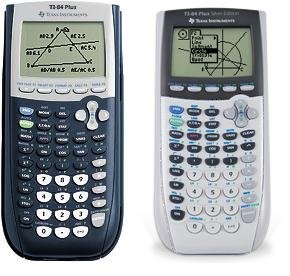
Yes, you can play games on a TI-84 Plus calculator.
Ever wondered if that trusty TI-84 Plus in your backpack has more to offer than just solving complex equations? Many students and tech enthusiasts alike often question, “can you play games on a TI-84 plus calculator?” The answer might surprise some, as these calculators can indeed run various games.
These aren’t the most graphically advanced titles, but they provide a surprisingly fun distraction during a long class or a study break. These calculators were never really designed for gaming, but clever programming has allowed for some interesting entertainment on the device.

Can You Play Games on a TI-84 Plus Calculator?
You bet you can! While your TI-84 Plus calculator might seem like it’s only for math class, it actually has a secret gaming side. It’s not going to run the latest PlayStation or Xbox games, but you can definitely enjoy some fun and surprisingly engaging games on it. Let’s dive into the world of TI-84 gaming and see what’s possible!
The Basics of TI-84 Gaming
So, how does a calculator become a game console? It all comes down to the calculator’s ability to run programs. These programs, often written in a language called TI-BASIC or sometimes assembly code, can create simple graphics, handle user input, and run game logic. It’s like having a tiny computer inside your calculator that can do more than just calculations. These games won’t be as complex or pretty as the ones on your phone or console, but that is part of their charm. They’re small, simple, and often quite addictive.
Why Play Games on a TI-84 Plus?
You might be wondering, “Why bother playing games on a calculator when I have so many other options?” Well, there are several good reasons:
- It’s a Novelty: Let’s be honest, it’s cool to be able to play games on something that is primarily meant for math. It’s a great conversation starter and shows a little bit of tech savvy.
- It’s a Fun Challenge: The games are often simple, but that doesn’t mean they are easy. Figuring out how to play, and then becoming good at them, is part of the fun.
- It’s a Great Way to Pass Time: Stuck waiting for the bus? Need a break between classes? A quick game on your calculator can be a lifesaver. It’s a convenient distraction that fits right in your pocket.
- It’s Educational (Sort Of): While the games aren’t educational in the traditional sense, exploring how they work and even trying to create your own can teach you some basic programming concepts.
- It’s Secretive and Sneaky: You can play games on your calculator during boring times without drawing as much attention as if you were using your phone. Just be sure your teacher doesn’t mind!
Types of Games Available for the TI-84 Plus
The types of games you’ll find on a TI-84 Plus are typically quite simple. Expect pixelated graphics and straightforward gameplay. Here’s a quick rundown of the kind of games available:
Classic Arcade Games:
Many developers have created versions of classic arcade games for the TI-84. These include:
- Tetris: A very popular choice, where you have to fit falling blocks together.
- Snake: Guide a snake around the screen, eating items and growing longer, but be careful not to crash into the walls or yourself.
- Pac-Man: Navigate a maze, eating dots and avoiding ghosts.
- Pong: A simple tennis-style game where you bounce a ball back and forth.
Puzzle Games:
These games test your logic and problem-solving abilities.
- Number Puzzles: Games that involve using numbers and calculations to solve puzzles.
- Logic Puzzles: Games that require you to think strategically to reach a goal.
Platformers:
These games involve controlling a character that jumps and moves through levels.
- Simple Platformers: Basic games where you jump over gaps and avoid enemies.
Text-Based Adventures:
These games involve reading text and making choices that affect the outcome of the story.
- Choose Your Own Adventure: Read a story and decide what to do next, like a digital book.
How to Get Games on Your TI-84 Plus
Okay, now the important question: how do you actually get these games onto your calculator? Here’s how it generally works:
1. Finding Games:
The first step is to find games that people have already made. There are many online communities and websites dedicated to TI calculator gaming. Some good places to start include:
- TI-Calculator Forums: Websites like Cemetech or ticalc.org have sections dedicated to games and programs.
- YouTube Tutorials: Many videos show you how to find and install games.
- Reddit: Subreddits like r/TI_Calculators are great resources.
2. Downloading the Files:
Once you find a game you like, you will need to download the program file. These files usually have extensions like .8xp or .8xv. It is important to make sure the website you are downloading from is a safe and trusted source. You would want to download games on a computer first before transferring it to your calculator.
3. Connecting Your Calculator to Your Computer:
To transfer the game file to your calculator, you will need a TI-Connectivity Cable (often a USB to Mini-USB cable) and TI Connect software. You can usually download this software from the Texas Instruments website. Here’s how you typically do it:
- Install TI Connect: Download and install the TI Connect software on your computer.
- Connect the Cable: Connect your calculator to your computer using the USB cable.
- Start the Software: Open the TI Connect software on your computer.
- Recognize Calculator: The software should recognize your calculator.
4. Transferring the Game Files:
Now, you will transfer the program file you downloaded to your calculator using TI Connect:
- Find the Send Option: In the TI Connect software, look for the option to send files to your calculator.
- Select Your File: Select the game file you downloaded (.8xp or .8xv).
- Start the Transfer: Click “Send” or a similar button to begin transferring the file.
- Wait for Transfer: Wait until the transfer is completed. Your calculator will show a “Receiving” message.
5. Running the Game on Your Calculator:
Now that you have the game file on your calculator, you will need to run it:
- Press the ‘PRGM’ Button: On your calculator, press the “PRGM” button.
- Select Your Game: You should see the name of the game you transferred in the list. Use the arrow keys to highlight it.
- Press ‘Enter’: Press the “Enter” key to select the game.
- Run the Game: Usually, pressing “Enter” one more time will start the game.
Now you’re playing a game on your TI-84 Plus! Note, however, that there might be certain steps different depending on the game you download.
Tips for Playing Games on Your TI-84 Plus
To have the best experience, here are a few tips to keep in mind:
- Read the Instructions: Sometimes, games have specific instructions or controls. Be sure to check for any documentation that comes with the game.
- Be Patient: TI-84 games are not as fast and smooth as games on other devices. Be patient and enjoy the simple style.
- Explore Different Games: There are many games available, so don’t be afraid to try different ones to find your favorites.
- Careful with Battery: Playing games can drain your calculator’s battery faster than normal use, so be sure to charge or replace them when needed.
- Stay Safe: Only download games from trusted websites to avoid getting viruses.
Creating Your Own Games (A Little Advanced)
If you are feeling adventurous, you can try making your own games using TI-BASIC. TI-BASIC is a programming language that is included with your TI-84 Plus calculator. Here are some points to consider:
Learning TI-BASIC:
TI-BASIC isn’t as complicated as other programming languages, but it will require some learning. You can find many tutorials and guides online. Some topics you will learn include:
- Basic Commands: Learn how to display text, draw lines and shapes, and take user input.
- Variables: Understanding how to use variables to store values is important.
- Control Flow: Learn about conditional statements (if/then) and loops (for/while).
Simple Game Ideas:
Start with simple game concepts like:
- A Number Guessing Game: Have the calculator pick a random number and let the player guess.
- A Simple Text Adventure: Create a short story where players make choices.
- A Basic Drawing Program: Create something that allows you to move the cursor and draw pixels.
Resources for Learning:
There are lots of resources available if you are interested in learning how to program a TI-84 Plus.
- TI Website: The official TI website is a great resource for manuals and documentation on TI-BASIC programming.
- Online Tutorials: Websites and videos online can give you step-by-step help.
- Forums: Online calculator communities offer help with programming questions.
Troubleshooting Common Problems
Sometimes, things might not go smoothly when trying to play games. Here are some common problems and how to fix them:
- Game Won’t Start: Make sure the file is for a TI-84 Plus model, and that the file has transferred fully. Check if you selected the game and pressed enter again, as described in how to run a program section.
- File Not Showing Up: If you don’t see the game in the program menu, double-check that you have transferred it to your calculator correctly and that you are looking at the “PRGM” list.
- Calculator Freezes: If your calculator freezes, try pressing the “ON” button a few times to reset it. You can also remove the batteries for a minute and then put them back in.
- Error Messages: Error messages usually give a clue about what is wrong. Search for the error online, or seek help in forums to get help understanding the error and how to fix it.
- Connectivity Issues: If the computer is not recognizing the calculator, make sure the TI Connect software is installed, you are using a USB connection that works, and your calculator is turned on.
Exploring the gaming potential of your TI-84 Plus calculator is a fun way to combine your love of technology and games. It’s a unique experience that lets you play classic games in a new way. You also might learn a bit about programming and problem-solving along the way. So, give it a try and see what games await you!
Game Boy Games (and "Portal") on a Graphing Calculator!
Final Thoughts
Yes, you can absolutely play games on a TI-84 Plus calculator. Many users enjoy simple text-based games or even recreations of classic titles. These games often use basic graphics and require programming knowledge, or downloading pre-made programs.
The calculator’s limited processing power and grayscale screen restricts the game’s complexity. However, “can you play games on a ti 84 plus calculator” is still a frequent query from students seeking entertainment during class. It offers an interesting experience for some.

