
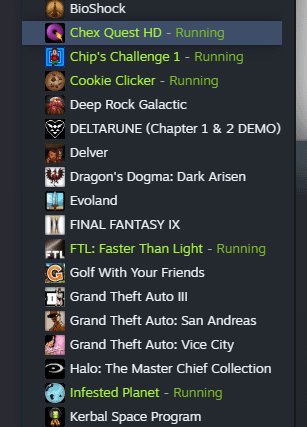
No, you cannot play multiple Steam games at once.
Ever wondered if you could juggle several virtual worlds simultaneously? The question, “can you play multiple steam games at once”, pops up often among gamers. It’s tempting to imagine running an RPG while also managing a city builder, but reality, unfortunately, has its limits. Steam, by design, restricts you to one active game session per account at a time.
Trying to launch a second title will typically pause or close the first one. This limitation is a fundamental part of how Steam manages its game licenses and resources.

Can You Play Multiple Steam Games at Once?
Okay, so you’ve got a bunch of awesome Steam games, and you’re wondering if you can play them all at the same time. It’s a pretty common question, and the answer is a bit more complicated than a simple yes or no. Let’s dive into the details.
The Basics: How Steam Handles Games
Think of Steam like a big library for your video games. When you want to play a game, Steam needs to “check it out” to you. This involves starting the game’s program and making sure you have the right license to play it. Here’s the thing: Steam is primarily designed to run one game at a time for a single user on a single computer. But there are some clever ways around that.
One Account, One Game (Usually)
By default, if you try to start a second game while you’re already playing one, Steam will usually tell you that you can’t. It’ll likely ask you to close the first game before letting you launch the second one. This is because Steam wants to prevent confusion and potential problems when different games are trying to use the same computer resources (like your graphics card, processor, and RAM).
However, there are exceptions to this rule which we will explore next, lets dive deep into those exceptions and workarounds.
Exceptions and Workarounds: Playing Multiple Games
While Steam primarily aims for one game at a time, here are ways people have found to bend the rules a bit:
The Family Sharing Trick
Steam Family Sharing lets you share your games with other Steam accounts. If you have another account (or a family member does) that is logged into a different computer on the same network, you could potentially play a different game on each computer. Here’s how it works:
- Enable Family Sharing: Go to Steam Settings, and find the “Family” option. Enable Family Sharing on the computer where you’ve bought the games.
- Authorize Computers: On the second computer, log in to the secondary steam account. You’ll see an option to request access to your family library. Once authorized, you can download and play the games that you own on the primary account.
- Playing Simultaneously: Now, one person can play a game from your library on the primary account’s computer, and another can play a different game from your library on a secondary account’s computer.
Important Note: If the primary account starts playing a game while a secondary account is using the shared library, the secondary account will get kicked out of their game, and they will receive a 5 minute warning. Only one user can access a specific game at a time from the shared library.
Using Multiple Steam Accounts on Separate Computers
This method is simple but requires owning multiple computers. You can log into different Steam accounts on separate computers and play different games. For example, if you have a laptop and a desktop, you can log into one account on your laptop and play a single-player game and log into another account on your desktop and play an online multiplayer game. This is perhaps the easiest method to play multiple steam games at a time, provided you own more than one computer.
Using Virtual Machines
A more advanced method involves using virtual machines (VMs). A virtual machine is like a computer within your computer. It acts as an entirely separate operating system. With this, you can install a separate instance of Steam on each VM. However, this method requires a very powerful computer because running multiple virtual operating systems at the same time can be very taxing on the system resources.
- Set up VMs: First, you’ll need to set up and configure the virtual machines on your PC. You’ll need software such as VirtualBox, VMware Workstation or Hyper-V to do so.
- Install Steam in VMs: Next, install Steam within each virtual machine. You can log in using different accounts to play different games.
- Resource Considerations: This approach is heavy on resources, so ensure your computer is powerful enough to handle multiple VMs.
Important Note: The use of virtual machines requires technical knowledge, and if not properly configured, can cause PC performance issues.
Using Sandbox Software
Sandbox software creates a isolated environment for programs to run in. Some programs allow you to launch multiple instances of the same application with different parameters in its own environment. You can potentially run multiple instances of Steam inside their own sandbox environment and use different steam accounts to play different games. Examples of Sandbox software includes, Sandboxie Plus, and Shade Sandbox.
- Install Sandbox Software: First, install the sandbox software and familiarize yourself with how it works.
- Install Steam Within The Sandbox: Next, install steam inside sandbox environment. Login using different steam accounts inside each sandbox to play different games.
- Resource Considerations: This method is less taxing on resources than using Virtual Machines, however you should make sure your computer has the necessary system resources for this.
Important Note: The use of sandbox software requires technical knowledge, and if not properly configured, can cause system performance issues.
Why Can’t You Play Multiple Games on One Account at Once?
The limitations on playing multiple games from the same account come down to several reasons, mostly centered around managing licenses and resource usage. Here’s a breakdown:
License Management
Steam games are licensed to individual accounts. It’s similar to how you can’t have two people reading the same book from a library at the same time. Steam prevents multiple instances of a game running simultaneously with the same account to avoid piracy and keep the game’s ecosystem fair to the developers.
Resource Allocation
Games, especially modern ones, use up a lot of your computer’s power. When you run a game, it uses your graphics card, processor, memory, and other system resources. Running multiple games at the same time on the same account can lead to performance issues and crashes. It will strain your PC. To prevent this, Steam tries to limit each account to one instance of a game.
Preventing Cheating
In online multiplayer games, Steam needs to track who is playing and what they are doing. Allowing multiple instances of the same game from one account could potentially be used to cheat or manipulate the game’s system. Steam prevents this by keeping each account to one game at a time.
Steam’s Design Philosophy
Steam was originally designed to be a digital distribution platform for individual users. The system is set up for each user to have a single, focused game experience at a time. While they have added features like Family Sharing, the core system is designed around a single user playing a single game.
Multi-Tasking and Background Processes
While you can’t directly play multiple games from the same account simultaneously on one computer, you can have multiple games downloading or updating in the background. Here is how that works and what the limitations are:
Background Download Limitations
Steam is capable of downloading and installing multiple games at the same time. But it is important to note that, if the games you are downloading require a large amount of disk read/write operations, it will negatively impact your PC’s performance, including the game that you are currently playing. To prevent this, Steam has the ability to limit network traffic of the games being downloaded, and also the ability to limit disk read/write operations, giving higher priority to the game you are currently playing.
Also, consider your internet connection. Downloading multiple large games at once will take a longer time than downloading them separately. To ensure a smooth experience, it is better to download one or two large games at a time rather than trying to download 10 of them simultaneously.
Game Updates
Steam also handles game updates in the background. This is very useful because you don’t have to wait for each game to finish its update before you can launch another one. You can have several games updating and downloading in the background while you are playing another game.
Like with game downloads, this may affect your PC’s performance. So, it’s best to update games when you’re not playing a very resource-intensive game or when you’re not using your PC. You can also set Steam to only download updates when the game is not in use or not currently running.
The Impact of Running Multiple Games
Even if you figure out how to run multiple games at once, it’s important to consider the impact on your system.
System Performance
Running multiple games concurrently will certainly require a lot of processing power, RAM, and graphics processing power. If your system is not powerful enough, it could slow down considerably, causing lag in the games you are playing, and possible system instability.
Heat and Wear
Running multiple resource-intensive applications, like games, at the same time, generates heat. Over time, this can put a strain on your computer’s components. Ensure you have good cooling for your PC if you try to run multiple games at once. The same goes for the laptop users, ensure you are playing games on well ventilated area, and consider using an external cooling pad to help keep your laptop cool.
Potential Conflicts
Sometimes, games can conflict with each other, especially if they try to use the same files or drivers, which can cause crashes or other issues. Playing one game at a time reduces the chances of these conflicts.
Practical Examples of Playing Multiple Steam Games at Once
Let’s look at some practical scenarios where playing multiple Steam games might be useful:
- Family Game Night: Using Family Sharing, parents can play a game while kids play other games on separate computers within the same house. This is great for families who all love to game, allowing each person to play the game of their choosing.
- Simultaneous Testing: If you are a game developer, you could potentially use multiple virtual machines to test different builds of the same game, or even compare different games from different steam accounts.
- Side Projects While Gaming: You can play a very light game on your main computer, and play a different game on a secondary computer, if you feel like playing multiple games is your thing.
Alternative Platforms and Services
While Steam has its own ways of handling multiple games, other platforms might offer different capabilities. For example, some cloud gaming services let you run games on remote servers, effectively separating the game processes from your local machine.
Cloud Gaming Services
Services like Nvidia GeForce Now or Xbox Cloud Gaming allow you to play games through the internet. This can be useful if you want to play one game on your local computer and have another game running on a cloud gaming server, as the gaming process is handled on a remote machine rather than your local computer. This also means you could theoretically play multiple games on different cloud services at the same time, if you wanted to.
Other Digital Game Platforms
Platforms such as Epic Game Store, GOG and others have their own ecosystem, and the limitations from these platforms are similar to Steam. So, it will require similar methods (Multiple accounts on multiple computers, Virtual Machines or Sandbox Software) in order to play multiple games on these platforms.
In conclusion, while playing multiple Steam games from the same account simultaneously on a single computer is generally not directly supported by Steam’s design, there are creative workarounds available. These include Steam Family Sharing, using multiple Steam accounts on different computers, and more advanced methods like using Virtual Machines or Sandbox software. However, it’s crucial to consider the potential impact on system performance and the technical knowledge required. Depending on your needs, exploring other gaming platforms or cloud services might also be a good option. Ultimately, Steam aims to provide a streamlined and enjoyable gaming experience for individual users, primarily focusing on one game at a time.
How To… | Run Multiple Steam & Game Accounts At ONCE!
Final Thoughts
Playing multiple Steam games simultaneously isn’t possible in the traditional sense; Steam only allows one game to be active at a time per account. You can’t actively play two titles concurrently.
However, you could run some games in background if they have a pause feature or are designed to idle; this may seem like playing. The short answer to “can you play multiple steam games at once” is generally no for full, active gaming, despite some workarounds.

