
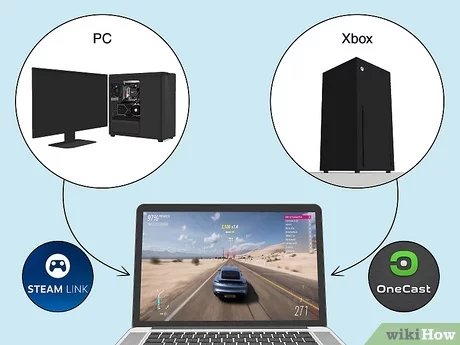
Yes, you can play some PC games on a MacBook, though not all. This often involves using compatibility tools or cloud gaming services.
Thinking about gaming on your sleek MacBook? You might be wondering, “can you play pc games on a macbook?” The short answer isn’t a simple yes or no. It’s a bit more nuanced than that.
Many popular titles aren’t directly compatible due to differences in operating systems. But, don’t despair just yet. Solutions like Boot Camp, virtualization software, and cloud gaming platforms offer various ways to enjoy a number of PC games on your Mac.

Can You Play PC Games on a MacBook?
Okay, let’s get right to it! You have a cool MacBook, and you’re itching to play some awesome PC games. But can you actually do it? The answer is a bit like a “yes, but…” situation. MacBooks are fantastic for a lot of things – work, school, being creative – but they weren’t really built with heavy-duty gaming in mind. Don’t worry, though, it’s not a flat-out “no.” We’ll explore all the options and possibilities to get your game on.
The Challenge: Why MacBooks Aren’t Designed for PC Gaming
First, let’s talk about why Macs aren’t traditionally considered great gaming machines. It boils down to a few key differences compared to typical gaming PCs:
Operating System Differences
The biggest hurdle is the operating system. PC games are designed for Windows, the operating system from Microsoft. Most games are built using programming tools that work best on Windows. Apple’s macOS is a whole different system. They’re like two different languages – a game written in Windows language can’t automatically run on a Mac.
Hardware Considerations
MacBooks often prioritize slim designs and battery life over raw graphics power. While they have gotten better over the years, many models use integrated graphics cards (the graphics processing is done by the same chip as the central processor), these integrated graphics are fine for general use, but often are not good enough to handle the latest PC games. Dedicated graphics cards are better for games, and Macbooks don’t always have this. Also, a lot of older Macbooks don’t have powerful processors or sufficient memory to run demanding games.
Game Availability
Even when a game could run on a Mac, it might not be available for macOS. Most game developers focus on Windows first because that’s where the biggest audience is. Often, if a game comes to Mac, it might be released later. This is because developers have to do extra work to make their games work on macOS.
Methods for Playing PC Games on a MacBook
So, given all these challenges, what are your options? Thankfully, there are several ways you can still enjoy PC games on your MacBook.
1. Native Mac Games
Let’s start with the easiest one. Some PC games are specifically designed to run on macOS. These games are built for the Mac system. If a game is available on macOS, it will usually be available for purchase through the Mac App Store or the game’s official website. Sometimes, you can also find them on stores like Steam. Here are some popular game genres that often have native macOS titles:
- Strategy games (like Civilization, Total War)
- Puzzle games (like Portal, Myst)
- Adventure games (like Life is Strange, Firewatch)
- Indie games (like Stardew Valley, Minecraft)
You just download, install, and play! It’s as simple as it gets.
2. Boot Camp: Running Windows on Your MacBook
Boot Camp is a tool from Apple that lets you install Windows directly on your MacBook. This creates a separate section on your hard drive for Windows, and when you turn on your computer, you get to choose which operating system to start (macOS or Windows). When you boot into Windows, your MacBook essentially becomes a Windows PC, which means it can run most Windows PC games. Here’s how it works:
- You use Apple’s Boot Camp Assistant application to download Windows drivers and to create an install drive.
- You will need a valid Windows product key or license.
- You install Windows, just like you would on any other computer.
- You switch between macOS and Windows every time you restart your MacBook.
Pros of Using Boot Camp:
- You get the best compatibility with Windows games.
- You experience higher performance in games than with other methods because your computer is using the Windows system directly.
Cons of Using Boot Camp:
- Requires a Windows license, costing you extra money.
- You have to restart your MacBook each time you want to switch between operating systems.
- Takes up storage on your computer for a second operating system.
3. Virtualization Software: Running Windows Inside macOS
Virtualization programs like Parallels Desktop or VMware Fusion, let you run Windows inside a virtual machine on your MacBook. This means that you can use both macOS and Windows simultaneously. It is like having two computers on one machine. You have a window or a screen that shows you the Windows operating system that’s running while your MacBook is also running macOS.
How Virtualization Works:
- You install virtualization software on your MacBook.
- You create a virtual computer, allocating memory and disk space to it.
- You install Windows inside the virtual computer.
- You can run Windows programs, including PC games, inside the virtual environment while using macOS.
Pros of Using Virtualization:
- Run Windows and macOS side-by-side without having to restart.
- It’s easy to switch between Windows and macOS.
Cons of Using Virtualization:
- Performance might not be as good as using Boot Camp, because your computer is running two systems at once.
- It requires you to purchase the Virtual Machine software and Windows license.
- Can use a lot of resources (memory and processing power) which is not ideal for gaming.
4. Game Streaming Services
Game streaming services like NVIDIA GeForce Now, Xbox Game Pass Ultimate (xCloud), and Google Stadia, let you play games on powerful servers over the internet. The game processing happens somewhere else, and only the visual and audio are streamed to your MacBook. It’s like watching a video but you are playing the game, You can play PC games even if your Macbook is not capable of handling the power by itself. This can be a great way to play demanding PC games on a MacBook that isn’t designed for heavy gaming.
How Game Streaming Works:
- You sign up for a game streaming service.
- You install the streaming service’s application on your MacBook.
- You select a game from their list and begin streaming.
- Your controls are sent over the internet to the game server, and the game’s visuals are streamed back to your MacBook.
Pros of Using Game Streaming:
- You can play games without having to worry about your MacBook’s hardware.
- Access a large library of games.
- No need for installation.
Cons of Using Game Streaming:
- Requires a fast and stable internet connection to run smoothly.
- You have to pay a subscription fee to access the service.
- Visual quality might not be as good as running the game on your own computer.
- Latency (delay between your input and the game’s reaction) can be an issue sometimes.
5. Cloud Gaming: Another Cloud Option
Similar to game streaming, some companies provide cloud PCs that allow you to access a computer online, and install any PC games that you want to play on it. This type of cloud service gives you much more flexibility. You can install your own Windows based applications. Companies like Shadow PC offer this kind of service.
How Cloud Gaming Works:
- You sign up for a cloud gaming service
- You use a remote access application to connect to a cloud PC over internet.
- You install any Windows applications and games that you want.
Pros of Using Cloud Gaming:
- You can run Windows applications in addition to Windows games.
- No worry about system requirements
- Can play even on older Macbook systems
Cons of Using Cloud Gaming:
- You must have a good internet speed.
- Latency (delay between your input and the game’s reaction) can be an issue sometimes.
- Higher monthly subscription prices than game streaming.
6. Cross-Platform Play
Cross-platform play allows you to play games with your friends even if you have a different type of system. For example, if your friend is playing a game on a Windows PC, and you’re playing the same game on your MacBook (with a Mac version of the game), you can still play together if the game offers cross-platform support. This is more about the game’s features, but it means more and more Mac players can enjoy the gaming experience with others using different operating systems. Here are some things to think about when it comes to cross-platform play:
- Game Compatibility: The game needs to be available on both platforms (macOS and Windows, for example) and have cross-play enabled by the developers.
- Account Linking: Usually you will need to link your game accounts or use the same game account (for games like Epic games)
- Multiplayer: Cross play is often for multiplayer games, although some single player games can include this
Game Performance on a MacBook
No matter which method you choose, it’s good to know that game performance on a MacBook is really tied to a couple of things:
MacBook Specifications
A MacBook with a fast processor, lots of memory (RAM), and a dedicated graphics card will handle games better than a Macbook with just integrated graphics. It is important to check your system’s specifications. Here’s a simple table showing what specs are most important for good game play:
| Component | Why It’s Important |
|---|---|
| Processor (CPU) | Fast CPUs handle game calculations better. |
| Graphics Card (GPU) | Dedicated graphics are best for smoother and high-quality visuals, but some newer integrated graphics cards are also fine for light or medium games |
| Memory (RAM) | More RAM means your computer can handle more data at once, reducing loading time and stuttering issues. |
| Storage (SSD) | SSDs (Solid State Drives) load games faster and are generally better for modern games. |
Game Settings
If you have a slightly older or less powerful MacBook, you might need to lower the graphics settings of the game (such as resolution, and visual effects) to keep it running smoothly. Many games let you adjust these settings to get the balance between good graphics and good performance. These are some typical settings you will see:
- Resolution: Lowering the resolution reduces the number of pixels on screen and improves performance.
- Graphics Quality: Reducing texture, shadows, and other visual effects, will reduce the pressure on your graphics card.
- Frame Rate: Frame rate determines how smooth the game looks. Target a consistent frame rate based on the limitations of your Macbook.
Internet Connection
If you are using game streaming or cloud gaming, a fast and stable internet connection is essential. If your internet connection is slow or unstable, you might experience lag and visual problems. Using an ethernet cable directly to your router is often better than wireless connections to ensure stable and low latency game play.
Which Method is Right For You?
Choosing the right method for playing PC games on your MacBook depends on what you want. Here are some simple ways to think about it:
- For the Best Performance: Boot Camp (if you have a spare Windows license) is the best choice if you want the closest experience to a Windows gaming PC.
- For Flexibility: Virtualization software is good if you need both Windows and macOS running simultaneously, but remember the performance trade-off.
- For Convenience: Game streaming and cloud gaming are great options if you don’t want to deal with hardware limitations or complicated setups.
- For Mac Native Gamers: If you are playing the games designed for Macbooks, then you don’t have to worry about operating systems, you can directly play them on your Macbook without any additional steps.
Think about what you like to play. If you enjoy playing complex games with high requirements, Boot Camp or Cloud PCs are your best options. If you play casual games or prefer not to use Boot Camp, then game streaming will be better for you. Choose an option that you will enjoy and not stress about.
Playing PC games on a MacBook is definitely possible, even if it’s not always the most straightforward process. You have options, so don’t let the fact that you have a MacBook stop you from diving into the fun world of PC gaming. Just consider the different methods, choose what works best for you, and get ready to play!
Can you game on Macbook?
Final Thoughts
Yes, you can play PC games on a MacBook, though not always seamlessly. Boot Camp allows you to install Windows, enabling direct access to many games. However, this requires managing partitions and an operating system license.
Cloud gaming services offer a great alternative. These platforms run games remotely, sending the visuals to your MacBook. It sidesteps installation hassles but depends on internet reliability.
Ultimately, can you play pc games on a macbook? The answer is a qualified yes. While native compatibility is limited, viable options exist. Choosing the right method depends on your priorities.

