
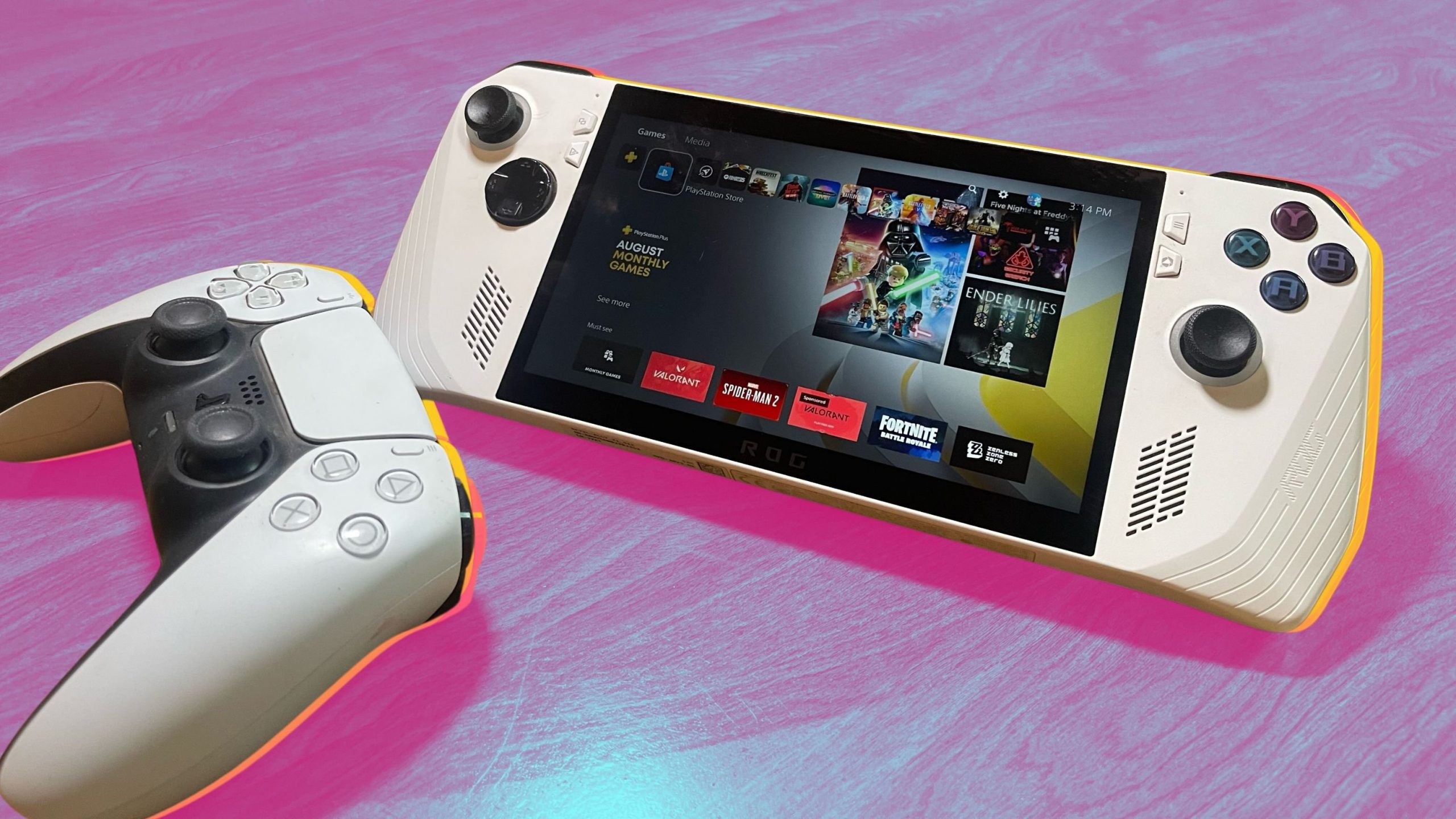
Yes, you can play Playstation games on ROG Ally through remote play or cloud gaming services like PlayStation Plus Premium.
Can you play Playstation games on ROG Ally? It’s a question many handheld gaming enthusiasts are asking. The ROG Ally, with its powerful hardware and Windows OS, presents exciting possibilities beyond its native PC games.
While it doesn’t run PlayStation discs directly, there are definitely ways to experience those console exclusives on your device. Remote play and cloud options give players access to the PlayStation library.

Can You Play PlayStation Games on ROG Ally?
So, you’ve got your hands on the awesome ROG Ally, and you’re wondering, “Can I play my favorite PlayStation games on this thing?” It’s a question many gamers are asking, and the answer is a bit more detailed than a simple “yes” or “no.” The ROG Ally, being a handheld Windows gaming PC, doesn’t directly play PlayStation games that are designed for a PlayStation console. Think of it like trying to play a board game meant for your kitchen table on a picnic blanket – it’s just not built for that. However, there are some clever ways to get a taste of the PlayStation world on your ROG Ally. Let’s break it down.
Understanding the Differences: ROG Ally vs. PlayStation
Before we dive into how to play PlayStation games, it’s important to understand why they don’t just work out of the box on the ROG Ally. PlayStation consoles use a very specific operating system and hardware that is designed by Sony. This system is different from the Windows operating system that the ROG Ally runs on. Games made for PlayStation are coded for that specific system. It’s like speaking different languages – the PlayStation speaks PlayStation code, and the ROG Ally speaks Windows code. They don’t naturally understand each other.
Here is a little table that helps visualize this difference:
| Feature | ROG Ally | PlayStation Console |
|---|---|---|
| Operating System | Windows | PlayStation OS |
| Primary Game Source | PC Games (Steam, Epic, etc.) | PlayStation Games (Discs/Digital) |
| Hardware | PC components (AMD Processor) | Custom Sony Hardware |
The Main Method: PlayStation Remote Play
The most effective and official method to enjoy PlayStation games on your ROG Ally is through PlayStation Remote Play. This feature allows you to stream games from your PlayStation console to another device, like your ROG Ally. Your PlayStation does the heavy lifting of running the game, and your ROG Ally acts as a display and controller. It’s like having your PlayStation games beamed right to your handheld screen! Think of it like watching a movie on your phone, but instead of a movie, it is your favorite games that you can play.
How Does PlayStation Remote Play Work?
PlayStation Remote Play uses your home network to connect your ROG Ally to your PlayStation console. Here’s a breakdown of how it functions:
- The PlayStation Console Does the Work: Your PlayStation actually runs the game, not your ROG Ally.
- Streaming Video and Audio: The PlayStation sends the video and sound of the game over your network to your ROG Ally.
- Sending Controller Commands: The ROG Ally sends your button presses and stick movements over the network back to your PlayStation.
- Network Dependency: This whole process depends heavily on a strong and stable internet connection for good performance.
Setting up PlayStation Remote Play on Your ROG Ally
The setup process is relatively straightforward and involves the following steps:
- Ensure your PlayStation is set up for Remote Play: You need to enable Remote Play on your PlayStation console. This can be found in your PlayStation’s settings under “Remote Play Connection Settings.” You’ll also need to ensure that your PlayStation is connected to your home network, and logged into your PlayStation Network account.
- Download the PS Remote Play App on Your ROG Ally: You’ll need to download and install the official PS Remote Play app for Windows. You can find it on the PlayStation website. Just search on your browser “PS Remote Play app”.
- Connect Your ROG Ally to the Same Network: Make sure your ROG Ally is connected to the same Wi-Fi network as your PlayStation.
- Log in to Your PlayStation Account on the App: Start the PS Remote Play app on your ROG Ally and log in using the same PlayStation Network account you use on your console.
- Find and Connect to Your Console: The app will search for your PlayStation on your network. Once found, select it, and you should be connected and ready to play.
- Enjoy the games: once connection is established you can start playing your favorite games on your ROG Ally.
Things to Consider for a Smooth Experience
While Remote Play is a fantastic solution, there are a few factors that impact how enjoyable your gameplay is going to be:
- Network Speed and Stability: A strong and stable Wi-Fi connection is crucial. For best results, use a 5 GHz Wi-Fi network, not a 2.4GHz network, which is slower. Sometimes using wired connections for both the console and the ally works even better. If your network has any hiccups, you might experience lag, stuttering or disconnections which can interrupt your gameplay.
- Latency: Latency, or delay, is how long it takes for your controller inputs to register on your PlayStation. Lower latency makes the game feel more responsive. High latency makes the game feel delayed and can be frustrating. Playing on a fast, stable network and using a close-proximity network to your router generally minimizes latency issues.
- Resolution and Frame Rate: Remote Play usually has a limit in the quality of the streamed video. While you can get 720p or even 1080p, it’s dependent on your internet speed, and not all games work at maximum settings. If you have lower speeds, sometimes the video quality is lowered for better smoothness and a better experience. The frame rate, or how smooth the game looks, is also affected by network conditions.
- PlayStation Must Be On: Keep in mind, your PlayStation must be turned on and either actively playing a game or in rest mode for Remote Play to work. You can’t turn on your console with the ROG Ally, you need the PlayStation to be on and connected to network before it can work.
Alternative Option: Cloud Gaming
Another way to access a selection of PlayStation games on your ROG Ally is through cloud gaming services. PlayStation has its own cloud gaming platform called PlayStation Plus Premium which allows you to stream select PlayStation games. This is similar to Remote Play, but it doesn’t require owning the physical PlayStation console. Instead, the game is run on Sony’s servers and streamed directly to your ROG Ally. This means you don’t need to have your PlayStation on at home.
How Cloud Gaming Works
Here’s how it works:
- Games Run on Remote Servers: The games are processed on powerful servers that Sony owns and operates.
- Streaming the Game to Your Device: The game is streamed over the internet directly to your ROG Ally via an app or a browser.
- Your Input Goes to the Server: You send the game controls through your ROG Ally to Sony’s servers.
- Internet Requirement: Like Remote Play, this depends heavily on a strong internet connection.
Advantages and Disadvantages of Cloud Gaming
Advantages
- No need for a PlayStation Console: You don’t have to own the PlayStation console to play the games.
- Instant Access: You can start playing almost instantly.
- Cross-Platform Compatibility: You can stream on your ROG Ally or any other device that supports it
Disadvantages
- Subscription Required: You need to subscribe to the PlayStation Plus Premium to access this service
- Dependence on Internet: Just like Remote Play, you need an excellent internet connection to enjoy smooth gameplay, else latency and lag will occur, creating an unsatisfying experience.
- Game selection is limited: Only a specific list of games is available through the cloud gaming services.
- Not all titles are streamable: Not all PlayStation games are included in the list. Only the games that Sony puts in the list are streamable. So you might not find some of the older generation games.
What about PlayStation Emulators?
You might have heard about PlayStation emulators – software that can mimic the PlayStation environment on a different device. While these exist, they are usually not practical for the ROG Ally. Emulating PlayStation consoles requires a lot of processing power and is often technically complicated to set up and run. Many of these emulators require very specific configurations to work, and even then, you may not be getting a proper experience. It’s possible that some emulators can run on the ROG Ally, but they are generally not recommended for casual use. You should be aware that using emulators to play games you do not legally own is considered copyright infringement and illegal.
Why Emulators Aren’t Ideal for ROG Ally
- Performance Issues: Emulating is demanding on your system, and often leads to unstable performance and very low frame rates on less powerful devices.
- Complicated Setup: Setting up an emulator can be very technical and challenging, requiring knowledge of BIOS, ROMS, and configuration.
- Legal Issues: Using emulators to play games you do not own the licenses to is not legal and may be considered piracy.
- Game Compatibility: Not every PlayStation game is compatible with every emulator and some will have glitches and bugs.
To sum things up, while you can’t directly play PlayStation games installed on your ROG Ally like you would on a console, there are definitely ways to experience them. PlayStation Remote Play is the best way to stream games directly from your console, provided you have a good home network, and your PlayStation is turned on. Cloud Gaming is another good option if you don’t own a PlayStation, but it needs a subscription and good internet speed. Emulators might not be the ideal option as they are difficult to set up and may not give you a great gaming experience. By considering these options, you can find the solution that works best for you and get a taste of PlayStation gaming on your ROG Ally.
Asus ROG Ally | How to Play PlayStation Games on Rog Ally Without a PlayStation!
Final Thoughts
So, can you play playstation games on ROG Ally? Yes, you can. You need to use Remote Play, which transmits games from your PlayStation console to your Ally. The experience is reliant on network quality and console availability.
Remote Play offers a way to access your entire PlayStation library on the ROG Ally. This method presents a feasible option but requires both devices to function as intended. Remember, you’re playing the games via network connection.

