
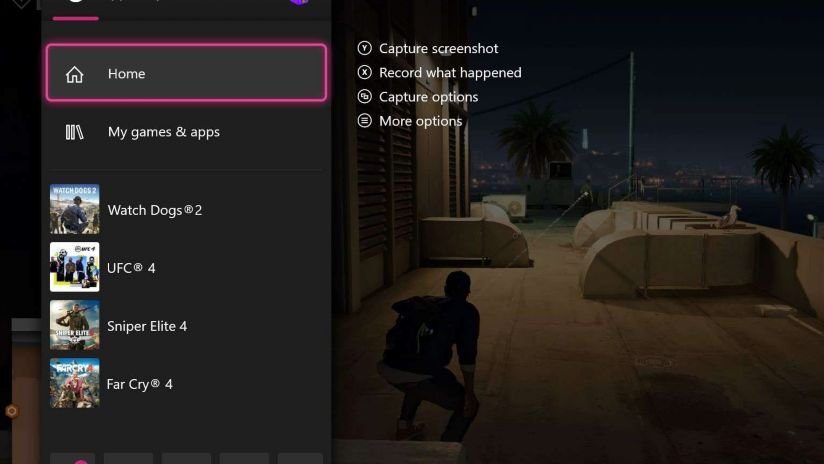
Yes, Fallout 4 supports game capture, allowing you to record your gameplay using various methods.
Want to share your epic Commonwealth adventures? Many players wonder, does Fallout 4 support game capture? The good news is that you absolutely can record and share your gameplay footage, making it easy to show off your base building skills or intense combat scenarios.
You have multiple options available for game capture. These include using built-in recording tools on consoles or third-party software on your PC. So, get ready to document every thrilling moment!

Does Fallout 4 Support Game Capture?
So, you’re wandering the post-apocalyptic wasteland of Fallout 4, battling ghouls and crafting settlements, and you want to share your epic adventures with the world. Great idea! But, you might be wondering, “Can I even record this?” The simple answer is: yes, you absolutely can! Fallout 4, like many modern games, works perfectly with game capture, but it’s not built-in to the game. You’ll need a little help from external programs or hardware, and we’re going to walk you through all the ways you can record your awesome playthroughs.
Understanding Game Capture Options for Fallout 4
When we say “game capture,” what exactly do we mean? Game capture is the process of recording what you see and hear while you are playing. It turns your gameplay into a video file, which you can then share online. There are different ways to do this, from software running on your computer to dedicated hardware. Each option has its own pros and cons, which we will explore to help you find the best fit for your needs.
Software-Based Game Capture
Software game capture relies on programs installed on your computer to do the recording work. These are generally easier to get started with because you don’t need extra hardware, but they can put a bit more strain on your computer while you play. Here are some popular choices:
- OBS Studio (Open Broadcaster Software): A free and powerful open-source option. OBS is very popular because it is free and has many settings for customizing your recordings. You can record videos and even stream live to platforms like Twitch or YouTube.
- Nvidia Shadowplay (GeForce Experience): If you have an Nvidia graphics card, you likely already have this. Shadowplay uses your graphics card to record footage, which can be lighter on your CPU. It’s user-friendly and very good for capturing quick highlights or longer sessions.
- AMD ReLive: Similar to Nvidia Shadowplay, AMD ReLive comes with AMD graphics cards. It provides recording and streaming capabilities with good performance for AMD users.
- Fraps: An older, but still functional option, Fraps shows the frame rate while you play. It is simple to use, but it doesn’t have as many features as OBS or other modern recording software.
- Bandicam: A user-friendly paid option with a free trial. Bandicam is easy to learn and offers good recording quality for different types of games.
When choosing a software recorder, consider the following:
- Computer Performance: Check how much of your computer’s resources (CPU, RAM, GPU) the software uses while recording. If your computer struggles during recording, it might affect gameplay performance.
- Features: Do you need to record your microphone? Do you need to record a webcam feed? Think about what you’d like to capture.
- File Formats: Most softwares record in popular file formats like MP4 or AVI. Make sure the software supports the format you need for editing or uploading.
Hardware-Based Game Capture
Hardware game capture involves using a separate device, typically connected between your computer and monitor, to record the gameplay. These are often more expensive, but they can provide better performance and options.
- Capture Cards: Brands like Elgato, AverMedia, and Razer make capture cards. These devices can record high-quality gameplay without putting too much load on your computer. They usually come with their own recording software. There are internal capture cards that go into your computer and external ones that connect with USB.
- Stand-Alone Recorders: Some devices don’t need to be connected to a computer at all! They directly record gameplay to a storage device, like a USB drive. These are very good if you are using a gaming console.
Consider these factors if you’re thinking of using a capture card:
- Connection Type: Are you using a PC or Console? Some capture cards are made just for computers and others can record a console output too. Make sure the capture card is compatible with your gaming system.
- Resolution and Refresh Rate: Higher resolution recordings (like 4K) or higher refresh rate recordings can cause more load. Consider what quality of recording you require and what your setup can handle.
- Software: Does the capture card come with useful recording software? Most capture card manufacturers include software to make things easier.
Setting Up Your Game Capture for Fallout 4
Now that you know your options, let’s dive into how to set up game capture for Fallout 4.
Software Recording Setup
- Choose Your Software: Select a recording software. For this example, we’ll talk about OBS Studio because it’s free and very powerful.
- Install the Software: Go to the OBS Studio website, download, and install it. Follow the setup instructions.
- Set up a New “Scene”: In OBS, a scene is a collection of sources for your recording. Click the “+” symbol in the “Scenes” box and name it something descriptive, like “Fallout 4.”
- Add a “Source”: Under the “Sources” box, click the “+” symbol again. Choose “Game Capture.” Name it, and then choose “Capture Specific Window.” Then select Fallout 4 from the drop-down menu when the game is open.
- Configure Audio: In the “Mixer” box, you will see your desktop audio and your microphone audio. Make sure both are working so you record all the audio you want. You can adjust their volumes as needed.
- Adjust Video Settings: Go to the settings, then “Video.” Select the resolution you’d like to record in. Also, make sure that the frames per second(FPS) matches your monitor or is set to 60fps for smooth recording. A higher FPS means smoother looking videos.
- Configure Recording Settings: Go to settings, then “Output,” and select the recording tab. Select where the recording should save on your computer and also the format.
- Test Your Setup: Press “Start Recording” in OBS and play Fallout 4 for a few minutes, then press “Stop Recording.” Watch the recording to make sure everything looks and sounds the way you want it to.
Repeat for Shadowplay or AMD ReLive, but remember that these are built-in to the drivers, and not independent installations like OBS.
Hardware Recording Setup
- Connect the Capture Card: Connect your capture card according to the manufacturer’s instructions. For an external capture card, this usually means connecting it with USB and HDMI cables between your computer, monitor and game console (if needed).
- Install the Software: Download and install the capture card’s recording software, if it has one.
- Configure Video Input: In the capture software, make sure your source input is selected (for example, “HDMI” or your gaming console). Select the right resolution and frame rate.
- Configure Audio Input: Select the audio input, like microphone or desktop audio, if you want to record them.
- Select Recording Settings: Choose where your recordings will be saved and what file format to use.
- Test Recording: Start a recording and play Fallout 4 to make sure everything looks and sounds correct. Adjust settings if needed.
Troubleshooting Common Game Capture Issues
Sometimes things don’t go smoothly. Here are some common problems you might encounter and how to fix them:
Performance Problems
- Choppy Video or Low Frame Rate: Try lowering the recording resolution or frame rate, or closing other programs. Upgrading your computer’s components might also help.
- Freezing While Recording: Make sure your software is up to date. Also, check your computer resources and make sure that your computer meets the recording requirement.
Audio Problems
- No Audio: Make sure your microphone is connected properly, and that you selected the right audio sources in your recording software.
- Low Audio Volume: In your recording software, check and adjust the audio input levels.
Recording Problems
- Black Screen: Make sure the game is open before starting recording in OBS. You might also need to run the software as administrator to fix this.
- Corrupted Files: This can happen due to interruptions during recordings. Make sure the storage device where you are recording has enough free space.
Tips for Better Fallout 4 Game Capture
Here are a few tips to improve your recordings:
- Adjust Game Settings: Lowering graphics settings in Fallout 4 may help with smoother recording if your computer is struggling.
- Use Overlays Carefully: Be mindful of overlays. If you have an overlay, like Discord or Steam, you may want to try turning them off.
- Edit Your Videos: Use video editing software to cut unwanted parts, add music, and make the video look great.
Why Record Fallout 4?
There are many good reasons to record your Fallout 4 gameplay:
- Share your Story: Show off your settlements, combat, exploration, and interactions with characters in the wasteland.
- Create Tutorials: Make videos to help other players, like how to find rare items or build special structures.
- Improve Your Skills: Watch your own recordings to analyze your gameplay and learn from mistakes.
- Have Fun: Recording and editing is a great hobby, and you will love the way you can watch your own videos and share them with friends.
Recording Fallout 4 gameplay is definitely possible and can be really rewarding. You have different options depending on your needs and how much you want to spend. Whether you’re using simple free software or a specialized capture card, you’ll soon be able to share your amazing experiences in the wasteland with other people. Just remember to tweak the settings to find what works best for you, and don’t forget to have fun exploring the post-apocalyptic world!
Elgato HD60 S Fallout 4 Test Footage | BestNerdLife
Final Thoughts
Fallout 4 allows game capture through various methods. Players can use built-in PC tools or external capture cards. Consoles also offer capture options.
Many gamers successfully record their gameplay. They use software or devices to capture footage. They share their adventures online easily.
So, does fallout 4 support game capture? Yes, it provides multiple avenues to record. You can readily share your wasteland experiences.

