
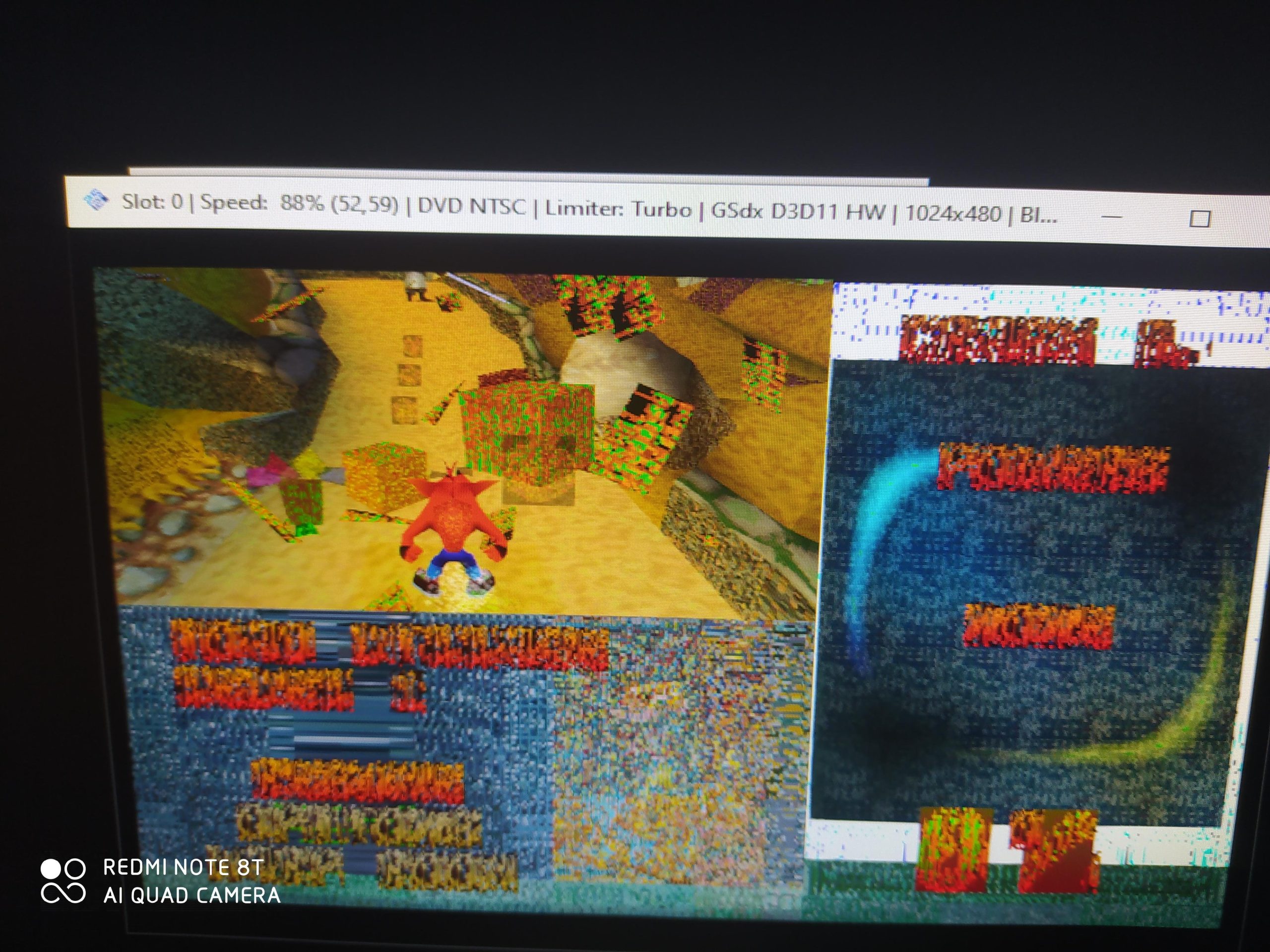
No, you cannot play PS1 games on PCSX2. PCSX2 is specifically designed to emulate PlayStation 2 games.
Have you ever wondered, can you play PS1 games on PCSX2? It’s a common question for gamers looking to revisit classic titles on their PCs. Many believe that because both systems are Sony Playstations, the emulators would work interchangeably.
However, they are not compatible. PCSX2 specifically focuses on PlayStation 2 emulation and will not run PS1 titles. To play PS1 games, you’ll need to use a different emulator designed for that console.

Can You Play PS1 Games on PCSX2?
Alright, let’s talk about something super cool: playing those awesome PlayStation 1 games you remember on your computer! You might be thinking, “Wait, isn’t PCSX2 for PlayStation 2 games?” That’s a great question! The short answer is, no, PCSX2 isn’t for PS1 games. It’s designed specifically for PlayStation 2 games. So, you can’t directly play PS1 games using PCSX2. But don’t worry, it doesn’t mean you’re out of luck! There are other awesome ways to get your retro gaming fix. We will explore those options and understand why PCSX2 is not your answer for PS1 games, and where you should look instead. Let’s jump into what’s available for playing those classics!
Understanding PCSX2’s Purpose
First, it’s important to know what PCSX2 actually does. PCSX2 is an emulator. An emulator is like a special program that makes your computer act like a different game system. In the case of PCSX2, it makes your computer act like a PlayStation 2. This means it can read and run PS2 game files (usually called ROMs or ISOs). It’s like having a PlayStation 2 inside your computer! The software is carefully programmed to mimic all the inner workings of the PS2, from its graphics to its sound processing. This process takes a lot of processing power, but it allows you to play your favorite PS2 games on your PC, often at higher resolutions and with better performance than the original console. However, the architecture and software code for the PlayStation 1 were different, so this emulator can’t simply be changed to run older games. It is specifically designed for PS2, which uses different hardware and software systems.
Why PCSX2 Won’t Work for PS1 Games
The PlayStation 1 and PlayStation 2 consoles are like two different puzzles. Even though they’re from the same family, they are built differently inside. They use different processors, graphics chips, and even read games in different ways. PCSX2 is built to understand the PlayStation 2 puzzle. It doesn’t know how to read or play PlayStation 1 puzzle pieces. Imagine trying to fit a square block into a circle hole; it just doesn’t work. In the same way, PCSX2 can’t read PS1 games because the code and the way the data is organized are very different. The PlayStation 1 games have different file types, and their internal workings are totally separate from the PS2. For that reason, PCSX2 is never going to be able to play PS1 games.
The Right Tools for the Job: PS1 Emulators
Now that we know PCSX2 won’t work for PS1 games, we need to find the right tool. Luckily, there are some great PS1 emulators out there. These emulators are specifically designed to read, understand, and run PS1 games on your computer. Think of them as the right key for the PlayStation 1 lock. These emulators are built from the ground up to mimic the original PS1 hardware and software, letting you relive all your old favorites.
Popular PlayStation 1 Emulators
Here are a few of the most popular and reliable PS1 emulators that you can use on your computer:
- ePSXe: This is a classic and widely used PS1 emulator. It’s known for its great compatibility, meaning most games will run smoothly. It also allows you to customize graphics and controls.
- DuckStation: A newer emulator that’s quickly become a favorite. It’s praised for its accuracy and performance, often providing a better experience than other emulators. It’s also very user-friendly.
- RetroArch: This is not just one emulator, but a platform that allows you to use different “cores,” which are essentially emulators for different systems, including PS1. It is very comprehensive and works well for playing many different console games.
How These Emulators Work
These emulators all work in roughly the same way. They use clever software to translate the way the PS1 works into something your computer can understand. They read the game file (your PS1 game ISO or BIN file) and interpret it, showing you the graphics and playing the sounds. They are built to mimic the original hardware like the PlayStation 1’s CPU (central processing unit), GPU (graphics processing unit), and sound chip to create the same game experience. They also let you use your keyboard, mouse, or a game controller to play, just like you would on the real PlayStation 1.
Getting Started with a PS1 Emulator
Okay, so now that you know you need a different emulator, let’s talk about how to get started.
Finding an Emulator
First, you need to find and download an emulator. The ones mentioned above, like ePSXe, DuckStation, and RetroArch, are all excellent choices. Each emulator has its own website where you can find the download links. It is essential to download the software only from the official source to avoid issues with viruses or malware.
Obtaining PS1 Game Files
Next, you’ll need your game files. You can get game files as ISO or BIN images from your original PlayStation 1 discs. If you have old game disks, they can often be turned into these digital files using a computer with a disc drive. Always make sure you own the original physical copy of the games you plan to play. Downloading ROMs or ISOs of games you do not own is considered piracy. Let’s keep our fun legal.
Setting Up the Emulator
Once you have your emulator and game files, it’s time to set things up. Here’s the basic idea:
- Install the Emulator: Run the installer, like any other program. This will put the emulator on your computer.
- Configure Controls: You’ll need to tell the emulator how to use your keyboard, mouse, or controller. This usually involves going into the emulator’s settings menu and mapping the game actions (like move, jump, and shoot) to the buttons or keys you want to use.
- Select a BIOS file: Some emulators may ask for a BIOS file. The BIOS file is part of the PS1 system. It is a necessary component of an emulator. If needed, you must obtain this from an actual PS1 console.
- Load the Game: Finally, you can choose “File” then “Run ISO or CD-ROM” in the emulator menu and select the location of your game ISO or BIN file and begin playing.
Emulator Settings to Enhance Your Experience
Most emulators give you lots of settings to tweak. You can change the graphics to improve the image quality (make the games look sharper or smoother), adjust the audio, and even enable cheat codes. Some emulators, like DuckStation, even have options for upscaling, which can make old games look new again, giving an overall better visual experience. Experiment with these settings to find what looks and plays best on your computer. For example, some people like to increase the resolution to make the edges less jagged. Others like to add filters to the images to make them look smoother. It’s all about making your experience as enjoyable as possible.
Understanding Game Compatibility
Even with the best emulators, not all games will play perfectly. Some might have glitches, slow down, or even refuse to start. Compatibility lists for each emulator show which games are known to work well and which might have issues. Look at these lists before trying a game. Often, users share their experience about specific games on forums, which may be another place you can get help, tips or tricks.
Troubleshooting Common Issues
If you’re having trouble, you’re not alone. Common problems and fixes are:
- Game Won’t Start: This can be due to several issues, such as an incorrect BIOS file or a corrupted game file. Double check the emulator settings and obtain a new game file if needed.
- Graphics Problems: If the game looks strange or has visual errors, try changing your graphics settings or updating your video card drivers.
- Sound Problems: If the sound is distorted or doesn’t play correctly, try adjusting the audio settings in your emulator.
- Slow Performance: Make sure your computer meets the minimum requirements for the emulator. Lowering the graphics settings can also help with performance.
Finding Community Support
If you are having problems, look for support online. There are many online forums dedicated to retro gaming, and usually you can find someone who has had a similar problem and can help you fix it. Community support is one of the best ways to learn more about a specific game or emulator. In many cases, specific problems with a particular game have been solved by other gamers, and those solutions are often available online with a simple search.
Benefits of Using PS1 Emulators
Why bother with emulators? Well, there are many advantages to using PS1 emulators on your computer. Here are a few good reasons to try it out:
Enhanced Visuals
As we’ve discussed, you can often improve the way the games look on your screen. Emulators allow you to play games at much higher resolutions than the original PlayStation 1, and they also allow graphics enhancements like anti-aliasing to smooth out jagged edges, and texture filtering which makes game environments and objects appear less blurry.
Convenience and Accessibility
You can play your favorite PS1 games on your PC, which means you don’t need the old console anymore. It’s all in one place and very easy to access. You can store dozens of games on your hard drive, avoiding the clutter of physical disks and console peripherals. Playing these games using an emulator is also more convenient than hooking up an old game system, and takes up significantly less space.
Save States and Fast Forwarding
Emulators give you features that the original PlayStation 1 didn’t have. You can make “save states,” meaning you can save your game at any point, instead of just at designated save points. This can be very useful in more difficult areas of a game, when you want to try again if you fail. Also, many emulators allow for fast forwarding, which allows you to play through long cutscenes or uninteresting parts of a game more quickly, reducing some of the tedium of games that have more tedious elements. These are popular tools for players wanting a more streamlined gaming experience.
Exploring a Vast Library of Games
PS1 has a massive game library with many amazing games that are hard or impossible to find as original copies. Emulation allows access to all these games, and lets players explore classic titles and games they missed during the original console’s release. Many of the classic games are quite expensive to purchase as physical copies, so playing them on a PC through an emulator is often the best option.
Preserving Gaming History
Emulators are key to preserving gaming history. As consoles become older, they become harder and harder to use due to hardware failures, lack of parts, and degradation of physical media, such as game disks. Emulators keep those games alive for new generations, and give us a way to play those important games and keep these pieces of history alive. Emulation allows people to experience games and consoles from past eras for decades to come.
In short, while PCSX2 is an excellent emulator for PlayStation 2 games, it’s not the right choice for playing those classic PlayStation 1 titles. You’ll need to use a dedicated PS1 emulator like ePSXe, DuckStation, or RetroArch. These emulators will open the door to a world of great retro gaming right on your computer. Remember to source your game files legally from original copies, and have fun reliving your favorite PlayStation 1 adventures!
Trying to run PS1 games on PCSX2
Final Thoughts
The short answer is no, you cannot play PS1 games directly on PCSX2. PCSX2 is specifically designed for PlayStation 2 emulation. This emulator focuses on running PS2 titles.
For PS1 games, you will need a different emulator. Several PS1 emulators exist, like ePSXe or RetroArch, which handle this task. Therefore, it’s important to choose the correct software for your system’s game.
So, while can you play ps1 games on pcsx2 is a frequent question, remember that PCSX2 is strictly for PS2. Use a dedicated PS1 emulator to enjoy those classic games.

