
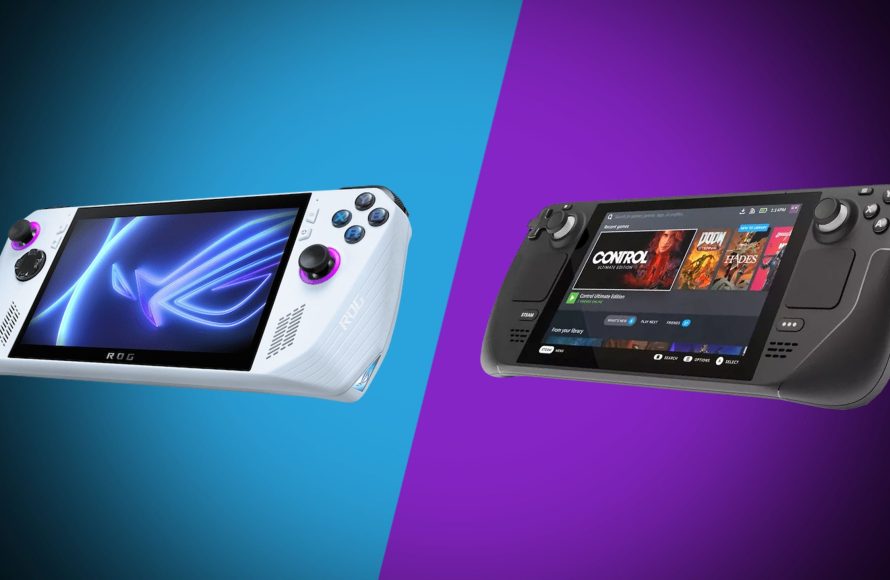
Yes, you can play Steam games on the ASUS ROG Ally.
Considering a handheld gaming PC? The ASUS ROG Ally has definitely grabbed attention. The big question for many potential buyers: can you play Steam games on ASUS ROG Ally? It’s a valid concern.
Many gamers have sizable Steam libraries, so being able to play those is key. The ROG Ally, as a Windows-based device, opens up plenty of options for gaming. You’ll find your favorite games are easily accessible on the handheld.

Can You Play Steam Games on Asus ROG Ally?
Absolutely! The Asus ROG Ally is designed to be a fantastic handheld gaming PC, and that means it’s built to play your Steam library. Think of it like a supercharged Nintendo Switch, but instead of playing only Nintendo games, you can play tons of games from your Steam account. But how exactly does it work? Let’s dive in and explore how the ROG Ally handles Steam games, what you can expect, and some things to keep in mind.
How the ROG Ally Handles Steam Games
The ROG Ally uses Windows 11 as its operating system. This is a big deal because it means it’s essentially a small computer, not just a game console. Since Steam is a program that runs on Windows, you can install it on your ROG Ally just like you would on your regular desktop or laptop. Once installed, you can sign in to your account and access all your purchased games. It’s as simple as that! This opens up a massive catalog of games to play, going way beyond games that are made just for consoles.
Installing Steam on Your ROG Ally
The process is incredibly easy. Here’s a step-by-step guide:
- Turn on your ROG Ally: Make sure your device is powered on and connected to the internet.
- Open a browser: You’ll need a web browser, like Microsoft Edge, which comes pre-installed.
- Go to the Steam website: Type “store.steampowered.com” into the address bar and press enter.
- Download the Steam client: Look for the “Install Steam” button, usually located at the top of the page, and click it.
- Run the installer: Once the download is complete, open the downloaded file. Follow the instructions in the installation wizard.
- Sign in to Steam: After the installation, launch the Steam program, and log in with your Steam account name and password.
That’s it! You now have Steam running on your ROG Ally. Now you can browse your library and download any game you want to play.
Playing Different Types of Steam Games
The ROG Ally can handle a wide range of games, but some games will perform better than others. It all comes down to how demanding a game is. Let’s talk about a few different kinds:
Indie Games
Indie games are generally less demanding than big-budget titles. Think of games like Stardew Valley, Hollow Knight, or Terraria. These games usually run flawlessly on the ROG Ally, even at higher graphics settings. Because they aren’t pushing the system to its limit, you can enjoy long playtime without worrying too much about battery drain. These games are perfect for on-the-go gaming sessions.
AAA Games
AAA games are the big, popular games with high production values, like Cyberpunk 2077, Elden Ring, or God of War. These games can be more challenging for the ROG Ally because they require more processing power. However, the ROG Ally is still capable of playing many of them very well, especially if you adjust the graphics settings. You might need to lower the resolution or some detail settings to keep the game running smoothly. You should test and tweak game settings for the best experience on a particular game.
Multiplayer Games
Many multiplayer games, like Counter-Strike 2, Fortnite, or Fall Guys are fully playable on the ROG Ally. The experience will be similar to playing them on a normal PC. The device’s built-in controls are well-suited for fast-paced multiplayer action. You also have the option of connecting other gaming accessories, such as mouse and keyboard or controller for more options. Just keep in mind that a stable internet connection is key for online multiplayer to work well.
Cloud Streaming Games
Steam also has a feature called Remote Play, which allows you to stream games from another computer in your network. This means you could play a game that’s running on a more powerful PC and stream it to your ROG Ally. This works especially well if the ROG Ally and host PC is on a fast local network. Additionally, cloud gaming services like GeForce Now and Xbox Game Pass cloud are also available which let you stream games to your ROG Ally over the internet. This can make it possible to play even the most demanding titles on the handheld. You will want a stable and fast internet connection to get a great experience with Cloud Streaming.
Understanding Game Performance on the ROG Ally
Game performance on the ROG Ally will depend on a few key factors. Let’s break them down:
The ROG Ally’s Hardware
The Asus ROG Ally has powerful components, including a custom AMD Ryzen processor and integrated graphics. However, it’s still a small handheld device, so it won’t match the performance of a high-end gaming desktop. However, it’s quite impressive for its size. Different ROG Ally models and settings can change the performance you see in games. The Z1 Extreme model is the more powerful model. The performance may vary from the Z1 models. Understanding your specific model will help you set expectations for performance.
Game Graphics Settings
Most games allow you to change settings for graphics quality. Lowering graphics settings like resolution, shadows, and texture quality can make games run smoother on the ROG Ally. Don’t be afraid to experiment with these settings to get the best balance between visuals and performance. You may find that with a little bit of tweaks to the settings, you can get your game to run smoothly without too much reduction in graphical quality.
The Game Itself
Some games are just more demanding than others. Games with highly detailed graphics and complex physics tend to require more processing power. You may also see varying performance from different game engines as well. Even with optimized settings, some very demanding games might struggle to run smoothly, or might need to be played at a very reduced graphical settings. It’s always a good idea to check recommended specifications of games before attempting to play them on the Ally.
Power Settings
The ROG Ally has multiple power settings that affect its performance. Using the highest performance settings will make your games run better, but it will also use up the battery faster. On the lower battery setting, you will see reduced performance, but the battery will last longer. It’s about finding the right balance depending on what you are looking for.
Optimizing Your Steam Gaming Experience on ROG Ally
Here are some tips to help you get the best performance out of your Steam games on the ROG Ally:
- Update Drivers: Keep your ROG Ally’s software and drivers up-to-date. ASUS regularly releases updates that improve performance and fix bugs. These will be available via the Armory Crate App.
- Tweak Game Settings: Spend some time in your games settings menus to find the best balance of graphics and performance. Lower the resolution and turn down shadow settings, and texture quality to improve performance.
- Close Background Apps: Make sure you don’t have other programs running that you don’t need, especially when gaming. Close web browsers and other applications to free up system resources.
- Use Turbo Mode Sparingly: The highest performance Turbo mode will provide a performance boost. Keep in mind that this drains the battery faster. Use it only when needed.
- Consider External Accessories: You can connect an external monitor, keyboard, and mouse to your ROG Ally. This can make it feel more like a desktop gaming experience.
- Monitor Temperatures: Keep an eye on the temperature of your ROG Ally. Long gaming sessions with very demanding games can generate heat. Make sure it has proper ventilation.
Using Different Controllers With Your ROG Ally
The ROG Ally comes with integrated controls which are great for portable gaming. However, you are not limited to just these controls. The device is compatible with a number of different controllers.
Built-in Controls
The ROG Ally has built-in joysticks, buttons, triggers, and D-pad. These work great for many games, and allow you to play on the go with no extra equipment needed. These controls work out of the box, so you don’t need to configure any software to get them working for any particular game.
Bluetooth Controllers
The ROG Ally has Bluetooth functionality. This allows you to pair up many different Bluetooth controllers including Playstation Dualsense, Xbox Wireless Controllers, and other third party controllers. You will need to put your controller into pairing mode and select it in the Windows Bluetooth settings.
Wired Controllers
The ROG Ally also has a USB-C port. You can plug in a wide range of wired controllers to the device, for play with traditional controls. If you use a wired controller, you don’t need to use bluetooth, saving battery life, and often have better input response.
The Steam Deck vs the ROG Ally
One of the main competitors to the ROG Ally is the Steam Deck. While both devices are portable PCs designed to play Steam games, there are some differences.
Operating System
The Steam Deck runs on Linux based SteamOS. The ROG Ally uses Windows 11. This means that the Steam Deck is designed specifically for gaming, while the ROG Ally works like a regular computer, letting you run any Windows program. Windows also allows you to play non-Steam games and from other launchers, such as GOG or Epic Games Store.
Performance
The ROG Ally generally has better processing power, which means it can handle more demanding games at higher settings. The more powerful processor also means it can run Windows 11 very well. However, The ROG Ally might use more battery life when compared to the Steam Deck.
Price
The ROG Ally typically costs more than the Steam Deck. The different models also vary in price based on their specs. If your main interest is playing the majority of your Steam games on the go, the lower cost Steam Deck might be a good option.
Overall
The choice of which device is better comes down to your individual needs and budget. If you want access to Windows programs, and have greater flexibility, the ROG Ally is the clear choice. If you want a more affordable device designed specifically to run Steam games, The Steam Deck could be a better option.
Beyond Steam: Other Game Options
While Steam is a central part of the ROG Ally, it’s not the only way to get games. You can also install games from other game stores like Epic Game Store, GOG or Microsoft Store. In addition, you can install other game emulators and play retro games from a number of different platforms. This makes the ROG Ally very versatile.
Playing Steam games on the Asus ROG Ally is simple and fun. The device has the hardware to play many games, and allows you to play where ever you like. Its versatility makes it great for both the casual or hardcore gamer. You can tweak games to get them running just right, and connect various controllers and other accessories to make gaming more comfortable. With the ROG Ally, you are free to game anywhere with your Steam collection.
How To Setup The ROG Ally For Gaming
Final Thoughts
Yes, you can play Steam games on Asus ROG Ally. The device fully supports the Steam platform, granting access to your entire library.
You can install Steam directly onto the ROG Ally and enjoy many titles. The performance will vary depending on the game’s requirements.
Therefore, can you play steam games on asus rog ally? Absolutely. It offers a portable way to experience your favorite games from the Steam store.

