
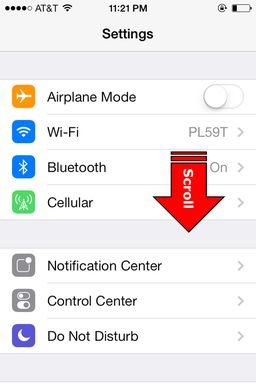
To sign out from Game Center, navigate to Settings, tap Game Center, and then toggle the Game Center switch to the off position.
Ever found yourself needing a break from the gaming world or perhaps switching between accounts? It can be a bit confusing if you’re unfamiliar with the process of managing your gaming profile. Let’s explore how to sign out from Game Center.
It’s actually quite a simple process once you know where to look. Many users need to switch their associated account so they don’t keep getting invites or having their play affected. We will provide guidance to manage that quickly.

How to Sign Out From Game Center
Alright, let’s talk about Game Center. It’s that cool place on your Apple devices where you can play games, see how your friends are doing, and even challenge them. But sometimes, you might want to sign out. Maybe you’re sharing your device, or you just want a break. Whatever the reason, signing out is pretty easy once you know how. We will guide you through the process on different devices, like iPhones, iPads, and even Macs. We’ll also cover why you might want to sign out and what happens when you do. So, let’s jump in and learn how to take control of your Game Center experience!
Why Sign Out of Game Center?
Before we dive into the how, let’s chat about the why. There are lots of reasons you might need to sign out of Game Center. Here are some common ones:
- Device Sharing: If you share your iPhone or iPad with a family member or friend, they might have their own Game Center account. Signing out lets them use their account and keep their gaming progress separate from yours.
- Privacy: You might want to keep your gaming activity private, especially if you have lots of friends on Game Center. Signing out lets you disconnect from the social side of things.
- Account Issues: If you are experiencing any kind of issues with your current Game Center account such as crashing or freezing. Signing out and signing back in could possibly solve this problem.
- Switching Accounts: You might have multiple Apple IDs, and you need to switch the Game Center account associated with your device.
- Troubleshooting: Sometimes signing out and back in can solve technical problems with Game Center. It’s like giving it a little refresh.
Signing Out of Game Center on iPhone and iPad
Okay, now for the fun part: actually signing out! The process is the same for both iPhone and iPad, so follow along, and you’ll be signed out in no time.
Steps to Sign Out on iOS/iPadOS
- Open the Settings App: Look for the gray gear icon on your home screen. Tap it.
- Tap Your Name: At the very top of the Settings screen, you’ll see your name and Apple ID picture. Tap that.
- Scroll Down and Tap ‘Media & Purchases’: You’ll need to scroll down a bit, and find the option labeled “Media & Purchases”, and tap on that.
- Tap ‘Sign Out’: You will now see a “Sign Out” option, tap on that, and your current Apple ID that is signed in for your Media & Purchases will be signed out from your device.
- Go Back to Settings: Now, press the left facing arrow on the top left corner to go back to the general Settings page.
- Tap ‘Game Center’: Keep scrolling down until you see “Game Center.” It’s usually in the middle of the settings menu. Tap it.
- Tap Your Apple ID: You will see your Apple ID or nickname that you have set for the Game Center. Tap on that.
- Tap ‘Sign Out’: A confirmation menu will appear, tap “Sign Out” option there. This action signs you out of your Game Center account.
That’s it! You’re signed out. If you want to sign back in later, just go back to the Game Center settings and log in with your Apple ID.
Signing Out of Game Center on a Mac
Signing out on a Mac is slightly different but still easy. Here’s how you do it:
Steps to Sign Out on macOS
- Open System Settings: Click on the Apple menu (the Apple logo) in the top-left corner of your screen, then select “System Settings…”
- Click on ‘Game Center’: A window will appear with different settings, find the “Game Center” setting, and click on it.
- Click on ‘Sign Out’: You should now see an option to “Sign Out”, click on it, and it will sign you out of the Game Center.
Just like on iPhone and iPad, if you want to sign back in, just go back to System Settings and log in to Game Center with your Apple ID.
What Happens When You Sign Out?
Now, you might be wondering, “What happens when I sign out of Game Center?”. Here’s a breakdown:
- No Social Features: You will no longer be able to see your friends’ profiles, game activity, or send them challenges. Basically, the social part of Game Center is turned off.
- Your Game Progress is Safe: Most of your game data is saved to your game developer server. Signing out from Game Center does not delete your game data. It’s usually linked to your game account or Apple ID, so don’t worry about losing your hard work.
- No Leaderboard Rankings: You won’t be included in the leaderboards for games you play, and you won’t be able to see your ranking.
- App Interactions: Some games might act a little differently. You won’t have access to the Game Center features in the game like multiplayer invitations etc.
- You Can Always Sign Back In: Signing out is not permanent. You can always sign back in with your Apple ID and resume from where you left off.
Troubleshooting Common Issues
Sometimes, things don’t go as smoothly as we’d like. If you’re having trouble signing out, here are a few tips that might help:
Issues and How to Fix Them
- Check Your Internet Connection: Make sure your iPhone, iPad, or Mac is connected to a stable Wi-Fi network. A poor connection can sometimes interfere with the sign-out process.
- Restart Your Device: Sometimes, a simple restart can fix many issues. Try turning your device off and then back on.
- Software Updates: Ensure your device is running the latest version of iOS, iPadOS, or macOS. Outdated software can sometimes cause problems.
- Check Apple ID: Verify if your Apple ID has any issues. You can do this by logging out of your apple id in the settings and logging back in.
- Force Quit Settings App: If you’re stuck in the settings menu or experiencing lags, try force quitting the settings app, and start the process again.
- Check For Known Outages: Sometimes Apple services face outages, you can always check their official site for any service down.
- Contact Apple Support: If nothing works, you can always contact Apple Support for further assistance. They have a team of experts to help you with the issues.
Game Center and Family Sharing
If you use Family Sharing, your Game Center activity is still linked to your individual Apple ID. That means everyone in your family will still have their own Game Center accounts. This way, no one has to worry about their progress or scores messing with other family members.
This feature is really helpful in making each user’s experience different from the others, and also helps in saving game data and game progress separately.
Important Things to Know
- Game Data Storage: While some games might use Game Center to store data, it is not the only source. Most games also use their own servers to store game progress. So, even when you sign out of Game Center your game data will still be saved.
- Privacy Settings: You can control who can see your Game Center profile and activity in the privacy settings.
- Game Center Profile: When you sign back in, your profile, friends, and achievements will be restored.
- Game Center is Not Required: Game Center is totally optional, you don’t have to be logged in to play some games.
So, there you have it! Signing out of Game Center is pretty straightforward, whether you’re on an iPhone, iPad, or Mac. Now you know how to take control of your gaming experience and enjoy games the way you want to.
iPhone 14/14 Pro Max: How to Sign Out Of Game Center
Final Thoughts
To sign out from Game Center, navigate to your device’s settings. Find the “Game Center” option, usually listed with other Apple services. Tap on it, then scroll down until you see the option to sign out.
Click “sign out” and confirm your decision. This action disconnects your device from Game Center. The process is quite simple.
Knowing how to sign out from game center is useful if you use multiple accounts or need to disable it temporarily. It lets you control your gaming experience.

