
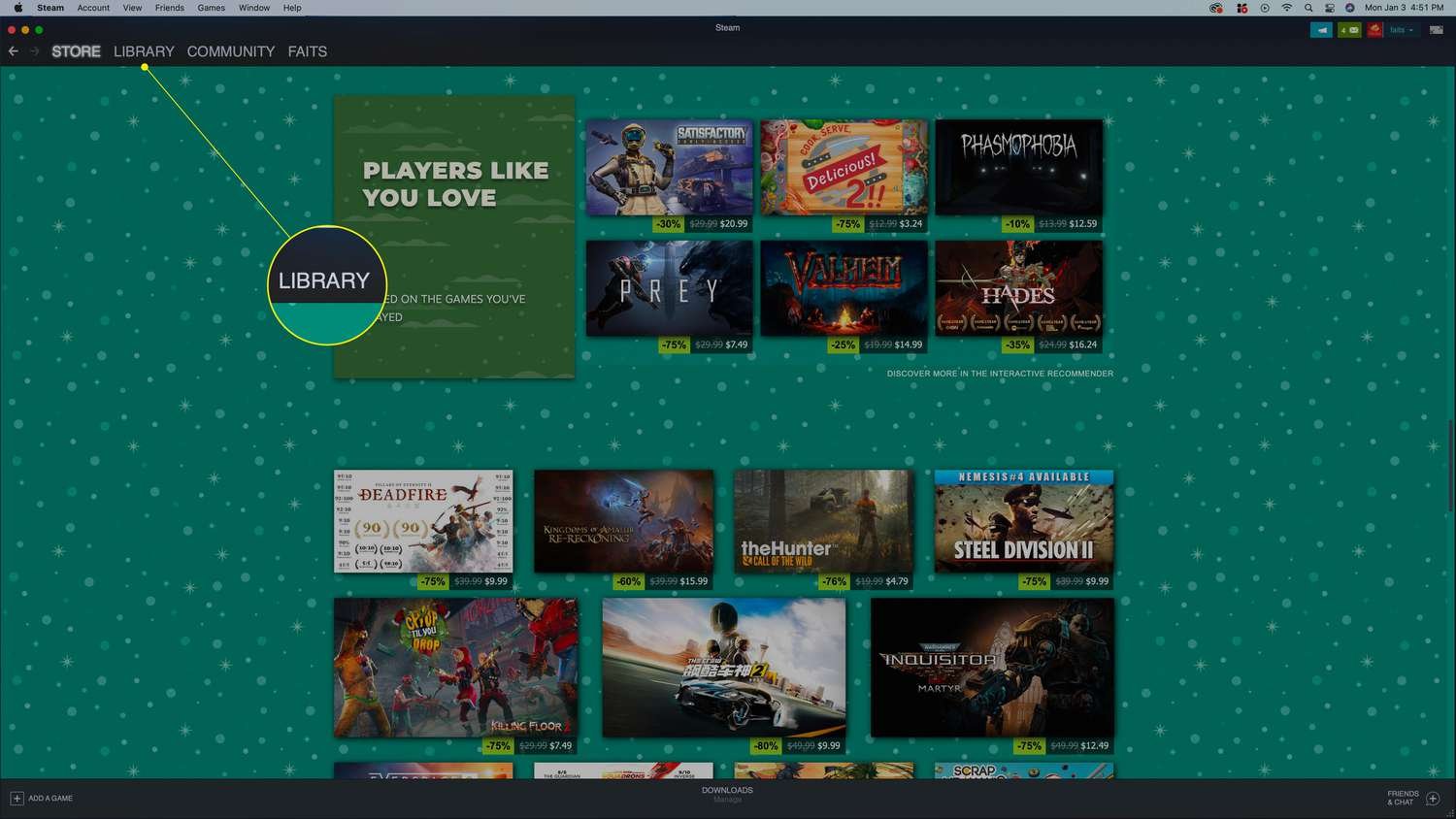
Yes, you can play Windows Steam games on Mac, but typically you’ll need to use tools like Boot Camp, Parallels, or CrossOver.
Ever wondered if you can play those awesome Windows-only Steam games on your Mac? It’s a common question, and the answer isn’t always a straight yes or no. The good news is, there are ways to make it happen!
While Macs don’t natively run Windows games, some clever software solutions bridge that gap. These options allow you to experience those titles you thought were out of reach. Exploring these will help you play games you want on the device you love.

Can You Play Windows Steam Games on Mac?
Okay, let’s dive into the big question: Can you actually play those awesome Windows games you see on Steam, on your Mac computer? The short answer is: it’s complicated, but often, yes! It’s not as simple as clicking a button and playing, but with a few workarounds, you can get many Windows Steam games running on your Mac. Let’s explore how this is possible and what you need to know.
Why Windows Games Usually Don’t Work Directly on Macs
The main reason Windows games don’t automatically work on Macs is because they use different “languages,” or what tech people call operating systems. Windows uses its own code and instructions, while Macs use macOS. Imagine trying to read a book written in Spanish when you only know English; you’ll need something to help translate, right? That’s kind of what happens with games.
Understanding Operating Systems
Let’s think of it like this: your computer’s operating system is like the foundation of a house. Windows is one type of foundation, and macOS is another. Games are built on top of these foundations. A game built for a Windows foundation doesn’t automatically fit onto a macOS foundation. They speak different languages. This is why you can’t just download a Windows game and expect it to play nicely on your Mac.
How Games Are Developed
Game developers often create games specifically for either Windows or macOS. Sometimes, they make different versions for both. When they make a game for Windows, it’s usually written using tools and programming languages that work best with that operating system. The same is true for Mac games. So, if a game is created only for Windows, it’s not just going to magically work on your Mac.
Methods to Play Windows Steam Games on Mac
But don’t worry! There are ways to bridge the gap and play those Windows games. Here are some common methods:
Using Boot Camp
Boot Camp is a tool that comes with your Mac and lets you install and run Windows. Think of it like having two houses, one built for Windows and one for macOS, all on one property (your computer). You choose which house to “live” in when you turn your computer on.
How Boot Camp Works
- You download a copy of Windows (you’ll need to purchase a Windows license).
- You use Boot Camp Assistant on your Mac to create a space for Windows.
- You install Windows onto that space.
- When you start your Mac, you can choose to boot into macOS or Windows.
Pros of Using Boot Camp
- Native Performance: Because Windows is running directly on your computer’s hardware, games usually run smoothly, just as if you were on a Windows PC.
- Compatibility: Boot Camp works well with most Windows games.
Cons of Using Boot Camp
- Requires a Windows License: You have to buy a copy of Windows, which costs extra money.
- Needs a Restart: You have to restart your computer every time you want to switch between macOS and Windows.
- Takes Up Space: Windows and its games take up space on your computer’s hard drive.
Using Virtual Machines
Virtual machines are like having a computer inside your computer. They create a window where Windows can run. Think of it like a dollhouse inside your room; you can play in the dollhouse while still being in your room. Popular software for creating virtual machines includes Parallels Desktop and VMware Fusion.
How Virtual Machines Work
- You install virtual machine software on your Mac.
- You create a virtual machine and install Windows in it.
- You can run Windows and its games inside a window on your macOS desktop.
Pros of Using Virtual Machines
- No Need to Restart: You can run Windows and macOS at the same time.
- Easy to Switch: You can switch between Windows and macOS quickly.
Cons of Using Virtual Machines
- Requires Special Software: Virtual machine software costs money.
- Performance May Suffer: Games might run slower than they would in Boot Camp because they are being run inside another program.
- Requires a Windows License: You still have to purchase a Windows license for the virtual machine.
Using CrossOver
CrossOver is a special piece of software that translates the commands of Windows games so that they can work on your Mac. It’s like having a personal interpreter for your games. It is not a virtual machine and does not require you to install Windows.
How CrossOver Works
- You install CrossOver on your Mac.
- CrossOver acts as a middleman that translates the Windows game commands into commands that macOS can understand.
- You run your Windows games through CrossOver.
Pros of Using CrossOver
- No Windows License Needed: You don’t need to buy a copy of Windows.
- Good Performance: Games often run better than in virtual machines.
- Less Resource Intensive: It uses fewer of your computer’s resources compared to Boot Camp or Virtual Machines.
Cons of Using CrossOver
- Not All Games Work: CrossOver doesn’t support every Windows game.
- Cost: CrossOver isn’t free; you have to buy the software.
Using GeForce Now or Other Cloud Gaming Services
Cloud gaming is like renting a super-powered computer that runs the games for you and sends the video to your Mac. Think of it like watching a movie streamed on Netflix; the movie isn’t on your device, it’s being shown on your device from another computer through internet. With GeForce Now, you are using your Steam games library and streaming it to your Mac.
How Cloud Gaming Works
- You sign up for a cloud gaming service.
- The game runs on the service’s powerful computers.
- The video of the game is streamed to your Mac through the internet.
- Your keyboard and mouse controls are sent back to the service.
Pros of Using Cloud Gaming
- No Powerful Mac Needed: You can play demanding games even on a basic Mac because the processing is done elsewhere.
- No Windows Needed: You do not need to install Windows to play games.
- Easy to Set Up: It’s usually very simple to get started with a cloud gaming service.
Cons of Using Cloud Gaming
- Requires a Fast Internet: You need a good internet connection for smooth gameplay.
- Cost: Cloud gaming services often require a monthly subscription.
- Limited Game Support: Not all Windows games are available on every cloud gaming service.
Steam Play & Proton
Steam Play, with its Proton compatibility layer, is another cool way to potentially play some Windows games on Mac. It’s not a guaranteed method for every game, but it’s worth understanding.
How Steam Play and Proton Work
- Steam Play is a feature from Steam that allows you to play games you purchased on Windows on other operating systems like Linux, and with some success, on macOS.
- Proton is a translation layer built into Steam that allows Windows games to run on Linux, and similar mechanics are used to make some games work on Mac.
Pros of Steam Play and Proton
- Built Into Steam: No need for extra software in many cases.
- Easy to Use: You just click play in Steam and if it works, it works!
- No Windows License Needed: You don’t need to buy a Windows license to try this method.
Cons of Steam Play and Proton
- Not All Games Work: It only works with some Windows games.
- Can Have Glitches: Some games might not run as smoothly as on Windows.
Choosing the Right Method for You
Deciding which method to use depends on your computer, your needs, and your budget. Here is a quick table to help you decide.
| Method | Cost | Performance | Ease of Use | Best For |
|---|---|---|---|---|
| Boot Camp | Requires Windows license | Native (best) | Moderate (requires reboot) | Users who want best performance and play most games |
| Virtual Machine | Requires Windows license + software purchase | Good but slightly reduced | Easy (run Windows and macOS at the same time) | Users who want to run Windows applications alongside macOS |
| CrossOver | Software purchase required | Good | Easy | Users who want a good balance between performance and cost; not every game works |
| Cloud Gaming | Monthly subscription | Depends on internet; can be good | Very easy | Users who don’t have a powerful computer, or want easy access to games |
| Steam Play/Proton | Free (built-in to Steam) | Variable, usually good for games that are compatible | Very easy | Users who want a simple way to try Windows games on their Mac. |
Think about these things:
- Cost: Do you want to spend money on software or a Windows license? Cloud gaming has subscription fee.
- Performance: Do you need the absolute best performance, or is good enough okay?
- Ease of Use: Do you mind restarting your computer, or do you want the ability to switch quickly?
Game Compatibility: Check Before You Buy
Before you get your hopes up, remember that not every Windows game will work on a Mac, no matter which method you use. It’s a good idea to check if a game is known to work using one of the methods before you spend money on it. Here’s how to make sure your Windows game is compatible before you buy it.
Check Steam Community Forums
Steam community forums and discussions can help find compatibility for the desired game on different platform using Steam play and Proton. See if other users have had success or challenges.
Use Online Compatibility Databases
There are websites where users share their experiences trying to play different games using methods like CrossOver and Steam Play/Proton. Look these up to see what others have to say about the specific game you want to play. ProtonDB is popular for Steam Play/Proton games.
Try Game Demos or Trials
Many games offer demos or trial versions. Try these out before buying the full game to make sure it works on your Mac using your chosen method. It’s a great way to check compatibility first.
So, there you have it! Playing Windows Steam games on a Mac is totally doable, but you need to know the options. Each has its own advantages and drawbacks, but one of them is sure to work well for you. Happy gaming!
This (Free) App Lets You Play Windows Steam Games on MacOS
Final Thoughts
In short, playing Windows Steam games on Mac requires some extra steps. You cannot directly run them without assistance. Emulation or using tools like CrossOver are methods that facilitate gameplay.
Essentially, can you play windows steam games on mac? Yes, it’s possible. These options allow you to enjoy many titles, though some performance hiccups are possible and not every title works perfectly.

