
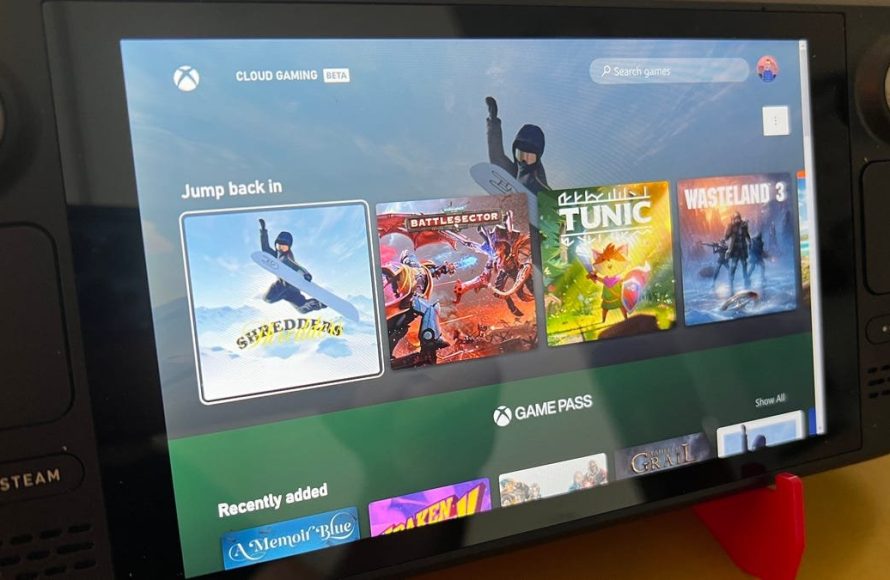
Yes, you can play Xbox games on Steam Deck using Xbox Cloud Gaming, but not natively.
Curious if your favorite Xbox titles can travel with you on the Steam Deck? Many are asking, “can you play xbox games on steam deck?” The good news is, it’s possible, though not in the way you might first imagine.
Essentially, you’ll need to rely on Xbox Cloud Gaming, a service that allows you to play via the internet. This means the game isn’t running directly from your Steam Deck, but is instead being played remotely.

Can You Play Xbox Games on Steam Deck?
Okay, let’s dive into the exciting world of gaming on the go! You’ve got your shiny new Steam Deck, and you’re probably wondering – can I play all those awesome Xbox games I love on this thing? The answer isn’t a simple yes or no, but don’t worry, we’re going to explore it all. Think of it like trying to fit a puzzle piece – sometimes it fits perfectly, and sometimes it needs a little bit of work.
Understanding the Steam Deck and Xbox Ecosystem
First, we need to understand a bit about how these two gaming worlds work. The Steam Deck is like a portable computer that’s built for playing games. It uses Steam’s operating system, called SteamOS, which is based on Linux. Xbox, on the other hand, is a different gaming platform that is primarily focused around Microsoft’s consoles and the Xbox app on Windows PCs. Xbox games are mainly made to be played on Xbox consoles and Windows-based computers, with their Xbox game pass service playing a big role.
The Key Difference: Operating Systems
The biggest hurdle is that the Steam Deck uses Linux, while Xbox games are usually made for Windows. Think of it like this: it’s like trying to speak to someone who only understands a different language. This means you can’t just pop an Xbox disc into the Steam Deck and expect it to work. We need a translator, or a way to get these two different worlds to understand each other.
Xbox Game Pass and Cloud Gaming
One of the most exciting ways to play Xbox games on the Steam Deck is through Xbox Cloud Gaming. This is like streaming a movie, but instead of a movie, it’s a game! The game runs on a powerful server somewhere else, and it sends the video to your Steam Deck. It’s a great option, but it does depend on a fast and stable internet connection.
How Cloud Gaming Works on Steam Deck
To play Xbox games via cloud gaming on the Steam Deck, you’ll need an Xbox Game Pass Ultimate subscription. Then, you’ll access it through a web browser such as Google Chrome or Microsoft Edge. The process is very simple: you just log into your Microsoft account, find the game you want to play, and then stream it. It makes the game playable regardless of whether the game is designed for the Steam Deck or not. However, since it is streaming, your gameplay experience depends on your internet speed and stability. This may affect the performance of the game and have latency, but it is very useful to play Xbox games on Steam Deck.
- Subscription Required: You need an Xbox Game Pass Ultimate subscription.
- Internet Connection: A fast and reliable internet connection is needed.
- Browser Access: You’ll use a web browser to access Xbox Cloud Gaming.
- Latency Consideration: There might be slight delays (lag) due to streaming, depending on your internet connection.
Pros and Cons of Cloud Gaming
Like everything, cloud gaming has some really great points and some not-so-great points. Let’s take a look:
- Pros:
- No Installation: You don’t have to download and install huge games on your Steam Deck.
- Access to a Library: You can play many different Xbox games with a Game Pass subscription.
- Low Requirements: It doesn’t require powerful hardware on your Steam Deck, as the game is running on the server.
- Cons:
- Internet Dependent: If you don’t have a stable and fast internet connection, the game will be hard to play.
- Possible Latency: You might experience some lag (delay), which could affect gameplay.
- Subscription Cost: You need to pay for an Xbox Game Pass Ultimate subscription.
Installing Windows on Steam Deck
Another option, which is more involved but opens up more opportunities, is installing Windows on your Steam Deck. Because SteamOS is built on Linux, a lot of Xbox games may not natively function, because the games are designed for Windows PCs and Xbox console. With Windows installed, you gain the ability to download the Xbox app and access games that you might otherwise not be able to play.
How to Install Windows
Installing Windows is not difficult, but it does take some time and a little bit of technical know-how. It’s not as simple as installing an app. Here’s a general idea of the steps:
- Prepare a USB Drive: You’ll need a USB drive and a copy of Windows, which you’ll need to purchase if you don’t have it already.
- Create a Bootable USB: You use software to make the USB drive able to install Windows.
- Boot from USB: Start the Steam Deck from the USB drive instead of the internal operating system.
- Install Windows: Follow the steps to install Windows on your Steam Deck. This can take some time.
- Install Drivers: Install the drivers that will allow the computer to communicate with hardware components.
Considerations When Installing Windows
Before you jump into installing Windows, consider these points:
- Complexity: It’s more complex than cloud gaming and might take more effort.
- Storage Space: Windows takes up storage space, so you need to have enough room on your Steam Deck.
- Dual Boot or Full Windows: You can choose to have both SteamOS and Windows (dual boot) or have only Windows. If you choose to have both, you need to be careful when choosing which OS to boot to. If you only want windows, the process may be simpler.
- Potential Issues: There may be some compatibility issues with certain games or drivers.
- Battery Life: Windows on the Steam Deck may cause lower battery life than when running SteamOS.
Playing Xbox Games via Xbox App on Steam Deck
If you install Windows, you can install the Xbox app. Then you can access many Xbox games. It’s like turning your Steam Deck into a mini-PC that can play Xbox games. Just make sure your PC can support the game you are about to play. It’s important to remember that there are some trade-offs such as battery life, storage, etc. So the best method for you might depend on what’s most important to you.
Steps for Playing Xbox Games via the App
- Install Windows: As mentioned before, you need to have Windows installed first.
- Download the Xbox App: Get the Xbox app from the Microsoft Store.
- Sign In: Use your Microsoft account to sign in.
- Install Games: Download the Xbox games you want to play.
- Play: Start playing the games!
Emulation as an Alternative
Emulation is another way to play some older Xbox games, but there are a lot of caveats to this. Emulation is like creating a fake Xbox inside your Steam Deck, and this can be quite tricky. Some people install emulators, which are software that make the Steam Deck think that it’s running an Xbox. This allows you to play some of the older games from previous Xbox consoles on your Steam Deck, but remember that not every game works well with emulation. There’s also a high likelihood that games may run poorly and there may be many glitches.
Limitations of Emulation
Here are some things to keep in mind if you are planning to play Xbox games using emulation:
- Complexity: Setting up emulators can be difficult and require a lot of knowledge.
- Performance: Some games might not run very well, even with a very powerful system.
- Game Compatibility: Not all games can be played through emulation, and some might have lots of issues.
- Legality: Downloading games from unofficial places can sometimes be illegal. You must own the physical copy of the game in order to play it through emulation.
Choosing the Right Method
So, with these options, which one should you choose? Here’s a simple guide:
- Xbox Game Pass Cloud Gaming: If you want a simple way to play a variety of Xbox games, and you have a fast internet connection.
- Installing Windows: If you want to have access to a larger range of games through the Xbox app and don’t mind a bit of technical work.
- Emulation: If you are very interested in playing older games and have enough know-how to set it up.
The best approach depends on what you value the most. Do you want simplicity or more power? Do you have an internet connection or would you rather play offline? Consider these things when you decide which method to use.
In conclusion, while you can’t directly play Xbox games on the Steam Deck the same way you would on an Xbox console, there are methods that you can use. Cloud gaming offers a convenient way to stream Xbox games with a subscription, while installing Windows lets you play PC versions of Xbox games through the app. Emulation, though complicated, offers a route to some older titles. Each method has its advantages and disadvantages, so you can pick the one that fits your style and needs.
Play Xbox On Steam Deck EASILY!
Final Thoughts
So, can you play xbox games on steam deck? Officially, you cannot play Xbox games natively. However, using Xbox Cloud Gaming through a browser is possible. This method lets you access many Game Pass titles.
You will need a good internet connection for cloud gaming. This approach doesn’t directly run games on the device. It sends video and audio to the Steam Deck.

