
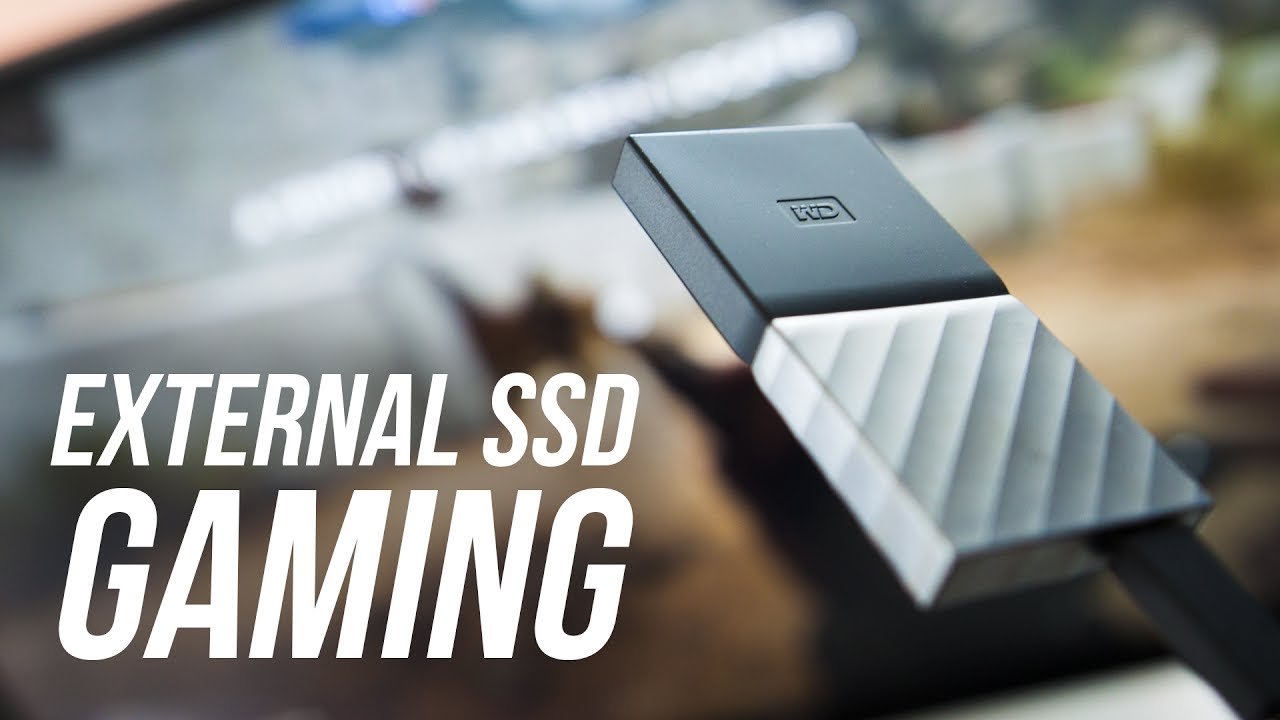
Yes, you can run games off an external hard drive.
Thinking about expanding your gaming library but running low on space? Many gamers wonder, “can you run games off an external hard drive?” The good news is, the answer is generally yes! It’s a convenient solution for those needing extra storage without opening up their computer.
Using an external drive for games is a practical way to store many titles. This method saves precious internal space. External hard drives are also easy to move and set up with various systems.

Can You Run Games Off an External Hard Drive?
Okay, so you’ve got a ton of awesome games, but your computer’s hard drive is yelling “Uncle!” It’s full! You’re wondering, “Can I just plug in an external hard drive and play my games from there?” The short answer is: Yes, absolutely you can! But there’s a lot more to it than just plugging it in. Let’s dive in and figure out how to make it work great.
Why Use an External Hard Drive for Games?
First things first, why would someone even want to play games from an external drive? There are several good reasons:
- Space Saver: Your computer’s main drive might be packed to the brim. External drives give you tons more room for all your games. Think of it like adding a giant closet to your house just for your games.
- Easy Portability: Want to take your game library to a friend’s house or on a trip? With an external drive, it’s easy peasy. Just unplug and go. No need to reinstall all your games on another computer. It’s like carrying a portable arcade.
- Budget Friendly Upgrade: Instead of buying a whole new computer with more storage, adding an external hard drive is a much cheaper way to get more storage for your games.
- Organization: You can keep your main computer drive clean by storing all your game files on the external drive. This helps to keep your operating system running smoothly.
Types of External Hard Drives
Not all external hard drives are created equal. When choosing one for games, here’s what you should think about:
HDD vs. SSD
You’ll hear these terms a lot: HDD and SSD. What are they?
- HDD (Hard Disk Drive): These use spinning disks to store data. They’re generally cheaper and offer more storage space, but they can be slower at loading games. Think of them as the old reliable workhorses.
- SSD (Solid State Drive): These are much faster because they use flash memory, like a giant thumb drive. They load games quicker, make menus snappier, and make overall gameplay a much smoother experience. But they usually cost more per gigabyte of storage compared to HDD. Think of them as the speedy race cars.
Which is Better for Games? For gaming, SSDs are generally the better choice because they’ll make your games load much faster. But if you’re on a tight budget and have a lot of games, an HDD can still get the job done. Consider them a trade-off between speed and storage amount.
Connection Types
External drives connect to your computer with different cables. The most common are:
- USB 3.0/3.1/3.2/4 (USB-A or USB-C): These are the most common types, and higher numbers mean faster speeds. USB 3.2 and 4 are usually better for games since they can transfer data quicker.
- Thunderbolt 3/4: These are super fast, but only available on some computers and are typically more expensive. They are ideal for gamers wanting ultimate performance.
Setting Up Your External Hard Drive for Games
Okay, you’ve got your external hard drive. Here’s how to get it ready for gaming:
Formatting the Drive
Before you can use your external drive, you might need to format it. This is like giving it a new coat of paint and organizing all the shelves in your new closet. If your drive is new, it might come already formatted. However, it’s good practice to format it. Here is how you do it:
- Plug In: Connect your external hard drive to your computer.
- Open Disk Management:
- On Windows: Press the Windows key, type “Disk Management”, and select “Create and format hard disk partitions”.
- On macOS: Open “Disk Utility” (you can find it using Spotlight search).
- Select Your Drive: Find your external drive in the list of disks. Be very sure you pick the right one!
- Format:
- On Windows: Right-click on the drive and select “Format”. Choose “NTFS” as the file system for the best performance in most situations, if your game library is on Windows. You can also use exFAT if you intend to use the drive with macOS as well.
- On macOS: Select the drive, click “Erase”, and choose “APFS” or “Mac OS Extended” for the best performance if you are using macOS, or choose exFAT if you need to use it with a Windows system as well.
- Give your drive a name and format it.
Important Note: Formatting will delete all the data on your drive! So make absolutely sure you’ve got all the important stuff backed up somewhere else. This is the equivalent of moving everything out of the closet before you re-organize it.
Installing Games on the External Drive
Once your drive is formatted, it’s time to start putting your games on it. The process can vary a little bit depending on what game launcher or store you are using.
Steam
If you use Steam, you can easily move or install games to your external drive:
- Go to Steam > Settings > Downloads > Steam Library Folders.
- Click on “Add Library Folder” and choose your external drive.
- Now, when you install a new game or move an existing one, you can select your external drive as the install location.
Epic Games Store
The Epic Games Store also makes it easy to install on an external drive:
- When installing a new game, you will have an option to choose the install location. Select your external drive in the drop down box.
- If you have already installed a game on your main hard drive, you can move it to your external drive in the application setting.
Other Platforms
Other game platforms like Battle.net, GOG, and Origin will have similar options in their settings for choosing install locations. So, explore these settings carefully to see if you have an option to install to an external drive.
Tip: When moving a game, it’s often best to have the launcher do it instead of manually cutting and pasting the game files. This avoids any problems with game configuration.
Potential Problems and How to Fix Them
Sometimes, using an external hard drive for games might not be smooth sailing. Here are some potential problems and what you can do about them:
Slow Loading Times
If your games are loading slowly, it could be a few different things:
- Slow Hard Drive: If you’re using an HDD, it’s just not going to be as fast as an SSD. This is one of the limitations of older hardware tech.
- Slow Connection: Make sure you are using USB 3.0 or higher. A USB 2.0 connection will be slow, like an old dial-up internet connection.
- Background Processes: Other apps and tasks running on your computer can slow down game loading. Close any programs you aren’t actively using.
Game Stuttering or Lag
If your games are stuttering or lagging during gameplay, it could be due to:
- Slow Drive: Again, an HDD can cause performance issues with its slower speeds.
- USB Bandwidth: If you’re playing graphically demanding games and using a USB hub to connect your external drive, that can limit the amount of data coming to your computer. Try connecting the drive directly to a USB port on your computer.
- Driver Issues: Check if you have the latest drivers for your hard drive and your motherboard. Outdated drivers can cause problems.
- Not enough RAM: if your PC’s ram is insufficient to play the games, this can cause lags and stutters in the gameplay.
Drive Disconnecting
Sometimes, your external drive might disconnect for no reason. This can be very frustrating. Here’s what to check:
- Loose Connection: Check the cable and make sure it’s securely plugged into both the drive and the computer.
- Power Issues: If the drive requires external power, make sure it’s plugged in and working. It could be getting low power.
- USB Power Saving: Your computer might be turning off the USB port to save power. You can disable power saving for USB ports in your computer’s settings.
- Driver Problems: Update your USB and hard drive drivers.
Game Installation Errors
Sometimes you might face issues installing games on an external drive.
- Formatting Problems: Make sure the drive is formatted correctly.
- Not Enough Space: Make sure the hard drive has enough space.
- Damaged Files: Check if there are any damaged files during download or transfer process.
If these solutions don’t work, consider the possibility that your drive is nearing the end of its life. External drives do not last forever, and with excessive use they tend to break down and malfunction.
Tips for a Great External Gaming Experience
Here are some extra tips to make sure you have the best possible experience when gaming on an external hard drive:
- Use a Good Quality Cable: A high-quality USB cable can help with speed and reliability.
- Keep Your Drive Cool: Overheating can cause problems. Try to ensure good airflow around the drive.
- Don’t Disconnect While in Use: Always safely eject the drive before disconnecting it to prevent data loss.
- Keep the Hard Drive Clean: Keep the drive free from any dust and try to avoid any extreme temperatures when you’re storing the hard drive.
- Regular Checks: Periodically perform check-up of your drives by using the appropriate tools and apps that are provided with the operating system. This helps in avoiding sudden malfunctions of your hard drives.
- SSD Recommended: If your budget allows, always go with an SSD for the best experience.
In short, you definitely can play games off an external hard drive, and for many gamers it’s a simple, effective way to add more storage and portability to their game collection. If you are considering this option, just remember to do your research, choose the right drive, take care of it, and you’ll be set for a great gaming experience. Happy gaming!
How to Use An External Drive as Your Boot Drive for Gaming | Inside Gaming with Seagate
Final Thoughts
Yes, you can run games off an external hard drive, and it’s often a convenient storage solution. Performance may vary based on the drive’s speed and connection type.
For best results, use a fast external SSD over a traditional HDD. Slower drive speeds can cause loading delays and performance issues when playing demanding games.
Ultimately, ‘can you run games off an external hard drive’ depends on your setup. An appropriate choice of external storage is important, so you can enjoy smooth gameplay.

