
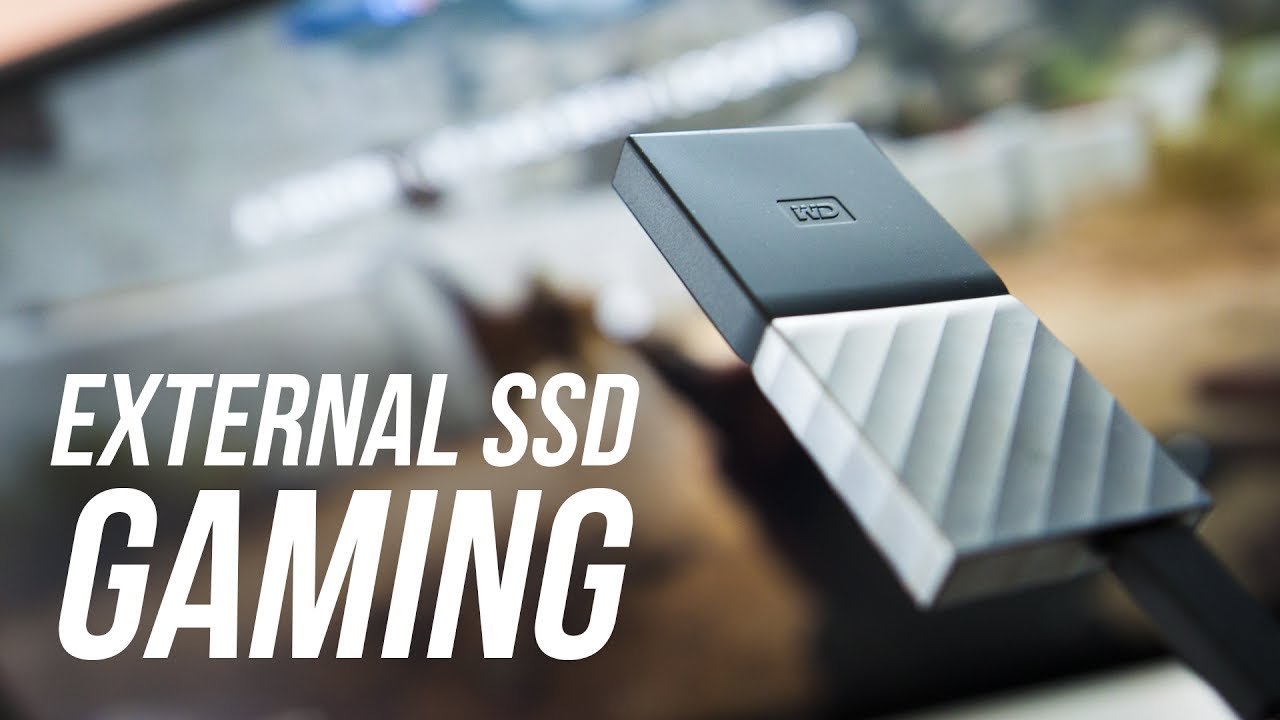
Yes, you can run games off an external SSD, often with improved loading times compared to a traditional hard drive.
Thinking about expanding your game library without opening up your PC? The question, “can you run games off an external ssd,” is very common. Gamers want more storage without sacrificing speed. Many wonder if an external drive can actually keep up with demanding games.
Using an external SSD provides a practical solution. It is a quick way to add storage and reduce loading screens. This method becomes increasingly popular with the growing size of modern games.

Can You Run Games Off an External SSD?
Alright, let’s dive into a question that many gamers have: can you actually play your favorite games using an external SSD? The short answer is a resounding yes! But, like most things in tech, it’s not quite as simple as plugging it in and hitting ‘play.’ We need to explore the hows, whys, and what-to-watch-outs to get the best gaming experience from an external SSD.
Why Consider External SSDs for Gaming?
Before we get into the technical details, let’s talk about why you might even want to use an external SSD for gaming in the first place. There are some pretty good reasons!
Expanding Storage Space
First and foremost, storage space on consoles and even gaming PCs can fill up quickly. Modern games are massive! Think of titles like Call of Duty, Red Dead Redemption 2, or Cyberpunk 2077 – they take up huge chunks of hard drive space. Instead of deleting your old games, an external SSD lets you keep everything you want, readily available.
Also, some gaming laptops and consoles come with small capacity drives to save on cost. So, an external SSD gives users a lot more room for their game library.
Faster Loading Times
This is where external SSDs really shine! Traditional hard disk drives (HDDs), which are sometimes built into older computers or consoles, use spinning platters to read and write data. SSDs, on the other hand, use flash memory – like a giant, super-fast USB stick. This means they are much, much quicker at accessing game data. Loading screens become shorter, and you jump into the action faster.
With an external SSD you can notice the huge difference in game load times. It’s a really big deal for players who don’t want to spend a lot of their game time staring at loading screens.
Portability and Flexibility
External SSDs are small, lightweight, and easy to carry around. If you like to move your games between different computers or consoles, an external SSD is your friend. You can bring your game library to a friend’s house, to a hotel room, or even to a family visit and play your game without having to install the game again and again. This is one great advantage of an external SSD.
Understanding External SSDs
Okay, let’s get a little more specific about what makes external SSDs tick.
SSD Technology Explained
SSDs (Solid State Drives) use flash memory to store data. Unlike old hard drives that need moving parts, SSDs don’t have anything that moves. Because of this they are faster, quieter, and more efficient in the way they operate. This speed benefit helps games, because the faster the data is accessed, the faster the game will load.
There are two types of SSDs:
- SATA SSDs: Use an older technology and are generally a bit slower and cheaper.
- NVMe SSDs: Use a newer technology and are much faster, but can be more expensive.
Connection Types Matter
How your external SSD connects to your device is very important for getting the fastest speeds. Here’s a quick rundown:
- USB 3.0 and USB 3.1 (Gen 1): These connections provide a good speed boost over older USB 2.0, and suitable for gaming, but not the fastest.
- USB 3.1 (Gen 2) and USB 3.2 (Gen 2): These are faster than USB 3.0 and provide much quicker transfer speeds, leading to improved game loading.
- USB 4 and Thunderbolt 3/4: These connection types are the fastest available, and provide the best performance for external SSDs.
Always check which USB ports your computer or game console has. Then, pick an SSD that matches the speed of the port to get the best result from your device and your SSD.
Factors Affecting Performance
Several things can affect how well your external SSD performs. These include:
- The Speed of the SSD: Faster SSDs naturally provide better loading speeds, so choose an SSD with higher read and write speeds.
- The Connection Type: Using a USB 3.0 SSD on a USB 2.0 port will slow down your SSD.
- The Game Itself: Some games are optimized to load quickly, while others aren’t. Also, open world games tend to load slower.
- Your Device: Your gaming system’s CPU and RAM also influence loading speeds. An old PC or console might not make full use of a new, fast SSD.
Setting Up Your External SSD for Gaming
Now, let’s get into how you can actually set up your external SSD for gaming. The process is pretty simple, but here’s what you need to know.
Connecting the SSD
It’s very easy to connect an external SSD. Simply connect the USB cable of the SSD to the USB port of your PC, laptop, or console. If your PC, laptop or console has more than one type of USB port, use the fastest one to get the best performance. Some SSDs may come with an AC adapter, so make sure to plug the adapter to the SSD if needed. Most modern SSDs do not need any external power.
Formatting the SSD
When you first connect a new external SSD, you might need to format it. Formatting gets the SSD ready to save data and it erases all existing information on the drive, so make sure it’s a new drive, or that you have saved all data from that drive. The exact process for formatting depends on what you want to use the SSD for.
Formatting on Windows
- Open File Explorer.
- Right-click on your external SSD.
- Choose ‘Format’.
- Select ‘NTFS’ as the file system for use with Windows. Select ‘exFAT’ as the file system for use with Windows and other operating systems such as Mac.
- Click ‘Start’, and then ‘OK’.
Formatting on macOS
- Open Disk Utility.
- Select your external SSD from the left sidebar.
- Click ‘Erase’.
- Give the drive a name.
- Choose ‘APFS’ as the format for Macs, or ‘exFAT’ for use with Windows and other operating systems.
- Click ‘Erase’, and then ‘Done’.
Formatting on PS4/PS5
- Go to ‘Settings’.
- Select ‘Devices’.
- Select ‘USB Storage Devices’.
- Select your external SSD.
- Choose ‘Format as Extended Storage’.
- Follow the on-screen prompts.
Formatting on Xbox One/Series X/S
- Press the Xbox button on your controller.
- Go to ‘Profile & system’.
- Go to ‘Settings’.
- Go to ‘System’.
- Go to ‘Storage devices’.
- Select your external SSD.
- Choose ‘Format’ and then ‘Yes’.
Moving Games to the External SSD
Once your SSD is formatted, you can start moving games to it. The method varies based on your system:
On Windows
Most game launchers, like Steam, Origin, and Epic Games Store, let you move games between drives. Here’s a general process:
- Open your game launcher.
- Go to the settings for the game.
- Find an option like “Move install folder” or “Change install location”.
- Select your external SSD and start the transfer process.
On PS4/PS5
- Go to ‘Settings’.
- Select ‘Storage’.
- Select ‘System Storage’.
- Select the game you want to move.
- Select ‘Move to Extended Storage’.
- Start the transfer process.
On Xbox One/Series X/S
- Go to ‘My games & apps’.
- Select the game you want to move.
- Press the Menu button on your controller.
- Select ‘Manage game & add-ons’.
- Select ‘Move or copy’.
- Choose your external SSD.
- Start the transfer process.
Troubleshooting Tips
Sometimes, things don’t go as planned. Here are some common problems and their solutions:
- SSD Not Detected:
- Check the USB connection and try another port.
- Make sure the USB cable is fully plugged in.
- Try a different USB cable.
- Update USB drivers on your PC.
- Slow Speeds:
- Make sure you are using the correct, fast USB port on your device.
- Check if your USB cable is of good quality.
- Make sure the SSD is not full.
- Game Doesn’t Launch:
- Make sure the game files were fully moved to the SSD.
- Make sure your game launcher is set to the right location for the game files.
- Try restarting your device.
Choosing the Right External SSD for Gaming
Not all external SSDs are created equal. Here’s how to choose the best one for your gaming needs.
SSD Speed: Read and Write Speeds
The read and write speeds of your external SSD affect how fast games load. Look for these numbers in the SSD’s specifications.
- Read Speed: How fast your device can read the data on the SSD. This helps with game loading times.
- Write Speed: How fast your device can save data to the SSD. This affects how quickly games and files are transferred to your SSD.
The faster these speeds, the better your gaming experience will be.
SSD Size: How Much Storage Do You Need?
Think about how big your game library is and how many games you usually have installed at one time. Consider that:
- 500GB: Good for a small to medium-sized library.
- 1TB: A good size for most gamers.
- 2TB or more: Best for huge game libraries and large AAA titles.
SSD Connection Type
Make sure the connection type of your SSD (USB 3.0, USB 3.1, etc) matches your device to get best performance. If your device has faster USB ports, choosing a slower USB SSD is a waste.
SSD Durability and Build Quality
If you move your SSD around a lot, pick one that’s built well. Look for SSDs with good reviews about build quality, and those that can handle some wear and tear. Some SSDs also come with shock resistance, which is useful if you are a bit clumsy.
Brand and Price
Consider big brands that are famous for quality storage solutions. Some popular SSD brands include Samsung, SanDisk, Crucial, and Western Digital. The prices range across different brands and model numbers, so check and compare them.
The Benefits and Drawbacks of Using an External SSD
Like any tech solution, external SSDs have both advantages and limitations.
Benefits
- Faster game loading times: Significantly reduce wait times.
- Expanded storage: Play more games without uninstalling.
- Portability: Take your games anywhere.
- Improved system responsiveness: Experience smoother game play.
Drawbacks
- Cost: External SSDs can be more costly than traditional HDDs.
- USB connection limitations: Connection speed is limited by the type of USB port.
- Potential for disconnects: Loose connections can sometimes interrupt game play.
- Wear and tear: External SSDs can sometimes get damaged through accidental bumps or drops.
Using an external SSD for gaming is a great way to have faster load times and more storage space. When you understand what you need and choose the right device, it can help you enjoy your favorite games like never before. It can turn an okay gaming experience into an excellent one!
An External SSD for GAMING vs HDD & SSD – What You NEED to know
Final Thoughts
Yes, you can run games off an external SSD. The faster read/write speeds of an SSD significantly reduce loading times and improve game performance compared to traditional hard drives. This makes external SSDs a great option for expanding your gaming library and playing from portable storage.
The key to success is selecting a fast external SSD, preferably one with USB 3.2 Gen 2 or Thunderbolt for optimal speeds. Consider your budget and storage needs when choosing. With the correct setup, can you run games off an external ssd? Absolutely.

