
Yes, you can transfer games from one Nintendo Switch to another, but the process has some specific requirements and limitations.
Thinking about getting a new Nintendo Switch and wondering “can you transfer games from one switch to another?” It’s a common question for players upgrading or simply adding to their console collection. The good news is, Nintendo does allow game transfers.
However, this isn’t a simple copy and paste. There’s a specific procedure you have to follow, and it involves using your Nintendo account to initiate the transfer process. Make sure to read further to find out the steps.

Can You Transfer Games from One Switch to Another?
The short answer is, yes, you absolutely can move your digital games between Nintendo Switch consoles! But, like many things in life, it’s not quite as simple as just dragging and dropping files. There are a few important things you need to understand to make sure your games transfer safely and correctly. This process includes not only your games but also your save data, which is the record of how far you have progressed in a game. Think of it like moving your favorite toys and also the half-built Lego castle you’ve been working on – you want everything to come along intact!
Understanding the Basics: Digital vs. Physical Games
Before we dive into the transfer process, let’s clarify the difference between digital and physical games. It’s a really important difference when it comes to moving games between your consoles. Physical games are those that come on a little game card that you insert into your Switch. Digital games, on the other hand, are ones you download directly to your Switch from the Nintendo eShop. Both kinds of games can be played on a Nintendo Switch, but they behave differently when you want to move them.
Physical Game Transfers
Transferring physical games is the easiest, by far. When you have a physical game, the game itself is on the game card. You can take that card out of your old Switch and simply put it into your new Switch. As long as you have your Nintendo account linked on both consoles, your save data (that is stored on your Switch, not the game card) will be ready to play the game again. If you have to download additional data, it is linked to your Nintendo account, so you won’t be starting from scratch.
It’s super easy and that’s why many people love physical game cards. You don’t need to worry about transferring files. You are just changing which Switch is using the same card. However, make sure your save data is backed up to the cloud, if you wish to keep playing where you left off.
Digital Game Transfers
Digital games are different because the game files are actually stored on the Switch’s internal storage or on a microSD card if you have one. This means you can’t just pop the game into another Switch. You have to actively move the game and your game data. This is what we’ll be focusing on most of this article.
Two Ways to Transfer Digital Games and Save Data
There are generally two methods for moving your digital games and, importantly, your game save data to a new Switch:
- Using System Transfer: This method moves everything associated with your Nintendo account from one Switch to another – all your games, saved data, user profiles, everything. This is the most complete option.
- Redownloading Games (with Save Data Backup): This is the option you have if you don’t want to transfer your entire account and all user profiles, or if you no longer have access to the original Switch. This method will require you to back up your save data first.
System Transfer: The All-In-One Solution
The system transfer is ideal if you are replacing your old Switch. It’s the equivalent of picking up your whole digital home and moving it to a new house. Here’s what this involves:
Preparing for a System Transfer
Before you start the transfer process, you’ll need to make sure both your old and new Nintendo Switch are:
- Charged and ready to go. A good battery level is very important to prevent any interruptions during the transfer.
- Connected to the same Wi-Fi network. You need a steady internet connection so both consoles can talk to each other.
- Updated to the latest software. This is essential for the transfer to work correctly.
- Close together so that they can connect directly. Keep them on the same table is generally a good idea.
The System Transfer Process Step by Step
Here’s the process you’ll follow to move your whole account from one Switch to another:
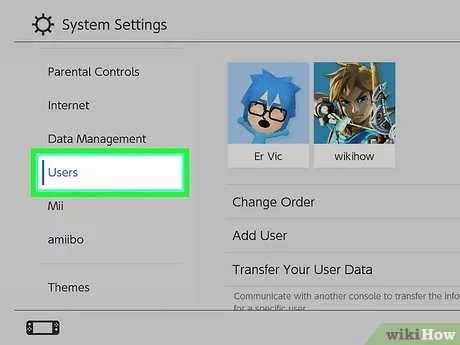
- On your new Switch, go to ‘System Settings’ from the HOME Menu.
- Select ‘Users’ then click on ‘Transfer Your User Data’ (first time transfer option is ‘Import User from Another Console’).
- Follow the instructions shown on the screen. This will lead you to a screen where you choose to transfer from another Switch.
- On your old Switch, go to ‘System Settings’, ‘Users’, then ‘Transfer Your User Data’.
- Choose ‘Transfer to another console’.
- Make sure the consoles find each other (the new console becomes the target console and the old becomes the source console).
- Follow the steps on the screen. You will see a ‘Prepare to Transfer’ message, confirm if you are ready.
- The transfer will start. The length of the transfer process will depend on the amount of data you have. It can be a few minutes or longer.
- Once the transfer is complete, you might need to sign in to your Nintendo account again on the new console.
- Once the process is done, you’ll have all your digital games, save data, user profile on your new Switch.
- After that, your old Switch will be reset to the factory settings and will no longer have your content on it.
Important Notes About System Transfers
- This transfer moves everything associated with your account, including game purchases, save data, user profiles, and even your friend list.
- You can’t select just certain games or data to transfer. It’s an all-or-nothing deal when doing this method.
- The console that acts as the source for the transfer will be erased and go back to its factory settings. Think of this like trading in a car. You are giving your old one up for a new one.
- If you are going to sell the old console, a system transfer is a great way to ensure your personal data is no longer on it.
Redownloading Games (With Save Data Backup)
This method is perfect if you only want to move game data or if your old Switch is no longer working or available. It also gives you more control over what content gets moved to the new device. It relies on having your save data safely backed up to the Nintendo cloud storage.
Preparing to Redownload Games
- You’ll need a Nintendo Switch Online membership for cloud save data backup. If you don’t have this membership, you won’t be able to back up your saved games. The process will only move the purchased games but not the progress you’ve made in them.
- Make sure your games and their associated save data are backed up to the cloud on your old Switch (if you still have access).
- Your new Switch is connected to the internet and has a working Nintendo account.
The Redownloading Process Step by Step
This is how you move your games and save data using the redownload method:
- On your new Switch, make sure you have signed in to your Nintendo Account.
- Go to the eShop and find the games that you want to play again (these should appear as already “purchased” and have a download icon).
- Download all the games that you want to play.
- The games should be able to recognize that your saves are saved on the Nintendo Cloud. The games will automatically be resumed when you launch them.
Important Notes About Redownloading Games
- You have to download all the games from scratch. This can take a while, depending on how many games you have and your internet connection speed.
- You can download these games on as many devices as you own, as long as your Nintendo account is active on them. However, you can only play on a single device at one given time.
- The old Switch will keep a copy of the games.
- Make sure to check if your games and save data have been backed up to the cloud. If not, your game progress will be lost.
- Without Nintendo Switch Online, you won’t be able to back up your save data in the cloud.
Moving Save Data (Crucial Information)
Moving your save data is super important, perhaps even more important than the games themselves because it lets you continue playing from where you left off. Here’s a deeper look at how save data works and how to move it.
Cloud Save Data
The best way to back up and transfer your save data is using Nintendo’s Cloud Save feature. This is available with a Nintendo Switch Online membership. With cloud saves, your game progress is automatically saved to the internet, meaning it is safe even if your Switch breaks. This way, it is very easy to transfer to another device.
To make sure your save data is backed up to the cloud:
- Go to ‘System Settings’ from the HOME Menu on your Switch.
- Select ‘Data Management’.
- Select ‘Save Data Cloud’.
- You will find here the status of your saves and the option to back up or download them.
Local Save Data
Some games do not support cloud saves, and some save data must be moved manually through system transfer. If you do not transfer using the system transfer method, your save data that are only saved locally will be lost.
How to Manage Save Data
- Always make sure your save data is backed up before doing anything.
- Regularly check the cloud save status to be sure all of your progress has been saved.
- Keep an eye on which games support cloud saves and those that don’t.
- If you are going to perform a system transfer, make sure to have your user profile set up first.
What if Something Goes Wrong?
Technology isn’t always perfect, and sometimes things can go wrong. Here are some common issues and how to try to fix them:
Transfer Issues
- Transfer not starting: Make sure both consoles are updated and on the same Wi-Fi network. Try restarting both.
- Transfer stuck: Don’t turn off the consoles, sometimes the transfer can take a while. If it’s stuck for over an hour, restart and try again.
- Incomplete Transfer: Check both consoles for error messages. Contact Nintendo Support if the issue persists.
Save Data Issues
- Save Data Missing: Verify if your save data was backed up to the cloud. If not, you may have lost progress.
- Corrupted Save Data: Check your save data backup regularly. Contact Nintendo support if it’s constantly corrupting.
General Tips
- Always keep your consoles charged.
- Try a wired internet connection if your Wi-Fi is unstable.
- Restart your devices if you are encountering a problem.
- Be patient, transfer can take some time.
- If everything else fails, contact Nintendo support. They are usually able to help you!
Moving your games and data between Nintendo Switches is not difficult if you know how to do it. Whether you are upgrading to a new console or just need to move your data, the steps are clear. Whether you go for system transfer or just downloading again, as long as your save data is safe, you’ll be playing again in no time!
How to Transfer Saves & Games From One Nintendo Switch to Another (Move User Progress & Purchases)
Final Thoughts
Yes, you can transfer games from one Switch to another. The process involves using the system transfer feature within the settings menu. This method moves your user profile, save data, and digital games.
However, physical game cartridges do not require transfer. You can simply move them between consoles. Make sure both systems are nearby and connected to Wi-Fi to complete the process.
Ultimately, can you transfer games from one switch to another? Yes, and it is a straightforward process when handling digital purchases but it does not apply to physical games.

