
To play zip file games, you typically need to extract the game files from the zip archive using file extraction software, then run the game’s executable file.
Ever stumbled upon a cool game tucked inside a zip file and wondered how to play zip file games? It can seem tricky at first, but it’s actually quite simple.
Basically, you need a program to open these compressed files and get to the actual game files within. Think of it like unpacking a box. Once you have those files, playing the game is usually straightforward.

How to Play Zip File Games
Playing games from zip files might sound a bit tricky, but it’s actually quite simple once you get the hang of it! Think of a zip file like a special container that holds all the game’s pieces. Inside, you’ll find everything the game needs to run – pictures, sounds, and the actual game program itself. We’re going to walk you through each step, so you’ll be playing your favorite games in no time. It’s easier than you might think, promise! Let’s get started on this fun journey!
Understanding Zip Files
Before we jump into playing games, let’s talk about what a zip file actually is. Imagine you have a bunch of toys scattered all over your room. It would be hard to carry them all at once, right? A zip file is like a special box that neatly packs all those toys (or in our case, game files) into one manageable package. This makes it much easier to move the game from one place to another, like downloading it from the internet or sharing it with a friend.
Why are games often in zip files?
Saving Space: Zip files compress, or squish, the files inside so they take up less room on your computer. This is great when you have lots of game files that would otherwise take up a lot of storage.
Organizing Files: They keep all the game parts together in one neat package. This means you won’t have missing bits and pieces when you move the game around. Imagine if the game’s pictures were in one folder and the game’s music were in another – it would be a mess!
Easy Downloading: When a game is in a zip file, it’s easier to download because it’s just one file instead of many separate ones. This can make downloading a game from the internet quicker and less complicated.
Downloading Game Zip Files Safely
Okay, so you’re excited to get some games, but it’s really important to get them from a safe place. Think of it like getting candy from your family and not from strangers!
Finding trustworthy sources
Reputable Websites: Look for websites you know and trust. If a website looks a bit suspicious, it’s best to stay away. Usually, trusted game websites have names you may already know and they look nice and clean. They also usually use secure connections (look for a padlock symbol in your browser).
Game Developer Sites: If a game has a website where you can download the game, then it’s usually the best place to get the game. You know they made it, so you know it’s likely safe.
Friends and Family: Ask your friends or family where they get games from. They may know of some good places. It’s always nice to have advice from someone you know.
Things to avoid when downloading
Pop-up Ads: Steer clear of websites that have lots of flashing ads or those that want you to click on lots of things just to get to the download button. This could be a sign of a bad site.
Unknown Websites: If you have never heard of the website before, and it seems strange, don’t download things from it. You might not know what you’re getting. It’s better to play it safe.
Always Scan: Before you open a downloaded zip file, it’s a good idea to have your computer’s security program scan it to make sure there aren’t any bad surprises hiding in there. You should always do this for any downloaded file. It’s like checking if there are any mean bugs before you open your lunch box!
Extracting the Game Files
Once you have your game zip file safely on your computer, you need to unpack it. Think of it as taking the toys out of the box so you can play with them. This process is called “extracting.”
Using File Explorer (Windows) or Finder (Mac)
Finding the Zip File: First, go to where you saved the downloaded zip file. It usually has a little zipper picture on it.
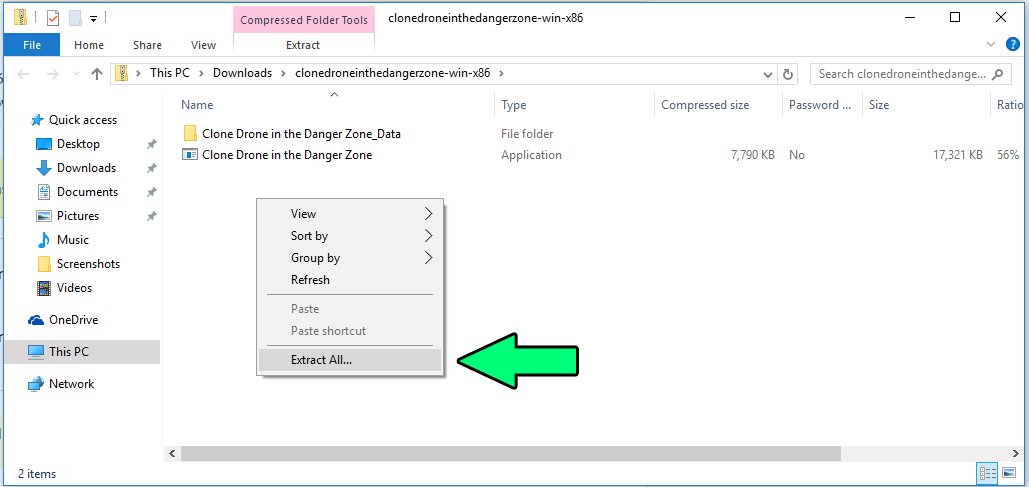
Right-Click: Once you find the zip file, right-click on it with your mouse (or two-finger tap on a Mac trackpad). This will give you a list of choices.
Selecting Extract All: Look for an option that says “Extract All.” Click on this.
Choosing a Location: A new window will pop up, asking where you want to put the unzipped files. The usual location is in the same folder as the zip file, but you can change it if you want. It’s helpful to have the unzipped game in an easy-to-find spot, so you don’t forget where you saved it!
Click Extract: Then click extract. It will usually take some time depending on how large the game is. This process will create a new folder with the same name as the zip file.
Using Third-Party Extraction Software
Sometimes, the built-in extraction tools aren’t enough or might give an error. There are other free programs that can help you extract game zip files like 7-Zip or WinRAR (WinRAR has a free trial).
Installing: Download and install the software from its official website. You need to follow the installation instructions.
Extracting: Once installed, these programs often make it easier to open zip files just by double-clicking them. If not, the extraction process is very similar, so you would still need to right-click and extract the game.
Extra Features: These programs have extra features that can be very helpful, especially for larger games. You won’t usually need them, but they can come in handy if you’re having any issues.
Finding the Game’s Executable File
After you extract the game files, you’ll see that a new folder has been created. The next step is to find the special file that starts the game. This file is called the executable file and often has a “.exe” extension on Windows or may have other specific extensions depending on the game. Think of it as the key that starts the engine of your game.
Locating the Executable
Looking in the Extracted Folder: Now open that new folder you just made by extracting the zip file. Look through all the files and folders.
Recognizing Executable Files: You’re looking for a file that has a special icon. On Windows, it will typically have an extension of ‘.exe’. Some games may have other types, but the main game should still have an obvious icon that looks like the game’s logo.
Windows Icon: Usually it looks like a little window and it might even have the logo of the game on it. The key thing is to look for the files that are named after the game.
Double-Clicking: Once you find the correct file, you just have to double-click on it to start the game! If everything went right, the game will open and you can start having fun!
Troubleshooting If You Can’t Find It
Looking for a Manual: Sometimes game developers include a manual in the folder with instructions on how to start the game. Check if there’s any file with a ‘readme’ in the file name, they often contain information on how to start the game.
Checking Other Folders: Sometimes, games have their starting file in a subfolder. If the main folder is not working, then you can look through subfolders.
Asking for Help: If you can’t find the file or you have trouble, ask an adult for help. They may have more experience or may know of some other ways to start a game.
Game Compatibility
Sometimes, a game might not work on your computer. It’s important to think about compatibility. It’s like wearing the right shoe size, if it’s the wrong size, it won’t fit right!
Checking System Requirements
Game Details: Check the game’s page where you downloaded it or a readme file that usually comes with the game files. See if there are any requirements. These requirements usually tell you if your computer can play the game.
Operating System: Some games are only made for Windows, Mac, or Linux computers. You have to make sure your computer uses the operating system that the game needs.
Hardware: Your computer needs a certain amount of memory or RAM, and graphics processing power. If your computer isn’t powerful enough, the game might not work well.
Example of Requirements:
Operating System: Windows 10
Processor: Intel Core i5 or better
Memory: 8GB RAM
Graphics: NVIDIA GeForce GTX 970 or better
What if the game is not compatible?
Update drivers: Sometimes updating the graphics drivers or other computer parts can make a game work better. It’s like giving your computer a little tune-up!
Running Older Games: Older games might need a special program to run on modern computers. This is usually something you would install separately if needed. It’s like having a special adapter.
Try a Different Game: If you just can’t get a game to work, it might be best to try another game. There are so many to pick from, you’re sure to find one that works!
Dealing with Game Saves
Many games will save your progress so you can pick up where you left off. It’s like putting a bookmark in your favorite book!
Understanding Save Files
Location of Saves: Game save files are usually saved in a special folder where the game files are located. You might need to look through the folders to find them. Some games may also save the files in your documents folder.
Types of Save Files: Save files can have different types of file extensions. They can be .sav, .dat, or have other names. You don’t need to touch them, as the game will automatically handle them.
Backing Up Your Saves: Sometimes it’s a good idea to backup your save files if you make a lot of progress. You can just copy the folder or file somewhere else to keep it safe.
What to do with Save Files
Moving to Another Computer: If you want to continue playing the game on another computer, you can just copy the save files over. Remember to put them in the correct folder on the new computer.
Restoring Saves: Sometimes, if your game crashes or has an error, you can try restoring an earlier save. This can save you a lot of frustration and time.
Don’t Edit Saves: Don’t change or try to edit your save files, because that can cause problems and they may not work properly. Let the game handle them for you.
Tips and Tricks for Smooth Gameplay
Playing games should be fun and enjoyable! Here are some tips and tricks to help you play games from zip files with fewer issues.
Keeping Your Computer Clean
Closing other Programs: If your computer has a lot of programs running at the same time, they can make the game slow. Close any programs you are not using.
Clearing Temporary Files: Clearing your temporary files every once in a while can make your computer work faster. It’s like cleaning out your room, it’ll feel cleaner and more free.
Updating Your Operating System: Keeping your computer up to date can fix some bugs, which can sometimes make games work better. It’s good to keep everything up to date.
Game Settings and Configurations
Graphics Settings: If your game looks slow or choppy, you can adjust the graphics settings to make it run better. This is usually done in the game settings menu.
Sound Settings: If the game is too loud or too quiet, you can change the sound settings. This helps you have a good and comfortable gaming experience.
Controls: Some games let you change the controls, so you can play in a way that feels comfortable for you.
What to Do if Something Goes Wrong
Restart: Sometimes, simply closing the game and restarting it can solve some problems. It’s like giving the game a quick nap.
Reinstall: If restarting doesn’t work, try reinstalling the game by re-extracting it. Sometimes, a file may not have copied over properly.
Check for Updates: Some games get updates that fix issues. Check to see if an update is available, as they can make the game more fun and stable.
Seek Help: If you still can’t get the game to work, it might be time to ask an adult or someone who has played the game before.
Playing games from zip files is a fun and rewarding experience. Once you understand the process and how to extract the files, locate the executable, and deal with save files, you will have many great gaming adventures. Remember to stay safe while downloading game files and always take steps to keep your computer working well. With a little practice, you will soon be a pro at playing games from zip files. This is just a start to your journey, and there are countless games waiting for you! So go and enjoy the games!
How To Extract Games Using 7zip
Final Thoughts
To play zip file games, you must first extract the game files. Use a file extraction tool to do this. Locate the game’s executable file after extraction. Then, simply double-click the executable to start playing.
Most zip file games are simple and don’t require further steps. Ensure your system meets the game’s minimum requirements. This makes sure you get the best experience.

