
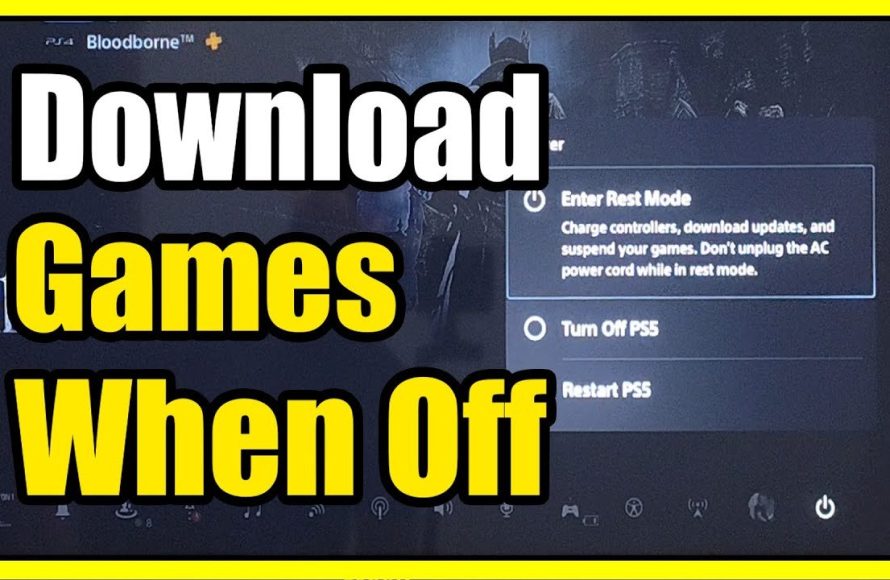
Yes, you can turn off your PS5 while downloading a game, but it will go into rest mode instead of fully powering off.
Ever wondered if you can turn off your PS5 while downloading a game? It’s a common question for gamers eager to manage their console’s energy use and time. Many worry about interrupting downloads.
Rest mode allows the console to continue downloading games even when you are not actively using it. It consumes less power compared to full operation. So, you can happily turn off your PS5 and still get your games!

Can You Turn Off PS5 While Downloading a Game?
So, you’re super excited about a new game, and the download is taking forever, huh? We’ve all been there! The big question pops up: “Can I just turn off my PlayStation 5 while this thing downloads?” It’s a valid question, and we’re going to dive deep into the answer. Let’s explore everything you need to know about downloading games on your PS5 and what happens when you want to power down.
Understanding Rest Mode on Your PS5
The first thing you need to understand is the concept of “Rest Mode” on your PS5. It’s not the same as turning your console completely off. Think of it like putting your PS5 to sleep, but it’s still working a little bit in the background. Rest Mode is actually your best friend when it comes to downloading games, patches, and system updates. Let’s see how Rest Mode actually helps in downloading:
What Rest Mode Does
- Keeps Downloading Active: When you put your PS5 in Rest Mode, it still uses the internet connection to download the game files.
- Uses Less Power: It consumes significantly less power than when the console is fully powered on, saving electricity.
- Quick Start-Up: When you turn your PS5 back on, it starts up much faster from Rest Mode than from being completely turned off.
- Background Activities: Besides downloads, Rest Mode also helps the system install game updates and charge your controllers.
How to Put Your PS5 in Rest Mode
It’s super easy! Here’s how you do it:
- Press the PlayStation button on your controller.
- Go to the Power icon at the bottom of the screen.
- Select “Enter Rest Mode.”
Your PS5 will now go into Rest Mode, indicated by a slow pulsing orange light on the console.
Why You Shouldn’t Fully Power Off During a Download
Okay, so we’ve covered Rest Mode. But what happens if you just press the power button and completely turn off your PS5? Well, things aren’t so good then. Here’s why you should avoid it:
Download Interruption
- Stops the Download: Completely turning off the PS5 will interrupt the game download. The download will stop and won’t continue until you power the console back on and restart the download.
- Possible Data Loss: While not always, there is a small chance of losing some download data. This means the system will have to re-download some of the information, making the whole process longer.
- Corrupted Files: Though rare, a sudden power off can potentially cause corrupted game files. If this happens you may need to uninstall and reinstall the game, which is a major pain.
Impact on Game Installs
It’s not just about the downloading; it also impacts installing the game. After the game is downloaded, it needs to be installed on the hard drive. If you turn off your PS5 during this phase, you might have to start that process over too. So, Rest Mode is key for the whole process!
Settings to Optimize Downloading
To make sure your downloads are as smooth as possible, let’s look at some settings you can check on your PS5.
Power Saving Settings
Go to your PS5’s settings and check your “Power Saving” options:
- “Set Time Until PS5 Enters Rest Mode”: You can choose the duration before your PS5 automatically enters Rest Mode. If you plan to download while asleep, you can choose the setting as ‘Do Not Put in Rest Mode’ during the gameplay, or make sure to put it on rest mode yourself, after you are done playing. If you do not want to use rest mode, then you can select a longer duration before the system goes in rest mode. However, that will use more electricity.
- “Features Available in Rest Mode”: This is super important! Make sure “Stay Connected to the Internet” is enabled. This ensures downloads are happening when you are not actively using the system.
Internet Connection
A stable internet connection plays a big role in how quickly your games download:
- Wired Connection: Whenever possible use an ethernet cable connected directly to your router instead of using a wireless connection. It’s generally faster and more reliable.
- Router Location: Keep your PS5 as close as you can to your router. Walls and other objects can interfere with the Wi-Fi signal.
- Check Your Internet Speed: Perform a speed test on your PS5 or another device to make sure you’re getting the speeds you’re paying for from your internet service provider (ISP).
Rest Mode Issues and Solutions
Rest Mode is great, but sometimes you might encounter issues. Let’s look at some common problems and how to deal with them.
Common Rest Mode Issues
- System Freezes: Sometimes the PS5 can freeze while in Rest Mode. This is annoying, but usually a restart fixes it.
- Download Problems: Your download might stop or slow down significantly while in Rest Mode.
- Error Codes: You might see error codes related to downloads or the internet connection.
Troubleshooting Rest Mode
- Restart Your PS5: A simple restart can often solve many issues. Hold the power button for a few seconds until you hear a beep. Wait for it to completely shut down, then turn it back on.
- Check Your Internet Connection: Restart your router. Unplug it from the wall, wait about 30 seconds, and plug it back in.
- Update System Software: Make sure your PS5 is updated to the latest version. Sometimes outdated software causes issues.
- Rebuild Database: If you’re still having issues, you can rebuild the PS5 database. This can resolve various software problems but is more of an advanced step. You can find how to do this in the PS5 settings menu.
What Happens If You Accidentally Power Off During a Download?
Okay, so what if you accidentally turned off your PS5 in the middle of a download? Don’t panic, it’s not the end of the world! Here’s what usually happens:
- Resuming the Download: When you turn the console back on, the PS5 will likely resume the download where it left off, though sometimes it might restart.
- Checking for Errors: The system will check the files that were downloaded to see if anything is missing or corrupted. This process can take time.
- A New Download: Worst case, you might have to start the download again, especially if a lot of files were affected.
The PS5 system is designed to handle accidental power-offs during downloads without any major harm, so don’t be too worried!
Is Rest Mode Safe For My PS5?
Some people worry about leaving their PS5 in Rest Mode for extended periods of time. Let’s tackle that myth!
Rest Mode and the PS5’s Health
- Designed for Rest Mode: The PS5 is specifically designed to work in Rest Mode. It’s not like putting it into a deep sleep that will cause any issues with internal components.
- Power Consumption: Rest Mode uses very little power. So it shouldn’t dramatically increase your electricity bill.
- Ventilation: Just make sure your PS5 is properly ventilated. Don’t put anything on top of it or enclose it in a cabinet during rest mode.
The PS5’s design takes rest mode into account, and generally, rest mode can be considered as the primary way of putting the system on stand-by, rather than completely powering off.
Tips for Faster Downloads
We all want those games downloaded ASAP. So, let’s look at some quick tips to speed things up:
- Pause Other Downloads: If you have multiple games or updates downloading at the same time, pause the ones you don’t need immediately. This makes the primary download faster.
- Close Unused Apps: Close any games or applications you have running before starting the download. This frees up processing power and internet bandwidth.
- Avoid Streaming: Streaming services like Netflix or YouTube can hog your internet bandwidth. Pause them when downloading a big game.
- Download During Off-Peak Hours: Internet traffic tends to be lower late at night or early in the morning. If you can, schedule your downloads during these times.
Future Updates and Download Behavior
Sony often updates the PS5 software. These updates could potentially change how downloads work, so it’s important to stay informed about any future changes they make. When new software updates come out, it’s always wise to check the details to see if there are any changes related to downloading and rest mode.
Using Rest Mode is the best way to download your games on your PlayStation 5. Avoid turning it off completely during a download to prevent interruptions and potential data loss. Use the power-saving settings on your console and follow the tips to keep downloads fast and smooth. Happy gaming!
How to Download Games in Rest Mode on PS5!
Final Thoughts
Yes, you can turn off PS5 while downloading a game, but it enters rest mode instead of fully shutting down. This allows the download to continue while using less power.
Rest mode is vital for background downloads, ensuring your games are ready faster. Remember that a full shutdown will pause any active downloads.
Therefore, to answer the question, ‘can you turn off PS5 while downloading a game’, you technically can but the console won’t be fully off, it will be in rest mode.

