
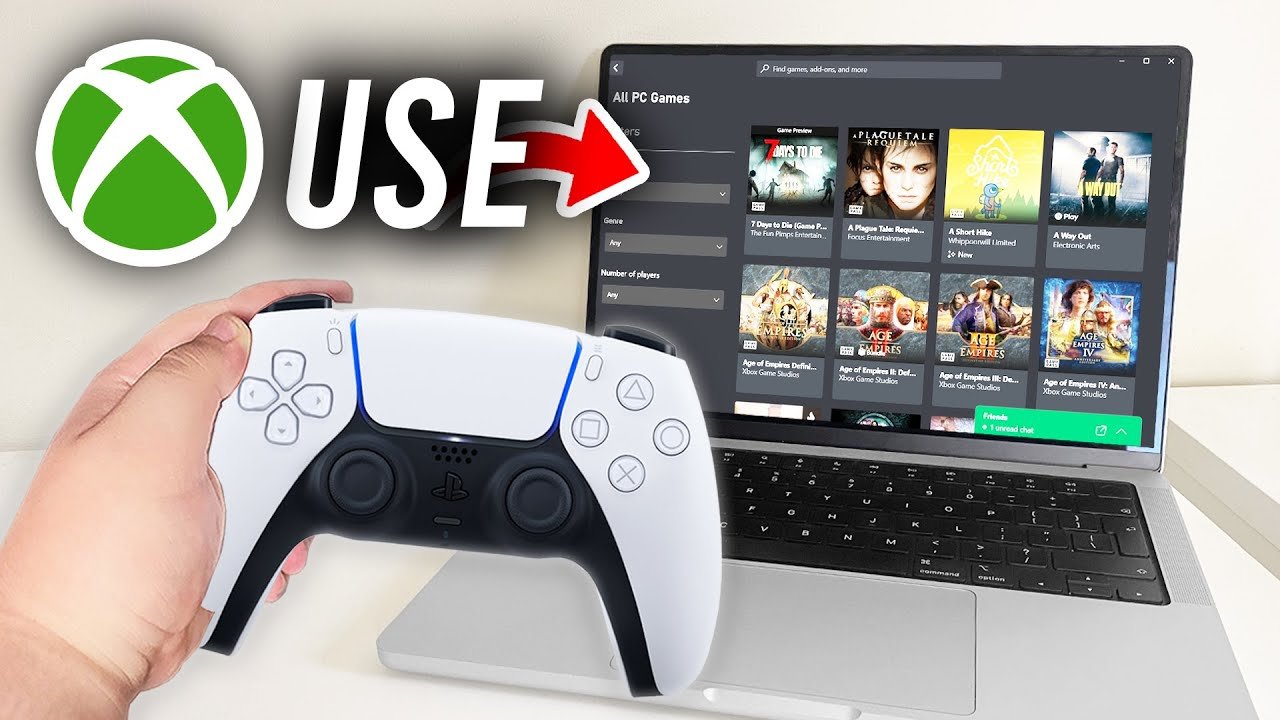
Yes, you can use a PS5 controller on Xbox Game Pass PC.
Want to ditch your keyboard and mouse for a more familiar feel? Many gamers ask, can you use ps5 controller on xbox game pass pc? The good news is, you absolutely can enjoy your favorite Game Pass titles with your DualSense controller.
It might require a quick setup, but once you’ve got it going, you’ll be playing all your games with the PS5 controller you love. This gives players greater flexibility in how they enjoy their games.

Can You Use PS5 Controller on Xbox Game Pass PC?
So, you’ve got your awesome PlayStation 5 controller, and you’re ready to dive into the world of Xbox Game Pass on your PC. That’s a great idea! But, wait a minute… can you actually use the PS5’s DualSense controller with Xbox games on your computer? It’s a question many gamers are asking, and the answer isn’t always straightforward. Let’s take a good look at how these two gaming worlds can, or sometimes can’t, come together. We will explore the technical side, the user experience, and even some tips and tricks to help you get your PS5 controller playing your Xbox games on PC. Let’s get started!
The Basics: Understanding Controller Compatibility
The first thing we need to understand is how controllers work with games on your PC. Most games on PC are designed to work with controllers that use the XInput API. This is like a special language that controllers and games use to understand each other. Xbox controllers, especially the official ones, speak this language perfectly. They plug in and usually work with most games without any fuss.
Now, the PS5 DualSense controller uses a different language, called DirectInput. This is an older way of doing things, and not all games directly understand it. So, when you plug in a PS5 controller to your PC, it might not work like you expect right away. You often need some extra software to help your computer and games understand the controller’s inputs.
Why the Difference?
The reason for this difference comes down to how Microsoft and Sony designed their controllers and software. Xbox controllers work directly with Windows because they are both made by Microsoft. Sony’s PS5 controller has its own system, which isn’t directly built into Windows. Think of it like this: an Xbox controller is like speaking the same language as the PC game, but a PS5 controller needs an interpreter to translate what it’s saying.
Direct Connection: Plug-and-Play Possibilities
Let’s talk about the easiest scenario first – plugging in your PS5 controller and hoping it just works. When you connect the PS5 DualSense controller to your PC with a USB cable or using Bluetooth, it will likely be recognized by Windows. You might see it appear in your device list, and some PC games may even detect it as a generic controller. But the problem is, the game might not fully understand all the features of the controller, like the haptic feedback or adaptive triggers, or some of the button layouts. This is where you might find that some buttons don’t do what they should or don’t work at all.
Some games on Xbox Game Pass for PC will work with the PS5 controller directly, as they include built-in support for DirectInput devices. However, this is not as common as support for the XInput protocol. You may find that indie games, retro-style titles, or some more recent games that are controller-friendly, work right away with your PS5 controller. However, for the most part, you will need to do a little more work to get the best experience.
The Need for Third-Party Software: Bridging the Gap
When a game doesn’t understand the PS5 controller directly, we need help. This is where third-party software comes in. These apps act like interpreters, converting the DirectInput signals from the PS5 controller to XInput, which most PC games understand. There are several options available, each with slightly different features and setup processes.
Popular Controller Emulation Tools
Here are some popular third-party options that can help you connect your PS5 DualSense controller to Xbox Game Pass on PC:
- DS4Windows: This is a very popular choice and a long-time favorite for many PC gamers. It’s free and open-source. DS4Windows basically makes your PS5 controller look like an Xbox controller to your PC, so the games understand it. It offers lots of customization options, like changing button layouts and adjusting rumble intensity.
- Steam Input: If you use Steam, it has a built-in system for remapping controller inputs. Steam Input works with many types of controllers, including the PS5 controller. It’s really useful if you get your Xbox Game Pass games through Steam. You can configure the PS5 controller for a game even if the game doesn’t normally support it.
- InputMapper: Another good choice and a bit of an alternative to DS4Windows. It does have a slight price tag, but it comes with more advanced features like macro support and touchpad customizations, but mostly it provides the same basic functions as DS4Windows
- DualSenseX: This is another option made specifically for the DualSense controller. It focuses more on utilizing the adaptive triggers and haptic feedback features of the PS5 controller. This is good if you want to experience the best of the DualSense and how it works with your PC games, with some Xbox games now supporting those features.
How These Tools Work
These tools usually work by creating a “virtual” Xbox controller on your PC. When your game tries to find a controller, it detects the virtual Xbox controller that the software is creating. The software then translates the signals from your PS5 controller to these virtual Xbox controller inputs. This allows the game to work as it is supposed to. It’s like a magic trick, but it is actually some clever software engineering behind the scenes.
Setting Up Your PS5 Controller
The exact steps might be different depending on which third-party tool you are using, but generally, here’s how you can set up your PS5 controller:
- Download and Install: Go to the website of your chosen software (DS4Windows, Steam Input, InputMapper, or DualSenseX) and download the program. Then, install it on your computer like any other software.
- Connect Your Controller: Connect your PS5 controller to your PC using a USB cable or Bluetooth.
- USB Cable: Plug the USB cable directly into your computer, it should be recognized by your computer when you plug it in
- Bluetooth: Turn on Bluetooth on your PC and make the PS5 controller discoverable (press and hold the PS button and the Share button). Your PC should then find the controller.
- Launch the Software: Open the emulation software you installed. It should detect your PS5 controller.
- Configure the Settings: Most programs have basic configurations that allow you to choose the type of controller to emulate (usually Xbox 360 or Xbox One). You might also have the option to adjust things like rumble strength, LED colors, and button remapping. If you are using Steam, configure the controller in Steam Settings under the Controller Tab.
- Start Your Game: Once everything is configured, launch your Xbox Game Pass game. The controller should now work correctly as if it were an Xbox controller.
Troubleshooting Common Issues
Sometimes things don’t always go as smoothly as we hope. Here are some common issues you might face and how to fix them:
- Controller Not Detected: Check your connection (USB or Bluetooth) and try restarting your computer. Also, make sure the third-party software is recognizing the controller correctly. You can check the status on the program you installed, like DS4Windows.
- Buttons Not Working Correctly: This is usually fixed with software settings. Try a different emulation mode (if available). Also double check your configurations and mappings.
- Input Lag: Sometimes, Bluetooth can introduce some input lag. If you are using Bluetooth, try connecting with a USB cable instead for better performance.
- Software Conflicts: Close other controller-related software as they might conflict with each other. Make sure you are not using multiple pieces of emulation software at the same time.
- Game Not Recognizing Controller: Try restarting the game, or make sure the software is running and recognizing your controller before you open the game. Also sometimes games have specific settings you must change to use a controller.
The Benefits of Using a PS5 Controller
You might be wondering, why go through all this trouble of making the PS5 controller work with your Xbox PC games? Well, there are some really good reasons!
Comfort and Ergonomics
Many people find the PlayStation controllers very comfortable to hold. The DualSense controller has a unique design and great feel, and you might prefer it to the design of an Xbox controller. If you are used to using a PlayStation controller, it will be more natural for you to pick up and play.
Unique Features
The DualSense controller has cool features like haptic feedback and adaptive triggers. Some PC games now support these features, which can add a lot to your gaming experience. These make playing games more immersive, and add a layer of new ways to feel the game, especially when playing racing games and shooting games. You might have to play around with the settings in your games to see what is best for you.
Personal Preference
Ultimately, it comes down to personal choice. You might just like the feel and design of the PS5 controller better. If you’ve been using PlayStation for years and your Xbox games are on PC, having the option to use the DualSense makes PC gaming more comfortable.
Limitations to Consider
Before you jump in, it’s important to be aware of some limitations:
Not All Games Support Emulation
While many games will work with your emulated Xbox controller, there might be some very old or some lesser known games that don’t work correctly. Always test the controller before committing to play. There might also be some games that require extra configurations.
Potential Performance Issues
While rare, sometimes these emulation layers can cause issues. Things like input lag and occasional glitches may occur, but they are usually fixed with some small adjustments.
Software Updates
The software you use will need to be updated to work with the latest games. Sometimes Windows updates or game updates can break your controller setup and you might have to spend some time configuring everything correctly again.
The Bottom Line: Is It Worth It?
So, can you use your PS5 DualSense controller with Xbox Game Pass on PC? Absolutely, but with some extra effort. You can get it to work great with some additional software. While it may not be a direct plug-and-play experience, the benefits of using your preferred controller and having its unique features makes it worth the try for many players. The most important thing is to find the setup that works best for you and enjoy your game time!
How To Use PS4/PS5 Controller On Xbox Game Pass PC (2024)
Final Thoughts
Yes, you can use a PS5 controller on Xbox Game Pass PC. While not officially supported, you achieve this with third-party software or Steam’s controller configuration. This lets you enjoy Xbox games using your preferred PlayStation input.
The process might require some setup, but it is a viable way to play. Therefore, the answer is definitively yes, you can use ps5 controller on xbox game pass pc.

