
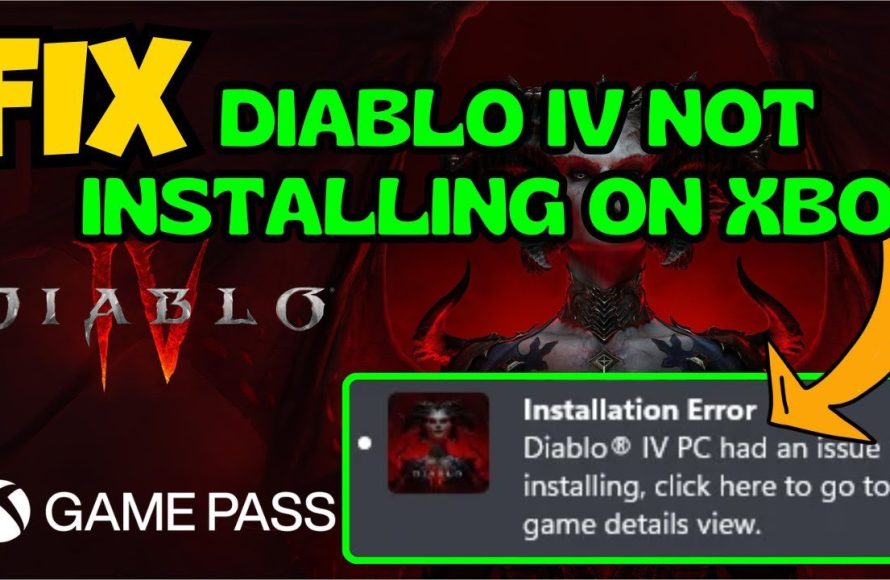
Unfortunately, if you can’t install Diablo 4 game pass, verify your subscription status, check for available storage space, and ensure your PC meets the minimum system requirements.
Frustration mounts when you’re eager to jump into Sanctuary, but find yourself facing the dreaded “cant install diablo 4 game pass” issue. It’s a problem many gamers experience, and it can definitely dampen the excitement.
Don’t worry, we are going to explore some common reasons and fixes, and help you get to playing this awesome game as soon as possible. Let’s dive in and troubleshoot this together.

Can’t Install Diablo 4 Game Pass: Troubleshoot and Get Gaming!
So, you’re excited to jump into Sanctuary and battle demons in Diablo 4 with your Game Pass, but the game just won’t install? Don’t worry, you’re not alone! Many players experience installation hiccups, and thankfully, there are a bunch of things we can try to fix this frustrating problem. This article will guide you through the most common reasons why Diablo 4 might refuse to install via Game Pass and offer easy-to-follow solutions. Let’s get you playing!
Understanding the Basics: Why Won’t Diablo 4 Install?
Before we dive into specific fixes, let’s understand some basic reasons why installations can fail. Think of it like building with LEGOs. If one piece isn’t quite right, the whole thing can be unstable. With software, lots of factors can throw a wrench in the works.
Insufficient Storage Space
Think of your computer or console like a closet. If it’s completely full, you can’t fit any new clothes (or, in this case, a new game!). Diablo 4 is a big game. Make sure you have enough room for it. To check your storage:
- On PC: Go to Settings > System > Storage. Look at how much free space you have on the drive where you want to install Diablo 4.
- On Xbox: Go to My Games & Apps > See all > Manage > Storage. Again, check the space on your chosen drive.
How much space do you need? Diablo 4 typically requires around 90 GB of free storage space on PC and a slightly smaller amount on Xbox. If you are running out of space, try to delete programs or files you don’t need.
Poor Internet Connection
Downloading a game like Diablo 4 is like getting a delivery from a store. If the truck delivering the game has a broken engine or gets stuck in traffic, your delivery will be slow or may never arrive. A slow or unstable internet connection is a common reason for failed or stalled installations. Make sure you have a reliable internet connection. Here’s what you can do:
- Check your speed: Use an online speed test (like speedtest.net) to see if you are getting the speeds you expect.
- Restart your router: Unplug your modem and router for about 30 seconds, then plug them back in. This is like hitting a reset button for your internet connection.
- Try a wired connection: If you are on Wi-Fi, try using an ethernet cable for a more stable connection.
Outdated Operating System or Drivers
Your computer’s operating system (like Windows) and drivers are like the instruction manuals and engines that make your computer work. If these are old, they might not understand how to install new games properly. Make sure everything is updated:
- On PC: Go to Settings > Windows Update and check for updates. Also, check for updates to your graphics card drivers (Nvidia, AMD, or Intel) from their respective websites.
- On Xbox: Go to Settings > System > Updates. Your Xbox should check for updates automatically, but doing it manually ensures you have the latest version.
Game Pass App or Xbox App Glitches
Sometimes, the apps themselves have a tiny bug or temporary issue that can mess up an installation. These are like small hiccups in the game’s download process. Restarting the app or clearing its cache is a helpful solution:
- Restart the App: Fully close the Xbox App (or the Game Pass App on Xbox) and open it again.
- Clear the Cache (PC): In the Xbox App settings, look for an option to clear the cache. This cleans out old data that might be causing issues.
Specific Solutions to Common Diablo 4 Installation Problems
Now that we know the general reasons, let’s look at specific solutions tailored to common issues people face when trying to install Diablo 4 through Game Pass.
Stuck at “Preparing” or “Pending”
When the installation is stuck at “Preparing” or “Pending,” it often means the system is having trouble getting the necessary files. Here’s what you can do:
- Restart your PC or Xbox: This is often the simplest and most effective solution. It clears up temporary issues.
- Pause and Resume Download: In the Xbox App or Game Pass App, pause the download and then resume it after a few minutes. This can sometimes force the download to start properly.
- Check the Xbox Service Status: Go to the Xbox Status page on the Xbox website to see if there are any server problems. These issues can sometimes stop downloads from working.
Download Stops or Gets Interrupted
If the download stops suddenly or keeps getting interrupted, there are a few things to investigate:
- Check Your Internet Connection Again: Make absolutely sure your connection is stable and fast enough. Try restarting your modem and router one more time if you are still having problems.
- Disable Antivirus Software (Temporarily): Sometimes, antivirus software can mistakenly flag game files as dangerous and interrupt the download. Disable it temporarily and retry the install, remember to turn it back on afterwards.
- Check Disk Usage: Open the Task Manager on your PC and see if your hard drive is at 100% usage. If so, this could mean your drive is working too hard and could be slowing down the download. Consider closing some programs you are not using.
- Use the Windows Store Troubleshooter (PC): Go to Settings > Update & Security > Troubleshoot > Additional Troubleshooters and select “Windows Store Apps”. This helps identify and fix problems with the Microsoft Store and apps.
Error Codes During Installation
Error codes can seem scary, but they are simply messages giving you a clue about what’s gone wrong. Here’s a rundown of some common error codes you might encounter:
Error Code: 0x80070005 (Access Denied)
This error often means that the installer doesn’t have the necessary permissions to save files. To fix this:
- Run the Xbox App as Administrator (PC): Right-click on the Xbox App shortcut and select “Run as administrator”. This gives the app more permissions.
- Check File Permissions: Ensure the folder where you’re installing the game isn’t read-only. Right-click on the folder, select “Properties,” and make sure “Read-only” is not checked.
Error Code: 0x80073D00 or 0x80073CF9 (Installation Failure)
These are generally related to corrupted download files or install packages. To handle these errors:
- Try the same “Pause and Resume Download” strategy. Sometimes that all you need is a little nudge.
- Clear the Microsoft Store Cache (PC): Press the Windows Key + R, type “wsreset.exe” and press Enter. This clears the Microsoft Store cache. After it clears, restart the PC and try the installation again.
- Reinstall the Xbox App (PC): Uninstall the Xbox App and then download the latest version from the Microsoft Store.
Error Code: 0x80240031 (Update Error)
This error can appear if there’s a conflict with Windows Updates. Here’s how you can solve it:
- Make Sure Windows is Up-to-Date: Go to Settings > Windows Update and install all pending updates. After this is complete, restart the system and try again.
- Run the Windows Update Troubleshooter (PC): Go to Settings > Update & Security > Troubleshoot > Additional Troubleshooters and select “Windows Update.” This tool will scan and fix any update related issues on your PC.
Game Pass Subscription Issues
Sometimes, the problem might not be with your computer or internet connection, but with your Game Pass subscription. Here are a couple of things to check:
- Verify Subscription Status: Go to the Microsoft account website and make sure that your Game Pass subscription is still active.
- Sign Out and Sign Back In: In the Xbox App or Game Pass App, sign out of your account and sign back in. This often refreshes your subscription status.
Advanced Troubleshooting (If Nothing Else Works)
If you’ve tried all the above steps and the game still won’t install, you might need to look at slightly more advanced solutions.
Check Your System Requirements
Although it is a rare case, if your computer doesn’t meet the system requirements of Diablo 4, the game might fail to install. Check if your device has the minimum specifications to run the game.
- PC: Make sure that your graphics card, processor, and RAM meet at least the minimum system requirements of Diablo 4. The specifics are available on the Blizzard website.
- Xbox: Diablo 4 is only playable on Xbox Series X/S consoles. It is not compatible with older Xbox One.
Clean Boot of Your System (PC)
A clean boot helps to start Windows with minimal startup programs and drivers. This can help to avoid any software conflicts that could be preventing the game from installing. To perform a clean boot:
- Press the Windows key, type “msconfig”, and press Enter.
- In the System Configuration window, go to the “Services” tab, check “Hide all Microsoft services” and click “Disable all.”
- Go to the “Startup” tab and click “Open Task Manager.”
- In Task Manager, disable all startup programs.
- Close Task Manager and click “OK” in System Configuration.
- Restart your computer and try the installation again.
Reset the Windows Store (PC)
If problems persist, resetting the Windows Store can sometimes resolve the installation issue. Here’s how you can do it:
- Go to Settings > Apps > Apps & Features.
- Search for “Microsoft Store”.
- Click on the “Advanced options” link.
- Click the “Reset” button. This will remove any cached data. After completing this reset, try to reinstall the game again.
Contact Support
If you’ve gone through all the troubleshooting and are still having issues, it might be time to reach out to official support channels. You can contact Xbox Support or Blizzard Support for help with more difficult and unique scenarios. They have experts that are ready to help with tricky technical issues.
Remember, persistent issues with game installations can often be fixed with a bit of patience and these simple steps. Hopefully, this guide has provided you with the tools to get Diablo 4 installed. Go out there and beat those demons in Sanctuary!
Cant install Diablo 4 on xbox gamepass Fix
Final Thoughts
In conclusion, troubleshooting installation issues often requires patience. If you can’t install Diablo 4 Game Pass, first check your internet connection and storage space. Sometimes, restarting your system or the Xbox app resolves the problem.
Verifying your subscription status also might help you identify the problem. Should issues persist after these checks, contact support directly for additional guidance. Remember, figuring out why you ‘cant install diablo 4 game pass’ is often a process of elimination.

