
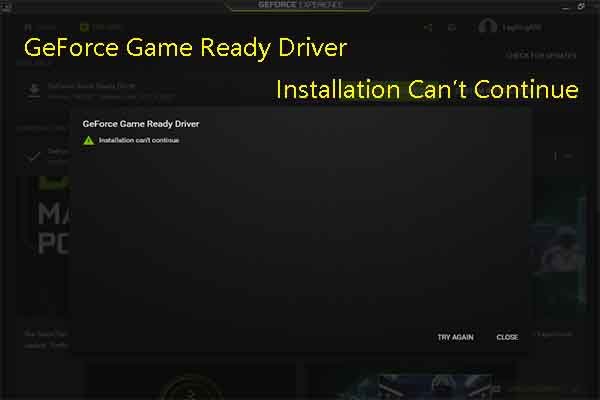
If you can’t install GeForce Game Ready driver, try restarting your computer, download the latest driver directly from NVIDIA’s website, and ensure your graphics card is properly seated.
Frustration bubbles when the latest games arrive, but your system refuses to cooperate. The ‘can’t install GeForce Game Ready driver’ message is a common hurdle many gamers face. This issue often stops you from enjoying the performance enhancements NVIDIA offers.
Luckily, simple troubleshooting steps frequently resolve this problem. It’s important to identify the cause and apply the correct solution, which will let you play with new drivers.

Can’t Install GeForce Game Ready Driver: Troubleshooting Guide
It’s super frustrating when you’re all set to jump into a new game, or update your graphics for that awesome visual boost, and BAM! You can’t install the GeForce Game Ready Driver. The installation just hangs, throws error messages, or seems to go nowhere at all. Don’t worry, you’re not alone. Many gamers experience this, and luckily, there are many things you can try to get things working smoothly again. Let’s dive into the common reasons why this happens and how to fix them.
Common Reasons for Installation Failures
First, it’s good to understand why these driver installations can go wrong. It’s not always because of a broken computer or anything super serious! Here are some common culprits:
- Old or Conflicting Drivers: Sometimes, old graphics drivers can clash with the new ones. It’s like trying to fit two big puzzle pieces into the same spot.
- Corrupted Download Files: If the driver file didn’t download perfectly, it might be incomplete or damaged. This can prevent the installation from completing.
- Windows Updates Issues: Sometimes, pending or failed Windows updates can get in the way of driver installation.
- Antivirus Software Interference: Some antivirus programs might see the driver installer as a threat and block it.
- Hardware Problems: Though less common, there might be an issue with your actual graphics card, but we’ll look at other possibilities before we worry about that.
- Insufficient Disk Space: Your computer might not have enough space to temporarily extract and install the new driver files.
- Incorrect Driver Version: Choosing the wrong driver for your specific graphics card can also lead to problems.
Initial Steps to Take
Before jumping into more complex solutions, let’s start with some basic checks that often resolve the issue:
Restart Your Computer
Yes, it’s the classic advice, but restarting your computer can clear out temporary glitches and allow a fresh install attempt. Sometimes it works wonders! Make sure that your computer is totally shut down before starting back up.
Check Your Internet Connection
Make sure that you have a reliable internet connection so that you can download the driver installer again if necessary. A weak or broken connection can lead to the kind of broken download that can cause problems.
Download the Driver Again
Sometimes the driver file you downloaded might be corrupted. Try downloading the driver again directly from the official NVIDIA website. Make sure you select the driver for your specific NVIDIA graphics card and the Windows operating system that you have.
Advanced Troubleshooting Techniques
If the basic steps didn’t work, it’s time to try some more advanced troubleshooting methods:
Clean Install Your NVIDIA Drivers
A clean install removes all existing NVIDIA driver files before installing the new ones. This helps in preventing conflicts. Here’s how you do it:
- Download the Latest Driver: Go to the NVIDIA website and download the latest driver for your graphics card.
- Use DDU (Display Driver Uninstaller): Download and run DDU. It’s a special tool that completely removes your old drivers. You can download it from a safe and reputable source.
- Boot into Safe Mode: Run DDU in Safe Mode. This ensures the old drivers are completely removed without interruptions from other running programs.
- Select NVIDIA: In DDU, choose NVIDIA as the device type.
- Clean and Restart: Click the ‘Clean and Restart’ button. DDU will remove the old drivers and restart your computer.
- Install the New Driver: After restart, install the new driver you downloaded earlier.
Temporarily Disable Antivirus Software
Antivirus software can sometimes mistakenly flag the driver installation as suspicious. Try temporarily disabling your antivirus software and then attempt the installation again. Remember to turn your antivirus software back on once you are finished.
Check for Windows Updates
Make sure that all available Windows updates are installed on your system. Updates can include crucial fixes and improvements that may be necessary for the driver installation. Here’s how to check:
- Open Settings: Click the Start button, then click the Settings icon.
- Go to Update & Security: Click ‘Update & Security’.
- Check for Updates: Click the ‘Check for updates’ button. If updates are available, install them, and then restart your computer when prompted.
Run the Driver Installer as Administrator
Sometimes, the installer might need administrative privileges to work properly. Right-click on the downloaded driver installation file and select “Run as administrator.” This can give the installer the permissions it needs to complete.
Check Device Manager
The Device Manager can sometimes offer clues about driver issues. Here’s how to use it:
- Open Device Manager: Press Windows Key + X, then select ‘Device Manager.’
- Look for Display Adapters: Expand the ‘Display adapters’ section.
- Check for Errors: Look for a yellow triangle with an exclamation mark. This means there might be a problem with your graphics driver.
- Update Driver (from Device Manager): Right-click on the graphics card and select ‘Update driver’. You can then try to search automatically for drivers or install a driver file manually by pointing to the downloaded NVIDIA file.
Verify Your System’s Compatibility
Sometimes, the driver simply isn’t compatible with your system. Double check on the NVIDIA website to make sure that your computer hardware (your graphics card especially) is supported by that particular driver version.
System File Checker (SFC)
Corrupted system files might interfere with the installation process. The System File Checker tool can scan and repair these files. To use SFC:
- Open Command Prompt (Admin): Type “cmd” in the Windows search bar, right-click on “Command Prompt,” and choose “Run as administrator.”
- Run SFC: Type “sfc /scannow” and press Enter.
- Wait for Process to Finish: The scan and repair will take some time to complete.
Check for Sufficient Disk Space
Make sure you have plenty of space on your hard drive (C drive especially). The installation requires space to extract the files and install them. If you’re running low, delete some unnecessary files or move some to a different drive.
Performing a Clean Boot
A clean boot starts Windows with a minimal set of drivers and startup programs. This can help to determine if a third-party program is interfering with the driver installation:
- Press Windows Key + R: This opens the Run dialog.
- Type msconfig: Type “msconfig” and press Enter.
- Go to Services Tab: Click the ‘Services’ tab.
- Check “Hide all Microsoft Services”: Check the box to hide Microsoft services.
- Click ‘Disable all’: Click the ‘Disable all’ button.
- Go to Startup Tab: Click the ‘Startup’ tab and click ‘Open Task Manager’.
- Disable Startup Items: In Task Manager, disable all startup programs.
- Restart: Click OK on the System Configuration window and then restart your computer.
- Try the Driver Install Again: Try installing the driver now and see if it works.
- Turn Startup Items Back On: After the install is finished, enable all startup items and services back on to normal.
Specific Error Code Research
If you get a specific error code during the installation, research that exact code online. You will often find specific advice from NVIDIA or other users that have dealt with the exact same problem and found a solution.
Roll Back to a Previous Driver Version
If the problem started after a recent driver update, you can try rolling back to a previous driver version. You can do this through Device Manager. Follow these steps:
- Open Device Manager: Press Windows Key + X, then select ‘Device Manager.’
- Look for Display Adapters: Expand the ‘Display adapters’ section.
- Right-Click on Graphics Card: Right-click on the graphics card and select ‘Properties.’
- Go to Driver Tab: Go to the ‘Driver’ tab.
- Roll Back Driver: If the ‘Roll Back Driver’ button is available (not grayed out), click it and follow instructions.
When to Seek Professional Help
If you’ve tried all these steps and are still facing problems, there might be a hardware issue. At this point, it might be a good idea to seek help from a computer repair professional or the manufacturer of your graphics card. They can diagnose any hardware problems and get you back up and running.
Troubleshooting installation issues with NVIDIA drivers can be a bit complicated but usually, following this guide will get you back into your favorite games. Patience is key, and always make sure you double-check your work and follow all the steps completely!
3 Ways to Fix NVIDIA GeForce Experience "Installation Can't continue" Error (works in 2024)
Final Thoughts
Troubleshooting a ‘can’t install GeForce game ready driver’ issue often involves checking compatibility and performing a clean installation. Sometimes, outdated operating systems or conflicting software create problems, which requires updates or removal.
Ensure you have enough disk space and that the downloaded driver is for your specific graphics card model. If none of these fixes work, try manually installing an older driver version as a last resort. This addresses the ‘cant install geforce game ready driver’ headache.

