
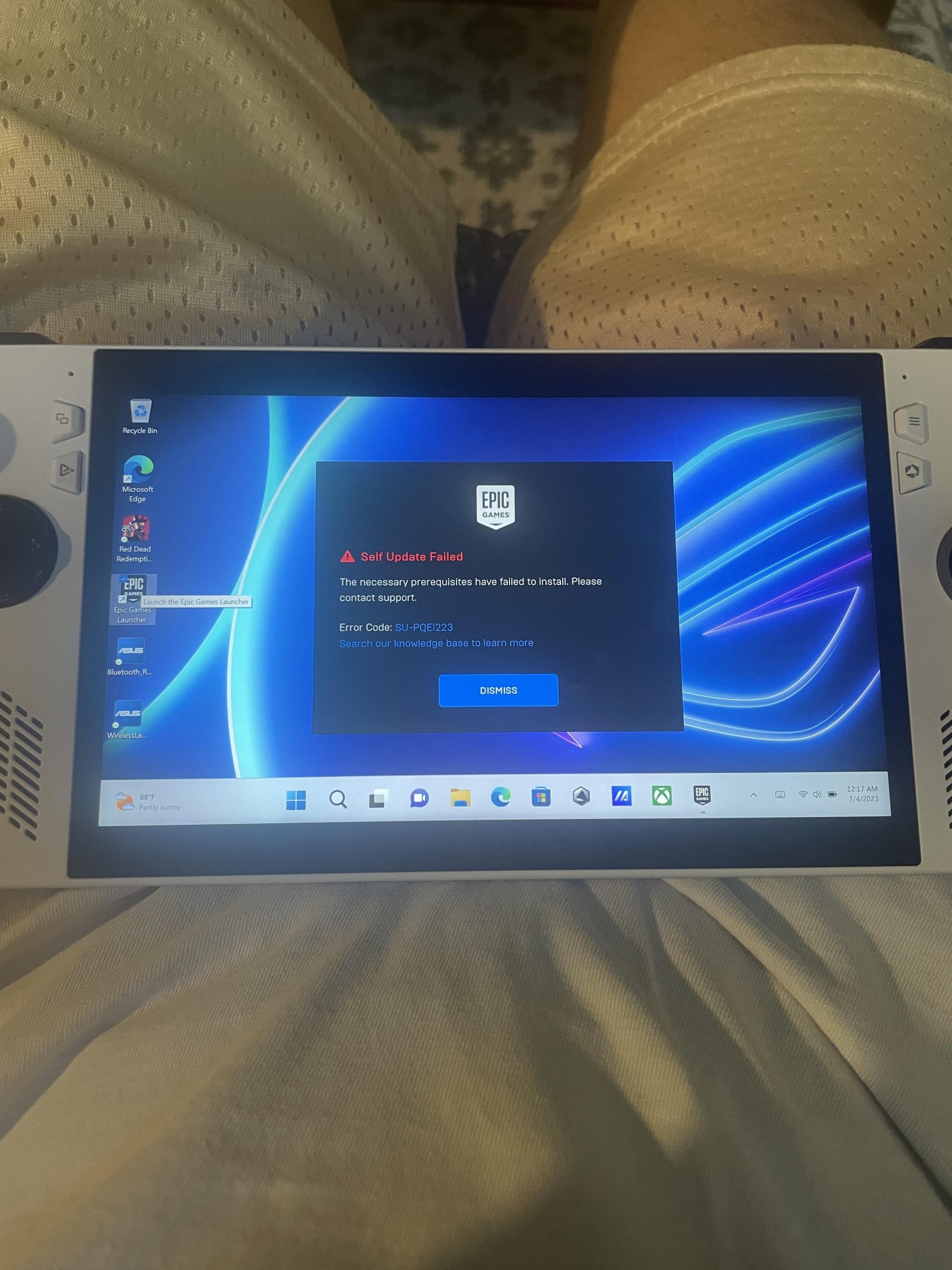
It’s often caused by outdated drivers, corrupted game files, or conflicts with other applications. Try updating your graphics card drivers, verifying game files in the Epic Games launcher, and closing unnecessary background programs.
Frustration hits hard when you can’t jump into the world of Red Dead Redemption 2. Many gamers face the dreaded issue: you cant launch red dead redemption 2 epic games. This can be a real bummer.
We’ve all been there, eager to play and then… nothing. The game just refuses to start. This article will quickly guide you through some common fixes, saving you time and getting you back to gaming.

Can’t Launch Red Dead Redemption 2 on Epic Games? Let’s Fix It!
So, you’re all set to dive into the wild west, but Red Dead Redemption 2 on Epic Games just refuses to start? It’s a real bummer, but don’t worry, you’re definitely not alone! Lots of gamers have run into this problem, and there are many things we can try to get you back in the saddle. Let’s go through the most common reasons why the game won’t launch and how to fix them, step by step. We’ll explore everything from simple checks to more advanced troubleshooting. You will be playing the game soon!
First Things First: The Basics
Before we get into the nitty-gritty, let’s make sure we’ve covered the easy stuff. Sometimes, it’s the simplest things that cause the biggest headaches.
Check Your Computer
Is your computer actually good enough to play Red Dead Redemption 2? This game needs a pretty strong computer. Here’s what you should check:
- Operating System: Make sure you’re using Windows 10 or Windows 11, 64-bit. Older versions won’t work.
- Processor: You need at least an Intel Core i5-2500K or an AMD FX-6300. The better the processor, the smoother the game will run.
- Memory (RAM): 8 GB is the minimum, but 12GB or 16 GB is recommended for better performance.
- Graphics Card: You’ll need at least an Nvidia GeForce GTX 770 or an AMD Radeon R9 280. If you want to play with high graphics, a more powerful card is a must.
- Storage: You need about 150GB of space for the game to be installed. Make sure you have enough space.
If your computer doesn’t meet these requirements, that’s likely the reason you can’t launch Red Dead Redemption 2. You might need to upgrade some parts or play on a different computer.
Restart Everything
Yes, it sounds too simple, but restarting your computer is a magical fix many times. It’s like giving your computer a fresh start. Also, restart the Epic Games Launcher. Here’s what to do:
- Close the Epic Games Launcher completely.
- Restart your computer.
- Open the Epic Games Launcher and try launching the game again.
Epic Games Launcher Issues
Sometimes, the problem isn’t with the game itself but with the Epic Games Launcher. It’s like the middleman between your computer and the game, and if it’s not working right, the game can’t launch.
Verify Game Files
Imagine that some game files are like puzzle pieces, and some are broken. This is when you need to verify the game files. The Epic Games Launcher has a built-in tool that checks if all the game files are in place and working correctly. Here’s how to use it:
- Open the Epic Games Launcher.
- Go to your Library.
- Find Red Dead Redemption 2.
- Click on the three dots next to the game title.
- Choose “Verify.”
- The launcher will check all game files and download any broken ones. It takes some time so be patient.
Epic Games Launcher Updates
Is your Epic Games Launcher updated? It is like using an old, slow car vs. a new faster one. Sometimes an old version can cause launching issues. Update the launcher with the following steps:
- Open the Epic Games Launcher.
- Check if there is an update available. Usually you see a notification in the launcher itself.
- If there’s an update, install it.
- Restart the Epic Games Launcher.
Running Epic Games Launcher as Administrator
Sometimes the Epic Games Launcher needs more power. It needs administrator privileges to function correctly. It is like a special key to access all computer features. Here’s how to run the launcher as an administrator:
- Find the Epic Games Launcher icon on your desktop or in your start menu.
- Right-click on it.
- Choose “Run as administrator.”
- Try launching the game again.
Reinstalling the Epic Games Launcher
If nothing else works, it might be time to reinstall the Epic Games Launcher. It’s like starting over with a new, clean install. It can fix many problems. Here’s how:
- Uninstall the Epic Games Launcher through the settings or control panel.
- Go to the Epic Games website.
- Download and install the latest version of the Epic Games Launcher.
- Open the launcher and try launching the game again.
Game-Specific Issues
Now let’s take a look at problems that are specific to the Red Dead Redemption 2 game itself.
Game Updates
Just like the launcher, the game itself needs to be up to date. Game updates often include bug fixes that might solve your launching issue. Here’s how to check:
- Open the Epic Games Launcher.
- Go to your Library.
- Find Red Dead Redemption 2.
- If there is an update available, download and install it.
Corrupted Game Files
Sometimes, the game files can be damaged or corrupted. This is different from missing files; it’s like having a book with torn pages. Verifying the files can solve some corrupted files. If verifying doesn’t fix the issue, a reinstall will be required.
- Open the Epic Games Launcher.
- Go to your Library.
- Find Red Dead Redemption 2.
- Uninstall the game.
- Reinstall the game.
It may take some time, but it’s important to rule out corrupted files as the source of the issue.
Conflicting Programs
Sometimes other programs running on your computer can interfere with Red Dead Redemption 2. This is like having too many cooks in the kitchen. Temporarily closing certain programs can fix issues. Here is how to close conflicting programs:
- Close any programs that you don’t need to run the game, such as screen recorders or monitoring tools.
- Restart your computer.
- Launch the game.
Overlays
Overlays, like the ones from Discord or Steam, can sometimes cause issues. These are like extra menus that appear on the game screen. Try disabling these overlays:
- Check any overlays you might have from other gaming platforms or programs.
- Disable them, and then try to run the game.
Graphics and Driver Problems
The way your computer displays the game is very important. Problems with graphics drivers can prevent Red Dead Redemption 2 from launching.
Update Graphics Drivers
Drivers are like special software that lets your computer talk to your graphics card. If your drivers are old, they might not work correctly with the game. Check your driver status to ensure they are up to date.
- Go to the website of the graphics card maker (Nvidia or AMD).
- Find the latest drivers for your graphics card.
- Download and install them.
- Restart your computer and try launching the game.
DirectX Issues
DirectX is a technology that helps games run smoothly. If you have problems with DirectX, it could affect Red Dead Redemption 2. Check your DirectX status and update if necessary.
- Press the Windows key + R.
- Type “dxdiag” and press Enter.
- Check if you have DirectX 12. This is a must.
- If not, update to the latest version from the Microsoft website.
Display Settings
Make sure your screen settings are supported by the game. If your screen settings do not match the game’s requirements, it can prevent launching.
- Try changing the game’s display settings from the game options when it’s working. If you can’t launch it, start the game with lower resolution.
- If that works, increase the resolution to your liking in the game setting.
Antivirus and Firewall Conflicts
Sometimes, your antivirus software or firewall might mistake the game for a threat and block it. It is like having overprotective security guards. Let’s make sure the game can run.
Antivirus Interference
Your antivirus is important for your computer’s security but at the same time it could block the game.
- Temporarily disable your antivirus software.
- Try launching the game again.
- If it works, then add Red Dead Redemption 2 to your antivirus exceptions so it doesn’t block it in future.
Firewall Interference
Your firewall is the same as antivirus. It helps secure the computer from outside threats but can also block the game.
- Check your firewall settings.
- Add Red Dead Redemption 2 and Epic Games Launcher to the list of exceptions.
- This allows the game to communicate with the internet.
Advanced Troubleshooting
If you’ve tried everything above and still can’t launch the game, it’s time for a bit more serious troubleshooting.
System File Checker (SFC)
Your computer’s system files could be damaged which can affect the game. It’s like your computer’s brain not working correctly. You can use the system file checker to fix it.
- Open Command Prompt as administrator.
- Type “sfc /scannow” and press Enter.
- This will scan your system files and fix any problems. It takes some time so be patient.
Clean Boot
A clean boot means starting Windows with only the necessary services and programs. This helps to see if some third party program is causing problems. Here’s how to do it:
- Press Windows Key + R, type msconfig, and press Enter.
- Go to the Services tab.
- Check “Hide all Microsoft services” and then click “Disable all”.
- Go to the Startup tab and click on “Open Task Manager”.
- Disable all startup programs.
- Close Task Manager and click “Apply” and “OK” in System Configuration.
- Restart your computer and try launching the game.
Check for Windows Updates
Outdated Windows can also cause compatibility issues with the game. Keeping Windows up to date will help the computer run better.
- Go to settings.
- Click on “Update & Security”.
- Check for updates and install any available updates.
Event Viewer
Event viewer tracks all kinds of errors in Windows. It is like a journal for your computer. It can help identify the cause of the problem. Here is how to check errors.
- Type “Event Viewer” in the search bar and open it.
- Go to Windows Logs -> Application.
- Look for any errors related to Red Dead Redemption 2 or Epic Games Launcher.
Third-Party Software Conflicts
Sometimes specific third-party programs can cause problems for the game. For instance, any overclocking software or program that changes your hardware settings might conflict with game. Here are some of the common programs to check.
- Close any overclocking programs like MSI Afterburner.
- Close any programs like RivaTuner.
- Try launching the game after closing these programs.
Check your Hardware
Sometimes, hardware problems can cause issues that prevent a game from starting. Make sure all your computer components are working properly.
- Test your RAM using Windows Memory Diagnostic.
- Make sure all the connections are secured.
Check Game Installation Path
The game should be installed at a proper location. Check the folder where your game is installed to make sure its correct. If it is installed inside many nested folders, move the game to some other simple folder, like C:\RedDeadRedemption2.
If nothing works after all this troubleshooting, then the last option will be to reach out the game developer or epic games support team for help.
How To FIX Red Dead Redemption 2 Not Launching Epic Games (2025)
Final Thoughts
Experiencing “cant launch red dead redemption 2 epic games” is frustrating. Players often find this problem stems from outdated drivers, corrupted files, or overlay conflicts. Make sure to verify your system meets the game’s requirements.
Reinstalling the game or the Epic Games Launcher may help. You must also check for any pending updates. Contacting Epic Games support can also offer personalized assistance if other methods fail.

