
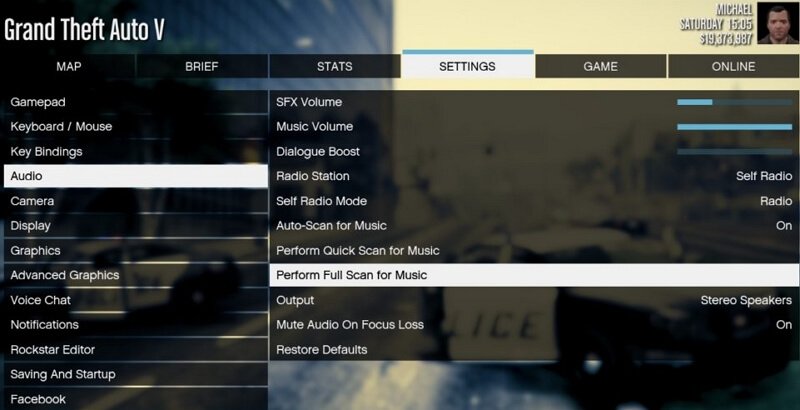
GTA 5 Online audio settings are adjusted primarily within the game’s audio menu, allowing you to control various volume levels for music, sound effects, and voice chat.
Ever found yourself struggling to hear your friend’s callouts during a crucial heist or annoyed by the overpowering background music in Los Santos? Optimizing your gta 5 online audio settings can make a huge difference to your gameplay experience. It’s easy to overlook this aspect of the game, yet it directly impacts how well you can communicate and immerse yourself.
Fine-tuning these settings will enable you to clearly hear important cues and focus on the action, while making game sessions more enjoyable overall. You should experiment with levels to get the right mix.

GTA 5 Online Audio Settings: Your Guide to Perfect Sound
Alright, let’s talk about sound in Grand Theft Auto 5 Online. It’s not just about hearing explosions; it’s about hearing everything just right. A good audio setup can totally change your game, making those high-speed chases and intense shootouts feel way more real. It’s the difference between hearing a car coming up behind you and getting totally surprised. So, let’s dive into how to tweak those audio settings and make your GTA 5 Online experience sound incredible.
Understanding the Main Audio Options
First, we need to get to know the main audio settings. These are the big knobs that control the overall sound of the game. Think of it like adjusting the main volume on your stereo, but with much more control. Let’s break down the key players:
Master Volume
This is like the main volume control. It decides how loud or soft everything in the game is. If you crank it up, everything gets louder; turn it down, everything gets quieter. It’s a pretty simple concept, but it’s super important to get this right before you start tinkering with anything else. Setting this correctly first will prevent you from accidentally blasting out your eardrums when making further adjustments!
Music Volume
This one’s all about the tunes. The music in GTA 5 is a big part of the vibe, right? But sometimes, you want to focus on the game sounds. Lowering the music volume can help you hear other crucial things, like the sound of other players coming close or the chatter from your friends on the microphone. So, if you often find yourself getting annoyed by the radio, this is your go to setting.
Sound Effects Volume
This setting is your control panel for all the cool game sound effects: car engines, gunshots, explosions, the sound of glass breaking, and all of those amazing sounds. If you want to really feel the action, keeping this volume up is important. But if it’s too loud, it might drown out other things. You’ll need to find a sweet spot where you can hear the boom of the explosions but also hear subtle footsteps when sneaking around.
Dialogue Volume
This one is for all the conversations that happen in the game. This involves the main characters talking during missions, the chatter of the various people in Los Santos, and other spoken words. If you have this too low, you might not hear important instructions. If it’s too high, it could interfere with other important noises. Having a balanced volume for dialogue is important, especially during key mission moments.
Radio Volume
Here we have a specific setting for the music on the radio! This is different than the overall music setting because it only changes the volume of the radio when you’re in a car. It’s handy because sometimes the music from the radio can be very loud and interfere with dialogue, sound effects, and the ability to listen to your friends on the mic. Many players will lower this just for this reason.
Fine-Tuning Your GTA 5 Audio: A Deep Dive
Now that we have an idea about the main audio controls, let’s get into the finer details and additional options that can greatly improve your auditory experience in the game. These are the settings that can make a subtle difference.
Voice Chat Volume
If you play GTA 5 Online with your friends, voice chat is a must-have. The voice chat volume controls how loud your friends sound. You will want this high enough that you can hear them clearly. If you cannot hear them well, you won’t be able to communicate well, especially when playing in missions. Having a perfect voice chat volume is vital. You don’t want your friends to be muffled, or way too loud.
Microphone Volume: This setting adjusts how loud your own voice is for the other players. You need to experiment with this one. You don’t want to be too quiet or too loud.
Voice Chat Output: This is for selecting your preferred method for listening to other players’ voices. This is usually set to the default device, but you can change it to headphones or whatever device you have set up.
Voice Chat Input: Like the output, this is to choose which microphone input you’ll use. You want to make sure this is the right one or people won’t hear you.
Ambient Sound
These are background sounds that are present in the game like the sound of the ocean, birds chirping, and city noises. The ambient sounds add a lot of realism to the game, but sometimes they can be too loud. Lowering them a bit may help you focus on other more vital audio in the game. If you feel like your game’s sound is a bit cluttered, you may consider lowering this slightly.
Headphone or Speaker Settings
GTA 5 does not have a setting to choose your audio devices directly. However, this is a great reminder that your Windows (or other operating system) settings will change the way sound is being output to the speakers or headphones you choose. If you’re having sound issues, then you should always check this to make sure you have the correct output device selected, and make sure the volumes are set up correctly here too.
Effects Customization
While GTA 5 does not offer many customized effects for the game, some players may want to adjust the EQ in the Windows sound settings. This is more advanced, but you could use this to emphasize certain frequencies, for example bass. If you really care about the sound, you should experiment here.
Why Audio Settings Matter in GTA 5 Online
You may be thinking, “Why do I need to know all this? Can’t I just play?” Of course, you can play with default settings, but it’s like driving with the seat in the wrong spot, or even without a seat at all! It’s not going to be comfortable, or a smooth experience. Here is why fine-tuning the audio settings will be very helpful in GTA 5 Online:
Situational Awareness: Hearing the footsteps of an enemy player sneaking up, an engine in the distance, or the sound of a sniper rifle can mean the difference between life and death. Proper audio settings help you hear these sounds clearly and give you a heads-up in tense situations.
Better Communication: Clear voice chat allows you to coordinate with your friends effectively. You can give instructions, ask for help, or just chat while playing. It’s vital for missions and heists.
Immersion: The right sound settings will make the game feel way more realistic and engaging. The sound effects, music, and ambient noises all work together to pull you into the world of Los Santos.
Avoid Annoyance: Too much music, too loud effects, or muffled voices can be really distracting and annoying. Taking the time to set up your audio properly can make the game way more enjoyable.
Competitive Edge: In a game that’s as competitive as GTA 5 Online, even the smallest edge can make a difference. Being able to hear better gives you an advantage over people who just go with the default settings.
Tips for Finding Your Perfect Settings
Okay, so you understand why audio settings are important, and you have a general understanding of the different settings. But how do you find the perfect audio settings? Here are some tips that will help you get the best audio for yourself:
Start with the Master Volume: Always start by adjusting the master volume. Set it to the level that you are comfortable with.
Adjust in Increments: Make small changes, especially when changing the sound effects or music volume. A little at a time can prevent accidental sounds that are too loud or quiet.
Use Different Areas for Testing: Go to different places to test your audio like a busy city, remote forest, or during a race. This will give you a good indication of how the settings are performing in different environments.
Record Yourself Speaking: You can record yourself speaking in game and then listen back to make sure the mic volume is perfect.
Play With Friends: Having a friend or playing with a group is a perfect way to test your microphone and voice chat settings.
Don’t Be Afraid to Change: If you find something doesn’t work after a play session, then don’t be afraid to adjust it a bit more. Audio settings are not permanent and can always be changed.
Test Regularly: Don’t forget to test the settings after game updates or when you switch to new audio devices like headphones or speakers. This ensures the audio is always perfect.
Consider Your Environment: Think about the room you’re playing in. If your room has more echo, you might need different settings than someone playing in a room that absorbs more sound.
Troubleshooting Common Audio Problems
Sometimes things go wrong. You might experience sound that is too loud, too quiet, or maybe you can’t even hear anything at all! Here are some things to try if you encounter problems:
Check Your Connections: Make sure your headphones or speakers are properly connected to your computer or console. Sometimes a loose wire is all it takes to mess everything up.
Update Your Drivers: Check the sound drivers on your computer, and update them if needed. Old drivers can cause a lot of audio problems.
Restart the Game: Sometimes, a simple restart will fix everything. It’s the old “turn it off and on again” solution, but it works more often than you think!
Check Game Files: Make sure no game files are missing or corrupted. Sometimes files can be corrupted which leads to an audio problem.
Lower Graphics: Sometimes very high graphics settings can cause a minor audio problem. Try reducing them.
Check in Game: Look at the audio settings, and make sure nothing was changed unexpectedly. A setting might be set wrong by mistake.
Try Different Headphones: If you have another pair of headphones, try them to rule out the possibility that the headphones themselves are broken.
Google for Help: If all else fails, try googling your issue. There are lots of players out there who have had the same issues, and have come up with some great solutions!
By understanding the various audio options in GTA 5 Online, you can enjoy the game more fully, have better communication with your friends, and even improve your in-game performance. It’s about more than just hearing the game; it’s about feeling it.
Taking the time to set up your audio preferences is a great investment. The right audio will create a much better playing experience, and the sounds will put you right in the heart of Los Santos. So go ahead and dive into those audio settings and hear the difference!
How to fix your game audio for fiveM
Final Thoughts
Fine-tuning your audio makes a big difference in GTA 5 Online. Proper adjustments improve immersion and situational awareness. Experiment with levels for game music, voice chat, and sound effects.
Finding your ideal audio balance is key. Consider external factors like headset quality. Ultimately, the best settings are what sound clearest to you.
Tweaking ‘gta 5 online audio settings’ maximizes your gaming experience. Simple adjustments can give you an edge. This is important for effective communication and overall gameplay.

