
Managing Roblox game assets effectively involves organizing, versioning, and optimizing all your game’s content, from 3D models to sounds and scripts, to ensure smooth development and performance.
Creating a popular Roblox game requires more than just good ideas; it demands careful planning with roblox game asset management. Without a proper system, projects quickly become chaotic. Developers often struggle to keep track of their creations, facing issues such as overwriting valuable work and slow game performance.
Efficient management prevents these problems. This includes using clear naming conventions and structured folders. Proper planning and regular cleanup is important to any smooth developing.

Roblox Game Asset Management: A Simple Guide
Making a Roblox game is super fun! You get to create amazing worlds and cool characters. But sometimes, all the different pieces – like models, sounds, and images – can get a little messy. That’s where good game asset management comes in. It’s like having a super organized toy box, where you know exactly where everything is so you can build the coolest creations without getting frustrated. Let’s dive in and see how you can keep all your Roblox game goodies in order!
Understanding Game Assets
Before we start organizing, let’s talk about what “game assets” actually are. Think of them as all the building blocks you use to make your game.
Types of Assets
Here are some of the most common types of assets you’ll use:
- Models: These are 3D objects, like houses, trees, cars, or even your character!
- Images: These are 2D pictures, often used for user interfaces (like buttons or health bars), textures on models, or decals.
- Sounds: These are audio files like background music, sound effects for actions, and ambient noises.
- Scripts: These are like the brains of your game, telling it what to do. They control how things move, what happens when you click something, and all sorts of other cool stuff.
- Meshes: These are the basic shapes that make up 3D models. They’re like the skeleton of the model.
- Animations: These are how you make your characters and objects move.
- Textures: These are images that wrap around the meshes, giving them their color and look.
- Decals: These are images that you can stick onto surfaces, like stickers on a wall.
It’s important to remember that each of these asset types, if handled incorrectly, can significantly slow down your workflow, or make it difficult for you or your team members to work on your project.
Why is Asset Management Important?
You might be thinking, “Why do I need to organize all this stuff? I know where it all is!” Well, imagine you have a massive box of LEGOs. It’s fun when you first dump them out, but when you need that specific tiny brick, finding it in a big jumble can be a nightmare. The same goes for game assets. Without good management, things can quickly become chaotic.
Benefits of Good Asset Management
- Saves Time: When everything is organized, you can find what you need quickly. No more hunting through endless folders!
- Reduces Confusion: When your team members can easily find and use the correct assets, communication improves and less time is wasted searching.
- Avoids Duplicates: Good asset management helps you avoid having multiple copies of the same item, which wastes storage and can cause confusion.
- Increases Efficiency: Working with organized assets is simply faster and easier than working with a mess. This allows you to spend more time creating and improving your game.
- Improves Collaboration: If you’re working with a team, organized assets make it much easier for everyone to find and use what they need, without stepping on each other’s toes.
- Easier Debugging: When your assets are well-organized and named correctly, it’s much easier to troubleshoot any problems that arise.
Best Practices for Roblox Asset Management
Okay, so you know why asset management is important. Now, let’s get to the fun part – how to do it well!
Clear and Consistent Naming Conventions
The first step is to name your assets in a way that makes sense. Imagine you named all your images “image1.png,” “image2.png” etc. How would you know what they are?
Using a naming convention that helps you easily identify what each asset does is important.
- Be Descriptive: Use names that clearly describe what the asset is. For example, instead of “model1,” use “RedCarModel” or “WoodenChair.”
- Use Categories: Include a category in your name. Example, if you’re naming a sound effect use something like: “SFX_Jump”, “SFX_Explosion”
- Stay Consistent: Stick to a consistent style. For example, if you start with “Model_Tree”, don’t switch to “treeModel” later. Keep them all the same.
- Avoid Spaces and Special Characters: Use underscores (_) or hyphens (-) instead of spaces. “My_Awesome_Sound” is better than “My Awesome Sound”. And avoid using special characters, as they can sometimes cause issues.
Organizing your Roblox Studio Workspace
Roblox Studio provides a convenient way to manage your assets within your game. Let’s explore how we can use it.
Using Folders
Folders are a fantastic way to keep your workspace organized. Think of them like the sections of your toy box. Here’s how you can use them:
- By Asset Type: Create folders like “Models,” “Images,” “Sounds,” and “Scripts.” Place your assets of that type inside that folder.
- By Location/Scene: If your game has different areas, make folders like “Forest,” “Town,” or “Cave” and place the assets used in those areas inside the respective folders.
- By Purpose: You could also organize by purpose, for example “UI Elements” for all your buttons and menus or “Gameplay Elements” for things used to interact with your gameplay.
Remember to name these folders using the same kind of naming convention we discussed earlier.
The Explorer Panel
The Explorer Panel in Roblox Studio is your best friend for managing assets.
- Hierarchy is Key: Make use of the hierarchical nature of the Explorer. Group related assets together within folders.
- Drag and Drop: Use drag and drop to easily move assets between folders.
- Rename Quickly: You can quickly rename assets directly in the Explorer panel.
Utilizing the Toolbox
The Roblox Toolbox is a great way to import assets into your game. Here are some tips on using it effectively:
Importing Assets
- Review Before Importing: Before you import an asset from the toolbox, check the creator and any user reviews. Some assets might not be well made or could even contain scripts that you don’t want in your game.
- Keep Copies: If you’re planning to modify an asset, consider making a copy before making changes so that you have the original version if needed.
- Folder Structure on Import: Place imported assets in the appropriate folders as soon as possible after importing them, do not let them just remain loose in your workspace.
Using Packages
Packages are a great way to share and reuse assets. If you have assets that you use in multiple games, you should make them into packages.
Creating Packages
To create a package:
- Select the assets you want to include in the package
- Right click and select “Create Package”
- Name your package using a descriptive name
Updating Packages
If you modify your package, remember to update it, so all projects using it get the changes.
- Select the package in the Explorer
- Right click, and select “Update Package”
Using Packages in Other Games
You can then use your created packages in any other Roblox project.
- Open the toolbox, and navigate to the “Packages” tab
- Select the package you want to use and click “Insert”
Version Control
Version control is like a time machine for your game. It lets you save different versions of your game, so you can go back to a previous version if something goes wrong.
Roblox Team Create
Roblox Team Create makes version control simpler when working with a team, because it saves every change done by any member of the team.
Saving Versions
Even if you are not working with a team, it is still important to frequently save new versions of your work when you have made significant changes to your project so that you are able to revert back if anything is broken.
Asset Libraries and Collaboration
When you start making games with a team, it’s crucial to have a central place where you can share and manage assets.
Roblox Groups
If you are working with a team, make sure to use Roblox Groups to collaborate, as it allows you to easily share assets and work together, without having to send files back and forth.
- Group Assets: Use group assets to give access to all assets within your group to all members of that group.
- Collaboration: This makes team collaboration much easier, since all members will have access to the assets.
Regular Audits and Cleanup
It’s a good idea to regularly review your assets. Things can still get messy even with the best efforts. You can use this time to remove unused assets, or organize those which are in the wrong location.
- Remove Old Assets: If you have assets that you don’t use anymore, delete them. This makes your game cleaner and reduces the chance of problems.
- Reorganize Folders: Sometimes you might need to move assets to different folders as your game changes.
- Review Naming: Check if there are any badly named assets and rename them according to your naming convention.
Asset Optimization
Asset optimization means making your assets perform as well as possible in your game. This is especially important in larger projects.
Polygon Count
- Keep it Low: High polygon count can slow down the game. Try to use the least amount of polygons possible.
- LODs: If your models have a high amount of detail, consider creating versions with less detail. These are called Level of Detail (LOD) models. The game can use the less detailed versions when the object is far away and use more detailed versions as the player gets closer.
Texture Sizes
- Compress your textures: Use image compression to reduce file sizes.
- Smaller is Better: Use texture sizes that are suitable for your game. Huge 4k textures can slow down your game, while small 64×64 or 128×128 can be perfect for smaller objects.
Sound Files
- Keep them short: Short sounds are often better than long sounds for the majority of situations
- Compress audio: Compressing audio files can reduce their size and allow your game to load quicker.
Tools and Resources for Asset Management
There are tons of helpful tools and resources that can help with your asset management.
Roblox Studio Features
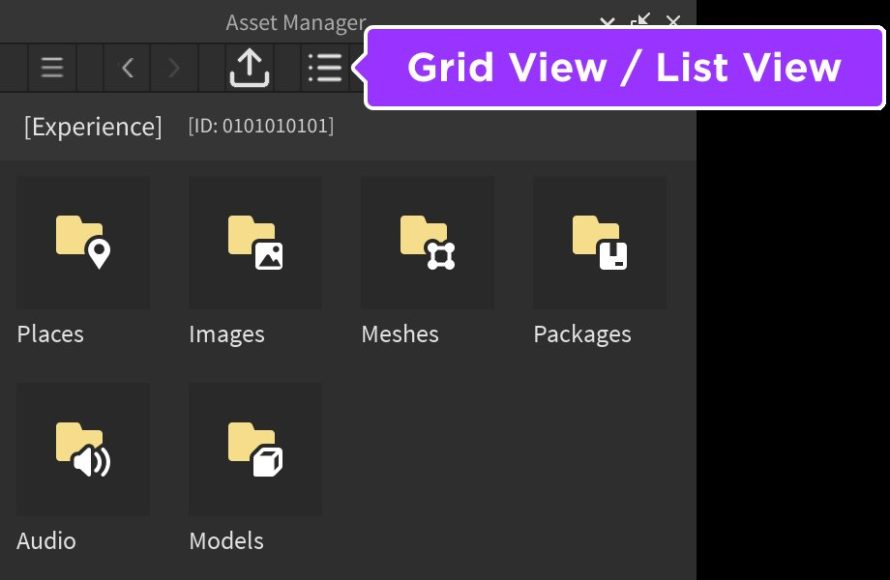
- Asset Manager: Roblox studio has a built in “Asset Manager” that allows you to easily import, edit, and organize assets from your games and the toolbox.
- Explorer Window: The Explorer window makes it easy to find and manipulate any object in your game.
Third-Party Tools
While not strictly necessary for basic asset management, sometimes third-party software can help you convert, optimize, or even make new assets more easily.
- Blender: A free and open-source 3D creation suite that can be used to make all sorts of 3D models and meshes.
- Audacity: A free audio editing software that can help you create, edit and optimize your sound files.
- Gimp/Photoshop: An image editing software. Some are free, like Gimp, others are paid, like Photoshop. These are very useful for editing and optimizing images and textures.
Good asset management might seem like a small thing, but it can actually make a huge difference in how you work and the quality of the games that you make. When you take the time to organize things correctly from the start, you end up with a much better experience. Your game is also easier to work on, and it saves you a lot of headaches.
Open and use Asset Manager | Roblox Studio
Final Thoughts
Effective roblox game asset management is essential for efficient development. Organize your models, textures, and audio to save time. Proper naming and folder structures prevent confusion and loss.
By implementing smart asset practices, developers can improve workflow. It also makes collaborations smoother for teams. Remember, strategic roblox game asset management directly impacts your game’s quality and performance.

