
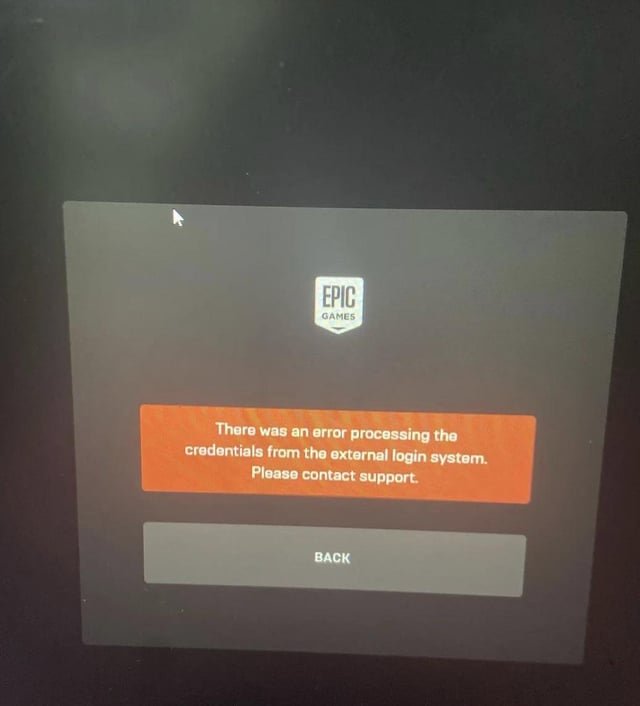
If you can’t sign into Epic Games with your Xbox account, try disconnecting and reconnecting the accounts, or check for any linked account conflicts within Epic Games settings.
It’s frustrating when you’re ready to game but hit a snag. You try to jump into Fortnite or another Epic Games title, but you can’t sign into Epic Games with your Xbox account. This issue prevents many from enjoying their favorite games. We understand the annoyance, and we’re here to help navigate the common causes.
This article will explore potential reasons behind this login problem, such as incorrect account linking or issues with network settings. We’ll provide actionable steps to resolve the login failure and get you back to gaming quickly.

Can’t Sign Into Epic Games With Xbox Account? Let’s Fix It!
Okay, so you’re trying to play Fortnite, Rocket League, or maybe Fall Guys, and you’re all ready to go, but then… BAM! You can’t sign into your Epic Games account using your Xbox account. It’s super frustrating, right? Don’t worry, you’re not alone. Lots of players run into this problem. We’re going to break down why this happens and, more importantly, how to get back into the game.
Common Reasons for Xbox Login Issues
Before we jump into fixes, let’s understand why you might be seeing that frustrating “can’t sign in” message. There are a few typical culprits.
Account Linking Problems
Sometimes, the link between your Xbox account and your Epic Games account isn’t quite right. Maybe you haven’t linked them correctly, or something went wrong during the linking process. This is a really common reason for login problems.
- Accidental Account Creation: You might have accidentally created a separate Epic Games account using a different email address. If this account isn’t linked to your Xbox profile, you will encounter a sign-in error.
- Incorrect Xbox Account Linked: Did you double-check which Xbox profile you connected to your Epic Games account? It’s easy to mix up accounts, especially if you have multiple Xbox profiles.
- Unlinking Issues: Maybe you unlinked your account at some point and forgot. Epic Games doesn’t automatically relink accounts.
Network Problems
Sometimes, the issue isn’t with your accounts at all! It could be your internet connection or something happening with Epic Games’ servers. Let’s explore these network-related reasons.
- Poor Internet Connection: A weak or unstable internet connection can interrupt the login process. Make sure you have a good connection.
- Epic Games Server Issues: If the Epic Games servers are having problems, it can affect the ability of any player to sign in, regardless of the connected platform. You can check the Epic Games status page to see if there are any known issues.
Xbox Live Issues
Like Epic Games, Xbox Live can also have service interruptions. If Xbox Live is having problems, it can prevent you from signing into your Epic account.
- Xbox Live Outages: Always check the Xbox Live status page to make sure the services are working correctly. Any outages may hinder connection.
- Xbox Account Settings: Make sure your Xbox account settings allow you to connect with third-party applications.
Software and Device Problems
Sometimes, it is neither the internet nor the accounts but it could be the software you are using or an issue with your device, that is hindering login.
- Outdated Game or Launcher: Using an old version of the Epic Games Launcher or the game you’re trying to play can sometimes cause problems.
- Device Issues: Glitches with your device (console or PC) can sometimes interfere with the login process.
Troubleshooting Steps: Getting Back in the Game
Okay, now that we’ve covered the reasons, let’s get to the good stuff – fixing it! Try these steps one at a time until you get signed in.
Verify Account Linking
The first thing to do is double-check your account links. It’s the most common problem, and we need to be sure it’s set up correctly.
- Go to the Epic Games Website: Open a web browser and head to the official Epic Games website.
- Sign In: If you can, sign in to your Epic Games account using your email address and password. If you can’t remember your password, use the ‘Forgot Password’ option.
- Check Connections: Once you’re signed in, look for “Connections” or “Connected Accounts.” You’ll usually find this in your profile settings.
- See Your Xbox Account: Make sure your Xbox account is linked. If it’s not, you’ll need to link it. If it is, verify that it is the correct Xbox account. If you need to link it, follow the steps provided by Epic Games.
- Confirm Linked Account: Check carefully, make sure that correct Xbox account is linked to the correct Epic Games account.
What if your Xbox account is not linked?
- Click the Link Button: Look for the Xbox logo and a button that says “Connect” or “Link.”
- Follow Instructions: The website will give you instructions. Typically, you’ll sign in to your Xbox account via the website to finalize the link.
Check Your Internet Connection
Let’s make sure your internet is doing its job. A stable connection is crucial for playing online games.
Troubleshooting Your Connection:
- Restart Your Router: Turn off your modem and router, wait about 30 seconds, and then turn them back on.
- Check WiFi Signal: If you’re on WiFi, make sure you have a strong signal. Try moving closer to your router or using an ethernet cable for a more stable connection.
- Run a Speed Test: Go to a website like speedtest.net to make sure your internet speed is good enough for online gaming.
Verify Xbox Live Status
Sometimes, Xbox Live itself has hiccups. Let’s quickly check if the services are up and running.
- Visit Xbox Status Page: Go to the official Xbox Live status page. You can usually find it by searching for “Xbox Live status” on your favorite search engine.
- Look for Alerts: See if there are any alerts or notifications about outages or issues. If there are, you might need to wait until things are back to normal.
Update Your Software
Outdated software can cause all sorts of problems. So, we need to keep your Epic Games Launcher and your game up-to-date.
How to Update:
- Epic Games Launcher Updates: The Epic Games Launcher usually checks for updates automatically. But, you can manually trigger the check by closing and restarting the Launcher.
- Game Updates: You may need to update your game as well. Typically, the game updates when you launch the launcher. Check the launcher to see if there is any update option.
- Xbox Updates: Check for Xbox system updates in your console settings.
Restart Your Device
Sometimes, the simplest solution is the best. Try restarting your console or PC to clear up any temporary glitches.
- Xbox Restart: Hold down the power button on your Xbox console until it turns off. Then, turn it back on.
- PC Restart: Click on the Windows Start menu, select the power button and then select “Restart.”
Clear Your Cache
Cache files can sometimes cause problems. Clearing them can help your devices run smoother.
- Epic Games Launcher Cache:
- Close the Epic Games Launcher completely.
- Press the Windows key + R, and type %localappdata%
- Open the EpicGamesLauncher folder.
- Open the Saved folder.
- Delete the webcache folder.
- Restart the Epic Games Launcher and try to sign in.
- Console Cache: For Xbox consoles, power cycle the console, as described above. This will clear temporary files, including cache.
Verify Your Age Settings
If you are under a certain age, some games might restrict access. Ensure the correct age information is associated with your accounts.
- Check Xbox Account Age: On the Microsoft website, review and update the age setting of the Xbox account connected to your Epic Games account.
- Review Epic Games Age: Check and verify your age settings for the Epic account too.
Check Your Privacy Settings
Sometimes, privacy settings can prevent you from logging in. Make sure that your Xbox and Epic privacy settings allow third-party apps and logins.
- Xbox Privacy Settings: Review your privacy settings on the Xbox console or on the Xbox website. Make sure that sharing data with other apps is not blocked.
- Epic Games Privacy: check your privacy settings in your Epic Games account. Ensure that your account allows the sharing of needed data with your Xbox account.
Use a Different Browser
If you are using a browser, try to use a different browser and login again. Sometimes, it is your current browser causing the problem, so switching it may work
- Try Other Browser: Try to login with another browser to see if your existing browser is the culprit.
Contact Support
If all else fails, it’s time to bring in the big guns! Contacting Epic Games and Xbox support teams can help you solve your login problems.
- Epic Games Support: Visit the Epic Games support website and open a support ticket, explain your issues in detail.
- Xbox Support: Contact the Xbox support team through their official website. They can assist you in resolving any account or console related issues.
By systematically trying these steps, most people can resolve the “can’t sign into Epic Games with Xbox account” issue and jump back into their favorite games. Remember to be patient and methodical. Start with account linking, then move on to network and software troubleshooting. If you’re still struggling, reaching out to support is always a good option.
How To Link Epic Games Account To Xbox Account – Full Guide
Final Thoughts
If you can’t sign into Epic Games with your Xbox account, several factors might be at play. Account linking issues or incorrect credentials often cause this problem. Check your Xbox Live connection is active.
Verify the details you entered when logging in are correct. Sometimes, the platform is experiencing temporary issues, a must to check for on their support page. This could prevent you from signing into Epic.
Ultimately, troubleshooting these elements will resolve the “cant sign into epic games with xbox account” issue most of the time. Don’t hesitate to reach out to support if needed.

