
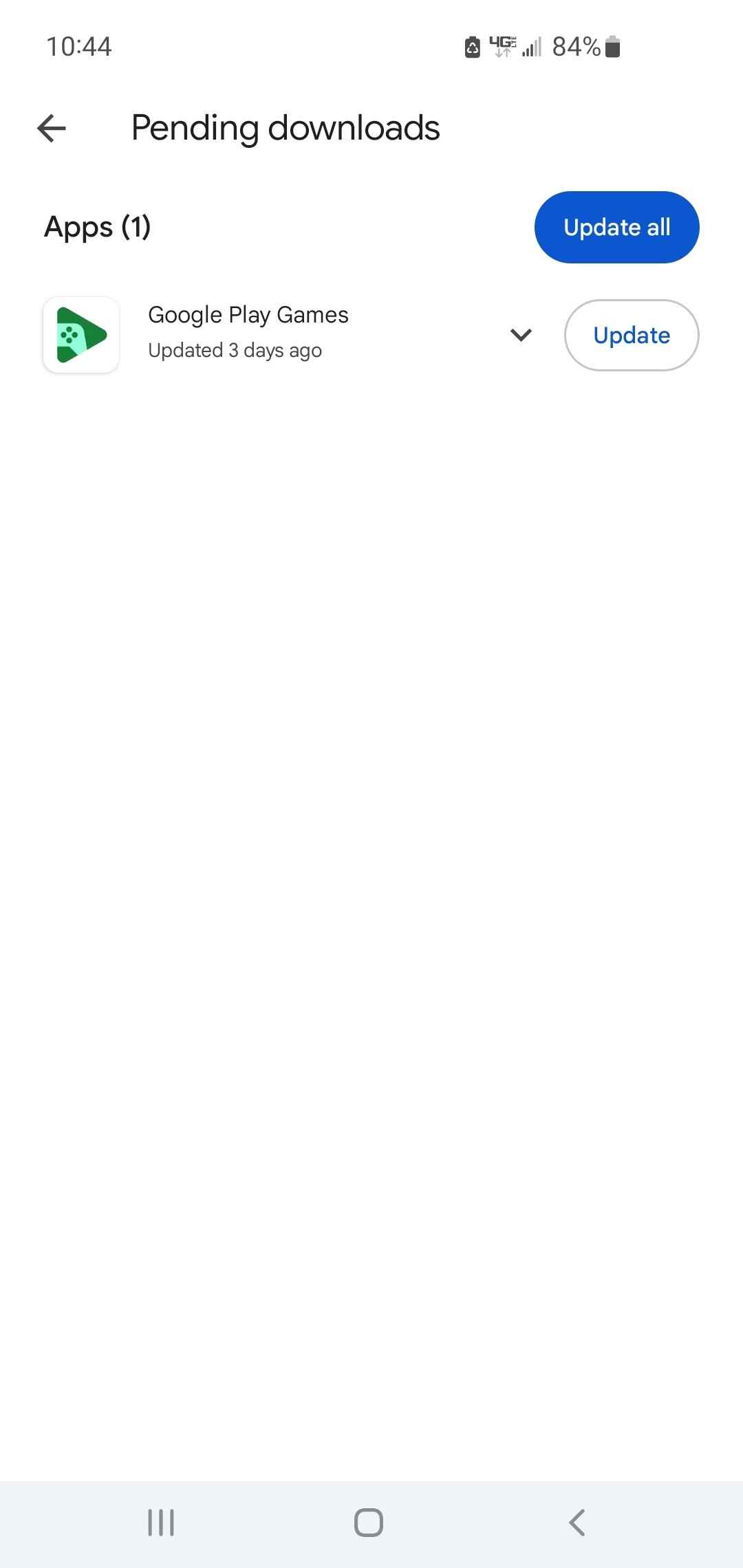
If you can’t update Google Play Games, try clearing the app’s cache and data, then restart your device. Check your internet connection, and ensure Google Play services is also updated.
Frustrating, isn’t it? You’re eager to jump into a game, but find yourself stuck because you cant update Google Play Games. This can definitely throw a wrench in your gaming plans, leaving you puzzled.
This issue arises quite often, and the good news is, it often stems from a few easily resolvable problems. We’ll guide you through the typical fixes to get you back to playing your favorite games quickly.

Why You Can’t Update Google Play Games: Troubleshooting Guide
It’s super frustrating when you’re ready to jump into your favorite game, and you get hit with a “Can’t Update” message on Google Play Games. Don’t worry, you’re not alone! This happens to lots of people, and there are usually some simple things you can try to fix it. Let’s go through why this might be happening and what you can do to get back to gaming.
Common Reasons Why Updates Fail
Before we dive into fixes, let’s explore the usual suspects. Knowing why your Google Play Games app isn’t updating is the first step to solving the problem. There are several main reasons for this, and they often boil down to your device, your internet, or the app itself.
Internet Connection Issues
A shaky internet connection is a common culprit. Think of trying to fill a bucket with a leaky hose – it’s going to take a while, and sometimes it just won’t work! Here are a few internet problems that can stop updates:
- Weak Wi-Fi Signal: If you’re far from your router, or there are walls in the way, your Wi-Fi signal might be too weak to download the update files.
- Unstable Connection: Sometimes your internet just goes up and down. If it cuts out during the update, it will get interrupted and may fail.
- Slow Internet Speed: If your internet is just generally slow, the download might time out or get stuck.
- Mobile Data Limits: If you’re using your phone’s data, you might have hit a limit, or your connection might not be strong enough.
Storage Problems
Imagine trying to fit a bunch of new toys into a toy box that’s already full. It just won’t work! Similarly, your device needs enough free space to download and install updates. Here’s how a lack of storage can cause problems:
- Not Enough Space: If your phone or tablet is almost full, it won’t have space to download the big update files. This is probably the most common reason for failed updates.
- Cache Buildup: Sometimes old files and data from apps can clog up your storage, even if it looks like you have space available.
Google Play Store and Google Play Games Issues
Sometimes the problem isn’t your device or internet, it’s the Google Play Store or Google Play Games app itself. These apps, like any others, can have hiccups or problems.
- Outdated App Version: If Google Play Store is out of date, it might not work correctly with Google Play Games updates.
- Corrupted Files: Sometimes the app files themselves can get damaged and stop working correctly.
- Server Problems: Occasionally, Google’s servers might be having issues, preventing updates from being downloaded or installed.
- Conflicts with Other Apps: Some apps might clash with the Google Play Store or Google Play Games, causing update failures.
Device Software Issues
Your device’s software (operating system) needs to be in good shape for apps to update properly. If your software is old or has problems, updates can get stuck.
- Outdated OS: An old version of Android might not be compatible with the newest Google Play Games update.
- Software Bugs: Sometimes bugs in your software can prevent updates from happening smoothly.
Simple Troubleshooting Steps to Try First
Before getting too technical, let’s try some quick and easy fixes. These are the things you should check before you dig deeper into the problem.
Restart Your Device
Just like computers, your phone or tablet sometimes just needs a quick restart. This can clear out temporary issues and get things working correctly again. Turn your device off completely, wait a few seconds, and then turn it back on. Then, try the update again.
Check Your Internet Connection
Make sure you have a good, strong internet connection. Try these steps:
- Turn Wi-Fi On and Off: Sometimes, toggling Wi-Fi off and then on again can fix connection problems.
- Move Closer to Your Router: If you’re using Wi-Fi, try moving closer to your router.
- Use a Different Network: If possible, try connecting to a different Wi-Fi network, or if you’re using Wi-Fi, switch to mobile data to see if that helps.
- Test Other Apps: Open other apps that use the internet and see if they work correctly. If those are not working, the internet is probably the main cause.
Clear Google Play Store’s Cache and Data
Clearing the Google Play Store’s cache and data can help remove any corrupt files that might be causing problems. Here’s how to do it:
- Go to your device’s Settings app.
- Tap “Apps” or “Applications.”
- Find and tap on “Google Play Store.”
- Tap on “Storage.”
- Tap on “Clear Cache” and then “Clear Data.” (Don’t worry, this won’t delete any of your games or apps. It will simply erase the temporary files that may be causing update errors.)
Check Storage Space
Your device needs space to download and install updates. Here’s how to check and create more space:
- Go to Settings: Open your device’s settings app.
- Find Storage: Look for “Storage,” “Storage and Memory,” or something similar.
- Check Available Space: See how much storage you have left. You will want at least one gigabyte free for the app to update.
- Delete Unnecessary Files and Apps: Delete old photos, videos, or apps you don’t use anymore to free up space.
More Advanced Troubleshooting Steps
If the simple steps didn’t work, we need to try some more advanced things. Don’t worry, these aren’t too difficult, and we’ll guide you through them step-by-step.
Update Google Play Store
Make sure you have the latest version of the Google Play Store. An outdated store can cause problems when updating other apps, like Google Play Games.
- Open the Google Play Store app.
- Tap your profile picture in the upper-right corner.
- Tap “Settings.”
- Tap “About.”
- Tap “Update Play Store.” If there is an update available, it will download and install it.
Update Your Device’s Software
Make sure your device has the latest software update. Outdated software may not work correctly with new app updates. Here’s how you can check for system updates:
- Open your device’s Settings app.
- Find “System” or “About Phone” (the wording can be different from device to device)
- Tap “System Update,” “Software Update,” or a similar option.
- Follow the on-screen instructions to download and install any available updates.
Clear Google Play Games Cache and Data
Just like the Google Play Store, clearing the Google Play Games cache and data can help. This can remove corrupted files causing the update to fail. Here’s how to do that:
- Go to your device’s Settings app.
- Tap “Apps” or “Applications.”
- Find and tap on “Google Play Games.”
- Tap on “Storage.”
- Tap on “Clear Cache” and then “Clear Data.”
Uninstall and Reinstall Google Play Games
If clearing cache and data doesn’t work, you can try uninstalling and then reinstalling Google Play Games. This process will get a completely new copy of the app, and may solve problems related to corrupted app files.
- Go to your device’s Settings app.
- Tap “Apps” or “Applications.”
- Find and tap on “Google Play Games.”
- Tap “Uninstall.”
- Go back to the Google Play Store, find the “Google Play Games” app, and install it again.
Check App Permissions
Sometimes, app permissions can cause update problems. Make sure that Google Play Games has all the permissions it needs to function properly, particularly storage permissions. Here’s how to check app permissions:
- Go to your device’s Settings app.
- Tap “Apps” or “Applications.”
- Find and tap on “Google Play Games.”
- Tap on “Permissions”.
- Grant the necessary permissions (especially storage).
Disable VPN
If you are using a VPN, try disabling it temporarily. Sometimes, VPNs can interfere with app updates. After you finish updating, you can turn your VPN back on.
Check for Server Issues
Sometimes the problem isn’t with your device but with Google’s servers. If you suspect server issues are at play, try this approach:
- Visit websites like DownDetector to check if there are reported outages.
- Wait a bit and try again later to see if the issue resolves itself.
Ensure Proper Date and Time Settings
If your device’s date and time are incorrect, it can prevent apps from updating, because servers can flag these requests as suspicious, so make sure your device’s date and time are set correctly, it is generally best to keep it set to the automatic mode.
- Open your device’s settings app.
- Find and tap “Date and time”
- Set the time and date to automatic, or verify these are set properly.
When to Seek Additional Help
If you’ve tried all the steps above and are still having trouble, it might be time to seek additional help. This could be from online support forums, or contacting Google support. Sometimes, the problem might be too complex for you to solve on your own.
Contact Google Support
Google has a support team that can help with problems like this. Here’s how to contact Google support:
- Go to the Google Play Store Help page.
- Look for a “Contact Us” or “Help” option.
- Follow the instructions to get in touch with a support representative.
Ask for Help Online
There are many online communities where people discuss problems with their apps. Here are some places to ask for help:
- Google Play Help Forums: Ask a question in the forums. Lots of people might have had the same problem and may offer a solution.
- Reddit: Search subreddits dedicated to Android and Google apps.
- Technology Forums: Search for popular tech forums on the internet, and see if someone there has had the same problem.
Fixing “Can’t Update Google Play Games” can seem tricky, but often it’s a simple issue you can solve. By systematically working through these troubleshooting tips, you should be able to get back to gaming. Remember to check your internet, storage, and app settings, and if all else fails, seek a second opinion. Game on!
Google Play Games Update Not Working…
Final Thoughts
If you consistently experience problems, you may need to troubleshoot more deeply. Sometimes, clearing cache or data helps. Consider checking your internet connection. A stable connection is crucial for updates.
These are just a few ways to fix problems. If the problem remains, perhaps a full reinstall is needed. This can often resolve deeper conflicts.
If you still cant update google play games even after these methods, it’s important to examine phone storage. Ensure there is sufficient space. This issue can block updates.

