
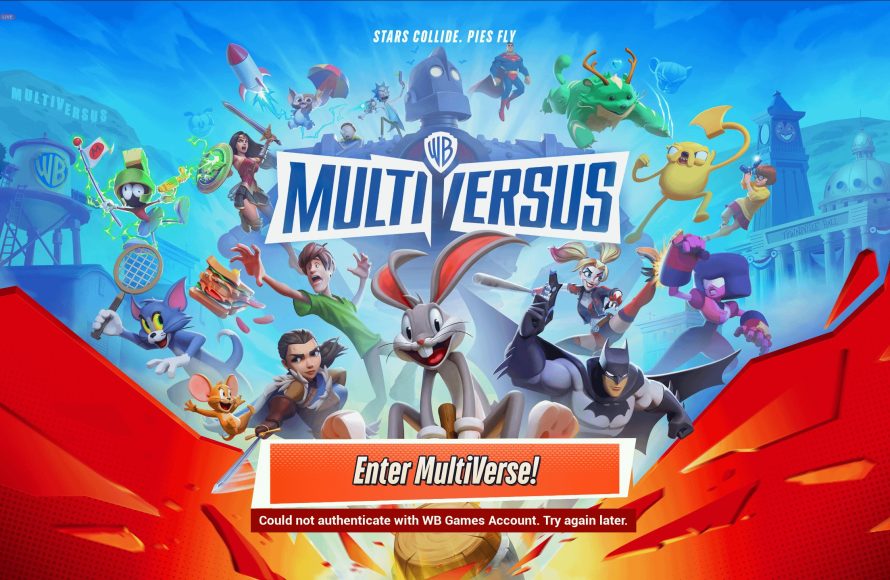
If you could not activate with wb games account, try verifying your internet connection, checking WB Games server status, or attempting password reset. Also, ensure your game and WB Games app are updated.
Have you been tearing your hair out because you could not activate with wb games account? It’s a frustrating experience when you’re eager to jump into a new game. You’re certainly not alone, many players have faced this snag. Let’s explore common reasons and what you can do about it.

Could Not Activate With WB Games Account: A Deep Dive
Okay, so you’re excited to jump into a new game or access some cool content, but you’re hitting a snag: “Could not activate with WB Games account.” It’s frustrating, right? You’ve got the game, you’ve got the account, but they just won’t connect. Don’t worry, you’re not alone. This issue is pretty common, and there are usually some straightforward reasons why it happens. We’re going to break down everything you need to know to get you back in the game!
Understanding the Activation Process
First, let’s talk about what’s supposed to happen. When you try to activate a game with your WB Games account, the game is trying to verify that you own it. It’s like showing a ticket at the movie theater. Your WB Games account is like your personal ID, and the game needs to make sure that the game purchase or the code you used matches that ID. This typically involves a quick online check. If the check goes through, you’re good to go, and the game gets activated. However, when something interrupts this process or if there is a mismatch, you might encounter the dreaded “Could not activate with WB Games account” error.
Common Reasons for Activation Failure
So, what are some of the reasons why this activation process might go wrong? Here are some of the most frequent culprits:
Incorrect Login Credentials
This sounds obvious, but it’s often the culprit. Did you double-check that you typed your email and password correctly? Even a small typo can throw things off. Make sure that your caps lock is off and that you don’t have any extra spaces before or after your email address or password. It is also very common that people have several email addresses and may use the incorrect one. Always double check the credentials.
Network Connection Issues
The activation process relies on a stable internet connection. If your connection is weak, unstable, or drops out during the activation, it can cause the activation to fail. Think of it like trying to have a conversation on a bad phone line; information gets lost. Check your Wi-Fi signal and ensure you are connected to the internet before trying again.
WB Games Server Problems
Sometimes, the problem isn’t on your end at all. If the WB Games servers are experiencing issues, it will impact everyone trying to activate games. This means the servers might be down for maintenance, have too much traffic, or just be experiencing some technical difficulties. You might have to wait for WB Games to sort out these issues.
Outdated Game or Launcher
Is your game or the game launcher (like Steam, Epic Games Launcher or WB Games App) updated to the latest version? Outdated versions can sometimes cause conflicts and prevent activation. Game developers often release patches that fix bugs or add new features. You should ensure that your game is up to date. Usually, launchers update the game automatically, but sometimes it needs manual intervention.
Game Code Problems
If you are using a game code, it might have problems. Check the code carefully. Make sure that you’ve entered it correctly and that you’re using the correct code for the game and platform. Some codes can expire, are region locked, or might have been used already. Also, sometimes retailers give out codes that don’t work. In this case, contact them for further assistance.
Account Region Mismatch
If your game region doesn’t match your WB Games account region, it might create issues. For example, if you created your account in one country and try to redeem a game code from another country, it won’t work. The region needs to match. Check your account settings to see if the region is right.
Multiple Logins
Sometimes, having multiple active logins with your WB Games account on different devices can mess things up. The system might get confused. Try logging out from all other devices and trying the activation again. Log into the correct account using the right devices only.
Firewall or Antivirus Interference
Your firewall or antivirus software might be blocking the game from connecting to the WB Games servers, preventing activation. Sometimes these programs are over protective, and they can block necessary connections that games use. Try temporarily disabling the firewall or antivirus software (only if you are sure it’s safe) and then try to activate the game. If that works, then make sure you add the game to the list of allowed programs in your antivirus or firewall.
VPN or Proxy Issues
Are you using a VPN or a proxy? Sometimes these services can interfere with the activation process because they can change your location or obscure your internet connection. Try to disable them for a short time and see if that resolves the activation issues. If this resolves the problem, then you will have to research more about your VPN, so that you can use both together without issues.
Corrupted Game Files
Sometimes the game files get corrupted, which can lead to all types of errors, including activation failures. In most cases, game launchers have the option to verify or repair files. If you are using Steam, you can find this option under the properties of the game. Check if your files are okay.
Troubleshooting Steps: Getting Back in the Game
Now that we know the potential culprits, let’s try some solutions. These are steps that should help you get past this activation error:
Double-Check Login Information
This cannot be stressed enough: retype your email and password carefully. Verify caps lock is not active and that you don’t have any extra spaces. If you are unable to remember your password, then try to use the password reset option. Also, recheck that you are logging in with the correct email.
Restart Your Device and Router
Sometimes, a simple restart is all you need. Turn off your computer, console, and modem/router. Wait a minute or two, and turn them back on. Then try the game activation again.
Check Internet Connection
Open your web browser and see if you can access any website. If not, check your network devices. Make sure the internet cables are plugged in correctly and that the Wi-Fi signal is strong enough. If the connection is weak or unstable, move closer to the router or consider a wired connection.
Check WB Games Server Status
Check the official WB Games website or their social media channels for server status updates. They will usually post if there are server issues. If the servers are down, all you can do is wait and try again later.
Update Your Game and Launcher
Make sure that both the game and the game launcher are up to date. Check if there are any new updates available, and download and install them. This can often fix the activation issue.
- Steam: Right-click on the game in your library, go to Properties, and then to Updates. You can select “Always keep this game updated.”
- Epic Games Launcher: You can manage your updates by going to the library. The update button will be visible if there is an available update.
- WB Games App: The app usually prompts you to download updates when they are available.
Verify Game Code
If you’re using a game code, double-check that you entered it correctly. Most codes are case-sensitive, so be careful about capitalization. If you got the code from a retailer, and it’s not working, then contact them for assistance.
Disable VPN or Proxy
Temporarily disable any VPN or proxy service you may be using and try the activation again. Once the activation works, then you can try using VPN or Proxy. If the problem comes back, then the problem is with the use of the VPN or Proxy.
Temporarily Disable Antivirus or Firewall
If you suspect your antivirus or firewall is blocking the connection, then temporarily disable them. But be careful when you disable them; make sure you don’t go to any unsafe websites or download files. If the activation works after this step, you’ll need to add an exception for the game in your security software’s settings. Also, make sure that the firewall is set to allow the game connection.
Log Out From All Devices
Log out of your WB Games account on all devices, and then try the activation again. This ensures that there aren’t any conflicting active sessions. After the activation is successful, you can log in on all the devices you want.
Verify Game File Integrity
Most launchers have the option to verify or repair files. Use this feature to make sure that game files are not corrupted. Here’s how you do it on different launchers:
- Steam: Right-click on the game in your library, select “Properties,” then “Local Files,” and then “Verify Integrity of Game Files.”
- Epic Games Launcher: Click on the three dots next to the game, select “Manage” and then “Verify”.
Contact WB Games Support
If none of these steps work, the next best step is to contact the WB Games Support team. They will be able to assist you with your specific situation. They might ask you for a screenshot of the error message and the game activation code if you have one.
Wait and Try Again
Sometimes, you might have to wait and try again later. The issue could be temporary, such as high server traffic or maintenance. So, wait for some time, and try to activate the game again.
Prevention Tips for the Future
To try and avoid these issues down the road, here are some best practices:
- Always double-check your login details when logging in to your WB Games account.
- Keep your game and launcher up to date.
- Make sure you have a stable internet connection before activating a game.
- Make sure you are using a valid code and from the correct region.
- Log out of your account from all devices when not in use.
- Add the games as an exception in your antivirus or firewall programs.
- Make sure you have the correct account on the correct devices.
The “Could not activate with WB Games account” error can be annoying, but with a little bit of troubleshooting, you’ll hopefully be back to gaming in no time. Remember, patience and methodical steps are key to solving these kinds of problems. By carefully going through each step, you will be able to figure out the problem and get back to gaming. And if all else fails, don’t hesitate to reach out to the WB Games support team for help.
How to Fix “Could not authenticate with WB Games Account” in MultiVersus
Final Thoughts
Experiencing issues with game activation is frustrating. Users report varied problems. The primary challenge surfaces when the game could not activate with wb games account. This error prevents successful game launch.
Troubleshooting steps might resolve some issues. Checking internet connection and account details is important. However, when persistent, the root cause could require further investigation. It is important to note the must troubleshooting steps.
When all else fails, reaching out to support becomes necessary. The support team will help with account related problems. The phrase ‘could not activate with wb games account’ must be clearly mentioned.

