
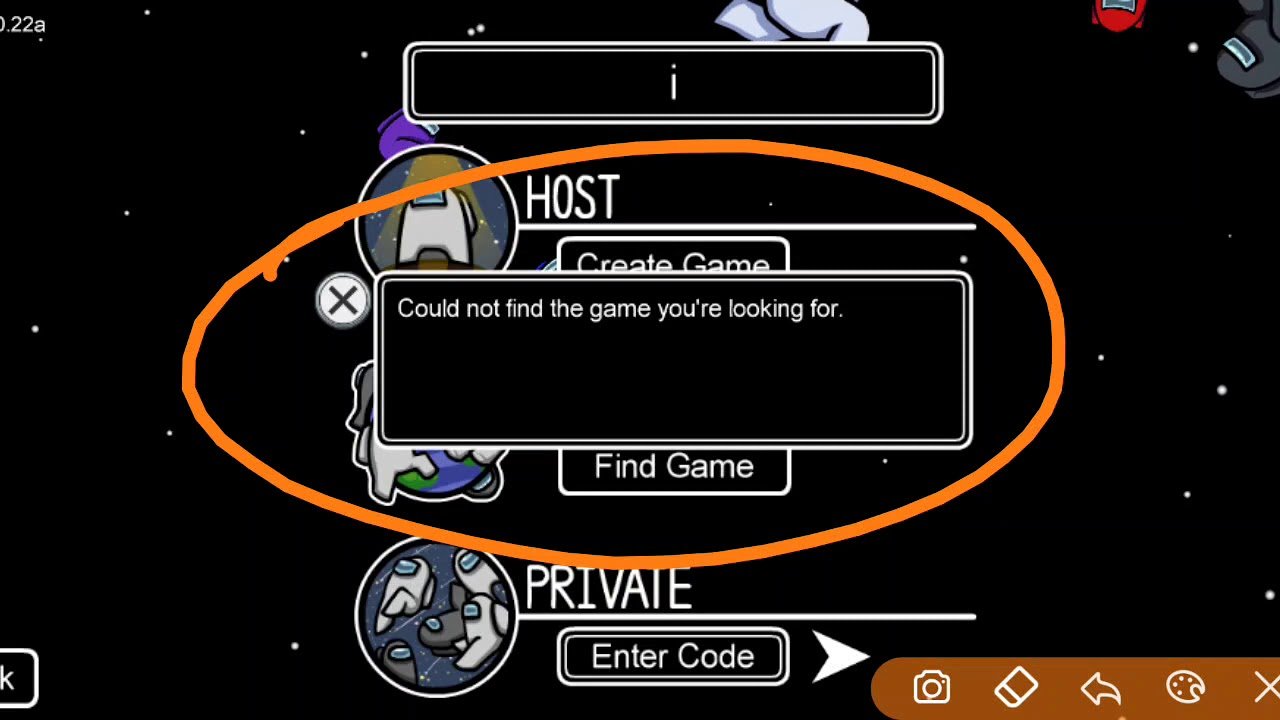
Ensure you are on the correct server region and have the latest game version installed; this often resolves the issue when you could not find game Among Us.
Frustration hits hard when you’re ready to play, but you could not find game Among Us. It’s a common problem, and can be super annoying. Let’s explore why this happens.
Many factors can cause the “no game found” message. Server issues, outdated game versions, or incorrect region selections are potential culprits. Let’s quickly fix these problems so you can get back to being the imposter or crewmate.

Could Not Find Game Among Us: Why Is This Happening?
It’s super frustrating! You’re all set to play Among Us with your friends, maybe you even have a perfect imposter plan brewing, but then…bam! “Could not find game” pops up on the screen. It’s like the game is playing a cruel joke on you. But don’t worry, you’re not alone, and there are actually lots of reasons why this happens. Let’s explore the mystery behind this pesky error and learn how to get back to being a sneaky imposter or a sharp crewmate.
Understanding the “Could Not Find Game” Error
The “Could Not Find Game” error in Among Us is a signal that your device can’t connect to the game server where your game is being hosted. Think of it like trying to call a friend, but the phone line is down. Several things could be causing this communication breakdown. It’s not always about something you’re doing wrong. Sometimes, the game itself has hiccups, just like real life! Here’s a closer look at the common culprits:
Common Reasons for Connection Problems
- Server Issues: Sometimes, the Among Us servers themselves might be having problems. Imagine a really busy restaurant; sometimes, it just gets too crowded, and they have trouble serving everyone at once. The same can happen with game servers. If too many people are playing at the same time, or if the server needs maintenance, you might see this error.
- Network Connectivity Problems: Your home internet or the wifi you are using might be acting up. If your connection is weak or unstable, it can cause problems with online games like Among Us. A weak wifi signal is like having a shaky voice on the phone; the other person might not hear you clearly.
- Incorrect Game Settings: Sometimes, the game settings you chose are not matching with the game you want to join. For example, if you choose the wrong region or if you enter the wrong code given by your friend, you might face this error. It’s like trying to get into the wrong house!
- Outdated Game Version: If you’re not using the latest version of Among Us, your device might have difficulty finding a game. Imagine trying to use an old key to open a new door; it just won’t work. Games often have updates with fixes and changes that allow them to work properly with others who also updated.
- Firewall or Antivirus Interference: Sometimes, the security software on your computer or device might be a little too overprotective. If your firewall or antivirus is blocking Among Us, then this can lead to the error. It’s like having a super-strict security guard who won’t let anyone pass!
- Incorrect Game Code: Typing the wrong game code can happen easily. If even one letter or number is off, you won’t be able to join the game. This is very similar to using the wrong password for your email account.
- Platform Mismatch: If you are on mobile and trying to join your friends in pc, this could be one of the major cause of the error you are facing. Or, if you are on different platforms like, one person is playing in android and another is in IOS, this also can cause issues.
Troubleshooting “Could Not Find Game” Step-by-Step
Okay, let’s get to fixing this! Here’s a checklist of things you can try to get you back in the game:
Checking Server Status
First things first, let’s see if the Among Us servers are the problem. Here is how you can check:
- Official Social Media: Check the official Among Us Twitter or other social media pages. They often post updates about server issues. This is a good place to find quick updates.
- Third-Party Downdetector Websites: Websites like Downdetector track user reports of issues with online services. A quick search for “Among Us server status” on a site like this could give you an idea of server problems.
If the servers are down, there is not much you can do except wait for them to come back online. Try playing later or follow the social media handles for updates from developers.
Diagnosing Your Network Connection
Next up, let’s see if the problem is with your internet:
- Restart Your Router/Modem: Sometimes your internet connection just needs a little reboot. Turn off your router and modem, wait for about 30 seconds, then turn them back on. This often fixes simple connection problems.
- Check Your Wi-Fi Signal: Make sure you are close enough to your router, and the signal is good enough. You can check your wifi signal by looking for the wifi symbol at top/bottom right side of your screen. The more bars the signal has, the stronger it is. If it’s weak, try moving closer or switching to a more stable internet source.
- Try a Wired Connection: If you can, try connecting your device directly to your modem or router with an Ethernet cable. This is often more stable than Wi-Fi. If the problem goes away when you switch to wired connection, you will know that your wifi connection is the cause.
- Test Your Internet Speed: You can use online speed test websites to check your internet connection’s speed. If your speed is low, this means your internet may be the problem.
- Avoid congested network times: Try to avoid playing when many people in your house are using the internet. This can decrease your connection speed.
Verifying Game Settings
Okay, now let’s make sure your game is set up right:
- Check Your Region: The game has different servers around the world. Make sure you have selected the correct region. Usually, it will be set to the nearest region to your location. If you select the wrong region, you might not be able to find your friend’s game. You can check this in the setting menu of the game.
- Double-Check the Game Code: This is super important! If you’re joining a game with a code provided by someone else, triple check that the code is correct. It’s like double checking the address when you are going somewhere. Even one incorrect letter or number can cause issues.
- Try Creating Your Own Game: As a test, try creating a game, and if that works, that means you have a good connection to the server. This can help you identify whether the problem is your connection, or if you are making a mistake while entering a game code.
- Contact Your Friends: Sometimes, the person hosting the game may have set up the game wrongly, or could have kicked you out, so verify with your friend if they are facing the same issue or not.
Keeping Your Game Up-to-Date
Just like your phone or computer, games need updates too. Here is how you can check if your game is updated or not:
- Check App Store/Play Store: Head over to the App Store (if you are on iPhone or iPad) or the Google Play Store (if you are on an Android device), search for Among Us, and see if there is an update available. Click on the “Update” button to update your game to the latest version.
- Check Your Games Library/Store: If you are playing on PC, then go to the platform where you bought the game. Steam usually shows an update notification if there is an update, or you can right click the game and press update. Or you can click update all button to update all your games. If you bought the game from epic games, then similarly, you can update the game from its launcher, by searching for the game and clicking the “update” button.
It is very important to keep your game updated with the latest version, so you will be able to find games, get new features and be able to play with other players using the same version of the game.
Managing Security Software Interference
Sometimes, security software blocks the game. You can try this method to see if security software is causing issues:
- Temporarily Disable Firewall/Antivirus: As a test, you can temporarily disable your firewall or antivirus to see if this resolves the issue. This will help you identify if your security software is the cause. If the game is working with the firewall or antivirus disabled, you can make an exception for the game in your settings so it does not cause issues in the future. However, it’s always a good idea to re-enable your security software afterwards for protection from security vulnerabilities.
- Create Exceptions: Instead of completely turning off the security software, you can add Among Us to the list of exceptions. This means your security software will not interfere with your game. You can search online on how to make exception for any application in your security software.
Addressing Other Potential Causes
Still having problems? Here are some other things to look at:
- Restart Your Device: Sometimes a simple restart can fix unexpected glitches. Turn off your device, wait a few seconds, then turn it back on.
- Clear Cache and Data: Clearing the cache of your game will help you solve errors or bugs. If you are on Android, you can go to app settings, search for among us and click “Clear Cache”. Similarly, you can do that on other devices.
- Reinstall the Game: If all else fails, try uninstalling and reinstalling the game. This can help if the game files are corrupted.
- Contact Among Us Support: If the problem continues, then you may need to contact the support team. They may have a solution that you haven’t tried or may be able to provide you with more information about the issue.
Understanding Game Codes and How They Work
Game codes are like special passwords to join a specific game. When someone creates a game, a unique code gets generated. This code is very important to join the game. Without it, you won’t be able to join. Here are important things to note about game codes:
How Game Codes Are Generated
- Unique Codes: The game generates a random set of letters and numbers for each game. This makes each game code unique. It’s like your own unique address to your house.
- Case Sensitivity: Game codes may be case sensitive, depending on the platform. This means that capital letters and small letters matter. If you mix a capital letter when the actual code contains the small letter, it won’t work. It’s like trying to use a key that fits very specifically.
- Limited Time: The game codes are only valid for as long as the game is active. If the host ends the game, the code is no longer valid, and you won’t be able to join.
Tips for Using Game Codes
- Type Carefully: Game codes are usually a mix of letters and numbers, so be very careful while typing it. Make sure you do not miss any letter or number or type the wrong character.
- Copy and Paste: If possible, try to copy and paste the code. This helps to avoid errors.
- Always Confirm: Before you press enter, it’s always wise to double-check the code with the person who sent it to make sure you are typing the code correctly.
Platform-Specific Tips for “Could Not Find Game”
Sometimes, the cause of the error can be specific to a certain platform. Here are some tips for each device:
Mobile (Android/iOS)
- Background Apps: Close other apps running in the background to free up resources on your phone or tablet.
- Update OS: Ensure your phone or tablet’s operating system is up to date. This often improves performance and compatibility.
- Reinstall the App: Try to reinstall the app if nothing is working.
PC (Steam/Epic Games)
- Verify Game Files: If you are playing on steam, you can verify the game files by going to the properties of the game by right clicking it. Then, go to local files tab and click on verify integrity of game files button.
- Update Graphics Drivers: You should always keep your graphics card drivers up to date. This can prevent any compatibility issue with the game.
- Run as Administrator: You can run your game as an administrator, this gives the game more permissions, which can resolve problems in some cases.
Console (Nintendo Switch/Xbox/PlayStation)
- Check Your Online Subscription: Make sure that your online subscription (like Nintendo Switch Online, Xbox Live Gold, or PlayStation Plus) is active.
- Check for Console Updates: Make sure that your console’s software is up to date, this can help fix issues.
- Restart Your Console: If you are facing issues, restart your console and try running the game again.
Remember, being patient and trying out the solutions is the key to resolving the “could not find game” error in Among Us. It’s also important to communicate with other players, especially if you are joining a game with the help of a code. That helps you know if the issue is at your end or at the host’s end.
Getting back to the game may take some steps, but you’ll be back to accusing your friends of being the imposter in no time. Don’t give up, and keep on trying all these options that we have mentioned! With a little patience, the mystery will be solved, and your Among Us game will be back up and running.
How to Fix COULD NOT FIND THE GAME Bug || Among Us ||
Final Thoughts
If you struggled with connecting, numerous factors might be the culprit. Check your internet, ensure the game servers are functioning correctly, and verify your game version. Also make sure you are using the latest version.
Troubleshooting these common issues will usually resolve connectivity problems. If all else fails and you still could not find game among us, consider contacting support for further assistance. A proper internet connection is must for online gaming.

