
To refund on Epic Games, you must submit a refund request through your account on their website, provided the game meets their refund policy criteria, typically within 14 days of purchase and with less than two hours of playtime.
Ever purchased a game on Epic Games and then felt a pang of regret? It happens to the best of us! Knowing how to refund on Epic Games can feel a bit tricky, but it’s actually a straightforward process when you understand the rules.
Epic Games has a clear refund policy that you need to know to get your money back. They do have some limits, mainly on playtime and the time elapsed since the original purchase.
Navigating their site may seem confusing at first, but requesting a refund is not that hard. We’ll guide you through the steps so you can easily get your money back if the game just isn’t for you.

How to Refund on Epic Games: A Step-by-Step Guide
So, you bought a game on the Epic Games Store and it’s just not what you expected? Maybe it’s too hard, maybe it doesn’t run well on your computer, or maybe you just don’t like it. That’s okay! Epic Games has a refund policy, and getting your money back is usually pretty simple. This guide will walk you through everything you need to know about how to refund on Epic Games, step by step. We will cover everything from the eligibility criteria to the actual process of requesting a refund.
Understanding Epic Games Refund Policy
Before you start the refund process, it’s good to know the rules. Epic Games has a specific refund policy, and following these rules helps make sure you get your money back smoothly.
What You Can Refund
Generally, you can refund most games and applications purchased through the Epic Games Store. This includes:
- Full games that you purchased directly.
- Some downloadable content (DLC) for games. Check the specific DLC page for refundability.
- Purchases made with real money.
Keep in mind that some things are usually not refundable. These may include:
- In-game currency like V-Bucks for Fortnite (unless specifically required by law).
- Items bought with in-game currency.
- Bundles of games if you have played one or more of the games in the bundle for more than 2 hours.
- Games where you’ve violated their terms of service (cheating, hacking etc.).
Time Limit for Refunds
There’s a time limit to request a refund. You must request a refund within 14 days of the purchase. However, there’s an additional important rule:
- You must have played the game for less than two hours in total. This is across your whole Epic Games account, not just a single play session.
This means that if you buy a game, play it for an hour and 59 minutes, and then decide it’s not for you, you can still request a refund. But, if you play it for 2 hours and 1 minute, you generally cannot refund the game (unless there are special circumstances that will discuss later).
These time limit rules applies to most of the refunds that you requested, but for special instances that i mentioned below, you can have exceptions. Make sure to read them carefully.
Exceptions to the Refund Policy
While the 14-day/2-hour rule is pretty strict, there are some exceptions. These are not guaranteed, but they are worth considering if you don’t meet the normal criteria.
- If you find a technical issue that prevents you from playing a game as expected, and the issue is significant, such as if the game is completely not working or not launching correctly, then you might have a higher chance of a successful refund request.
- If you accidentally purchase a game, or if there is any unauthorized purchase on your account you should contact them, and explain the problem clearly, and there is a high chance you will get the refund.
- If the game has major bugs and issues that significantly impact gameplay (and are not typical for the game), then you might get a refund.
- If a product is faulty or not as described (e.g., you thought you were buying the standard edition of a game, but received a different one), then a refund may be possible.
Even if you fall outside the usual refund window, it’s still good to contact Epic Games support and explain your situation. They may be able to help you on a case-by-case basis. Remember to be polite, clear, and explain your issue properly.
How to Request a Refund on Epic Games: Step-by-Step
Now, let’s get to the actual steps to get your money back. Here’s how you do it:
Step 1: Go to the Epic Games Website or Launcher
First, you need to access your Epic Games account. You can do this either through a web browser or through the Epic Games Launcher (the application you use to download and play games).
- Via Web Browser: Go to the Epic Games website and log in using your username and password.
- Via Epic Games Launcher: Open the Epic Games Launcher on your computer and log in to your account.
Step 2: Access Your Account Settings
Once logged in, you’ll need to find your account settings. Here’s how to find it in both options.
- Via Web Browser: Click on your profile name in the top right corner, and then click on “Account” in the drop-down menu.
- Via Epic Games Launcher: Click on your profile name in the bottom left corner of the application, and then click on “Manage Account”. This action will take you to the Epic Games website.
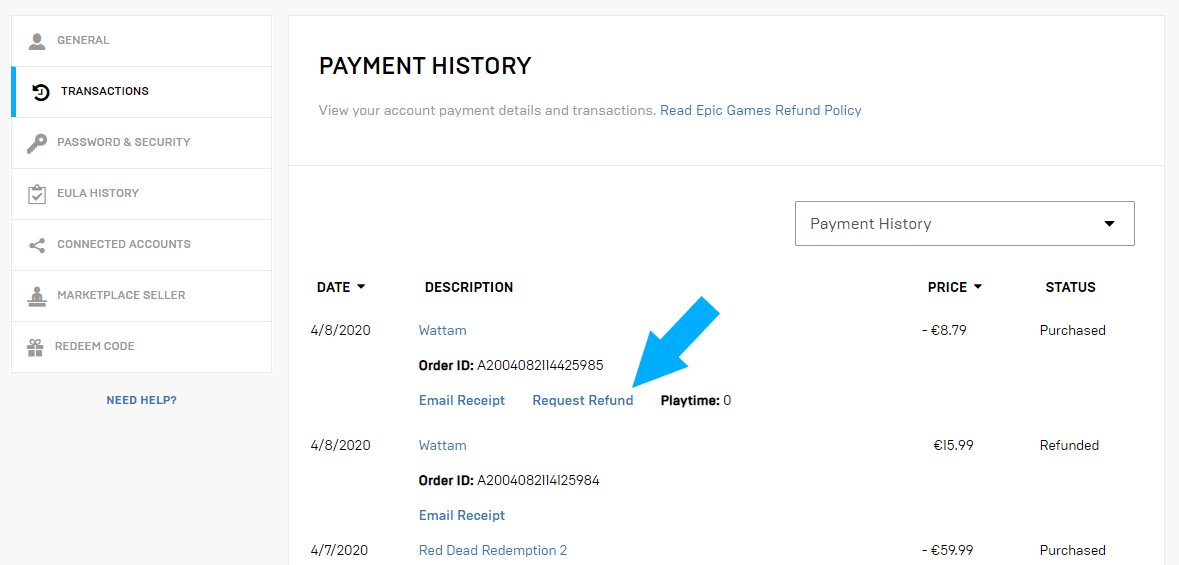
Step 3: Go to Transaction History
Once you are in the Account page, you will see some options like “General”, “Connections”, “Transactions” etc. You must go to the “Transactions” section, you can find the Transactions page on the left side menu.
This page lists all your purchases, so you need to find the right one which you want a refund for.
Step 4: Find the Game You Want to Refund
Look through the list of your purchases and find the specific game you want to return. Look at the date of purchase to make sure it’s the right one, especially if you buy lots of games.
Step 5: Initiate the Refund Process
Once you have located the game you want to refund, there should be a “Request Refund” button next to that game purchase, just click on that button. If you don’t see this button, then that means the purchase cannot be refunded using the refund tool, and in that case, you have to contact the Epic Games support and request a refund by explaining your issues.
Step 6: Choose Your Refund Reason
When you start the refund process, Epic Games will ask you why you’re returning the game. Choose the option that fits your situation. Options could include:
- “I didn’t like the game”
- “The game does not work properly”
- “I bought it by mistake”
- “The game is not as described”
Choose the option that is best fit for your situation. Being honest and accurate here helps your refund request go through faster. If none of the given option fits your issue, then select other and describe the issue clearly and in detail.
Step 7: Confirm Your Refund Request
After choosing a refund reason, you will be asked to confirm your request. Double-check that you have chosen the correct game and refund reason before you confirm.
Step 8: Wait for the Refund Processing
After you have successfully submitted the refund request, Epic Games will start processing it. Processing times vary, but it usually takes a few days.
You will likely get an email confirmation about your refund request. You can also check the status in your account’s “Transactions” section by refreshing the page, to check if the refund is still pending or if it has been approved.
Step 9: Check Your Payment Method
Once the refund is approved, the money will be returned to your original payment method. How long the money takes to reach you depends on your payment provider. It could be instant for some payment methods and might take some days for some other methods.
- Credit or Debit Card: The refund might take a few business days to show in your account.
- PayPal: Refunds through PayPal are usually pretty fast.
- Other Payment Methods: Processing times may vary.
Keep an eye on your bank account or payment method statements to ensure that the refund has been successfully processed. If you do not receive the refund in reasonable time, then you should contact the support to understand the reason.
What If You Can’t Get a Refund Through the Tool?
Sometimes, the refund tool on the website might not work for you. If you’ve played a game for more than two hours, or if it’s been more than 14 days since your purchase, you may not see the refund button. In these cases, you need to contact Epic Games support directly.
How to Contact Epic Games Support
You can contact Epic Games customer support through their website. Here’s how:
- Go to the Epic Games support website. You can find it by searching “Epic Games Support” on a search engine.
- Click on the “Contact Us” option on the support page, and then select the category which best fits your situation.
- Choose the support category for which you need help (e.g., “Purchase Issues”).
- Provide all the required details about your problem, including the game’s name, purchase date, and the reason for the refund.
- Be clear, polite, and explain your issue properly and clearly.
Tips for a Successful Refund Through Support
When contacting support, follow these tips to increase your chances of a successful refund request:
- Be Polite and Respectful: Treat the support team with respect. They are there to help you, so a kind approach usually gets better results.
- Provide all the Details: Give them all the information, like date of purchase, game name, your account details etc.
- Clearly Explain your Issue: Don’t just say, “I want a refund.” Instead, explain why, clearly and simply, why you are requesting refund, whether technical issue, or accidental purchase, make sure you explain it clearly.
- Attach Screenshots or Videos: If you have any screenshots or videos of the problem, make sure to attach them. Visual proof helps them understand the situation more clearly.
- Be Patient: They get a lot of requests, so it might take time for them to reply. Don’t send too many messages.
Special Cases and Considerations
Let’s look at some special situations that may affect your refund request.
Pre-Ordered Games
If you pre-ordered a game on the Epic Games Store and then decide you don’t want it, the usual refund rules apply. As long as you request the refund before the game’s official release date, and you haven’t downloaded and played the game for over 2 hours, then you should get the refund pretty quickly using the refund tool.
But if the game is released, and you have played the game less than 2 hours, then you can also get the refund under usual terms. In the case where you played over 2 hours then you would have to contact support for that specific situation.
Bundled Games
When you buy a game bundle, like a collection of several games at a discounted price, refunding them is a little tricky. If you want to get a refund, you need to refund the complete bundle, you cannot refund individual games. Also, if you have played any game in the bundle for more than two hours, then the refund might get rejected.
If you only want to keep one game from the bundle, but other games are not performing as you expected or other similar issue, then you can explain your situation to the Epic Games support team to see if they can help you, but usually they do not offer separate refund for each game in a bundle, and your request for a refund can get rejected.
DLC and Add-ons
Like games, you can often refund DLC and add-ons (downloadable content) as long as you have not used them. If you have downloaded or played the DLC then the chances of a refund are really low. Some DLCs might not be eligible for a refund, so you should always check the individual terms and conditions for the particular DLC before buying it.
Account Security
If you notice any unauthorize purchases on your account, immediately contact the Epic Games support, and provide them all the details, they will revert the purchase, and refund the amount back to your account, they may also ask you for more details or evidence.
You should also secure your account by changing your password immediately and enable the two factor authentication, it will protect your account from any unauthorized access in future.
Tips for Avoiding Refund Issues
While refunds are helpful, it’s better to avoid situations where you need them. Here are some tips to help you pick games you’ll enjoy, and thus avoid the hassle of refunds:
- Read Game Reviews: Before buying a game, read reviews from other players. This will give you a idea if the game is good or not.
- Watch Gameplays: Watch videos on Youtube or Twitch to see what the gameplay is like. If it doesn’t look interesting, then don’t buy it.
- Check System Requirements: Ensure your computer can run the game smoothly. If your PC doesn’t meet the minimum requirements then the game might be slow, or glitchy and unplayable.
- Consider Free Games: Try free-to-play games or demos of games before making a purchase. This will help you to know if that game is for you.
By doing these things, you can often avoid the situation where you would need a refund in the first place. But if you still need to request one, this guide will help you do that.
Refunds on the Epic Games store are usually quite simple. By following these steps and understanding the policy, you can easily get your money back for games that don’t fit your expectations. Always remember the 14 day and 2 hour rule, and always check the refund eligibility policy of DLC’s before buying. And if you don’t get the refund using the refund tool then contact the support team and ask them for refund and explain your situation properly. By following these steps and tips, you will navigate your refund request with comfort. Happy Gaming!
How To Refund Games From Epic Games – Full Guide
Final Thoughts
To refund on Epic Games, you must request it within 14 days of purchase and if you have played for less than two hours. Go to your account settings, then transactions. Find the game you want to refund and click “request a refund”.
The refund process can take a few days to complete. If you meet these requirements, you should get your money back. This is how to refund on epic games and it is generally easy if done correctly.

