
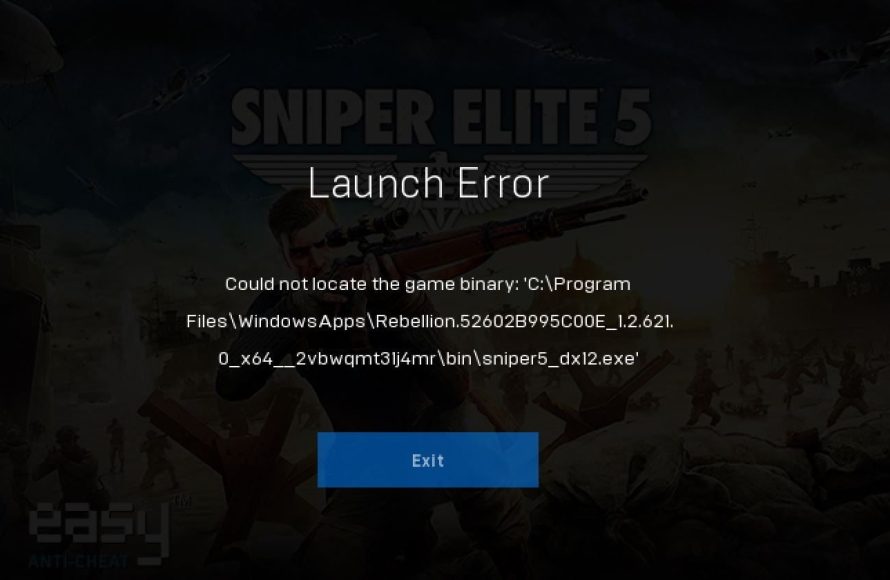
‘The “could not locate game binary” error indicates the game’s executable file is missing or the game launcher cannot find it in the specified directory.’
Ever faced the frustrating message “could not locate game binary” when trying to jump into your favorite game? It’s a common issue that can stop you from playing. This usually means the game’s main file isn’t where the launcher expects it to be.
The problem can stem from several things, like an incorrect game installation or moving files after setup. We will explore common causes and some simple ways to get your game running. Let’s get you back in the game!

Could Not Locate Game Binary: Understanding and Fixing the Issue
Imagine getting ready to play your favorite game. You click the icon, excited to start, but instead of the game launching, you see an error message: “Could not locate game binary.” It’s frustrating, right? This message means your computer can’t find the main file it needs to start the game. Think of it like a book missing its main pages – it just won’t work! Let’s explore what causes this problem and how you can get back to gaming.
What is a Game Binary?
Before we dive into fixing the issue, let’s understand what a “game binary” actually is. A game binary is essentially the main executable file that runs a game. It contains all the instructions that tell your computer what to do to get the game going. Think of it as the brain of the game, directing all the action. It’s like the main program in a computer program. These files usually have extensions like .exe on Windows or specific extensions on other operating systems such as .app on MacOS. Without this file, the game simply can’t start.
Why the Error Occurs
Several factors can lead to the “could not locate game binary” error. Understanding the potential causes is the first step toward finding the right fix. Let’s break down the common reasons:
- Missing Game Files: This is perhaps the most common reason. The binary file or other important game files may have been accidentally deleted, moved, or corrupted. It’s like if you lose some of the parts of your toy, it won’t work properly.
- Incorrect Installation: The game might not have been installed correctly in the first place. Sometimes, during installation, files can get misplaced, not copied over completely, or encounter errors, leading to missing or broken game binary files.
- Antivirus Interference: Sometimes, antivirus software can mistakenly identify game files as threats, quarantining or deleting them, including the crucial binary file. It’s like the antivirus is being too cautious.
- Corrupted Game Files: Over time, game files can become corrupted due to various reasons like system crashes, hard drive issues, or incomplete downloads. A corrupted file is like a torn puzzle piece; it does not fit correctly.
- Incorrect Game Launch Location: Trying to launch a game from the wrong shortcut, or from a location that doesn’t contain the main binary file, can cause this error. It’s like looking for a toy in the wrong box.
- Operating System Incompatibilities: If the game is not compatible with your operating system, you may encounter this error as the game might be looking for certain system components that do not exist in your system or aren’t compatible with the specific build.
- Hardware Problems: Rarely, underlying hardware issues can impact how the game is being loaded or accessed, which may lead to the game binary not being found.
Troubleshooting Steps: A Step-by-Step Guide
Now that we know why the error occurs, let’s get into how to fix it! Here’s a detailed, step-by-step guide to try:
Step 1: Verify Game File Integrity
Most game launchers, like Steam, Epic Games Store, or others, offer a feature to verify the integrity of game files. This tool checks if all the necessary game files are present and correct. If a file is missing or corrupted, the game launcher will re-download or repair it. Here’s how you generally do it on different platforms:
-
Steam:
- Open Steam and go to your Library.
- Right-click on the game causing problems.
- Select “Properties.”
- Click on “Local Files.”
- Click on “Verify integrity of game files…”
-
Epic Games Store:
- Open the Epic Games Launcher and go to your Library.
- Click the three dots next to the game.
- Select “Verify.”
- Other Launchers: Look for a similar “verify,” “repair,” or “check files” option in the launcher for your specific game or service. Each launcher may have a slight variation in the terminology or menu structures, but the core idea is the same.
This method often fixes the problem if corrupted or missing files are the root cause. Once the verification process is complete, try launching the game again to see if the issue has been resolved.
Step 2: Check Your Antivirus Software
As we mentioned earlier, antivirus software can sometimes be a little too enthusiastic. It might mistakenly flag the game binary as a threat and remove or quarantine it. Follow these steps to check if your antivirus is the problem:
- Look at Your Antivirus Logs: Open your antivirus software and find its logs or history. This is where it keeps records of what it has done, such as quarantining files.
- Find Game Files: If you see the game binary in the quarantine list, you will need to restore it. The process to restore differs with each antivirus software, but there’s usually a “restore” or “unquarantine” option.
- Add an Exception: To prevent the antivirus software from blocking your game again, you should add an exception for the game’s folder in your antivirus settings. This tells the antivirus software to leave those files alone.
- Restart Your Computer: After adding the exception, restart your computer and try launching the game again.
If this solves the error, your antivirus was indeed the problem. Don’t forget to keep your antivirus on for the overall security of your system, but be sure to make exceptions for trusted programs like game binaries.
Step 3: Reinstall the Game
If verifying game files didn’t work, the next step is to uninstall and reinstall the game. This can fix issues caused by a faulty or incomplete installation.
- Uninstall the Game: Go to your computer’s settings or control panel, find the list of installed applications, and locate the game. Select the option to uninstall it. Follow the on-screen instructions to complete the process.
- Download the Game Again: Once the game is uninstalled, download it again from the source where you initially got it. This can be a game launcher, a website, or a disc.
- Reinstall the Game: Follow the installation instructions carefully, making sure to let it finish completely. Make sure that the computer doesn’t turn off or have any issue in the middle of re-installation.
- Launch the Game: After the re-installation finishes, try running the game again. If done correctly, the problem should be fixed.
Reinstalling a game might feel like a long process, but it is usually effective at fixing game files that are missing or corrupted.
Step 4: Check Game Launch Shortcuts and Locations
It’s possible that the game shortcut or launch location is incorrect. The shortcut might be pointing to a place where the binary file is not actually located. Let’s check this:
- Locate the Correct Game Folder: Find where your game is installed. You can usually find this location by looking at the game’s properties in the launcher or by right clicking the game shortcut and clicking ‘Open File Location’.
- Find the Correct Exe/Binary: Inside the installation directory look for an .exe file or equivalent main file of the game.
- Create a New Shortcut: If the old shortcut was incorrect or broken, make a new one by right clicking the executable file and then selecting ‘Send to’ then ‘Desktop (Create Shortcut)’. This creates a new working shortcut on the desktop.
- Try Launching From The Main Exe/Binary: Try launching the game by double clicking the executable directly from the game folder to see if this works. If yes, your shortcuts were broken or pointing to wrong locations.
These steps ensures that the game is being launched from its correct directory with the correct executable file. If your game launches directly from the game folder then you can use a newly created shortcut to launch the game.
Step 5: Update Graphics Drivers and Windows
Sometimes, the problem isn’t with the game itself, but with other software on your computer. Make sure your graphics drivers and Windows are up to date.
Updating Graphics Drivers
Outdated graphics drivers can cause various game issues, including the error “could not locate game binary”. Follow these steps to update your graphics drivers:
- Identify Your Graphics Card: Go to your device manager or look up the manufacturer of your graphics card (NVIDIA, AMD, or Intel)
- Go to the Manufacturer’s Website: Go to the official website of your graphics card manufacturer and look for their driver download page.
- Download the Latest Driver: Choose the driver version that is correct for your operating system (Windows, Mac, etc) and your graphics card model. Download the driver.
- Install the Driver: Run the driver installation program, then follow the prompts. Usually, a system restart is required after the driver installation to work properly.
Keeping your graphics card drivers updated ensures that your system has the latest features and fixes, which can greatly affect game performance and stability.
Updating Windows
Keeping Windows updated is also important, as updates often include bug fixes and improvements that can help games run smoothly.
- Open Windows Settings: Click the Start button and then the gear icon to go to settings.
- Go to Updates and Security: Select ‘Update & Security’.
- Check for Updates: Click ‘Check for Updates’ and let Windows search for available updates.
- Install Updates: If there are updates available, install them. You might need to restart your computer after.
Make sure that there are no pending or required updates. Keeping your operating system updated with all the latest patches is important for system stability and overall security.
Step 6: Run the Game as Administrator
Sometimes, games might need administrative permissions to access certain parts of your system. Running the game as administrator can resolve “could not locate game binary” error in some cases.
- Locate Game Executable: Go to the installation folder of the game and look for its main executable file.
- Right-Click and Select ‘Run as Administrator’: Right click the executable and then select ‘Run as Administrator’.
- Test the game launch: If the game launches successfully after that, you can make this change permanent by right-clicking the shortcut and then select ‘Properties’, then navigate to ‘Compatibility’ tab and check the box for ‘Run this program as an administrator’. Click on ‘Apply’ and then click ‘Ok’. This will make sure that the program always runs in admin mode each time you launch.
Running a game as administrator can help solve many permission issues that may cause the error we are discussing.
Step 7: Check For Hardware Issues
Though less common, hardware problems can also cause game binary issues. If the steps above don’t work, consider checking the following:
- Check your Hard Drive/SSD: Ensure your hard drive or SSD has sufficient space and is functioning correctly. Consider running a drive health check with diagnostic software.
- Test RAM: Faulty RAM can also cause issues. Windows has a built-in memory diagnostic tool that you can use to check your RAM for errors.
- Overheating: Make sure that your system has good airflow and is not overheating. An overheating system can cause unexpected errors.
If you suspect hardware problems, it might be best to have your computer looked at by a professional technician.
Advanced Troubleshooting Tips
If the basic steps don’t work, there are a few more advanced troubleshooting methods to try:
Running System File Checker (SFC)
SFC is a Windows tool that scans and repairs corrupt system files. Here’s how to use it:
- Open Command Prompt as Administrator: Type “cmd” in the Windows search bar, right-click on Command Prompt, and select “Run as administrator.”
- Run the SFC Command: Type
sfc /scannowand press Enter. - Wait for Scan to Complete: The tool will scan and fix any corrupted system files. This might take some time.
This tool might fix underlying system issues that are affecting game files.
Check for Operating System Updates Manually
Windows may miss some of the updates, so it’s good to manually check for OS updates. Do this as mentioned before in the section named ‘Updating Windows’.
Check Game Forums/Communities
If you’re still encountering issues, check game-specific forums and communities. Other users may have encountered similar issues and might have specific solutions for the game in question. They also can share their game fixes in forums.
Contact Support
If all else fails, don’t hesitate to contact the game’s support team. They might have specific solutions or be able to provide you with further information to solve the problem.
Keeping Your Games Running Smoothly
Preventing issues is better than fixing them! Here are some tips for keeping your games in top condition:
- Keep Your Games Updated: Install game updates as soon as they are available.
- Use Reliable Download Sources: Download games only from trusted and secure sources.
- Do Regular Antivirus Scans: Keep your antivirus software updated and running regular scans of your system.
- Make Regular Backups: Backing up your important files and games can help restore your game to working condition if anything goes wrong.
- Care for Your Hardware: Maintain proper cooling and ensure that you clean your system regularly.
By following these steps, you can navigate the frustrating “could not locate game binary” error and get back to enjoying your games. Remember, patience is key, and sometimes a simple restart can work wonders! Keep your system healthy, your games updated, and you will be gaming without any errors!
Fix Gray Zone Warfare Error Could Not Locate The Game Binary GZWClientSteam-Win64-Shipping.exe
Final Thoughts
In essence, troubleshooting game launch issues can be complex. If you’ve exhausted common fixes and still encounter problems, the core issue may be fundamental. ‘Could not locate game binary’ often signifies a problem with the game files themselves, or your system’s ability to find them.
Double-check the installation path and consider reinstalling. These steps often resolve the issue quickly, getting you back into your games. This error, could not locate game binary, needs immediate attention.

