
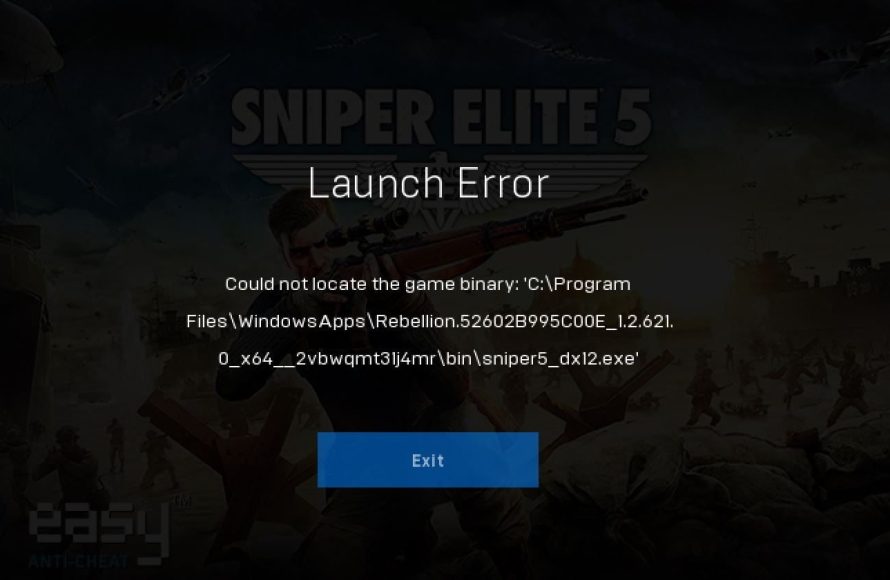
The error ‘could not locate the game binary’ indicates that the game’s executable file is missing or not in the expected directory. Verify the game’s installation and file path.
Ever launched a game only to be met with the frustrating “could not locate the game binary” message? It’s a common issue, and it can feel like hitting a brick wall. Instead of gaming, you are left troubleshooting.
This message usually means your computer can’t find the core file that makes the game run. The game software needs this .exe file to work. We’ll guide you to pinpoint the cause of the problem.

Troubleshooting “Could Not Locate the Game Binary”: A Comprehensive Guide
Alright, gamers! Let’s talk about something super frustrating: the dreaded “Could Not Locate the Game Binary” error. It’s like you’re all geared up for an epic gaming session, and then bam – this message pops up, stopping you in your tracks. Don’t worry; it happens to the best of us. This article is your go-to guide to understand why this happens and, more importantly, how to fix it. We’ll break it all down into easy-to-understand steps, so you can get back to gaming in no time!
What Exactly is a Game Binary?
Before we dive into fixing the issue, let’s understand what a “game binary” actually is. Think of it like the heart of your game. It’s a special file (usually an .exe file on Windows) that contains all the instructions your computer needs to run the game. When you click that shortcut or try to start the game, your computer looks for this file. If it can’t find it, well, you get the “Could Not Locate the Game Binary” error. It’s like a treasure hunt where the treasure is missing!
Why Does This Error Happen?
Several reasons can lead to your computer not finding the game binary. Let’s explore some of the common culprits:
- Missing Game Files: This is probably the most common cause. Maybe during installation, some files got skipped, or perhaps you accidentally deleted them.
- Corrupted Game Files: Sometimes, files can get damaged or corrupted. This can happen due to viruses, power outages, or even just the way your computer stores information.
- Incorrect Installation Path: Your game might be looking in the wrong place for its binary file. This often happens if you’ve moved the game folder or if the shortcut is pointing to an old location.
- Antivirus Interference: Your antivirus software, while trying to protect your system, might mistakenly flag the game binary as a threat and block it or delete it.
- Software Conflicts: Another program on your computer might be clashing with the game, stopping it from starting correctly.
- Outdated Drivers: Sometimes your graphics card drivers or other important drivers can be outdated. This can sometimes lead to game files not being accessed properly.
- Operating System Issues: An outdated or corrupted operating system can also cause problems with game binaries.
- Problems with the Game Platform: Sometimes, the platform you are using to play the game, such as Steam, Epic Games Store, or other launchers, could have issues that interfere with how the game loads.
How to Fix “Could Not Locate the Game Binary”
Now for the good stuff: fixing the problem! Here are some tried-and-tested solutions. We will start with the easiest and progress towards the more advanced options.
Method 1: Simple Restart
Yes, it’s the oldest trick in the book, but it’s often the most effective. Restart your computer and then try to launch the game again. A simple restart can clear up temporary glitches that might be causing the issue.
Method 2: Verify Game File Integrity
Most game launchers, like Steam, the Epic Games Store, and others, have a feature to check the integrity of the game files. This is like a mini-audit for your game’s installation, making sure everything is present and correct. Here’s how to do it on Steam, as an example:
- Open the Steam client.
- Go to your Library.
- Right-click on the game that is causing the problem.
- Select “Properties.”
- Go to the “Local Files” tab.
- Click the “Verify Integrity of Game Files…” button.
- Wait for the process to complete and then try to launch the game.
Similar options exist in other game launchers; look for something along the lines of ‘Verify’ or ‘Repair’ in the game’s settings. This process downloads any missing or corrupted files.
Method 3: Manually Locate the Game Binary
Sometimes, your computer is simply looking in the wrong place. You can try to manually find the game’s .exe file. Here’s how:
- Find the Game’s Install Directory: You’ll need to figure out where the game is installed. Often, it’s in “Program Files” or “Program Files (x86).” Look for a folder with the game’s name. If you don’t remember where you installed it, check the shortcut’s properties. Right-click the shortcut and choose “Properties.” Then, under the “Shortcut” tab, look for the “Target” field. That will tell you the game’s location.
- Locate the .exe File: Inside the game’s install directory, find the main .exe file. It usually has the same name as the game.
- Try Running it Directly: Double-click the .exe file to launch the game directly. If it runs, then your shortcut was likely pointing to the wrong location. You can then create a new shortcut pointing to the correct executable.
Method 4: Reinstall the Game
If none of the above works, a complete reinstallation might be needed. This is a more time-consuming method, but it often solves the problem.
A Step-by-Step Guide:
- Uninstall: First, uninstall the game. The process may depend on the game launcher, but in general you can follow these steps. Open the Windows settings, then go to apps. Look for the game name in the list of installed games and click uninstall. If you installed the game via a launcher like Steam, or the Epic Games Store, you may use those platforms to uninstall the game.
- Restart Your Computer: After uninstalling, restart your computer before installing again to clean the system of temporary files.
- Reinstall: Now reinstall the game. Make sure to download it from an official source, and choose a folder where you will have proper permissions to read and write to the disk.
Method 5: Check Your Antivirus
Sometimes your antivirus might think your game is a threat. To check:
- Temporarily Disable Antivirus: Temporarily disable your antivirus software. Then, try running the game. If it works, you need to adjust the antivirus settings.
- Create an Exception: Look in your antivirus for the setting to exclude files or folders from scans. Create an exception for the game’s install folder or, even more specifically, the game’s .exe file. This tells the antivirus not to interfere with the game.
Method 6: Update Your Drivers
Outdated drivers can cause all sorts of issues. Here’s how to update them:
- Update Your Graphics Card Drivers: This is the most important. Go to the website of your graphics card manufacturer (NVIDIA, AMD, or Intel) and download the latest drivers.
- Update Other Drivers: Make sure other drivers like audio and chipset are updated. This can often be done via device manager. Type “Device Manager” into the windows search bar, open the device manager. Expand each of the devices, and right-click to update the software.
Method 7: Run the Game as Administrator
Sometimes your game requires special permissions to access all needed resources. Running a game as administrator can solve that.
- Right-click the .exe file: Find the game’s .exe file (as described in method 3), right-click it.
- Select “Run as administrator”: Then select that option.
Method 8: Check for Windows Updates
An outdated operating system can cause problems. Here’s how to update Windows:
- Go to Settings: Click on the Windows Start button.
- Go to Update & Security: Select “Update & Security” in settings.
- Check for Updates: Click “Check for updates” and install any available updates.
- Restart: After the updates are installed, restart your computer.
Method 9: Check for Conflicts With other Apps
Some other applications might be conflicting with your game. Try to close all non-essential programs and applications while running the game to see if it resolves the issue.
Method 10: Reinstall Game Launcher
Sometimes the issue is with the game launcher itself, not the game directly. If you’re using Steam, the Epic Games Store, or another platform, try reinstalling the launcher itself.
- Uninstall the Launcher: Go to settings and then apps, find the launcher and uninstall.
- Download the Launcher: Download the launcher from the official website
- Reinstall the Launcher: Install the launcher and restart your computer
When Nothing Works: Seek Help
If you’ve tried all these solutions and the error still persists, don’t give up hope! There are other things you can try:
- Check the game’s forums or communities: Other players might have had the same issue and found a fix. Search for related topics on sites like Reddit, Steam Community, or the game’s official forum.
- Contact game support: You can try contacting the game’s support team; they often can help with obscure issues.
Understanding the Error Message
Although this article has explained how to fix ‘could not locate the game binary’ the game may provide slightly different error messages such as:
- “Unable to find executable”
- “Game binary not found”
- “Failed to start application”
These errors all mean that the computer cannot locate the main game file. The techniques to solve the errors are all similar though, as described above.
By working through the troubleshooting steps above, you have a very high chance of solving the error and being able to return to your games.
Sometimes it takes a few tries to fix the issue. Be patient and work your way through each of the possible fixes. Soon enough, you’ll be back in the game!
Fix Gray Zone Warfare Error Could Not Locate The Game Binary GZWClientSteam-Win64-Shipping.exe
Final Thoughts
Ultimately, troubleshooting game launch issues often requires careful checking. We explored several common reasons why a game might fail to start. Identifying the exact cause is crucial for a quick resolution.
A persistent error, ‘could not locate the game binary’, signifies a fundamental problem. This indicates the system cannot find the program’s executable file. Thus, verifying file integrity must be a priority.

