
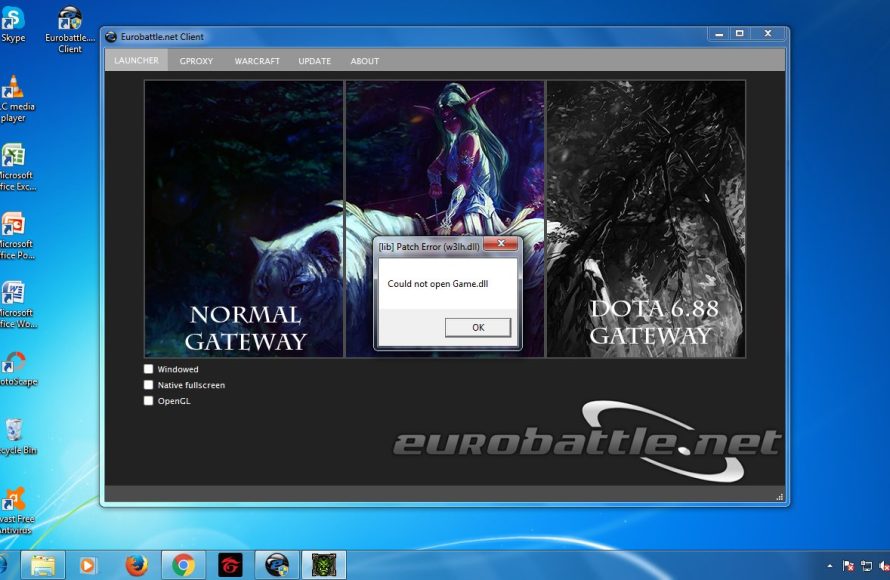
The error “could not open game dll warcraft 3” often indicates a corrupted or missing game file. Reinstalling Warcraft 3 or updating your graphics drivers are common solutions.
Frustrating, isn’t it? You’re all set to dive into Azeroth, only to be stopped by that dreaded message, “could not open game dll warcraft 3.” It’s a common problem for players, and it stops you right in your tracks.
This error usually points towards a problem with your game installation or outdated system components. Don’t worry, we can explore some fixes to get you back in the game.

Could Not Open Game DLL Warcraft 3: A Deep Dive into the Issue
Okay, so you’re ready to dive into the world of Azeroth, maybe relive some epic battles, or build the ultimate base in Warcraft 3. But then, bam! You get that frustrating “Could not open game dll” error message. Ugh, it’s like a goblin stole your favorite toy. Don’t worry, you’re not alone! This is a common problem for Warcraft 3 players, and thankfully, there are many ways to fix it. Let’s explore why this happens and how you can get back to gaming.
Understanding the “Could Not Open Game DLL” Error
First, let’s break down what this error actually means. A “DLL” file, or Dynamic Link Library, is like a small instruction manual that helps your computer programs work. Warcraft 3 relies on these DLL files to run smoothly. When the game can’t find or open one of these crucial files, it throws up the “Could not open game dll” message. It’s a sign that something’s not quite right with how the game is set up or your computer’s software. The game depends on these DLL files, it is the building block for the whole game engine. If these building blocks are missing or broken the game will obviously not work.
Common Causes of the Error
Several things can trigger this error. It’s like a puzzle, and we need to find the piece that’s causing the trouble. Here are some of the most frequent culprits:
- Corrupted Game Files: Just like a book with torn pages, damaged game files can cause big problems. Maybe the game didn’t install correctly, or something went wrong during a patch update.
- Missing DLL Files: Sometimes, the game might not have all the necessary DLL files. This can happen during installation or if the game wasn’t downloaded from a trusted source.
- Antivirus Interference: Your antivirus software is like a security guard, and sometimes it gets a little too protective. It might mistakenly flag a game DLL file as a threat and block it, or even delete it.
- Compatibility Issues: Warcraft 3 is an older game, and sometimes it doesn’t play nicely with newer operating systems. Compatibility issues can lead to all sorts of errors.
- Incorrect Installation Path: The place where you install Warcraft 3 matters. If it’s not in the right spot, the game might not find its DLL files.
- Outdated Drivers: Your computer’s drivers are like translators, helping your hardware and software talk to each other. If your drivers, especially your graphics card drivers, are old, it can cause problems.
- Administrative Rights Problems: Sometimes, the game needs special permission to access and modify files. If it doesn’t have this access, it might fail.
Troubleshooting: Step-by-Step Solutions
Now that we know the possible causes, let’s get to the solutions! We’ll go through each fix step-by-step to get you back into the game.
1. Restart Your Computer
Yes, it’s the classic “turn it off and on again” approach, but it works surprisingly often! Sometimes a simple restart can clear up temporary glitches that might be causing the error. Think of it as giving your computer a fresh start.
2. Run Warcraft 3 as Administrator
Running the game with administrator rights gives it the permission it needs to work correctly. Here’s how to do it:
- Find the Warcraft 3 shortcut on your desktop or in the installation folder.
- Right-click on the shortcut.
- Select “Run as administrator.”
- See if the game works now.
If running as administrator works, consider always running it this way. You can set the game to always run as administrator by right-clicking the shortcut, selecting “Properties,” going to the “Compatibility” tab, and checking the “Run this program as an administrator” box.
3. Reinstall Warcraft 3
If the first few steps don’t work, it might be time to reinstall the game. This will replace any corrupt or missing files. Here’s the process:
- Uninstall Warcraft 3 using the Control Panel or Settings app.
- Go to the folder where the game was installed and delete it manually (if it isn’t automatically removed).
- Download a fresh copy of Warcraft 3 from the official source (Blizzard).
- Follow the installation instructions, and try launching the game.
Make sure you download the game from a legitimate source to prevent other issues. This also ensures that you have the latest updates, minimizing other possible errors.
4. Disable Antivirus Temporarily
Your antivirus can sometimes get in the way. Try disabling it temporarily to see if it’s the culprit:
- Find your antivirus icon in the system tray (usually at the bottom-right corner of your screen).
- Right-click the icon and look for an option to temporarily disable it (usually “Disable” or “Pause protection”).
- Try running Warcraft 3. If the game works, your antivirus is probably the issue.
- Remember to turn your antivirus back on once you’re done playing to keep your computer safe.
If this fixes it, you might need to add an exception for Warcraft 3 in your antivirus settings. This allows the game to run without being blocked.
5. Check File Permissions
Windows can sometimes lock files if it thinks it’s not safe for a program to mess with them. You need to make sure Warcraft 3 has permission to access its own files. Here’s how:
- Go to the game’s installation folder (where the game.exe is located).
- Right-click the game’s executable file (like Warcraft III.exe).
- Select “Properties.”
- Go to the “Security” tab.
- Click “Edit”.
- Click “Add”.
- Type in your user name and click “Check Names”.
- Press ok
- Select your user name on top and under “Allow” column for each option, click on “Allow” option.
- Click “Apply” and “OK.”
- Try running Warcraft 3 again.
6. Update Your Graphics Card Drivers
Outdated graphics drivers are frequent cause of game errors. Here’s how to update them:
- Press the Windows key, type “Device Manager,” and press Enter.
- Find “Display adapters” and expand it.
- Right-click your graphics card and select “Update driver.”
- Choose “Search automatically for drivers.”
- Windows will download and install new drivers if needed.
- Restart your computer and try running Warcraft 3.
Alternatively, you can download the latest drivers from the website of your graphics card manufacturer (NVIDIA, AMD, or Intel).
7. Run in Compatibility Mode
Warcraft 3 may have compatibility issues with newer versions of Windows. Running it in compatibility mode tricks Windows into thinking it’s running on an older operating system. Here’s how to do it:
- Right-click the Warcraft 3 shortcut.
- Select “Properties.”
- Go to the “Compatibility” tab.
- Check the box that says “Run this program in compatibility mode for:”.
- Select an older version of Windows (try Windows XP or Windows 7).
- Click “Apply” and “OK.”
- Try running the game again.
Experiment with different compatibility settings to see if one works better than the others.
8. Check DirectX
DirectX is a set of technologies that help games run smoothly. Make sure you have the latest version installed.
You can typically update DirectX through Windows Update.
Here’s how you can manually check it:
- Press the Windows key, type “dxdiag”, and press Enter.
- This will open the DirectX Diagnostic Tool.
- Look for the “DirectX Version” on the System tab, usually at the bottom.
- If you have an old version, find the latest DirectX setup from Microsoft’s website and update it.
9. Check for Windows Updates
Keeping your Windows operating system updated can fix many compatibility issues and ensure that everything works smoothly.
Here’s how:
- Press the Windows key, type “Windows Update settings,” and press Enter.
- Click “Check for updates.”
- Install any pending updates and restart your computer.
10. Inspect Game Files Manually
If all else fails, you might want to inspect Warcraft 3’s game files directly. Go to your game install folder and see if all important files are there. Try looking for the game.dll file. If it is missing then reinstalling the game is likely needed. Sometimes your antivirus deletes the file. In that case, restore the file from your antivirus vault.
If you are unsure which files are important, you can search on forums, communities or use online resources.
When To Consider More Advanced Solutions
If you’ve tried all the basic fixes and still can’t open the game dll for Warcraft 3, it might be time to consider some more involved methods. Remember to back up your files before doing these steps!
System File Checker (SFC)
The SFC tool can scan your Windows system files and replace corrupt or incorrect ones. This can sometimes fix conflicts with the game.
- Press the Windows key, type “cmd,” right-click “Command Prompt,” and select “Run as administrator.”
- Type sfc /scannow and press Enter.
- Wait for the process to complete. This can take some time.
- Restart your computer.
SFC scans for corrupted windows files and tries to fix them. It could be useful if any of the windows DLL files are damaged.
Clean Boot
Sometimes other programs on your computer can interfere with Warcraft 3. A clean boot starts windows with minimal drivers and start-up programs, allowing you to see if anything else is causing the problem.
- Press the Windows key, type msconfig, and press Enter.
- Go to the “Services” tab.
- Check the box “Hide all Microsoft services” and click “Disable all.”
- Go to the “Startup” tab and click “Open Task Manager.”
- Disable all the startup programs and close task manager
- Click “Apply” and “OK” and restart your computer.
After the restart, try running the game. If it works, one of the disabled programs is the problem. You can go back and enable them one by one to see which one is the culprit.
Hardware Issues
It’s rare, but if everything else fails, the problem could be hardware related. Check your computer’s hardware to ensure that all components are working as they should. Try testing your RAM, hard drive and other devices. You may also want to check if your computer meets the minimum requirements for Warcraft 3. An outdated hardware could also cause errors.
If none of the above steps work, you might consider seeking help from the Warcraft 3 community forums, or contacting Blizzard Support for more specialized assistance.
Fixing the “Could not open game dll” error in Warcraft 3 can seem like a tough battle, but with patience and a systematic approach, you can win! Go through these steps one by one, and you’ll be back to defending Azeroth in no time. Remember, you’re not alone in this, and many players face similar issues. Keep trying, and you’ll get it sorted. Happy gaming!
Fix Problem Warcraft III unable to initialize DirectX
Final Thoughts
In short, various factors cause the dreaded “could not open game dll warcraft 3” error. Compatibility issues, outdated drivers, and damaged game files are common culprits. These problems prevent the game from launching.
Careful troubleshooting, like verifying files and updating drivers, is must. Addressing these issues allows you to properly enjoy the game.

