
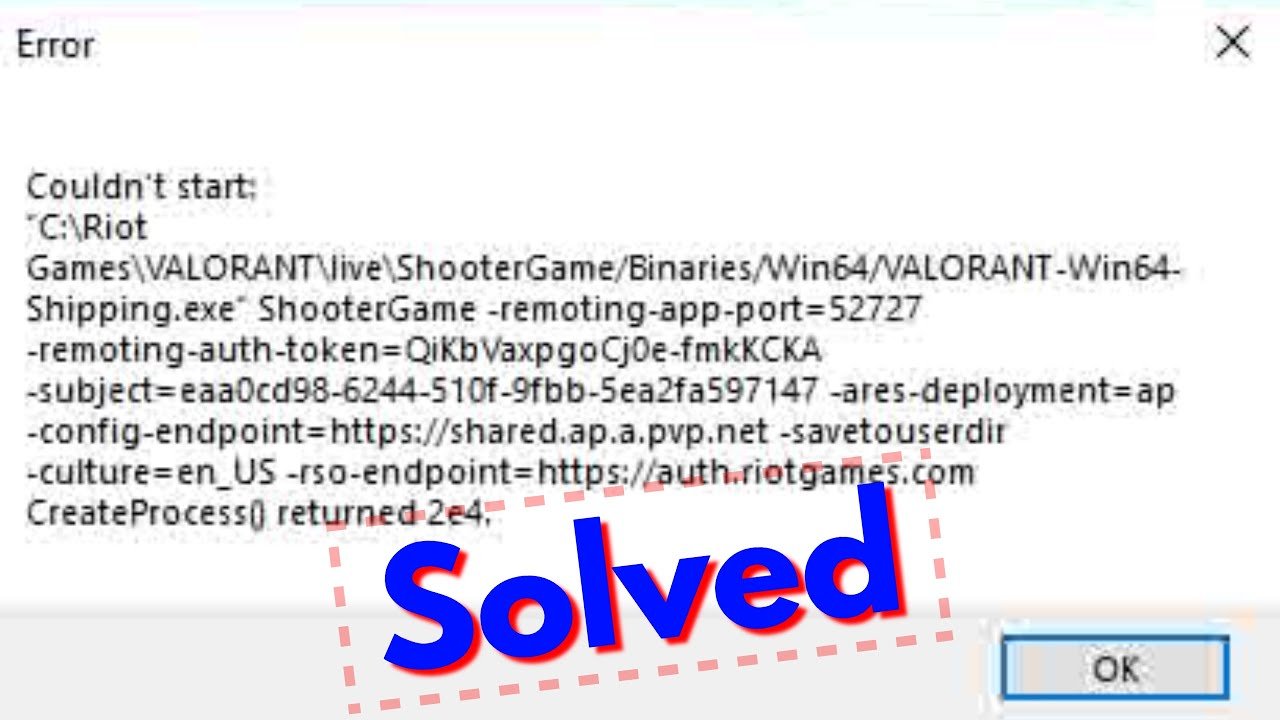
Having trouble? Issues preventing Valorant from launching often relate to outdated drivers, compatibility settings, or corrupted game files. Try updating your graphics drivers, checking compatibility mode, or reinstalling the game.
Frustration hits when you’re ready for a match, but you couldn’t start riot games valorant. The game simply won’t launch, leaving you staring at your desktop. Many players encounter this problem. It is important to troubleshoot effectively.
Several common culprits usually are responsible for this launch failure. Investigating those key areas helps get you back in the game fast. We will guide you to identify the problem areas.

Why Couldn’t Start Riot Games Valorant? Let’s Fix It!
Okay, so you’re super excited to play Valorant, right? You’ve got your friends ready, your snacks are set, but then… nothing. The game just won’t start. Frustrating? Absolutely! Don’t worry, you’re not alone. Many players have faced this “couldn’t start Riot Games Valorant” problem, and there are lots of reasons why it happens. Let’s explore these reasons and, most importantly, how to get you back in the game. We’ll go through the common culprits, from simple fixes to more advanced solutions, so you can get back to clutching those rounds!
Common Reasons Why Valorant Won’t Launch
Before we dive into the fixes, let’s understand why Valorant might be giving you the cold shoulder. It’s like being a detective, trying to find the hidden clues that are stopping the game from starting. Here are some of the most common reasons:
- Outdated Game Files: Just like your favorite toy needs new batteries, Valorant needs to be up-to-date. If your game files are old, they might not work correctly.
- Problems with Your Computer: Your computer could be having a bad day. Maybe there’s something wrong with your graphics card or other important parts.
- Internet Issues: Valorant needs a good connection to work. If your internet is spotty or slow, it might not let you into the game.
- Conflicts with Other Programs: Sometimes, another program on your computer might be arguing with Valorant, preventing it from starting.
- Riot Vanguard Problems: Vanguard is a special program that stops cheaters, and it must be working correctly for the game to start.
- Firewall or Antivirus Blocking: Your computer’s security might be overprotective and mistakenly block Valorant.
- Administrator Privileges Issues: Sometimes, the game needs to run as an administrator to work properly.
- Corrupted Game Installation: Something might have gone wrong when you installed the game, causing files to be damaged.
The Quick Fixes: Easy Steps to Try First
Before we get into the more technical stuff, let’s try some easy fixes. These are like the first-aid kit for your game: quick, simple, and often effective.
Restart Everything
It sounds simple, but restarting can fix a lot. This is like giving your computer a fresh start. Here’s what you need to do:
- Close the Riot Client and Valorant completely.
- Restart your computer.
- Once your computer is back on, try launching Valorant again.
Check Your Internet Connection
If you’re having internet problems, Valorant won’t work. It’s important to check your connection. Here’s how:
- Make sure your internet cable is plugged in correctly or your Wi-Fi is connected.
- Try restarting your modem and router. Turn them off, wait a minute, and turn them back on.
- Try using a different website or app to see if your internet is working.
Run Valorant as Administrator
Sometimes, Valorant needs special permission to run correctly. Here’s how to give it:
- Right-click on the Valorant shortcut on your desktop.
- Click on “Run as administrator.”
Deeper Dive: Troubleshooting More Complex Issues
If the quick fixes didn’t work, we need to go a bit deeper. Think of it like using a magnifying glass to find the problem. Here are some things you can check:
Update Your Graphics Card Drivers
Your graphics card is super important for playing games. If its drivers are old, it might cause issues. Here’s what you need to do:
- Find out which graphics card you have (you can usually see this in your computer’s settings).
- Go to the website of your graphics card maker (NVIDIA, AMD, or Intel).
- Find the latest driver for your card and download it.
- Install the new driver.
Check for Windows Updates
Sometimes, your computer needs to be updated to work with Valorant. You can find updates in your Windows settings. Here’s what to do:
- Go to your computer’s settings.
- Click on “Update & Security”.
- Click on “Check for updates” and install any that are available.
Repair or Reinstall Valorant
If some game files are damaged, you might need to repair them or reinstall the game. Here’s how:
Repair Valorant
- Open the Riot Client.
- Click on Valorant.
- Click on the settings icon (looks like a gear).
- Look for an option to repair or verify the game files.
Reinstall Valorant
- Uninstall Valorant from your computer.
- Go to the Riot Games website and download the game again.
- Install the game.
Dealing with Riot Vanguard
Riot Vanguard, is very important for Valorant to work. It runs in the background and can sometimes be the cause of problems. Here’s how to check it:
Restart Riot Vanguard
Often, restarting Vanguard can fix problems. Here’s how:
- Find the Riot Vanguard icon in the bottom right of your screen, near the clock.
- Right-click on it and click on “Exit Vanguard”.
- Restart your computer.
- When your computer starts up, Vanguard will restart automatically and then try running the game again.
Reinstall Riot Vanguard
If restarting didn’t work, try reinstalling Vanguard.
- Uninstall Valorant and Riot Vanguard from your computer.
- Reinstall Valorant. This will automatically reinstall Vanguard.
Firewall and Antivirus Issues
Your firewall or antivirus might be mistakenly blocking Valorant. Here’s how to fix it:
- Temporarily Disable: Turn off your firewall or antivirus program and see if Valorant starts. If it does, then we found the problem. (Remember to turn these back on after trying this step.)
- Add Exceptions: If that was the issue, you will need to tell your security software to leave Valorant alone. Add Valorant as an exception or allow it through your firewall. You can usually do this in the settings of your firewall or antivirus program. You need to add exceptions for both the Valorant executable file and the Riot Client executable file.
Closing Conflicting Applications
Sometimes, other programs running in the background can stop Valorant from launching. Here’s how to close them:
- Press Ctrl+Shift+Esc to open the Task Manager.
- Look through the list for any programs that you don’t need right now. (Make sure not to close anything you’re not sure about.)
- Right-click on each program and click on “End task.”
- Try starting Valorant again.
Advanced Checks if Nothing Works
If you’ve tried all the above, and Valorant still won’t start, there might be a bigger issue with your computer. Don’t worry, we’ll try to find it. Here are some advanced checks to perform.
Check Your System Requirements
Make sure your computer meets the minimum requirements to play Valorant. Riot Games provides a list of the requirements on their website. Compare the specs of your computer with the listed requirements.
Here are some of the common system requirements for Valorant. Make sure your system matches these or exceeds these requirements
| Component | Minimum Requirements |
|---|---|
| OS | Windows 7/8/10 64 bit |
| CPU | Intel Core 2 Duo E8400 |
| RAM | 4GB |
| GPU | Intel HD 4000 |
Check System File Integrity
Sometimes the system files can be the problem. Check the file integrity using the command prompt, follow these steps:
- Search for command prompt in windows search bar
- Right click on the command prompt and select “Run as administrator”
- Type
sfc /scannowand press enter. - Wait for the process to complete, this will scan and repair any corrupted windows files.
Performing a Clean Boot
A clean boot starts Windows with only the essential services and drivers. This helps in checking if any third-party software is creating the conflict
- Press Windows key + R, type
msconfigand press enter. - Go to the “Services” tab, check “Hide all Microsoft services” and then select “Disable all”
- Go to the “Startup” tab and click on “Open Task Manager”
- Disable all the startup apps in the Task Manager.
- Restart your computer and try running the game
Contact Riot Support
If nothing seems to work, it might be time to call in the experts. Riot Support has a special team that can help you with these kinds of issues. Visit their website and describe your problem to them. Make sure to provide them all information including, system specifications, actions you have already performed to solve it, any error codes you see on the screen, etc.
And there we have it! We’ve covered a lot of ground, from simple restarts to more in-depth troubleshooting. It’s not always easy when games don’t work, but hopefully, these steps will get you back into the action in no time. Remember to go through the steps carefully and take your time. If you ever feel stuck, don’t be afraid to ask for help. Happy gaming!
How To Fix Valorant Couldn't Start Error
Final Thoughts
If you still couldnt start riot games valorant, troubleshooting steps like checking your internet connection and updating graphics drivers often resolve the problem. Ensure your system meets the game’s minimum requirements for smoother gameplay.
Reinstalling the game can fix corrupted files. Sometimes temporarily disabling other software might help identify conflicts causing issues. Remember to check for any error codes and research solutions specific to them.

