
Yes, I own steam games.
Ever wondered about the digital libraries we all cultivate? A big question lingers: do you own steam games? It’s a common query in today’s gaming landscape, as many of us amass collections of our favorite titles.
This simple question actually opens a portal to a much broader discussion. Think about the vast array of experiences we purchase and play on Steam.

Do You Own Steam Games? Exploring Your Digital Game Library
Have you ever looked at your computer and wondered, “Wow, how many games do I actually have?” If you’re a gamer, chances are a good chunk of those games live on Steam. Steam is like a giant store and library for video games on your computer. It’s where many of us buy, download, and play our favorite titles. But the question “do you own Steam games” is more than just a simple yes or no. It opens up a world of how you acquire, manage, and enjoy the games you have. Let’s dive in and see what it really means to have a Steam game library.
What Does “Owning” a Steam Game Really Mean?
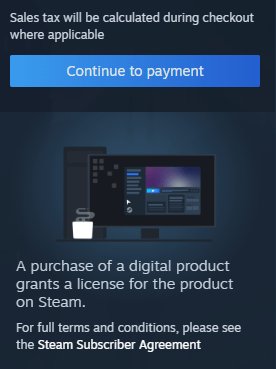
This is a super important question! When you buy a game on Steam, you’re not getting a physical disc like you might for a game console. Instead, you get a license to play that game on your computer through Steam. Think of it like borrowing a book from a library, but instead of borrowing it physically, it’s a special digital permission slip to use the game. This permission slip is linked to your Steam account. So, the game is not tied to a specific computer but to your Steam profile. As long as you log in to your Steam account on any computer that meets the game’s requirements, you can download and play the games you have. This is a big convenience, but also means you don’t have absolute possession of the game like a physical copy. Let’s break this down a little more.
The Digital License
Your purchase on Steam gives you a digital license. This license is not a physical item; it’s like a special code that tells Steam, “This person can play this game.” This means if you change your computer, or want to play on another machine, you can easily access your game library by simply signing into your account. This is very different from old cartridges or discs, where you would have to have a physical media to play your game, Steam gives you the convenience to play your game anywhere with an internet connection and on a computer that meets the game’s requirements.
Access, Not Ownership
While we often use the word “own” when talking about Steam games, it’s more accurate to say you have the right to access and play them. The actual game files are stored on Steam’s servers, and you download a copy to your computer. You don’t actually own the software itself. You’re paying for the right to play that software based on their terms of use. If Steam were ever to shut down, your access to these games could potentially be affected, which highlights the difference between access and ownership. So, while it feels like you own the game, it’s more like you have a very long-term lease with the right to play it as long as Steam is running. This is similar with other online digital stores as well like Playstation Store, Xbox store and Epic store.
How Do You Get Steam Games?
Getting Steam games is a simple process, and there are multiple ways to build your library. Here’s a rundown of the most common methods:
Buying Directly from the Steam Store
The most common way to get games is directly from the Steam Store. You can find it right within the Steam program on your computer. The Steam store is just like an online store like amazon but specifically for video games, that includes both paid and free games. You can search for games by name, genre, or even by which games are on sale. Once you find the game you want, you simply add it to your cart and pay with your chosen payment method (credit card, PayPal, etc.). After your purchase, the game will be added to your library, and you can download it to your computer. And it’s really easy to navigate and you are sure to find the games you really want in their huge game catalog.
Using Steam Keys
Sometimes, you get a Steam Key from another website. These keys are codes that, when entered on Steam, add the game to your library. You can find these keys from online stores that sell game keys, or as part of promotional giveaways, and even in physical boxes that include Steam Key in them. You go on Steam, click ‘Add a Game’ and then choose ‘Activate a Product on Steam’ and enter the product key. This will give you the ability to download and install the game. It’s like getting a gift card but for a game! So if you know some websites that offer cheaper game keys, you can buy and use those keys on steam. However, it is always best to make sure you purchase keys from reputable websites and distributors, so you are sure the key is valid and not stolen.
Bundles and Packages
Steam (and other sites) often offer bundles or packages. These are collections of games offered together at a discount. For instance, you might get a bundle of adventure games or a series of the same franchise games. Buying a bundle often saves you some money compared to buying each game individually. These are great options for people who want to get a lot of games, especially games from the same series or genre.
Managing Your Steam Game Library
Once you start accumulating games, it’s important to know how to manage your library effectively. Steam offers several tools to help you stay organized and find the games you want to play.
Library Views
Steam offers several ways to view your library. You can see your games in a list format, with just titles, or with box art. You can also switch to a grid format, which is especially good if you like to see the cover art. You can sort your games by when you last played them, when you added them, or alphabetically. This makes it easy to find that one specific game you’ve been itching to play. There are multiple way to find your games that you really want.
Categories and Collections
To keep your library super organized, you can create categories or collections. For example, you can make categories for “Action Games,” “RPG Games,” “Co-op Games,” or even “Games I Haven’t Played Yet.” To do this, simply right-click on the game name and add it to the categories you have created. This is extremely useful when you have a large library and makes finding a specific game more easier.
Filtering
Steam also has powerful filters. You can filter your games by categories you created, single-player or multiplayer, genres, what system the game is for, and many more. If you know what kind of game you are looking for, this makes the entire process of finding it in your library extremely easy. If you want to play a specific type of game, this is the easiest way to find it in your big library.
Hidden Games
Sometimes you might have games in your library you don’t want to see. Maybe you got them in a bundle and don’t plan on playing them ever. Steam allows you to hide games from your library view. They’re still there, but they won’t clutter your library. This keeps your library clean and allows you to see only the games you want to play. To do that, simply click on a game you want to hide and select Manage->Hide This Game. You can always see your hidden games by filtering through the Hidden filter.
Understanding Game Installation
Having a game in your Steam library doesn’t mean it’s already on your computer. You need to download and install it before you can play. Here’s what you need to know:
Downloading Games
After you’ve purchased a game, the download will start automatically if you have that option enabled. If not you need to click the install button to start the downloading. The time it takes to download a game depends on the size of the game and the speed of your internet connection. Games can be very big, so sometimes it can take quite a long time if you have slow internet. Steam shows you how far along the download process is and allows you to pause or resume. While the game is downloading, you can browse your steam library or even chat with your friends on Steam.
Installation Process
Once the game is downloaded, Steam will automatically begin the installation process. Sometimes the game may need additional software to run properly and the Steam will take care of this for you, without you needing to do anything manually. After the game is installed, the “Play” button will show up and you will be ready to play your game. Steam is very user friendly and makes it very easy for the users to download and install and play the game.
Game Updates
Game developers often release updates with fixes, new features or new content. Steam will automatically download these updates for you. Often times these game updates are required to play the game, so it’s important to allow these updates to happen. You can choose when you want the updates to happen, such as when you are not playing games. These updates ensure your game runs smoothly and is up-to-date.
Steam Features and Benefits
Steam is not just a place to buy games; it also includes many other features that make the gaming experience better.
Steam Workshop
Many games on Steam support the Steam Workshop. This feature allows players to create and share their own content for games, such as new levels, skins, or even entire mods. This can significantly extend the life of your games and gives players more control over their gaming experience. It is a huge benefit for the user. This makes games even more fun when the community is able to create and share their own custom content.
Community Features
Steam has strong community features, including friends lists, chat, groups, and forums. You can connect with friends, play games together, and discuss your favorite games. These features make gaming more interactive and allow you to connect with other players. Steam gives you the ability to make new friends who enjoy the same games as you do, which is very good. You can even join the official forums of games and talk about issues and find solutions.
Cloud Saves
Many Steam games support cloud saves. This means your game progress is saved on Steam’s servers. If you uninstall the game or play on a different computer, your game saves can still be recovered. This is very helpful if you ever want to change computer or play on another computer. You don’t have to start from the beginning and can resume the game right where you left off.
Achievements
Steam offers achievements for many games. These are small goals or tasks you can complete while playing. Achievements add an extra layer of fun and a sense of accomplishment. They can be challenges, completing a specific task or just completing the game. It is fun to collect achievements on Steam, and compare with your friends. Steam achievements can be very addictive and fun.
Steam Overlay
The Steam overlay lets you chat with friends, browse the web, and take screenshots while you’re in the middle of a game. It is accessed using a shortcut key usually Shift + Tab. It is an very helpful tool that allows you to do multiple things while you are in a game, without closing the game. This feature is incredibly convenient when you want to look up a quick guide or just simply want to chat with friends while gaming.
Remote Play
Steam’s Remote Play feature lets you stream games from your computer to another device, like a laptop or a phone. This is an excellent feature if you want to enjoy your PC games on another screen, on another room. You can stream games from your computer on a phone or laptop that is in the same house or even remote location. And this feature is also free of charge.
Steam Sales and Discounts
One of the most exciting aspects of Steam is its frequent sales and discounts. These sales can significantly lower the cost of your favorite games, allowing you to expand your library without breaking the bank. Let’s explore some of the ways you can save money on Steam.
Seasonal Sales
Steam hosts major sales during different times of the year. Big sales are usually around summer, winter, spring and fall. These sales feature big discounts, sometimes up to 90%. If you can wait, you can save a lot of money by buying during these big sales. Keep an eye out for these sales, and don’t miss out on getting new games on a discount.
Daily and Weekly Deals
Steam also offers daily and weekly deals. These are smaller, short-term sales that can pop up at any time. These can still be quite good discounts and you can find hidden gems during these daily and weekly deals. Make sure to check the steam store daily if you don’t want to miss out on a very good deal.
Bundles
As mentioned before, Steam and other websites often offer bundles of games. Buying a bundle is a great way to get several games for less than the cost of buying each individually. These are great if you enjoy a specific genre or if you are want games of a series.
Adding Games to Your Wishlist
Steam has a wishlist feature. When you see a game you want, but not at the current price, you can add it to your wishlist. Steam will notify you when it goes on sale, helping you never miss a deal. Also you get to see how many people are also interested in the game, as you can see how many people added the game to their wishlist. The wishlist can also be shared with your friends, which is another very cool feature.
Using Third-Party Websites
There are third party websites that sells steam keys. These websites can sometimes offer even bigger discounts than on steam. Always make sure these websites are reputable before purchasing steam keys from there. Sometimes, you can find older titles on very very big discounts on these third party websites. If you are looking for cheap older titles, this is a great way to get these.
Free Games and Demos
Steam also sometimes offers free games and demos. It’s a good idea to keep an eye out for these as well. It’s a great way to try new games and see if you like them, without spending any money.
So, do you own Steam games? If you’ve been following along, you probably have a good idea of what that means. You’ve got access to a world of gaming through your Steam account. You have a big catalog at your disposal for downloading, playing, managing, and enjoying games of all kinds. With great features and sales, Steam makes gaming more fun than ever.
Steam forcing updates to Win 10/11 to play games – do you actually "own" games bought through Steam?
Final Thoughts
Ultimately, the value of your gaming setup relies on accessible titles. Considering the investment in hardware, it’s wise to build a library.
Do you own steam games? A great collection enhances your gaming experience and gives you more options. Having multiple games means you always have something to play.

