
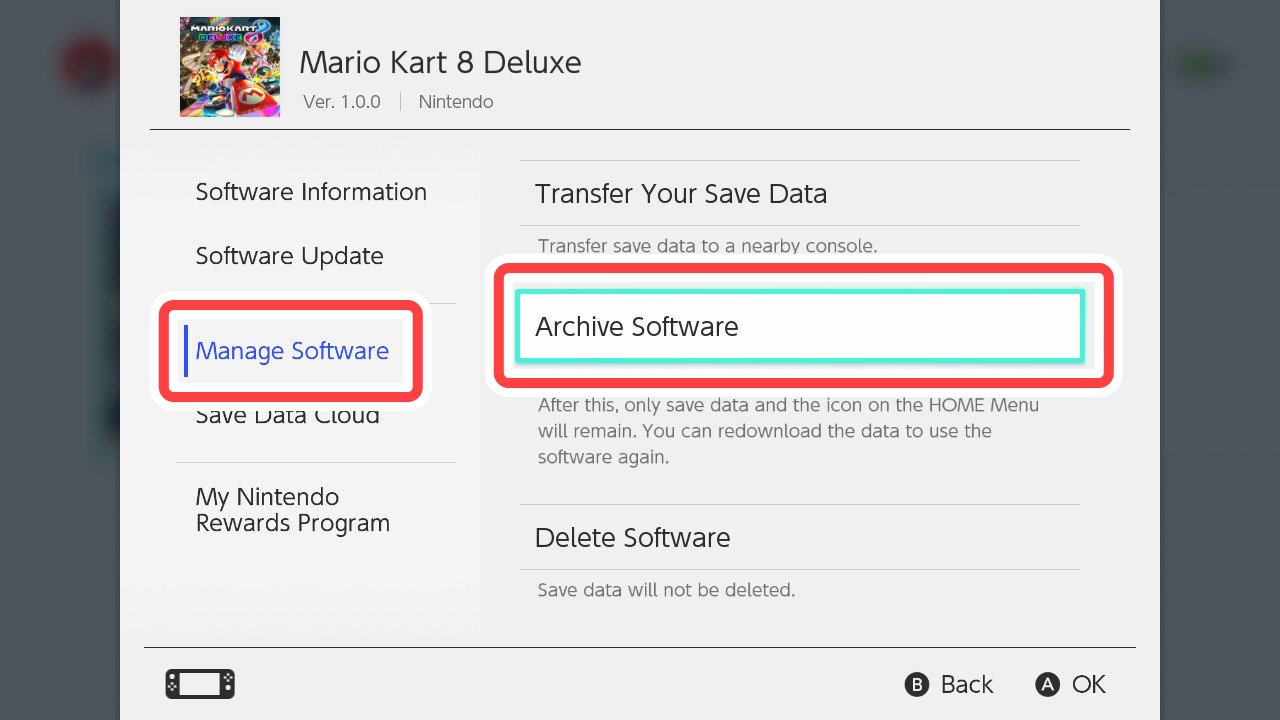
Archiving games on Switch does not delete save data; it only removes the game’s software from your console.
Ever wonder what happens when you archive a game on your Nintendo Switch? It’s a common question, especially when you are trying to make space on your device. The fear of losing progress can be real, and many worry about accidental data loss. So, does archiving games on Switch delete data?
The good news is that archiving is a safe way to manage your digital library. Your precious game saves remain untouched, safely stored on your system. This frees up storage without the risk of losing all your progress in that particular game.

Does Archiving Games on Switch Delete Data?
Let’s dive deep into what happens when you archive games on your Nintendo Switch. It’s a common question for many players, and the short answer is: mostly, no, it doesn’t delete your save data! But, it’s a little more nuanced than that, so let’s break it all down.
What is Game Archiving on the Nintendo Switch?
Think of archiving a game like putting it on a shelf. You’re not getting rid of it, but it’s not taking up space on your console’s main storage anymore. When you archive a game, you’re removing the game’s software from your Switch’s internal memory or microSD card. This helps free up valuable space, especially if you have lots of games downloaded. However, and this is super important, the save data is handled a bit differently.
Save Data: The Star of the Show
Your save data is like your game progress diary. It keeps track of everything you’ve done in a game: characters you’ve created, levels you’ve completed, items you’ve collected, and so on. This data is precious! The Nintendo Switch treats save data with care. It stores game save information separately from the actual game software.
Where is Save Data Stored?
Save data for all your Nintendo Switch games is stored internally, on the Switch’s main system memory. This means, regardless of whether a game is on a physical cartridge, downloaded to the system, or on a microSD card, its save data will always live on the console itself. This is a good thing, as it provides an extra layer of safety. The game software can be archived and removed from your console, but you always have your save data ready to go when you re-download the game.
The Archiving Process: What Happens Step-by-Step?
Here is how archiving typically happens:
- Initiate Archiving: You select a game from your home menu and choose the “Archive” option.
- Software Removal: The game’s software files (the main parts of the game) are removed from your Switch’s storage, whether that’s internal or on your microSD card.
- Save Data Remains: Importantly, your save data for that game stays safely stored on the console’s internal memory.
- Game Icon Stays: The game’s icon will still appear on your home screen, but with a little cloud download symbol on it, indicating that it’s archived.
When you decide to play an archived game, it is like a process of re-downloading the game. The cloud symbol that was there on the game’s icon will disappear once the game is downloaded.
Why Archive Games?
Archiving is a very helpful feature, especially if you own a standard Nintendo Switch (not an OLED version). The system has limited internal storage space and if you are a digital gamer, then you have only two options – either to buy external storage or archive games that you do not play regularly. Archiving is a great way to handle your storage and keep your saved progress. Here are some key reasons why archiving can be useful:
- Free Up Space: You can clear up much-needed storage on your console or microSD card, allowing you to download other games or update system software.
- Organize Your Games: If you have a large library, archiving helps manage the games you’re not currently playing.
- Easy Re-download: Archived games are very easy to re-download; you can pick up your progress exactly where you left off, without missing out on any of your achievements.
The Difference Between Archiving and Deleting
It’s essential not to confuse archiving with deleting. Archiving a game, as mentioned, removes the game’s software while keeping your save data. Deleting a game, on the other hand, removes both the game software and its save data. It’s a permanent action with no coming back. If you plan to replay a game in the future, always go for archiving instead of deleting.
A Table to Understand the Difference
| Action | Game Software | Save Data |
|---|---|---|
| Archiving | Removed from storage | Remains on console |
| Deleting | Removed from storage | Removed from console |
Cloud Saves and Nintendo Switch Online
There’s another layer of saving that you might be interested in, especially if you’re worried about losing your save data: Cloud Saves. This is a feature available through Nintendo Switch Online, a subscription service offered by Nintendo. With a Nintendo Switch Online subscription, you can automatically back up your save data to Nintendo’s cloud servers. This acts like a safety net. If anything were to happen to your console, or if you ever want to play a game on a different Switch, your save data will be safe.
How Cloud Saves Work
Cloud saves operate automatically. Once you enable it for specific games, it creates a backup of your game save data on Nintendo’s servers. If something happens to your console, you can download your cloud saves on a new console, and your progress will be completely intact.
Important Note about Cloud Saves
- Not All Games Supported: Not all games support cloud saves. Some games may have restrictions, so it’s good to check each game.
- Requires Nintendo Switch Online: You need an active Nintendo Switch Online subscription to use this feature.
Common Scenarios and FAQs
Let’s look at some common situations and concerns that players often have about archiving games:
Scenario 1: Switching MicroSD Cards
If you have downloaded games on your microSD card and decide to switch to a new one, you can transfer all your games to a new microSD card. Your save data will remain unaffected, as it’s stored on the console’s internal memory. However, you will need to transfer the software to the new SD card, and you can do this easily from the console’s settings.
Scenario 2: Console Reset
A full factory reset of your console will erase everything: your downloaded games, save data, and all user settings. Always remember that in this case your save data will be deleted from the console, so if you do not have a Nintendo Switch Online subscription, you won’t be able to retrieve your save data. If you are going to sell your console, then performing a factory reset makes sense.
Scenario 3: Sharing Games Between Consoles
If you share physical game cartridges between multiple consoles, you will have different save data on each console, as your save data is specific to each console, and is always stored on the internal memory of the console. You can use Nintendo Switch Online’s cloud saves to easily move your game progress between multiple consoles.
What Happens to Updates?
When you archive a game, any updates you’ve installed will be removed as well. When you re-download an archived game, you’ll also need to download the updates again.
Can I Archive Physical Cartridge Games?
While you can’t “archive” the physical game cartridge, you can still archive the software data associated with the game that may have been installed on your console. This is useful if, for example, you downloaded digital content for a physical cartridge game and you now want to make space on your console.
What If a game is no longer available on the eShop?
If a game that you had previously downloaded and archived is no longer available on the Nintendo eShop, you can still re-download it as long as you had originally purchased it from the eShop with the current user account that you are using.
Is There a Limit to How Many Games I Can Archive?
There is no limit to the number of games that you can archive. The console will store the archive status of your game even if it is not downloaded to your console.
Tips for Managing Your Game Data
Here are a few helpful tips to keep your game data safe and your storage organized:
- Regularly Back Up with Cloud Saves: If you have Nintendo Switch Online, back up your data regularly. This can provide a safety net in case of any issues with your console.
- Archive Games Wisely: Archive games you’re not actively playing to save storage space but keep in mind that if you had purchased any DLC for it, you would also need to re-download them too if you re-download the game.
- Check System Updates: Make sure your console has the latest system software, as it includes important storage management updates.
- Use the Delete Option Carefully: Remember that deleting a game also deletes the save data, so think before deleting a game.
So, to recap, archiving is a very good way to manage your storage space on the Nintendo Switch, allowing you to remove game software but keeping your all important game data, so that you can enjoy your games again when you wish to. Always remember, archiving is not deleting and your game data is safe. If you have a Nintendo Switch Online subscription, you can get an added layer of safety with Cloud Saves. All in all, you can enjoy a huge number of games on your Nintendo Switch, and thanks to archiving feature, you can keep playing all your favorite games.
How to Delete a Game on Nintendo Switch (Archive or Delete Game?)
Final Thoughts
Archiving games on your Nintendo Switch does not delete save data. Your progress remains safe, it only removes the game software from your console to create space. You can redownload games anytime without losing your saved data.
The core point is that archiving frees up space. It lets you download other titles without worry. Thus, does archiving games on switch delete data? No, it preserves your game saves, simply removing the game files from the system.

