
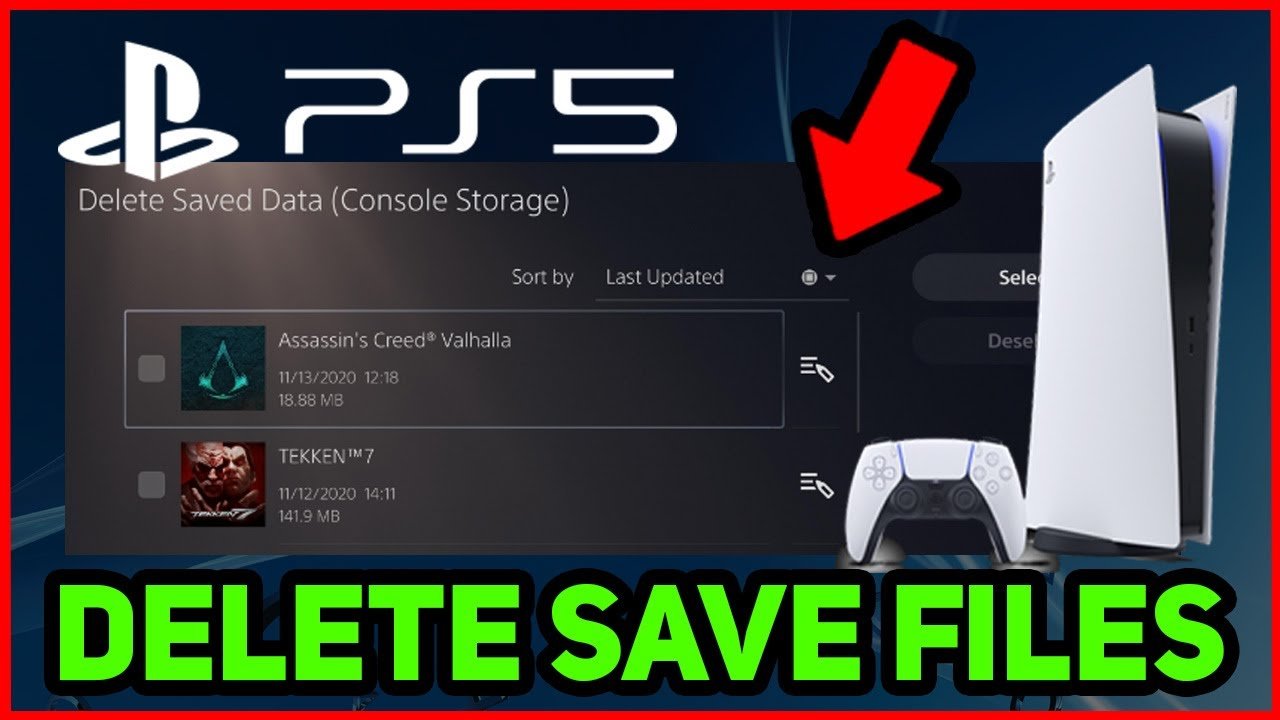
No, deleting games on PS5 does not delete saves. Game save data is stored separately.
Worried about losing progress when clearing space on your PlayStation 5? You’re not alone! Many players wonder, does deleting games on PS5 delete saves? It’s a common concern, especially when you are trying to make room for new titles.
The good news is, your precious game saves are generally safe. PS5 manages game data independently from the game install files. Therefore, deleting the game itself won’t erase your progress.

Does Deleting Games on PS5 Delete Saves?
Okay, so you’ve got a bunch of games on your PlayStation 5, and maybe you need to make some space. You’re probably wondering, “If I delete a game, will I lose all my hard work and progress?” That’s a totally valid question, and the good news is that usually, deleting a game doesn’t mean deleting your saved games. Think of it like this: your game data and your save files are usually kept in separate places. Let’s dive deeper into how this works on your PS5.
Understanding Game Data and Save Data
It helps to picture your PS5’s storage like a big filing cabinet. Inside, there are different drawers. One drawer holds all the actual game files – these are the big files that make the game run. Another drawer holds all your save data, which is a much smaller file that remembers where you are in the game, what items you have, and all your character details. When you delete a game, you’re usually just removing the game files, like emptying one of those drawers. Your save files, typically, stay safe in their own drawer.
Where Your PS5 Saves Live
The PlayStation 5 stores your save data in a special part of its storage. This is different from where the game files are stored. This dedicated space is like a safe place just for your game progress. It’s designed to hold onto your game saves so you don’t lose them when removing games. To find where your saves are stored on your console, go to:
- Go to the Settings menu, which looks like a gear.
- Select “Storage.”
- Choose “Saved Data.”
- Here, you will see your saved data for PS5 and if any, PS4 games.
This will show you the list of games that have saved data on your console. This area does not store the games, but just the saves.
The Deletion Process: What Actually Happens
When you decide to remove a game from your PS5, the system usually asks you to confirm your decision, it generally tells you that it will remove game data not the save data. This process gets rid of the big game files, the game’s digital content itself. It’s like uninstalling an app on your phone. However, it doesn’t touch your saved data, so all your progress remains intact. This means that when you decide to download the game again later, you can pick up right where you left off. It’s not like starting all over again unless you specifically delete the save file separately.
The process for deleting a game is simple. Here’s a step-by-step guide:
- Go to your Game Library, and choose the game you want to delete.
- Press the Options button on your controller.
- Select Delete from the menu that appears.
- Follow any further prompts.
Your saves generally remain safe, but it’s always a good idea to double check everything before deleting a large game that you have put hours into.
Cloud Saves: An Extra Layer of Protection
If you have a PlayStation Plus subscription, you get an added advantage: cloud saves. This feature automatically backs up your game saves to Sony’s servers over the internet. If something happens to your console or its storage, your saved games are safely stored in the cloud. If you have to delete a game to make space on your console, or perhaps get a new PS5, you can retrieve them easily when you log back into your PlayStation account and re-download the game. With Cloud Saves enabled, you have a backup, so you don’t have to worry about losing your game progress.
How to enable cloud saves
To set up cloud saves, follow these steps:
- Go to Settings menu, and choose “Saved Data and Game/App Settings”.
- Select Saved Data (PS5).
- Choose “Cloud Storage”, then toggle it on.
With this option on, your games automatically save to the cloud as long as you have PlayStation Plus. Make sure this is activated so you don’t accidentally lose your progress because you forgot to back it up.
When Save Data Might Be Affected
While deleting a game generally doesn’t delete saves, there are a few scenarios where your save data could be affected:
- Manual Save Deletion: You can go into the save data settings and manually delete the save data for a game. This will get rid of your progress so be very careful when doing this.
- Corrupted Save Data: If a game’s save data gets corrupted, which is rare, it might not work correctly. Deleting the game and reinstalling it won’t fix this and you may have to delete the save data to start again. Corrupted save data can sometimes happen due to various issues, but they are not that common.
- Storage Issues: If your PS5’s hard drive is experiencing major issues, there’s a chance your save data could be affected. However, these are uncommon cases, and cloud saves can help if you have them activated.
Checking and Managing Save Data
It is always a good idea to check on your save data, so you don’t accidentally delete it. To see your saves, go to your settings, then go to Saved Data and Game/App Settings. Here, you can check all the game save files on your console. This is useful if you are having trouble with a game and want to be sure that your saves are safe before trying to fix it. You can also delete your saves from here, and you can upload them to cloud storage.
Game Specifics: Are There Any Exceptions?
Usually, your saves stay put after deleting a game, but there can be some differences when dealing with games. Let’s look at some of these.
Online Games and Server-Side Saves
For many online games, especially those with MMO or multiplayer components, your game progress is often saved on the game’s servers, not just your console. When you delete the game from your PS5, you’re just removing the local game files. Your character information, items and other progress are kept safe on the game’s server. So when you re-install, your progress should be there like nothing happened, and you should be able to pick up exactly where you left off.
PS4 Games on PS5
If you are playing a PS4 game on your PS5, the save data is stored in a similar way to PS5 games. The system keeps them in separate locations to your game files. You can delete a PS4 game and usually keep the saves and you can manage these saves from settings on your console. As with PS5 games, cloud storage is an option, so you always have a backup.
Game Updates and Save Compatibility
Sometimes, game updates can cause changes to save files that means older versions of the game might not be compatible with newer saves. These are unusual scenarios, but could happen. Sometimes games are completely re-written or change their systems in a way that older saves cannot be used. Generally, your saves will be usable, but there are some exceptions.
Best Practices for Game Management
Here are some tips for making sure your game saves are always safe and sound:
- Always Double-Check: Before deleting a game, check if you have enabled cloud saves, and that your most recent save is on the cloud.
- Manage Storage Regularly: Take a look at your storage regularly. Don’t wait until you are completely out of space before making changes.
- Use Folders: Use folders on your main screen to keep games organized, so you know what you want to keep and what you are happy to remove.
- Cloud Saves Are Your Friend: If you have PlayStation Plus, make sure your cloud saves are turned on. It will give you peace of mind that your progress is always protected.
- Be Careful When Deleting: Pay attention to the messages that pop up when deleting. It will always tell you if you are going to delete the save or the game.
Troubleshooting Save Issues
If you ever encounter problems with save data, here are some steps you can take:
- Check for Updates: Make sure both the game and your PS5 software are up to date. Outdated software can sometimes create problems with saves.
- Restart Your PS5: Sometimes, a simple restart can fix small issues.
- Check your connection: If your cloud saves are not working, make sure your console is connected to the internet.
- Restore from Cloud: If your saves have gone missing or are corrupted, try restoring from the cloud.
- Contact Support: If you’ve tried everything and you are still having problems, reach out to PlayStation customer support or the game’s developer for help.
So, does deleting games on your PS5 delete your saves? Usually, the answer is a big no. Your saved games are kept safely in a separate place. It’s like having a personal time capsule for each game, and these will be waiting for you when you go back to play. Remember to turn on cloud saving with PS Plus for added peace of mind. With a little care, you can keep your saves secure while still managing your game library.
How to Delete Saved Data on PS5 (Game Saves Tutorial!)
Final Thoughts
Deleting a game on your PS5 does not automatically delete your save data. Save files are typically stored separately within the console’s storage. This separation protects your progress.
You must manually delete save data from the storage menu if you wish to remove it. The process is distinct from game deletion. Therefore, does deleting games on ps5 delete saves? The answer is no, game deletion and save deletion are two separate actions.

