
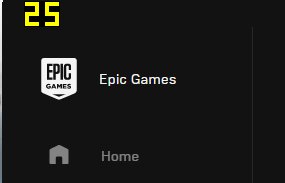
No, the Epic Games Launcher does not have a built-in FPS counter.
Ever wondered how smoothly your games are running, especially when the action gets intense? It’s a question many gamers ask, particularly when playing titles from the Epic Games Store. The ability to see frames per second (FPS) can help you optimize your settings for a better experience. But does epic games have an fps counter integrated?
Unfortunately, the Epic Games Launcher itself doesn’t offer this feature directly. You might be checking the settings trying to locate it. It’s something many users wish for, for easy game performance monitoring.
Instead, you’ll need to rely on external software or your game’s built in features to display FPS. These can often give more detailed metrics.

Does Epic Games Have an FPS Counter?
Let’s dive into the exciting world of video games! When you’re playing a fast-paced game, like Fortnite or Rocket League, it’s helpful to know how smoothly the game is running. This is where an FPS counter comes in handy. FPS stands for “Frames Per Second,” and it tells you how many pictures your computer is showing you every second. The higher the FPS, the smoother the game looks and feels. But, does the Epic Games Launcher, the place where you get these games, have its own built-in FPS counter? That’s what we are going to find out!
Understanding FPS and Why It Matters
Before we get to whether Epic Games has an FPS counter, let’s make sure we all understand what FPS actually means and why it’s important for gamers. Think of a flipbook. Each page has a slightly different picture, and when you flip through it quickly, the pictures seem to move. Video games work in a similar way. They quickly show lots of pictures, called frames, one after the other. The more frames you see each second (that’s the FPS), the smoother the motion looks. It’s like watching a really well-made flipbook versus a flipbook with only a few pages.
Why is High FPS Better?
High FPS means smoother gameplay. When your game has a low FPS, it can look choppy, laggy, or even freeze. This can make it hard to play, especially in games where quick reactions are key. A higher FPS lets you see what’s happening much more clearly, so you can aim better, react faster, and enjoy your game more. Imagine trying to win a race in Rocket League with a choppy image versus a smooth one – the smooth image definitely gives you an edge!
What’s Considered Good FPS?
What’s “good” FPS can depend a bit on what kind of game you’re playing and what type of display you have. But here’s a simple guideline:
- 30 FPS: This is generally considered the minimum for playable games. It might be okay for some slower-paced games, but it can feel a bit rough.
- 60 FPS: This is usually the sweet spot for most games. Games feel nice and smooth at 60 FPS. It’s a good target to aim for.
- 120 FPS or higher: This is great for really fast-paced games or for people who have special displays that can show higher FPS. It makes everything look super smooth!
Knowing your FPS can help you figure out if your computer needs a settings change, or if maybe it’s time to think about upgrading some parts!
The Epic Games Launcher and its Features
Okay, so now we understand FPS better, let’s talk about the Epic Games Launcher. This is the application that you use to get all your games from Epic Games, like Fortnite, Rocket League, Fall Guys, and many others. You use it to download, install, and launch your games. The launcher also handles game updates and sometimes has special events and promotions.
What the Launcher Does Well
The Epic Games Launcher is excellent at a lot of things. It allows users to:
- Browse and purchase games: You can easily find new games and buy them.
- Download and manage games: It helps you to get your games installed on your PC.
- Keep games updated: It automatically updates your games to the latest versions.
- Provide game libraries: you can view all your game in one place.
- Offer free games: Epic often gives away games for free!
What the Launcher Doesn’t Do (Directly)
Despite its many features, the Epic Games Launcher doesn’t directly show you your FPS while you are playing your games. The launcher itself focuses on managing and launching games, not the in-game performance. This means you won’t find an option in the settings of the launcher to turn on an FPS display. Let’s delve deeper on how to check fps while gaming.
So, No Built-in FPS Counter? What Now?
Okay, so the Epic Games Launcher doesn’t have its own built-in FPS counter. Does this mean you are out of luck? Absolutely not! There are many other ways you can check your FPS while you’re playing your games. Let’s look at some of these methods.
Using In-Game FPS Counters
Some games actually have their own built-in FPS counters. This is a super easy way to see your FPS without needing any extra software. The method to turn it on usually varies from game to game. Let’s take a look at some popular examples:
Fortnite
Fortnite has a built-in FPS counter. To turn it on:
- Start the game.
- Go to the game settings menu.
- Find the “Video” or “Graphics” settings.
- Look for an option like “Show FPS” or “Display FPS” and turn it on.
After turning this setting on, you will see a number on your screen during gameplay showing your FPS.
Rocket League
Rocket League also has an in-game FPS counter. Here’s how to use it:
- Launch Rocket League.
- Go to the settings menu.
- Find the “Interface” tab or something similar.
- Look for “Performance Graph” and set it to “FPS” or “Show FPS.”
Once you enable this, your FPS will appear on the screen while playing Rocket League.
Other Games
Lots of games, especially newer or more graphically intense ones, often have their own FPS counters. Always look at your game’s settings under “Graphics”, “Video”, or “Performance” for something related to “FPS” or “Show performance.”
Using Steam’s FPS Counter
Even if you are playing a game that you got from the Epic Games Launcher, you can still use the Steam FPS counter to check your FPS. But this method only works if you add the game to your Steam library. Let’s see how you can do it:
Adding a Non-Steam Game to Steam
- Open your Steam application.
- At the bottom left, click “Add a Game…”
- Click “Add a Non-Steam Game…”
- Find the executable file of the game you want to add (the .exe file). It will usually be located in the installation directory for your game.
- Click “Add Selected Programs.”
Now that the game is in your Steam Library, you can turn on Steam’s FPS counter.
Turning On the Steam FPS Counter
- In Steam, go to “Steam” at the top left.
- Select “Settings.”
- Click on the “In-Game” option in the list.
- Under “In-game FPS counter,” pick where you want the counter to show on your screen (top-left, top-right, etc.).
- You can also select a high contrast color to make it stand out from the game.
When you launch your added game through Steam, the FPS counter should appear in the corner of your screen.
Using Third-Party FPS Monitoring Tools
Sometimes, the in-game FPS counter or Steam’s counter may not be available. In these cases, you can use specific software designed to show your FPS while gaming. These are called third-party applications, and they often come with extra monitoring tools, too.
MSI Afterburner with RivaTuner Statistics Server (RTSS)
MSI Afterburner is a popular tool for overclocking your graphics card, but it also comes with a helpful feature for displaying your FPS. When you install MSI Afterburner, it usually installs RivaTuner Statistics Server (RTSS) too. RTSS is what actually shows the FPS on screen.
How to set it up:
- Download and install MSI Afterburner from the official website.
- Install RTSS when it prompts you to during the installation of MSI Afterburner.
- Open MSI Afterburner.
- Go to the “Monitoring” tab.
- Find “Framerate” and tick the box next to it to show it “In OSD (On-Screen Display)”.
- Click “Apply” to save the change.
- Open RivaTuner Statistics Server.
- In RivaTuner, click on the “Add” button, that looks like green add button. and locate your game’s executable file to add your game to be monitored.
- Now your game will appear in the list of RTSS, and start monitoring its performance, showing you the real-time information about FPS during gaming.
Once set up correctly, you’ll see your FPS in the corner of your screen while playing any game, not only on Epic games but also on any game.
NVIDIA GeForce Experience
If you have an NVIDIA graphics card, you likely have NVIDIA GeForce Experience installed. This tool has a built-in FPS counter.
Steps to activate it:
- Open the NVIDIA GeForce Experience application.
- Click on the “Settings” (gear) icon.
- Enable the “In-Game Overlay.”
- Once enabled, open any game that supports it.
- Press “Alt+Z” or any other combination that is prompted on screen to open the In-game overlay.
- Click on the “Performance” option.
- Now you can see an option to select overlay as “FPS”, and set it to be displayed on the screen.
Now, you will see your FPS in the corner of your screen.
AMD Radeon Software
If you have an AMD graphics card, you can use AMD Radeon Software to view your FPS.
Here is how to do it:
- Open the AMD Radeon Software.
- Click on “Performance” option.
- Click on the “Overlay” tab.
- Turn on “Show Metrics Overlay”.
- You should be able to view “FPS” or “Framerate” option there, select that to see it on the screen.
With the correct setup, your FPS will now be displayed in the game.
Windows Game Bar
Windows 10 and Windows 11 have a built-in Game Bar which includes a simple FPS counter. It’s not the most detailed, but it’s easy to access and use.
How to use the Windows Game Bar FPS counter:
- Press the “Windows key + G” while in a game.
- A game overlay will appear.
- You may need to click the “Performance” tab on the Game Bar, to view FPS option.
Now your FPS should be visible in the corner of your game. This overlay also shows CPU and GPU usage and other helpful information as well.
Choosing the Right Method For You
There are many ways to see your FPS. Which one is best for you depends on your preference and what you have on your computer:
- In-Game Counters: Easiest if the game has one built-in.
- Steam FPS Counter: Simple to set up if you’re adding the game to your steam library.
- MSI Afterburner/RTSS: Powerful and customizable, but requires a bit more setup.
- NVIDIA GeForce Experience/AMD Radeon Software: Good options if you have NVIDIA or AMD graphics cards.
- Windows Game Bar: A quick and easy built-in option.
Try each option and choose the one you like the most!
So, while the Epic Games Launcher doesn’t have its own built-in FPS counter, you now know you have lots of other options to monitor your game performance. Whether you use the in-game settings, Steam, a third-party program, or the Windows Game Bar, you’ll be able to keep an eye on your FPS and make sure you’re having the smoothest gaming experience possible.
How to Get FPS Counter on PC 2022 (Works for EVERY GAME)
Final Thoughts
Epic Games does not have a built-in FPS counter. Players must rely on third-party software or their game’s settings. Many games available on the platform, however, offer this feature.
You can enable an FPS display within specific games through their video options. This process varies between each individual title. Therefore, remember checking game settings often is vital.
So, to conclude, while Epic Games lacks its own counter, the answer to ‘does epic games have an fps counter’ is ultimately no, but many games do.

