
Yes, Rocket League has game chat.
Have you ever wondered how players communicate during those intense Rocket League matches? You are not alone! Many new players often ask, “does Rocket League have game chat?”. Knowing if you can talk with your teammates and opponents can really improve your game experience.
Luckily, Rocket League does offer text-based game chat, allowing for quick communication during games. This feature helps players coordinate strategies and even share a quick “Nice Shot!”.

Does Rocket League Have Game Chat?
Yes, Rocket League has game chat! It’s a big part of how players talk to each other during matches. But, like any good tool, there are different ways to use it and things you need to know. Let’s dive into all the details about chat in Rocket League. We will explore the various chat options, how to use them, and some helpful tips to make your in-game communication smooth.
Understanding the Different Chat Channels
Rocket League doesn’t just have one big chat box for everyone. It actually has different channels to help you communicate with specific people. Knowing which channel to use is key to making sure your message reaches the right audience. These different channels give you more control over how you communicate with your teammates and opponents. Here’s a breakdown of each:
Team Chat
Team chat is like your own private room with your teammates. Only you and your teammates can see the messages you send in team chat. This is perfect for planning strategies, calling out positions on the field, or even just cheering each other on. You can use team chat to discuss what the next play will be or let your teammate know that you’re on your way to help. It keeps your conversations focused and prevents your opponents from hearing what you are planning. When a quick goal happens, you can type “Nice Shot!” or “Great Pass!” to your team.
Party Chat
If you’re playing with friends who are grouped together in a party, then party chat is what you need. Only members of your party can see what is typed in this channel. Party chat is great for chatting outside of the match. Maybe you want to decide which game mode to play next, or even talk about what happened earlier in the day. It’s also helpful during matches if you want to talk about something that isn’t directly related to the game, like a funny moment, or the recent news about your favorite team. With party chat, you can keep your private conversations separate from the game.
All Chat
All chat is where things get interesting! This channel allows you to send messages that everyone in the match can see: your teammates and opponents alike. All chat is used to type funny messages, show sportsmanship, or sometimes even engage in friendly banter. It’s also common to see “glhf” (good luck, have fun) at the start of the game and “gg” (good game) at the end in all chat. Just remember that what you type in all chat can be seen by everyone, so it’s important to be respectful and keep things positive. Sometimes, all chat can get a little heated but it’s often part of the fun of online gaming.
How to Use the Chat Function
Okay, so now that you know about the different chat channels, how do you actually use them? It’s pretty easy once you get the hang of it.
Opening the Chat Box
During a match, you will usually press a specific button to open the chat box. On most platforms, this is typically:
- PC: Press the “T” key.
- PlayStation: Press the touchpad button.
- Xbox: Press the view button (the two small squares).
- Nintendo Switch: Press the “-” button.
Once you have opened the chat box, you can start typing your message.
Switching Chat Channels
After opening the chat box, you need to select which channel you want to use. This is often done by pressing another key or button. Here’s how it’s usually done:
- PC: Use the “Y” key to switch to team chat and “U” key to switch to party chat.
- Console: Use L1 or R1 (LB or RB on Xbox) to switch between all, team, and party chat.
Make sure the correct channel is selected before you type your message to ensure it gets to the intended audience.
Typing and Sending Messages
After you’ve opened the chat box and selected the correct channel, it’s time to type your message. Use your keyboard or the onscreen keyboard to write what you want to say. When you’re done, press the “Enter” key on a PC, or the equivalent button on your console to send the message.
Quick Chat Options
Typing out long messages during a fast-paced match can be difficult, or even impossible. Luckily, Rocket League has a very helpful feature called Quick Chat. Quick chat allows you to send pre-written messages with a simple button press. This feature is especially helpful during intense gameplay.
What is Quick Chat?
Quick Chat offers a range of common phrases that players often use in Rocket League. These quick messages include callouts like “I got it!”, “Take the shot!”, “Defending…”, as well as more general phrases like “Nice shot!” and “Oops!”. By using quick chat, you can get the message across without needing to stop to type. These options save you time and allow you to stay focused on the game.
How to Use Quick Chat
Using Quick Chat is simple. On most platforms, pressing a specific button will bring up a Quick Chat menu on the screen. You can then use the directional buttons or sticks to select the message you want to send. Here’s how it generally works:
- PC: Press the “F” key. Then use your mouse or keyboard keys (usually the arrow keys or WASD) to navigate and select the Quick Chat you want.
- Console: Press the d-pad and then use directional buttons to select the Quick Chat.
You can also customize your Quick Chat messages in the game settings, choosing which phrases appear in the menu. This allows you to have the most useful callouts and comments easily accessible.
Customizing Quick Chat
To customize your quick chat messages, follow these steps:
- Go to the Main Menu.
- Select “Settings.”
- Go to the “Chat” Tab.
- You’ll see a list of options where you can pick your Quick Chat.
- Choose which phrases you want to use by selecting them from the list, then apply your changes.
It’s a good idea to set your Quick Chat with phrases that are most helpful for your playstyle and your team.
Chat Etiquette: Playing Nice
Just like in any online game, using chat comes with a certain level of responsibility. It’s essential to practice good etiquette to create a fun and respectful environment for everyone. Using chat responsibly makes for better games for all.
Being Respectful
Being respectful in chat is extremely important. Always try to be polite, whether you’re talking to teammates or opponents. Avoid using offensive language or insulting other players, even if they make mistakes. Remember that everyone is playing to have fun, and being respectful keeps the vibe positive and friendly. When someone plays well, commend them, and when someone makes a mistake, be supportive. Showing sportsmanship can make everyone’s gaming experience better.
Avoiding Trash Talk
Trash talking, or trying to taunt your opponents in a mean or aggressive way, can ruin the fun. While a little bit of playful banter can be part of the game, going overboard can turn the match toxic. It’s much better to focus on playing well and having good sportsmanship. If someone else is trash-talking, try not to engage or react to it. Sometimes, simply ignoring these types of people is the best course of action.
Staying Positive
A positive attitude is contagious. Encourage your teammates, even when you’re losing. Saying things like “We can do this!” or “Let’s try again!” can keep morale high and help you turn the game around. When players work together and support each other, the overall quality of play improves. Remember that sometimes even in losing, you can still learn from the match and have fun while doing it.
Report Toxic Behavior
If you encounter someone who is being very rude or toxic, Rocket League has a way for you to report their behavior. Reporting someone allows the game’s developers to take action against players who violate the game’s rules. If someone is using harmful or offensive language or is otherwise behaving badly, don’t hesitate to report them. This helps keep the Rocket League community a safe and enjoyable place for all.
Troubleshooting Chat Issues
Sometimes, you might run into problems with the chat function. Here are some solutions for common issues you might face:
Chat Not Appearing
If you can’t see the chat box, or messages aren’t showing up, there are a few things you can check:
- Make sure your chat settings are enabled in the settings menu.
- Check to see if you have accidentally muted or blocked other players in the game, this can prevent their messages from showing up.
- Try restarting the game. Sometimes a simple restart can solve minor issues.
Chat Lag or Delay
If your chat messages take a long time to show up, it might be due to network issues. You can try a few different methods to resolve this issue:
- Check your internet connection. Poor internet connection can cause delays.
- Close any other programs that might be using a lot of internet bandwidth.
- Restart your router to improve network performance.
Problems with Quick Chat
If you are having trouble using quick chat, here are a few steps to take:
- Make sure the quick chat controls are mapped correctly in settings.
- Try to reset your controls to the default to clear up any issues you might have.
- Restart the game. This can solve a lot of minor problems.
Staying Safe While Chatting
It’s important to be safe when using chat features in online games. Here are some tips to keep you safe while chatting in Rocket League:
Protecting Personal Information
Never share your real name, address, phone number, or other personal information with anyone in the chat. Keep in mind that the people you encounter online are strangers and it’s not safe to share that kind of info. It’s much safer to keep your online and real-life separate. This helps protect your safety and privacy.
Avoiding Suspicious Links or Offers
Be wary of people who send links in the chat or offer something that seems too good to be true. These links could lead to malicious websites, scams, or viruses. It’s always best to avoid clicking any unknown link, and never provide any personal information to suspicious people online. Remember that you can always report suspicious behavior to the game’s developers.
Dealing With Uncomfortable Situations
If you ever feel uncomfortable during chat, you can mute or block another player. Rocket League lets you mute players, which means you will no longer see their messages. You can also block a player which means that you will no longer be in games with them. You can use these tools to keep the environment enjoyable. Never hesitate to use these features if someone is making you feel uneasy.
In conclusion, game chat in Rocket League offers a versatile way for players to interact, strategize, and enhance their overall gaming experience. By understanding the different chat channels, utilizing Quick Chat effectively, practicing good etiquette, and being mindful of safety measures, players can maximize the benefits of in-game communication. Whether it’s coordinating a complex aerial play with teammates or sharing a friendly “gg” with opponents, chat is an essential component of Rocket League’s fast-paced and engaging gameplay.
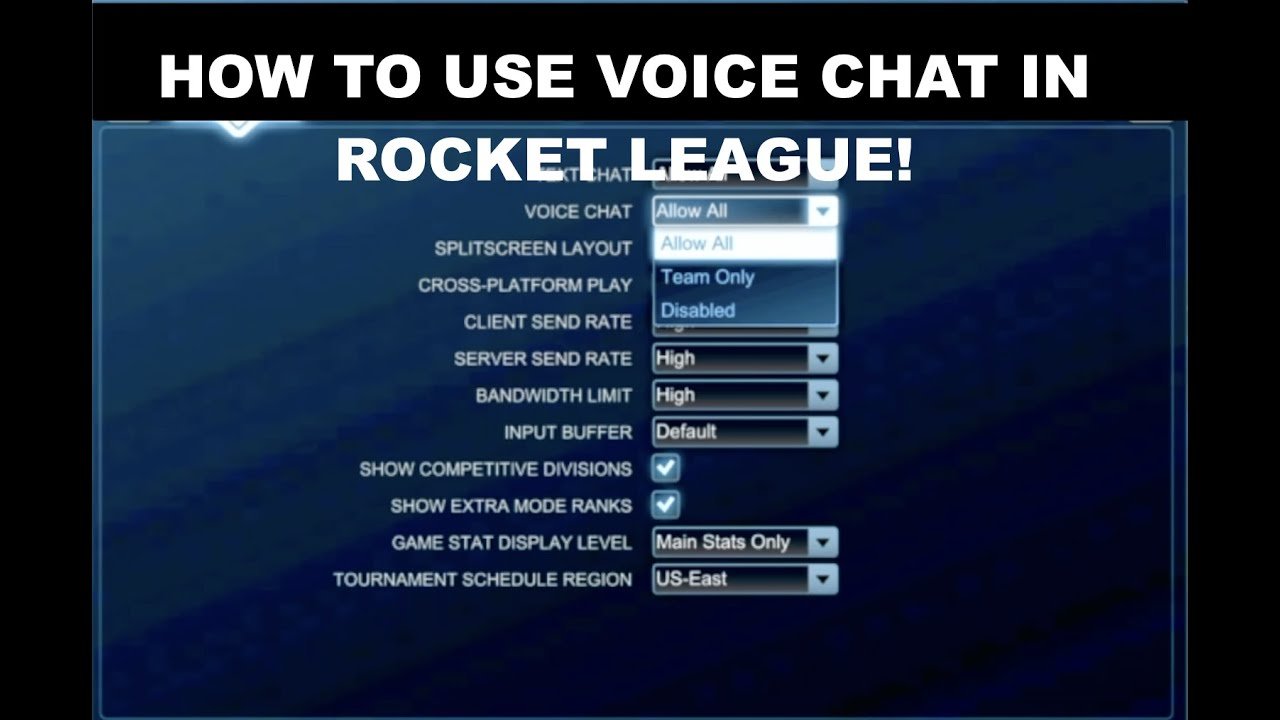
How to use VOICE CHAT to TALK Rocket League Crossplay (Best Method!)
Final Thoughts
Rocket League does have game chat, allowing players to communicate through text. You can type messages to teammates and opponents during matches. This feature helps with coordination and sometimes friendly banter.
However, voice chat is currently not a standard, built-in function of the game. Players usually rely on third-party apps for voice communication. Therefore, while text chat is available, voice chat isn’t natively present, so that’s something must keep in mind. Does rocket league have game chat? Yes, text chat.

