
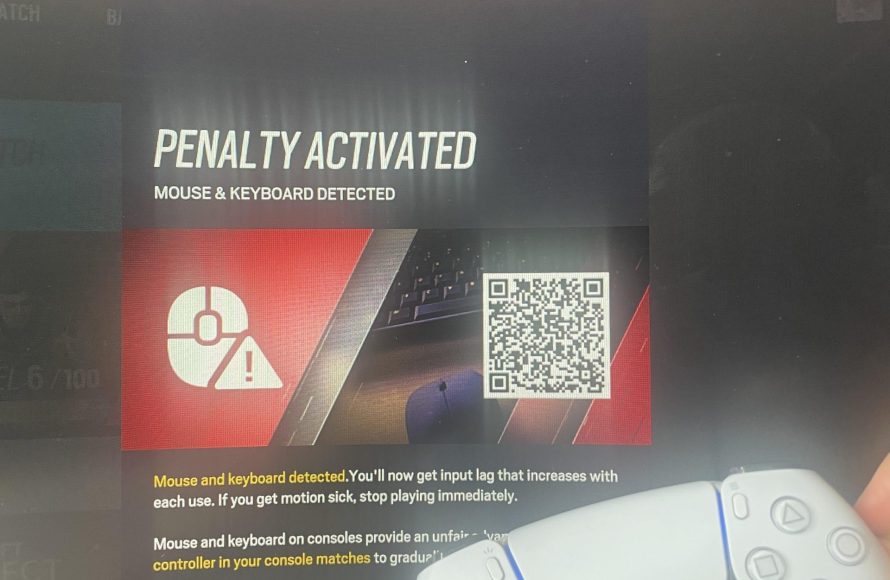
Fixing the mouse input lag issue in Battlefield 6 on PC often involves tweaking in-game settings like disabling future frame rendering and enabling raw mouse input, alongside ensuring your graphics drivers are updated. Adjusting your monitor’s refresh rate and PC’s power plan can also help reduce the lag.
Is your aim off in Battlefield 6? Is that perfect headshot turning into a frustrating miss? A common culprit for this is mouse input lag, which can seriously hinder your gameplay.
This article is dedicated to fixing the mouse input lag issue in Battlefield 6 on PC. We’ll explore simple, effective solutions that can dramatically improve responsiveness.
Let’s dive into the settings and configurations that will get your mouse feeling sharp and precise again. Get ready to dominate the battlefield.

Fixing the Mouse Input Lag Issue in Battlefield 6 on PC
Mouse input lag in Battlefield 6 (or whatever the next Battlefield installment might be named) on PC can severely hamper your gameplay experience. It can make aiming feel sluggish and unresponsive. This guide provides comprehensive solutions to reduce and eliminate this frustrating issue.
Let’s dive into potential causes and fixes. We want to ensure you have the smoothest possible experience.
Understanding Mouse Input Lag
Mouse input lag refers to the delay between your mouse movement and the corresponding action on the screen. High latency creates a disconnect. This disconnect can significantly hinder your accuracy and reaction time.
Several factors can contribute to this. They range from hardware limitations to software configurations.
Hardware Considerations
Your hardware plays a critical role. A weak system will cause many problems, including input lag.
Mouse and Peripherals
Mouse Quality: Using a high-quality gaming mouse designed for low latency is crucial. Avoid older, less responsive mice.
Polling Rate: Increase your mouse’s polling rate (Hz) in its software. A higher polling rate reports mouse movements more frequently, potentially reducing lag.
Wired Connection: Opt for a wired mouse connection over wireless. Wireless connections can introduce slight delays.
Monitor Refresh Rate and Response Time
High Refresh Rate: Use a monitor with a high refresh rate (144Hz or higher). This displays more frames per second, making the game feel smoother.
Low Response Time: Ensure your monitor has a low response time (1ms to 5ms). A lower response time reduces ghosting and blur, improving perceived responsiveness.
PC Performance
Sufficient Hardware: Make sure your PC meets or exceeds Battlefield 6’s recommended system requirements. Insufficient CPU or GPU power can lead to input lag.
RAM: Ensure you have enough RAM. 16GB is generally recommended for modern games.
SSD: Install Battlefield 6 on an SSD (Solid State Drive). This significantly reduces loading times and improves overall system responsiveness.
Software Solutions
Software configurations can also affect input lag. Optimizing your settings is crucial.
In-Game Settings
Graphics Settings: Lower your graphics settings to increase your frame rate. Higher frame rates generally correlate with lower input lag. Try reducing settings like shadows, textures, and anti-aliasing.
V-Sync: Disable V-Sync. While it prevents screen tearing, it can introduce input lag. If screen tearing is unbearable, explore alternatives like FreeSync or G-Sync.
Future Frame Rendering: Experiment with this setting. Some players find that disabling it reduces input lag. Others find that enabling it improves performance. Test to see what works best for you.
Field of View (FOV): A higher FOV can put a strain on your system. Try reducing your FOV slightly to see if it improves performance and input lag.
Operating System Optimizations
Mouse Acceleration: Disable mouse acceleration (Enhance pointer precision in Windows). This feature can make mouse movements feel inconsistent.
Game Mode: Enable Game Mode in Windows. This prioritizes system resources for gaming.
Background Processes: Close unnecessary background processes and applications. These can consume system resources and contribute to input lag.
Nvidia Reflex (If Applicable): If your GPU supports it, enable Nvidia Reflex in the game settings. This technology is designed to reduce input lag.
Fullscreen Optimization: Disable fullscreen optimization for the game executable. Right-click on the Battlefield 6 executable, go to Properties, Compatibility, and check “Disable fullscreen optimizations.”
Driver Updates
Graphics Drivers: Keep your graphics drivers updated to the latest version. New drivers often include performance improvements and bug fixes.
Mouse Drivers: Ensure your mouse drivers are also up to date. Check the manufacturer’s website for the latest drivers.
Advanced Troubleshooting
If the above solutions don’t completely resolve the issue, try these more advanced troubleshooting steps.
Overclocking (Proceed with Caution)
CPU and GPU Overclocking: Overclocking your CPU and GPU can improve performance. Only overclock if you’re comfortable with the process and understand the risks involved.
RAM Overclocking (XMP): Enable XMP (Extreme Memory Profile) in your BIOS to ensure your RAM is running at its advertised speed.
BIOS Settings
HPET (High Precision Event Timer): Experiment with disabling HPET in your BIOS and in Windows. Some users report that disabling it reduces input lag. This can be a complex change, so research carefully before attempting.
Network Considerations
While primarily affecting network latency (ping), a poor network connection can sometimes feel like input lag.
Ping: Monitor your ping to the game server. High ping can make your actions feel delayed.
Wired Connection: Use a wired Ethernet connection for the most stable and reliable network performance.
Quality of Service (QoS): Configure QoS settings on your router to prioritize gaming traffic.
Hardware Conflicts
USB Devices: Disconnect unnecessary USB devices. Some devices can interfere with mouse input.
Audio Drivers: Outdated or conflicting audio drivers can sometimes cause input lag. Try updating or reinstalling your audio drivers.
Detailed Look at Specific Settings
Let’s delve deeper into some of the key settings and how they impact input lag.
V-Sync: The Trade-off
V-Sync synchronizes your game’s frame rate with your monitor’s refresh rate. This eliminates screen tearing.
Screen Tearing: Screen tearing occurs when the game displays parts of multiple frames at once. This creates a visual “tear” across the screen.
Input Lag: V-Sync introduces input lag because the game waits for the monitor to refresh before displaying the next frame. This delay can be noticeable, especially in fast-paced games.
Alternatives: FreeSync and G-Sync are adaptive sync technologies. These technologies dynamically adjust the monitor’s refresh rate to match the game’s frame rate. They eliminate screen tearing without the input lag of V-Sync.
Mouse Polling Rate: Higher is (Usually) Better
The polling rate determines how often your mouse reports its position to the computer. It’s measured in Hertz (Hz).
125Hz: Reports position 125 times per second (8ms delay).
250Hz: Reports position 250 times per second (4ms delay).
500Hz: Reports position 500 times per second (2ms delay).
1000Hz: Reports position 1000 times per second (1ms delay).
Higher Polling Rate Benefits: A higher polling rate generally results in smoother and more responsive mouse movements.
CPU Usage: Higher polling rates can slightly increase CPU usage. However, the impact is usually negligible on modern systems.
Compatibility: Some older systems or games may have compatibility issues with very high polling rates. If you experience issues, try reducing the polling rate.
Nvidia Reflex: Reducing Render Latency
Nvidia Reflex is a technology designed to reduce render latency, which contributes to input lag.
How it Works: Nvidia Reflex works by synchronizing the CPU and GPU to minimize the time it takes for a frame to be rendered.
Reflex Low Latency Mode: This setting reduces the render queue, which lowers latency.
Reflex Boost: This setting boosts GPU clock speeds to further reduce latency.
Compatibility: Nvidia Reflex requires a compatible Nvidia GPU and game. Check the game settings to see if Nvidia Reflex is available.
Fullscreen Optimizations: Windows Feature
Fullscreen Optimization is a Windows feature designed to improve performance in fullscreen applications. However, it can sometimes introduce input lag.
How it Works: Fullscreen Optimization allows Windows to manage fullscreen applications more efficiently.
Potential Issues: In some cases, it can create a compatibility layer that adds input lag.
Disabling: Disabling Fullscreen Optimization can sometimes improve input responsiveness.
HPET (High Precision Event Timer): Advanced Setting
HPET is a hardware timer that provides high-resolution timing for applications.
Potential Issues: Some users believe that HPET can introduce input lag, particularly in older systems.
Disabling in BIOS: You can disable HPET in your BIOS settings. The exact location of the setting varies depending on your motherboard manufacturer.
Disabling in Windows: You can also disable HPET in Windows using the command prompt. Open the command prompt as an administrator and run the following commands:
`bcdedit /deletevalue useplatformclock`
`bcdedit /set tscsyncpolicy Enhanced`
Re-enabling: To re-enable HPET, run the following command:
`bcdedit /set useplatformclock true`
Case Studies: Real-World Examples
Let’s look at some hypothetical scenarios and how to approach fixing the input lag issue.
Scenario 1: High-End System with Input Lag
A user has a high-end gaming PC with an RTX 3080 and a Ryzen 9 5900X, but still experiences noticeable input lag in Battlefield 6.
Troubleshooting Steps:
1. Check Monitor Settings: Ensure the monitor is set to its native refresh rate and has a low response time.
2. Disable V-Sync: Disable V-Sync in the game settings.
3. Enable Nvidia Reflex: If available, enable Nvidia Reflex in the game settings.
4. Update Drivers: Update graphics and mouse drivers to the latest versions.
5. Background Processes: Close unnecessary background processes.
6. Polling Rate: Maximize the mouse polling rate.
Scenario 2: Mid-Range System Struggling with Performance
A user has a mid-range gaming PC with an RTX 3060 and a Ryzen 5 5600X and experiences significant input lag due to low frame rates.
Troubleshooting Steps:
1. Lower Graphics Settings: Reduce graphics settings in the game to increase frame rates.
2. Resolution: Reduce the game resolution to improve performance.
3. Future Frame Rendering: Experiment with disabling Future Frame Rendering.
4. SSD: Ensure the game is installed on an SSD.
5. RAM: Make sure the system has at least 16GB of RAM.
6. Overclocking (Optional): Consider overclocking the CPU and GPU for a slight performance boost.
Scenario 3: Wireless Mouse Issues
A user is experiencing input lag specifically when using a wireless mouse.
Troubleshooting Steps:
1. Wired Connection: Switch to a wired mouse connection to eliminate wireless interference.
2. Proximity: Ensure the wireless receiver is close to the mouse.
3. Battery: Replace the mouse batteries with fresh ones.
4. Interference: Minimize potential sources of wireless interference, such as other wireless devices.
5. Drivers: Update the wireless mouse drivers.
Regular Maintenance: Preventing Future Issues
Preventative measures can help keep input lag at bay in the long run.
Driver Updates: Regularly update your graphics and mouse drivers.
System Cleaning: Periodically clean your system to remove dust and debris. This helps prevent overheating and ensures optimal performance.
Software Updates: Keep your operating system and other software up to date.
Monitor Performance: Regularly monitor your system’s performance to identify potential bottlenecks.
Storage Management: Keep your storage drives organized and defragmented (if using a HDD).
Input Lag and the Ever-Evolving Battlefield
Battlefield games are known for their large-scale battles and demanding graphics. As the franchise evolves, optimizing your system for the latest installment becomes increasingly important. By understanding the causes of mouse input lag and implementing the solutions outlined in this guide, you can ensure a smooth and responsive gaming experience in Battlefield 6 (or the next iteration) and beyond. Remember to experiment with different settings and find what works best for your specific hardware configuration. Consistent maintenance and awareness of potential performance bottlenecks will help you maintain peak performance and minimize input lag over time.
BEST Optimization Guide | Battlefield 6 Open Beta | Max FPS | Best Settings
Final Thoughts
Fixing the mouse input lag issue in Battlefield 6 on PC is possible. Try adjusting your in-game settings first. Lowering graphics settings like texture quality and shadows can help.
Another must try is disabling future frame rendering. This setting often adds noticeable input delay.
Finally, check your monitor refresh rate and ensure your drivers are current. By implementing these fixes, you’ll significantly reduce input lag and improve your gameplay in Battlefield 6.

