
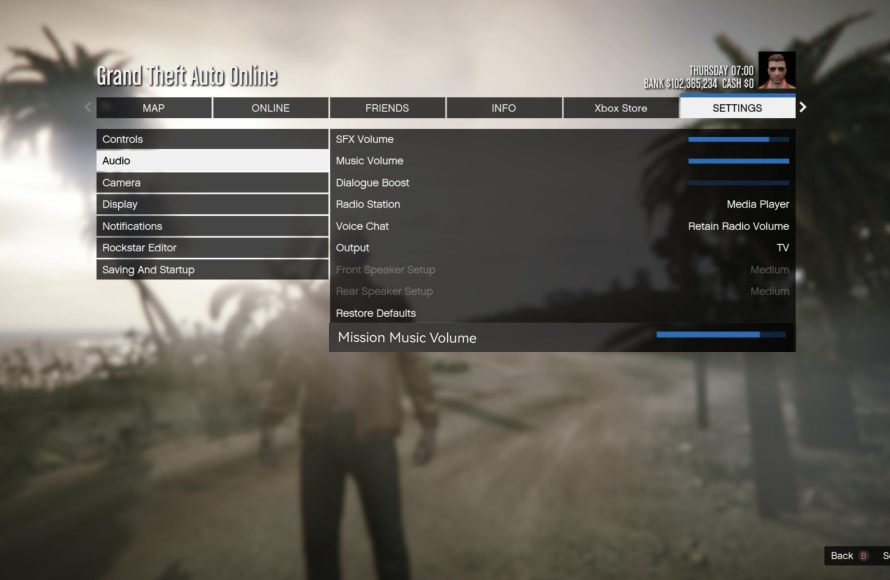
GTA 5 Online’s audio options include settings for music, sound effects, voice chat, and radio volume, allowing players to personalize their in-game sound experience.
Ever found the radio too loud while trying to hear your friend’s plan? GTA 5 Online gives you control over your audio. The game offers a range of settings to tailor the sound to your preference. You can adjust several categories within the gta 5 online all audio options.
These options let you change music levels, control game sounds, adjust the volume for voice chat and, separately manage the radio volume. Finding your ideal audio balance can greatly improve your experience in Los Santos.

GTA 5 Online All Audio Options
Alright, gamers! Let’s talk about something super important in GTA 5 Online: sound! You might not think about it much, but the audio settings can totally change how you experience the game. It’s not just about hearing explosions and police sirens; it’s about creating the perfect soundscape for your epic adventures in Los Santos. We’re going to dive deep into all the audio options in GTA 5 Online, explaining what they do and how you can use them to your advantage. So, grab your headphones, and let’s get started!
Understanding the Main Audio Categories
GTA 5 Online’s audio options are not just a random jumble. They’re divided into categories that help you focus on specific areas of sound. Let’s break down these main categories:
- Master Volume: This is the big boss of all volume controls. Adjusting this changes the overall loudness of everything in the game. If you want to make the game louder or quieter as a whole, this is the setting to use. It’s like a global volume knob for all in-game audio.
- Music Volume: Ah, the sweet sounds of Los Santos! This setting controls how loud the background music is. Whether you’re cruising in a lowrider or escaping the cops, the music sets the mood. You can turn it up to jam out or lower it to hear other sounds more clearly.
- Sound Effects Volume: This is where all the action sounds live! Gunshots, car engines, explosions, crashing sounds, NPC chatter – it’s all controlled by this slider. When you want to hear those crucial sound effects, pay attention to this setting.
- Dialogue Volume: This adjusts the volume of all in-game character voices, both in cutscenes and during normal gameplay. Do you struggle to hear what Lester is saying during heists? Adjust this setting.
- Radio Volume: Controls how loud your radio stations are when driving cars. Some prefer the radio at a lower level or muted completely to focus on the environment sounds, whereas other like jamming to their favourite station.
Diving Deeper into Specific Audio Settings
Now that we have the main categories covered, let’s explore the more specific audio settings you can tweak. These settings often have a major impact on your experience, so exploring them is crucial.
Radio Options
The radio in GTA 5 Online is a big deal. It’s more than just background noise; it’s a character of its own. Here’s what you can do with radio options:
- Radio Station Selection: GTA 5 has a large variety of radio stations, each with a unique music genre, from hip hop to pop and rock to electronic. You can cycle through them to choose the perfect music that fits your mood. You can either use the radio wheel in game while driving or use the game setting menu to change it.
- Radio Volume Adjustment: You can separately control the radio volume, just in case you want to hear the in-game sounds more clearly. You can control from the settings menu.
- Turning Off Radio: Sometimes you just need peace and quiet. The option to completely turn off the radio is a welcome addition for players who prefer not to listen to music in GTA V online. You can do this by turning the radio completely off from the in-game radio wheel.
Voice Chat Options
Communication is key, especially during heists or races. GTA 5 Online has various voice chat options to help you coordinate with your friends. Let’s see what these options include:
- Voice Chat Volume: If your teammates are too loud, or too quiet, then this option lets you set the balance between the voice chat and the actual game sounds.
- Voice Chat Mode: Here you get the choice of deciding who hears you. The options might include: “Everyone,” “Friends,” “Crew,” and “No one”. Select “Everyone” to be heard by everyone in the game session, whereas friends will only allow your friend list to hear you, crew only by your crew members and no one, well as name suggest, no one will hear you.
- Voice Chat Input Device: When you have multiple microphone options in your computer/console, this setting lets you select which microphone the game should use to receive the input from.
- Voice Chat Output Device: Selects the device where you want to hear voice chat, be it the headphones or the speakers.
Subtitle Settings
Sometimes, the in-game sounds may get too overwhelming, or you may be unable to understand the character dialogue. Subtitles help in this case. Here are the subtitle settings that the game offers :
- Subtitle On/Off: It is a simple toggle that can turn the subtitles on or off.
- Subtitle Size: You can select different sizes for subtitles, based on your viewing convenience.
- Subtitle Background: You can select the background for your subtitle to make it more visible. The choices vary from transparent, slight opaque to fully opaque.
Advanced Audio Settings
For the audiophiles and those who want the perfect sound, here are the advanced options:
- Dynamic Range: This setting adjusts the difference between the loudest and quietest sounds. A higher range can make explosions super loud and whispers very quiet. Choose a range that makes your gaming sound immersive and comfortable.
- Reverb: Reverb setting adjust how the sound bounces of surfaces and how it sound echoey. A lot of echo can lead to a very distorted sound, especially in closed environments.
- Spatial Audio: Spatial audio, when enabled, makes the sounds in the game appear from the directions they would sound in real life. It helps create a sense of 3D surround sound, giving you better direction awareness.
- Hardware Acceleration: This lets your computer’s hardware process sounds more efficiently. It is only beneficial for higher end systems.
Why Audio Settings Matter
You might be wondering, “Why bother with all these audio settings?”. Well, proper audio setup provides benefits, such as:
- Improved Awareness: Hearing approaching cars, gunshots, and NPC voices makes you more aware of your surroundings, giving you a competitive edge.
- Enhanced Immersion: Proper audio creates a more believable game world, making you feel like you are actually in Los Santos.
- Better Communication: Clear voice chat helps you to communicate effectively with your teammates in heists and races.
- Personalized Experience: Adjusting the music and sound effects lets you create the perfect atmosphere for your play style.
Tips for Optimizing Your Audio
Here are some quick tips to help you get the most out of your audio experience in GTA 5 Online:
- Test it Out: Don’t just set and forget. Adjust your settings and then see how they feel as you play. A bit of tweaking will go a long way.
- Use Headphones: Headphones often provide much better sound quality than speakers. The sound will feel more immersive.
- Adjust for Different Situations: If you’re doing a heist with voice chat, increase the dialogue volume and voice chat volume, but during free roam, you can turn them down.
- Find Your Preference: Everyone has different hearing preferences. Do what sounds best to your ears and you will have a pleasant time.
Troubleshooting Common Audio Issues
Sometimes you might face some audio issues, don’t worry they can be easily fixed! Here are the common problems and their solutions:
No Sound
- Check Master Volume: Make sure that the main volume is not set to zero.
- Check Output Device: See if the correct speakers/headphone are selected.
- Check Audio Drivers: Update the audio drivers of your computer.
Sound Too Quiet/Too Loud
- Adjust the Volume Settings: Tweak individual volumes such as Music, Radio, Sound effects etc.
- Check Game Volume: Sometimes the general volume of the game may be low in your computer’s settings, it is important to check it.
Voice Chat Not Working
- Check Microphone Input: Confirm that the proper microphone is selected in the audio settings of the game.
- Check Voice Chat Mode: See if you have set the correct mode for voice chat, and your friends are in the right mode.
- Check Microphone Permissions: Grant your microphone access to GTA 5, in the computer/console settings.
Distorted Audio
- Reduce Reverb: Lower the reverb level from the audio settings, if you hear a lot of echo.
- Turn Off Hardware Acceleration: Disable this feature, in case your system is low spec.
Audio Settings for Different Playstyles
Your style of playing GTA 5 Online often requires a slightly different audio setup. Here is the audio setting based on your gameplay style.
For Immersive Story Playthroughs
When you’re enjoying the story mode, where character interactions are important, consider these settings:
- Dialogue Volume: Set this high enough to clearly hear character dialogues.
- Music Volume: Lower this a bit so the focus is more on the character voice and the environment.
- Sound Effects: Set to balanced level that you can clearly listen to sounds such as character movements.
For Intense Online Heists
Here it is important to coordinate with your teammates, so you would need this setup:
- Voice Chat: Ensure it is set to “friends” or “Crew,” for better communication.
- Sound Effects: It should be high enough to clearly hear the enemies’ sounds and your surroundings, but not too loud that it deafens you.
- Music: Keep the music volume low to focus on the heist sounds.
For Freeroam Exploration
When just exploring the world of Los Santos, you may want a different feel, so consider this setup:
- Music Volume: Set it to your liking, for a better atmosphere.
- Sound Effects: Keep this at a balanced setting, not too low or too high.
For Vehicle Races
For car races, having clear sounds of the environment and other cars is crucial for victory. Here are the suggestions:
- Radio Volume: Set this at your preferred level, or turn it off for better focus.
- Sound Effects: It should be slightly higher so you can hear your opponents better.
So, there you have it! A complete guide to the audio settings of GTA 5 Online. By taking the time to adjust these settings, you can create a truly personalized and enjoyable gaming experience. Don’t be afraid to experiment and find the perfect audio balance for your needs. Remember, the best audio setup is the one that sounds right for you. Happy gaming!
17 GTA Online Settings You Need to Change NOW! (Console & PC Optimization)
Final Thoughts
In essence, effectively adjusting the audio settings enhances your GTA 5 Online experience. Players can fine-tune various volume levels to their specific preferences. This control allows for a more immersive and personal gameplay session.
Experimenting with different configurations lets you find what suits you best. These adjustments help you hear important in-game cues and immerse fully in the action. GTA 5 Online all audio options offer extensive customization.
Tailoring sound settings is vital for optimal gaming. Remember to test different combinations of sound effects, music, and voice chat to find the ideal mix. Ultimately, finding the perfect settings for GTA 5 Online all audio options will directly impact your enjoyment.

