
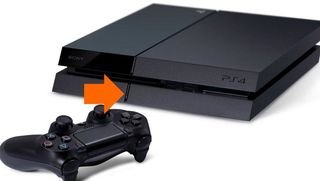
To eject a game from your PS4, press the eject button located on the console itself.
Ever had that moment when you’re ready for a new game but your old disc is stuck? We’ve all been there. It can be frustrating trying to figure out exactly how to eject game from ps4. But don’t worry; the process is quite simple.
You’ll be relieved to know, ejecting a game is not a complex process. It involves just one physical button. After this, you’re free to switch games or put the console away. So, lets get to it.

How to Eject a Game from Your PS4: A Complete Guide
Getting a game out of your PlayStation 4 (PS4) should be simple, but sometimes it can feel like it’s stuck! Don’t worry, we’re here to walk you through all the ways to eject both disc-based and digital games. Whether your disc drive is acting up, or you just need to switch to a new game, this guide has you covered. We’ll explain each method step-by-step, so you can get back to playing your favorite games in no time. Ejecting games from a PS4 shouldn’t be stressful and, with our help, it won’t be.
Ejecting a Disc Game the Normal Way
The most common way to eject a disc from your PS4 is by using the eject button on the console itself. This is the method most players use every day, and it’s usually very reliable. Here’s how you do it:
Locate the Eject Button
First, take a close look at your PS4 console. You’ll find the eject button on the front, usually near the disc slot. On the original PS4, this button is a physical button. On the PS4 Slim and PS4 Pro, it is a touch-sensitive button. Look carefully, and you’ll spot it.
Press the Eject Button
Once you’ve located the button, gently press it. You should hear a soft whirring sound as the PS4 starts the ejection process. After a moment, the game disc should pop out of the disc slot. Once it comes out, you can remove the disc from the drive with your hand.
What if the Disc Doesn’t Eject?
Sometimes, the eject button method might not work. If your game disc doesn’t come out when you press the button, don’t force it. There could be a problem. Before we start thinking about more technical fixes, let’s try some other simple solutions. If the system is not responding to the eject button, make sure that your PS4 is turned on.
Ejecting a Disc Game Using the Controller
If the eject button isn’t working, or if you simply prefer using the controller, you can also eject a disc game through the PS4’s user interface. This method provides another way to get your game out, without having to reach for the physical button on the console.
Navigate to the Game on the Home Screen
Turn on your PS4, and go to the home screen. You’ll see the game you have inserted in the console highlighted on the screen. Move your cursor to the game icon that you want to eject with the D-pad or left analogue stick on your controller.
Access the Options Menu
Press the Options button on your controller. This button is the one with three horizontal lines, usually located on the right side of the controller. This action will open up a menu on the right side of the game icon.
Select “Eject Disc”
Use the D-pad or the left analogue stick to move down the options menu, and select “Eject Disc.” Press the X button on your controller. The PS4 will then start the ejection process. The game disc will come out from the console disc slot. Once you see that, you can take it out with your hand.
What If It Still Doesn’t Eject?
If using the controller doesn’t work, it’s time to look into some other potential solutions, which we will cover below.
Ejecting a Stuck Disc Using Safe Mode
Sometimes, the PS4 might have trouble ejecting the disc. In these cases, you may need to use the console’s safe mode. Safe Mode is a special start-up mode that allows you to fix various issues with your PS4, and it also includes a feature that can sometimes help with stubborn disc ejections.
Entering Safe Mode
To access Safe Mode, you must completely turn off your PS4. Do not put it into rest mode. After the console is off, press and hold the power button until you hear the second beep (the first beep will sound when you initially press the power button). You will need to keep holding down the button for about seven seconds. This second beep signals that you are now in Safe Mode.
Select Option 5: Rebuild Database
Plug your controller into the PS4 using a USB cable, as Bluetooth is not active in Safe Mode. Once you have your controller connected, scroll down to “Rebuild Database,” which is the fifth option on the Safe Mode screen. Press the X button on your controller to start this option. It may take a little while for the rebuilding process to complete. After the rebuilding process is complete, your PS4 will restart.
Try Ejecting the Disc Again
Once your PS4 has restarted, try using either the physical eject button or the controller method. After rebuilding database in safe mode, the chances are high that disc will eject normally.
Why Does Rebuilding Database Work?
Rebuilding the database sorts out the system, getting rid of junk files and other problems that could cause the disc drive to malfunction and that helps you eject your game. Think of it like organizing your room to help you find things better.
The Manual Eject Method: When All Else Fails
If all other options have not worked, the PS4 has a manual eject option. This involves using a simple tool and a bit of patience. It’s important to remember that while this method can help, you should be careful not to damage any parts of your console.
What You’ll Need
Before you begin, make sure you have the following items:
- A small, thin object like a straightened paperclip or a sim card ejector tool.
- A bright light to see clearly
Locate the Manual Eject Hole
Turn off your PS4 completely. Unplug all the cables from the console, including the power cable. Carefully flip your PS4 over, and look for a very small hole near the disc drive. This hole is often hidden and not very noticeable, so use a light and look closely to find it. The exact location of the manual eject hole varies slightly between different PS4 models.
Inserting the Tool
Gently insert your straightened paperclip or sim card ejector tool into the eject hole. Push slowly and very gently. You should feel some resistance. Do not push it too hard, or you might damage the mechanism. You may feel a slight click or feel the mechanism move, which means that you are moving the disc eject system. Continue pushing gently but firmly and the disc will start to eject. Now you should be able to take the disc from the PS4.
Important Cautions
- Always be gentle when inserting anything into the manual eject hole.
- Do not force it if you feel excessive resistance.
- If the disc doesn’t come out after a few tries, seek professional help.
Why Manual Eject is a Last Resort
Manual ejection should be your very last option because it involves some risk of damage. It’s more of an emergency method for when the standard procedures do not work. However, when you are careful, you are less likely to do damage when using the manual eject method.
Understanding Digital Games on Your PS4
Unlike disc-based games, digital games don’t require any physical discs. You download them directly to your console’s storage. The way you remove them from your screen is different than ejecting a disc because they don’t occupy a physical space on your system, even though you still own them.
Why You Can’t “Eject” Digital Games
Since digital games are stored on your PS4’s hard drive, you can’t eject them in the same way as disc games. Instead, you either start playing them, or you remove them completely to make space. Think of it like deleting a file from your computer.
Managing Your Digital Game Library
Here’s how to manage your digital game library:
- Starting a Game: To play a digital game, simply go to your home screen and select the game icon. Press the X button to begin playing.
- Deleting a Game: If you want to make space or delete a digital game, move to the game on your game library. Select the game, press the Options button, and then choose “Delete.” Be aware that deleting a game will remove it from your console. You’ll have to download it again if you want to play it later.
- Moving a Game to External Storage: To manage your games library, if you’ve got one, it’s possible to transfer game data to an external hard drive using your PS4.
What Happens If You Delete a Digital Game?
When you delete a digital game from your PS4, you’re only removing the game data from your console. The game is still attached to your PlayStation account. If you want to play the game again, you can re-download it from the PlayStation Store. You won’t have to pay for the game again, so long as you are using the same PlayStation account that you previously used to purchase the game.
Common Reasons for Disc Ejection Problems
Sometimes, discs get stuck or don’t eject properly. It’s useful to understand the reasons behind these issues, so you can try to prevent them in the future.
Dirt and Dust
Dust and dirt can cause the disc drive mechanism to get stuck. Keeping your PS4 in a clean environment and cleaning it regularly can help prevent this. Over time, dust can collect inside your console, and that can make things work less well.
Hardware Issues
Sometimes, there might be an actual problem with the PS4’s hardware. If all the troubleshooting methods have not worked, your PS4 might need to be repaired. It’s a good idea to contact Playstation customer support for guidance on this issue.
Software Glitches
Software bugs or glitches can interfere with the PS4’s disc ejection process. Make sure your PS4 is always up-to-date with the latest system software.
Using Damaged Discs
Using scratched or damaged discs may result in reading issues, and it can also cause disc drive issues. Try to always handle your game discs with care, and store them properly in their case when not in use.
Tips to Prevent Disc Ejection Problems
Preventing problems is better than fixing them. Here are some useful tips to help you avoid disc ejection issues with your PS4:
- Regular Cleaning: Regularly dust your PS4 console, and the area around it to prevent buildup.
- Proper Disc Handling: Always handle your game discs by their edges, and store them properly in their case when you aren’t using them.
- Keep Your PS4 Cool: Make sure that your PS4 has enough space around it for ventilation, to prevent overheating. Overheating can sometimes cause problems with the disc drive.
- Update System Software: Always make sure that your PS4 is running the latest version of its system software. Updates often include fixes that resolve issues.
Ejecting a game from your PS4, whether it’s a disc or a digital title, should be a simple process. By following the steps and tips outlined above, you can confidently manage your game collection and keep enjoying your favorite PS4 games. Remember, if you are ever facing a serious disc ejection problem, don’t hesitate to reach out to the Playstation support team for some extra assistance. Now that you know how to eject your games, you can get back to the fun part: playing them!
PS4 Ways How to Remove a Disc!
Final Thoughts
In summary, knowing how to eject game from ps4 is simple. You can press the eject button located on the console itself.
Alternatively, navigate to the game on the PS4 menu. Press the options button on your controller. Then, select “Eject Disc” from the menu that appears.
These methods effectively allow you to remove your game disc. Using either option ensures you can easily switch games.

