
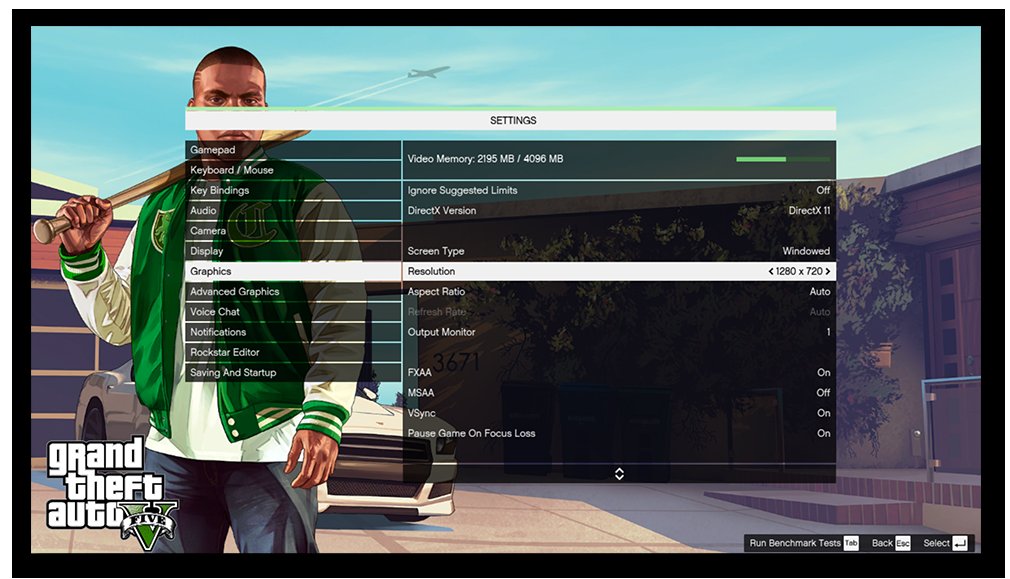
The best graphics settings for GTA 5 Online balance visual quality and smooth performance. This often means adjusting settings like texture quality, shadows, and reflection quality to find your personal sweet spot.
Trying to make Los Santos look its absolute best while maintaining a decent frame rate in GTA 5 Online can feel like a constant battle. We all want the stunning visuals, but not at the expense of lag. Figuring out the ideal configuration for your system is key.
Finding the right gta 5 online best graphics settings allows you to enjoy the game’s beauty without sacrificing playability. Each pc setup is different, therefore testing different combinations will be required.

GTA 5 Online Best Graphics Settings
Getting Grand Theft Auto 5 (GTA 5) looking its absolute best online can feel like trying to solve a tricky puzzle. It’s not just about making the game pretty; it’s about getting a smooth, enjoyable experience while still having those shiny visuals. You want to see all the action clearly, whether you’re speeding through Los Santos or having a shootout with rivals. Balancing great graphics with good performance can seem tough, but we’re here to make it easy! We will explore all the key settings, explaining what they do and how they affect your game.
Understanding the Basics: Graphics Options Explained
Before diving into specific settings, it’s good to know what each option does. This will help you make informed decisions based on your computer’s capabilities. Think of it like knowing the ingredients before baking a cake – it helps get the best result. So, let’s look at the main graphics options in GTA 5 Online.
Resolution
Resolution is simply how many pixels (tiny dots) make up the image on your screen. A higher resolution means more detail and a sharper picture, but it also uses more power from your computer. Common resolutions include 1920×1080 (1080p), 2560×1440 (1440p), and 3840×2160 (4K). Start with your monitor’s native resolution for the best picture, and adjust if your game struggles with performance.
Refresh Rate
Refresh rate determines how many times your monitor updates the image per second, measured in Hertz (Hz). Higher refresh rates (like 144Hz or 240Hz) make the game look much smoother, particularly during fast-paced action, but again it needs powerful hardware. If your monitor supports high refresh rates make sure to set it correctly in game settings. Make sure the refresh rate in game settings matches your monitor’s refresh rate settings.
Graphics API: DirectX 11 vs. DirectX 10
GTA 5 lets you choose between DirectX 10 and DirectX 11. DirectX 11 is newer and generally better, offering enhanced features and performance (with compatible hardware). Stick with DirectX 11 unless you have very old hardware. DirectX 10 should only be used in low end pc which don’t support DirectX 11, you may experience low fps or low performance if you use DirectX 11 in unsupported hardware. The game is optimized for DirectX 11 so always chose DirectX 11 if your hardware is compatible.
Screen Type: Fullscreen, Windowed, Borderless Windowed
- Fullscreen: This uses the whole screen and typically offers the best performance.
- Windowed: Plays the game in a window on your desktop which is good if you need to quickly switch between the game and other programs.
- Borderless Windowed: Looks like fullscreen, but allows for easy switching between programs, and sometimes offers better compatibility.
For the smoothest experience, try Fullscreen first and then switch to Borderless Windowed if needed. Windowed mode can sometimes cause performance issues.
FXAA and MSAA Anti-Aliasing
Anti-aliasing smooths out jagged edges in the game. FXAA (Fast Approximate Anti-Aliasing) is less demanding, but can make the game look blurry. MSAA (MultiSample Anti-Aliasing) is more powerful and produces better results, but requires more computing resources. If you are looking for better performance try disabling it, for less sharp and jagged edges try FXAA, and for smoother and great image quality try MSAA.
Advanced Graphics Settings: Fine-Tuning Your Experience
Now, let’s dig into the more advanced settings. These are where you can really start to see big differences in both visuals and performance. We’ll break them down into easy-to-understand chunks.
Population Density
This controls how many people and cars appear in the game world. Higher settings make Los Santos feel more alive but need more processing power. Lowering it can free up resources, particularly in busy online sessions.
Population Variety
This setting dictates how different the people in the city look. A higher variety makes the city more diverse, but it doesn’t affect performance too much, so you can usually keep this pretty high.
Distance Scaling
Distance scaling controls the level of detail in objects far away. If it’s set high, the game will be rendering objects at a high detail in distance making the game looking better. If you have a lower end pc you can set it low to get more frames. You should set this setting as your hardware can handle without losing too much frames.
Texture Quality
Texture Quality determines how detailed the surfaces in the game look. High settings offer sharp textures, but eat up more VRAM (video memory). Medium or High is generally a good choice if you have adequate VRAM, but Low can work if your video memory is limited. You should always check how much vram you have and always set it under your vram limit. If you go over your vram limit you will experience stutter or low fps.
Shader Quality
Shaders are responsible for how light and shadows work. Higher settings will make the game look more realistic. Set it to High for good visuals if your computer can handle it without fps drop.
Shadow Quality
This controls the sharpness and detail of shadows. High settings will give sharper and great shadow quality. Set it to High if your PC can handle, or Normal or Soft if you are experiencing low fps.
Reflection Quality
Reflection quality setting controls the level of detail of how reflection will look in game. For high visuals set it to High, or normal or low if you experiencing low fps.
Reflection MSAA
Reflection MSAA setting controls the level of anti-aliasing in reflection in game. For smoother reflection in game set it to 2X or 4X if your pc can handle, otherwise disable it for better performance.
Water Quality
This setting decides how detailed the water appears in the game. If you set it to high, the water in game will appear highly detailed and realistic. You should choose setting as per your hardware capabilites.
Particles Quality
Particles quality setting controls the level of detail of particles in game. This setting is very cpu intensive, so if you have good cpu choose high settings, but if you have low end cpu set this setting low. This setting includes fire particles, smoke, etc.
Grass Quality
This setting decides the density and quality of grass. High settings make the world look more detailed. If you have decent mid range pc set this setting high, but if your pc is low end set this setting normal or low for better performance.
Soft Shadows
Soft shadows give shadows a more realistic, softer look, and setting it to sharp will give you sharp and crisp shadows. The soft shadows option is generally preferable for good visuals, but can be switched off if performance is an issue.
Post FX
Post FX affects things like motion blur and depth of field. The very high setting can make the game look more cinematic. You should choose the setting as per your pc capabilities. You can reduce it to medium or normal if you are experiencing fps drops.
Motion Blur
Motion blur makes fast-moving objects appear blurred. Some people like it, some don’t. If you have a high refresh monitor it’s usually best to turn it off to avoid unnecessary blur, and if you like the effect you can keep it on. If your monitor is 60 hz it doesn’t make too much difference turning it off.
In-Game Depth of Field
Depth of Field blurs the background when the focus is on something close to the screen. It can add a cinematic effect, but some find it distracting. You can keep it on or off as per your taste.
Anisotropic Filtering
Anisotropic filtering makes textures at angles look clearer. It has a small impact on performance, so it’s usually safe to set at the max (16x).
Ambient Occlusion
This setting adds realistic shadows where objects meet. It makes the world more natural looking, but can be taxing on your computer. It’s recommended to set this high if your system can handle it.
Tessellation
Tessellation enhances the geometry of objects, making them more detailed. If you have a powerful pc, keep this setting on, or you can turn off.
Finding Your Sweet Spot: Balancing Visuals and Performance
So, how do you find the right mix of great graphics and smooth gameplay? It’s a balancing act. Here’s a step-by-step approach:
- Start with Your Monitor’s Resolution: Set the game to the native resolution of your monitor.
- Choose DirectX 11: Use DirectX 11 for better performance if your hardware supports it.
- Set Display to Fullscreen or Borderless: Fullscreen is recommended for performance, but borderless is ok too.
- Start with High Presets: First, set all the settings to high, and then slowly change the settings which impact your performance the most.
- Lower Demanding Settings First: Reduce settings like MSAA, reflection quality, grass quality, shadow quality, population density and post FX if you are experiencing low fps.
- Monitor Your FPS: Pay attention to your frames per second. If you’re getting smooth gameplay (60 FPS or more), you’re good. If not, reduce some settings further. Use the in game fps counter to monitor your fps.
- Adjust settings until you find the right balance: Adjust the settings until you get the perfect balance between graphics quality and the performance you desire.
- Test and Tweak: Spend time in different areas of the game. Some parts, like the city center, are more demanding. Make sure that your settings work in all situations.
Settings for Different PC Specs
High-End PCs
If you have a powerful gaming PC (top-end CPU and GPU) you can probably run most settings at their maximum. Try the following settings:
- Resolution: 1440p or 4K.
- Refresh Rate: Match your monitor’s maximum refresh rate.
- DirectX Version: DirectX 11.
- Screen Type: Fullscreen.
- Anti-Aliasing: MSAA 4X or 8X.
- Population Density: Max.
- Texture Quality: Very High.
- Shadow Quality: Very High.
- Post FX: Very High.
- Grass Quality: Very High.
- Anisotropic Filtering: 16X.
- Ambient Occlusion: High.
- Tessellation: On
Mid-Range PCs
With a good mid-range gaming PC, you can achieve great visuals and decent FPS. Try these settings:
- Resolution: 1080p or 1440p.
- Refresh Rate: Match your monitor’s refresh rate (usually 60Hz to 144Hz).
- DirectX Version: DirectX 11.
- Screen Type: Fullscreen or Borderless Windowed.
- Anti-Aliasing: MSAA 2X or FXAA.
- Population Density: Medium to High.
- Texture Quality: High.
- Shadow Quality: Normal or High.
- Post FX: High or Very High.
- Grass Quality: Normal or High.
- Anisotropic Filtering: 8X or 16X.
- Ambient Occlusion: Normal.
- Tessellation: On or Off.
Low-End PCs
If you have an older or lower-end PC, prioritize performance over visuals. Start with these settings:
- Resolution: 1080p or Lower.
- Refresh Rate: 60Hz.
- DirectX Version: DirectX 11 or DirectX 10 (if you have a very old PC).
- Screen Type: Fullscreen.
- Anti-Aliasing: FXAA or Off.
- Population Density: Low.
- Texture Quality: Normal or Low.
- Shadow Quality: Low or Normal.
- Post FX: Normal or Low.
- Grass Quality: Low.
- Anisotropic Filtering: 4X or Off.
- Ambient Occlusion: Off.
- Tessellation: Off.
Finding the best graphics settings for GTA 5 Online is a personal journey. Experiment with these settings, monitor your performance, and find the sweet spot that gives you the best-looking game with smooth gameplay. There isn’t a single perfect set of settings – it varies based on your hardware and your preferences. Have fun exploring Los Santos!
🔧GTA 5 Best Graphics Settings✅ – 2023 (Best Optimization Guide)🔥
Final Thoughts
Finding the optimal balance between visual fidelity and smooth gameplay is key for GTA 5 Online. These settings adjustments help you enjoy the game without sacrificing performance. Experiment to find what works best for your specific hardware.
Achieving great visuals and a playable frame rate is possible. The best combination depends on your PC’s capabilities. Remember to regularly test ‘gta 5 online best graphics settings’ to keep your game running optimally as updates roll out.

