
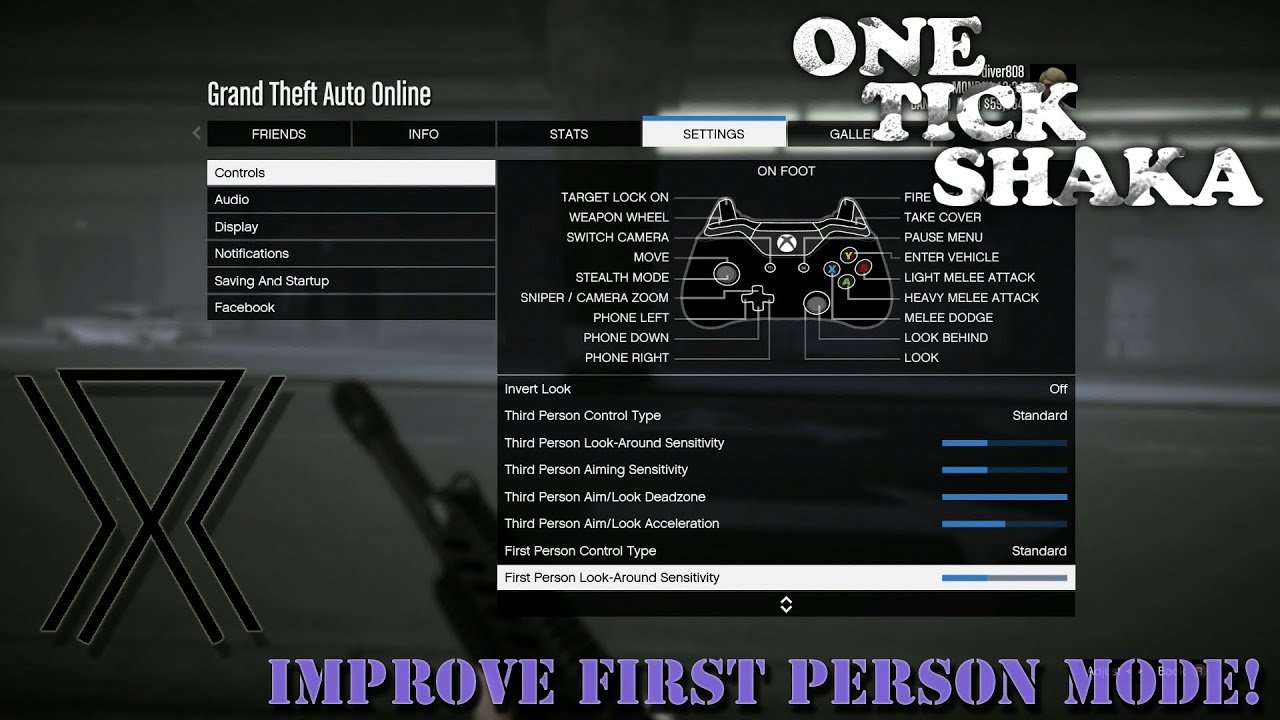
The optimal gta 5 online controller settings vary based on player preference, but generally, increasing sensitivity slightly helps with aiming, while also customizing button mappings can improve gameplay.
Jumping into Los Santos Online can feel overwhelming, especially when you’re battling other players. The default gta 5 online controller settings might not suit everyone’s style. Finding the right setup is key for improving your performance and overall enjoyment of the game.
Experimenting with different sensitivities and button layouts allows you to find the perfect fit. Small tweaks can lead to significant improvements in your aiming and movement capabilities.

GTA 5 Online Controller Settings: Fine-Tuning Your Gameplay
Okay, let’s dive deep into something that can make a huge difference in how well you play GTA 5 Online: your controller settings. It’s not just about randomly pushing buttons; it’s about setting up your controller so it works for you, not against you. A well-configured controller can help you win races, dominate in firefights, and just make exploring Los Santos a whole lot smoother. This isn’t just for pros; everyone can benefit from tweaking these settings. We will cover everything from basic button layouts to advanced sensitivity adjustments. Let’s get started!
Understanding the Basics: Button Layouts
First things first, let’s talk about how the buttons on your controller are arranged. GTA 5 Online provides a few different preset layouts, and it’s good to experiment with them to find what you’re comfortable with. Think of it like trying on different shoes; some just feel better than others. Here are a few common pre-set layouts:
- Standard/Default: This is usually the one you start with. It’s a good all-around setup, but it might not be the most efficient for everything.
- Shooter: This layout often swaps the buttons for crouching and sprinting. This can be very useful if you do a lot of shooting, as it allows you to keep your thumb on the aiming stick while crouching.
- Classic: A more retro-style mapping that might be comfortable for players coming from older games.
You are not stuck with the presets! The game also allows you to customize almost every button. This is where things get really interesting.
Customizing Your Buttons: Why and How
Why bother customizing your buttons? Well, because what works for one person might not work for another. Maybe you find that using the default button for “sprint” is awkward. By customizing, you can put the buttons where your fingers naturally fall, making the game feel more natural and less clunky. Here’s how you usually customize buttons in most versions of GTA 5 online:
- Go to Settings: Head to the main menu, then to “Settings”.
- Find Controls: Navigate to the “Controls” section.
- Customize: You will find options to customize your button layouts here. Select each function and assign a button that works best for you.
Tips for Button Customization:
- Prioritize essential actions: Make sure actions you use most often, like shooting, aiming, and sprinting, are easy to reach.
- Consider your grip: Think about how you naturally hold your controller and place buttons where they feel most accessible.
- Test frequently: Don’t be afraid to go back and make changes if something doesn’t feel right. Play around a bit and see what works.
Sensitivity Settings: The Key to Precision
Sensitivity settings are another part of your controller setup and are extremely important. This determines how quickly your character moves when you move the analog sticks. There are typically several sensitivity settings to consider, and we will discuss these now.
Look Sensitivity
Look sensitivity controls how fast your camera moves when you push the right analog stick. Higher sensitivity makes the camera move very quickly, which can be good for quickly looking around or aiming at fast-moving targets. However, it can also make your aim shaky. Lower sensitivity makes the camera move slower and more steadily, which can help with accuracy but might be too slow if you need to quickly turn around. Here are some things to think about with look sensitivity:
- High Sensitivity: Good for fast-paced action and quick reactions. But it can make aiming difficult.
- Low Sensitivity: Great for precise aiming and steady camera movement. But turning around may feel slow.
- Medium Sensitivity: A good middle ground that balances speed and precision. Many players use this as the starting point and change from there.
Aim Sensitivity
Aim sensitivity is like look sensitivity, but it controls how fast your crosshair moves when you aim down your gun. Again, this setting needs to be balanced. Too high, and your aim will be twitchy. Too low, and you might struggle to hit moving targets. Here are some things to consider with aim sensitivity:
- Higher Aim Sensitivity: Ideal for fast target acquisition and close-quarters combat, but your aim might be erratic.
- Lower Aim Sensitivity: Best for precision shooting at long range, making it easier to line up headshots.
- Experiment: You’ll have to test different settings to see what is the most comfortable for your style of play.
Vehicle Sensitivity
This setting controls how responsive your vehicles are to the analog sticks. If your vehicle sensitivity is too high, driving will feel very twitchy, and it will be hard to handle. If it is too low, your vehicle will be hard to turn and maneuver. Finding the right balance is very important for races and just getting around Los Santos. Here are some important things to keep in mind:
- High Vehicle Sensitivity: Ideal for making quick turns, but can be difficult to handle on fast cars or in tight spaces.
- Low Vehicle Sensitivity: Provides better control at high speeds and easier handling around tight turns, but can make it hard to make quick turns.
- Consider vehicle type: You might want a different vehicle sensitivity for cars, bikes, and planes.
Advanced Settings: Dead Zones and More
Beyond just sensitivity, there are a few more advanced settings that might be available in some controllers or through third-party software that can make a difference. Let’s take a look:
Dead Zones
Dead zones refer to how far you need to move the analog stick before it registers an input in the game. If you notice your character moving when you aren’t touching the stick, your dead zones might be too small. Adjusting the dead zone can make your movement and aiming much more responsive.
- Smaller Dead Zone: Your controller will respond to even the slightest movement of the analog stick. This is usually preferred by some advanced players, but it requires very precise control.
- Larger Dead Zone: It takes more movement to register an input. This can help reduce unintentional movement but might also make the game feel less responsive.
Acceleration
Some controllers or platforms may offer settings related to acceleration. This determines how quickly your sensitivity ramps up as you move the analog sticks. A low acceleration means there is less of a change as you move the analog sticks further away from the center. A higher acceleration will make it that the more you push the analog stick, the more the sensitivity increases in game. It may take some testing to get used to this setting.
Vibration
Controller vibration can enhance your immersion in the game, but it also can be distracting, especially in competitive situations. Some players like to turn it down to help stay focused. Turning off vibration can also save a little bit of battery.
Specific Gameplay Scenarios and Controller Setups
The best controller settings for you might change depending on what you are doing in the game. Here are some specific scenarios and the controller settings that might be best in them:
For Racing
Races in GTA Online often demand precision and quick reactions. Here are some settings that you may consider:
- Vehicle Sensitivity: Lower this a little for tighter handling, and try to find a setting where your vehicle doesn’t oversteer.
- Look Sensitivity: Keep this at a medium setting so that you can look around when you need to but also keep control of your vehicle.
- Button Mapping: Make sure that your handbrake is easily accessible.
For Combat
Gun fights in GTA Online are very intense. These settings may be what you are looking for:
- Aim Sensitivity: A medium to low setting is a good idea here, to help you stay on target.
- Look Sensitivity: Keep this medium to high so that you can keep aware of your surroundings.
- Button Layout: Make sure that you can move and crouch easily. The shooter layout may be a good choice here.
For Free Roam
Free roaming is the general exploration and gameplay that isn’t tied to any particular event. These settings are recommended for free roaming:
- Overall Sensitivity: Medium settings are great for just casual exploration, allowing you to quickly look around and move, but not so fast that your driving becomes hard to control.
- Button Layout: Comfort is key here, so use what feels natural to you.
Controller Types and Compatibility
GTA 5 Online is available on various platforms, and the best controller for you might depend on the console or PC you are playing on. Let’s look at the types of controllers and how they work with the game:
PlayStation Controllers
The DualShock 4 and DualSense controllers work great with the game on PlayStation. The game will have full compatibility with these devices and you should be able to easily remap any buttons you like. Additionally, they both have motion controls that can be used in the game, although some people like to turn them off.
Xbox Controllers
Xbox controllers are the standard when playing GTA 5 on an Xbox console. They also work well on PC. The Xbox controller also has a built in vibration feature and is fully compatible with the game and has a lot of button remapping options.
PC Controllers
On PC, you can use a variety of controllers, including PlayStation, Xbox, and third-party controllers. Many of these controllers will have full compatibility with the game, but there can sometimes be compatibility issues with non-official controllers.
Third-Party Software and Customization
Sometimes, the in-game settings aren’t quite enough. This is when you may consider third-party software that can help change controller sensitivity and button mapping. Here are a few things you may need to consider:
- Steam Controller Configuration: If you play on PC, Steam has controller configuration options that can help you customize your controller settings, even for non-Steam games.
- DS4Windows: This software allows you to use PlayStation controllers on Windows PCs and remap the buttons.
- ReWASD: This third party software is a very powerful tool that can be used for remapping any controller buttons and is not specific to a certain controller.
- Controller Driver: Make sure that you always have your controller drivers up to date, as this can often fix compatibility problems.
Controller settings can seem like a small detail, but they have a big impact on your gameplay experience. By taking the time to adjust your settings, you can make the game feel more natural and comfortable. Experiment, try out different settings, and find what works for you. Remember, it’s not about copying someone else’s settings; it’s about finding the setup that makes you play your best.
BEST SETTINGS TO USE FOR ALL CONSOLES IN GTA 5! (Easy Guide)
Final Thoughts
Tweaking your ‘gta 5 online controller settings’ greatly improves your gameplay experience. Experiment with sensitivity and dead zones for optimal control. Adjust button layouts to suit your playstyle; quick access to weapons and movement commands is crucial.
Perfecting your personal settings creates a competitive edge. Consider different configurations for driving and on-foot combat. A comfortable setup will make you more efficient during those intense online sessions.
Ultimately, optimizing your ‘gta 5 online controller settings’ is key to success. Finding what works best for you is worth the effort. Good settings impact how well you play.

