
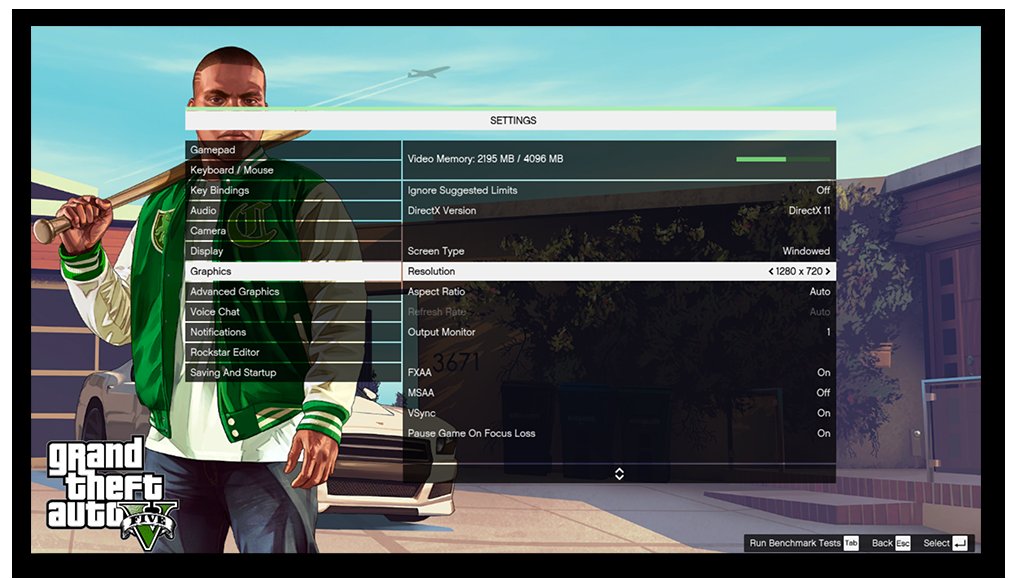
Adjusting your GTA 5 online display settings involves tweaking options like resolution, refresh rate, and graphics quality to optimize performance and visual fidelity.
Struggling with blurry visuals or choppy gameplay in Los Santos? You are not alone. Fine-tuning your GTA 5 online display settings is key to a smoother, more enjoyable experience. We know how critical optimal settings are, whether you crave crystal-clear graphics or prefer maximum frames per second. Let’s get into the nitty-gritty.
Finding the right balance between looks and performance can be tricky. Different PCs handle the game differently. This guide helps you navigate those confusing graphics menus and customize things to work best with your system.

Understanding Your GTA 5 Online Display Settings
Alright, let’s dive deep into the world of GTA 5 Online display settings. Think of these settings like the controls of your TV or monitor, but instead of changing channels, you’re changing how the game looks! Getting these settings just right can make the game look way better and even help it run smoother. We’ll explore everything from resolution to refresh rates, and how they all work together to give you the best possible experience in Los Santos and beyond.
The Basics: Resolution and Refresh Rate
First, let’s talk about the two big guys: resolution and refresh rate. These are like the foundation for how clear and smooth your game looks.
Resolution: How Sharp Your Picture Is
Resolution is like the number of tiny dots (pixels) that make up the picture on your screen. Think of it as a grid. The more dots there are, the clearer and sharper the image will be. Common resolutions you’ll see in the GTA 5 settings are:
- 1920 x 1080 (1080p or Full HD): This is a very common resolution. It gives you a nice, sharp picture, and most computers can handle it well.
- 2560 x 1440 (1440p or QHD): This resolution gives you even more detail than 1080p. It looks really good, but you need a more powerful computer to run it smoothly.
- 3840 x 2160 (4K or UHD): 4K is the king of sharpness! The game will look incredibly detailed. However, this is very demanding and requires a very powerful graphics card.
The higher the resolution, the more detail you’ll see, but the harder your computer has to work. If your game feels slow or choppy, you might need to lower your resolution a bit.
Refresh Rate: How Smooth the Motion Is
Refresh rate is how many times your screen updates the image each second. It’s measured in Hertz (Hz). A higher refresh rate makes the movement on your screen look smoother and less blurry. Common refresh rates include:
- 60Hz: This is the most common refresh rate for regular TVs and monitors. It’s perfectly fine for most gaming.
- 120Hz or 144Hz: These higher refresh rates make the game look much smoother. Especially noticeable when moving fast in the game. These are mostly on more expensive monitors designed for gaming.
If your monitor supports it, using a higher refresh rate can significantly improve your gaming experience. Just make sure your computer can keep up and push out those extra frames! It’s a good idea to match the refresh rate of your display to the game. If your monitor is 144Hz but you are only running at 60 FPS in the game, you will not be getting the full benefit of the higher refresh rate.
Advanced Graphics Options: Fine-Tuning Your Visuals
Beyond resolution and refresh rate, there are a lot of other settings that control how GTA 5 looks. These settings can be a bit confusing, but they have a big impact. Let’s dig into some of the key ones:
Graphics Quality: The Big Picture
This is where you choose a general level of graphics quality. You usually have options like “Low,” “Normal,” “High,” and “Very High.” Lowering graphics quality can give you better performance, while higher settings make the game look much better at the cost of performance. You may find that your PC can handle a mix of high and normal, and still look good with a smooth FPS. This setting will affect many of the settings mentioned below.
Texture Quality
Texture quality controls the detail of surfaces in the game, like walls, cars, and clothes. Higher texture quality will make everything look more detailed but uses more memory from your graphics card. If you’re running out of memory, try lowering this setting.
Shader Quality
Shaders affect how light and shadow interact with objects in the game. Higher shader quality can make the lighting look much more realistic, but it can also be taxing on your graphics card. Try playing around with this setting to see if you can get some extra performance.
Shadow Quality
Shadows are a huge part of how realistic a game looks. High-quality shadows can really add to the atmosphere. However, they also use a lot of processing power. If your performance is suffering, try lowering the shadow quality. You can also set shadow type to soft shadows which can be less of a drain on your system.
Reflection Quality
Reflections make shiny surfaces like water and cars look more real. Higher reflection quality looks beautiful but is also quite demanding on your computer. It’s often one of the first settings people reduce when they are looking to improve performance. In some cases you will not notice a big visual difference in some areas of the game, whilst in others it may be significant.
FXAA and MSAA: Anti-Aliasing Options
These are used to smooth out jagged edges that you see in games. Think of them as smoothing out the “stair-stepping” you might see on diagonal lines. FXAA is a quicker, less demanding form of anti-aliasing, but can blur the image. MSAA can provide a more effective anti-aliasing but is more demanding of your computer.
Population Density and Variety
This setting affects how many people and cars are in the game world. Higher density makes the world feel more alive, but it also requires more processing power. if you are experiencing frame drops, especially in busy areas like the city, try lowering this setting to see if it helps. Variety affects the variety of pedestrians and vehicles in game, and also can impact performance.
Distance Scaling
This determines how far into the distance you can see. A higher distance scaling means you can see objects from further away. This setting can affect performance if it is set too high. It can be helpful to lower it if you struggle to maintain a stable framerate.
Grass Quality
This setting controls how detailed the grass and plant life in the world appear. Lowering grass quality can free up valuable resources on your computer, but will of course affect the level of detail.
Post Effects
Post effects are effects that happen after the main rendering of the game image. Effects such as motion blur, depth of field, and bloom all fit into this category. If you are looking to get the most performance possible, try turning some of these options off. Some players prefer to play with some of these settings off, even if they do not need the extra performance, as they can make the game look more clear.
Vsync
Vsync (Vertical Sync) synchronizes your game’s frame rate with your monitor’s refresh rate. If you’re getting screen tearing (where the screen looks like it’s split), turning on Vsync can fix it, but you may get a slight performance hit and a small increase in input lag. This setting may improve stability, but may come at the cost of a few frames.
Monitor Specific Settings
Some settings are not just about the game, but also about how your monitor and graphics card communicate. These include:
Monitor Refresh Rate
When setting up your game, it’s crucial to ensure that the game is set to the correct refresh rate of your monitor. If the game is using a lower refresh rate than your monitor can handle, you will not be getting the smoothest possible image.
Display Mode
This option will let you set the game to run in windowed, borderless or full screen mode. Full screen mode is usually the best option in terms of performance. Some players prefer borderless windowed mode, as they can alt-tab out of the game without the game minimizing.
Aspect Ratio
This is the shape of your screen. Most modern monitors will use a 16:9 aspect ratio, but ultrawide and older monitors may use a different aspect ratio. You should set this setting in the game to match your monitor’s aspect ratio.
How to Find the Best Settings for Your Computer
Finding the perfect settings is different for each computer. It takes some experimenting to get it just right. Here’s a good approach:
Start With Presets
GTA 5 has presets like “Low,” “Normal,” “High,” and “Very High.” Start with one of these and see how your game runs. If it’s running smoothly, try moving up a setting. If your performance isn’t good, move down a setting.
Adjust One Setting at a Time
Don’t go changing all the settings at once. Change one setting, then play for a bit and see how it runs. This way, you can figure out which settings are causing the most trouble.
Monitor Your Frame Rate
A frame rate counter (FPS) can help you see how well your game is running. You can often enable a frame counter in the game settings or via third party software. A stable FPS of 60 or above is usually considered good. If you have a 120 or 144 Hz monitor, higher frame rates can be useful. You will want to get as much FPS as possible whilst still maintaining a smooth experience.
Test in Different Areas
The game may run fine in some areas but run poorly in others. Test your settings in different areas and during different activities to make sure your settings are stable. Try a busy city area, a fast paced race, or an indoor environment to test all settings.
Pay Attention to Your Hardware
Check your graphics card and processor usage during game play. These statistics can help you see which components are under the most strain, and will help you determine which settings to reduce to get better performance.
Online Play
Remember, GTA Online can be more demanding than the single-player game, particularly when there are lots of other players in your session. You may find that you need to lower the settings further for a smooth online experience.
Tips for Specific Scenarios
Different situations may call for different settings. Here are a few scenarios:
High-Intensity Races
During races, smooth frame rates are very important. You may want to lower shadows and post-processing settings to make sure the game runs smoothly even when things get chaotic. Fast moving objects require a good frame rate, so lower your settings if your game is running slow.
Exploring the City
In the city, population density and reflection quality can impact your performance. If you are struggling, lower these settings. The city can be the most taxing area to play in, and can really stress a computer. Don’t be afraid to turn down settings, if it means you can have a smooth experience.
Recording Gameplay
If you are trying to record gameplay, this can further reduce your performance. You may need to further adjust your settings. In these cases it can be beneficial to lower graphics quality, or consider a hardware upgrade if your computer isn’t powerful enough.
Experimentation is key to finding the right balance of graphical fidelity and performance for you. It takes some time, but it’s worth it to get the most out of GTA 5 Online. Don’t be afraid to adjust the settings as required, there is no perfect setting, and every user’s computer is different. A mix of normal and high settings often provides the best balance of visuals and performance.
By understanding each setting, you can fine tune your game to look its best and perform well. A good understanding of these settings can lead to a far more enjoyable gaming experience. Now that you are armed with the knowledge you need, go forth and adjust those settings!
17 GTA Online Settings You Need to Change NOW! (Console & PC Optimization)
Final Thoughts
Optimizing your ‘gta 5 online display settings’ significantly improves your gameplay. Experiment with different resolutions and refresh rates to find what works best for your system. Proper configuration ensures smoother visuals and responsiveness.
Adjusting advanced graphics options affects performance. Reduce settings like shadows or reflections if you experience lagging. These changes impact how the game performs.
Ultimately, fine-tuning your ‘gta 5 online display settings’ enhances your overall gaming experience. Find the ideal balance between visual quality and frame rate to enjoy GTA 5 online.

