
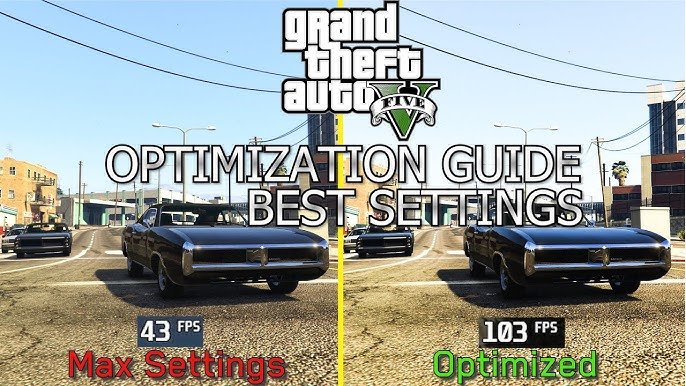
Lowering graphics settings, updating drivers, and closing background applications improve GTA 5 Online optimization.
Lagging in Los Santos? Frustrated with stuttering gameplay? We all know how annoying it is when your Grand Theft Auto experience is hampered by poor performance. Improving your gta 5 online optimization is crucial to enjoying the game.
Simple adjustments can make a world of difference. Often, basic graphics tweaks and ensuring your PC is up to date will fix many common issues. We will guide you to smooth gameplay.

GTA 5 Online Optimization: Get the Best Performance
Having trouble getting smooth gameplay in Los Santos? You’re not alone! GTA 5 Online can be a beast to run, even on good computers. But don’t worry, we’re here to help. This guide breaks down everything you need to know about making your game run better, so you can spend more time causing chaos and less time fighting lag.
Understanding the Performance Bottlenecks
Before we jump into tweaks, it’s good to know what’s causing the problems. Think of your computer like a race car. If one part isn’t working as well, the whole car slows down. Here are the main things that can hurt your GTA 5 Online performance:
- CPU (Central Processing Unit): This is like the brain of your computer. It handles all the calculations for the game. A weak CPU can struggle with the busy world of GTA 5.
- GPU (Graphics Processing Unit): This is like the picture maker. It’s responsible for creating all the beautiful (and sometimes chaotic) visuals. If your GPU is weak, the game might look choppy.
- RAM (Random Access Memory): Think of RAM as the short-term memory. It keeps information your computer is using right now. Not having enough RAM can cause the game to stutter or even crash.
- Storage Speed: How fast the game loads data from your hard drive or SSD can affect load times and in-game performance. SSDs are much faster than traditional hard drives.
- Internet Connection: GTA Online is an online game. A slow or unstable internet connection will make it laggy.
Knowing where the bottleneck is helps us focus our efforts on the right fixes.
In-Game Graphics Settings
The easiest way to improve performance is by tweaking your in-game settings. It’s like turning down the lights in a room to save electricity, except we’re making GTA 5 less demanding on your computer. Here’s a breakdown of important settings:
Graphics Quality
These are your big levers to pull. Lowering these settings generally gives you the biggest performance boosts, at the cost of some visual fidelity.
- Texture Quality: This controls how detailed surfaces look. Lowering it can help a lot without making the game look too bad.
- Shader Quality: This affects how light and shadows are rendered. Lowering this gives significant performance benefits, but may also noticeably decrease visual appeal.
- Shadow Quality: Shadows can be quite demanding. Turning them down or off is a good way to boost frame rates.
- Reflection Quality: Reflections on cars and surfaces can be taxing. Reducing this improves performance.
- Water Quality: Lower this if you’re having trouble, especially if you are near water a lot in the game.
- Grass Quality: Grass can be surprisingly demanding. Lowering it makes a difference in many areas of the map.
Advanced Graphics
These settings often have the biggest performance impact. Experiment carefully to find what works for your computer:
- Long Distance Scaling: This controls how far away the game renders detailed objects. Lowering this can drastically increase performance but can also make distant objects look blurry. Start by reducing it slightly and test.
- Ambient Occlusion: This controls how shadows are formed where objects meet. It looks nice, but can put a lot of strain on your system. Turning it off gives a good performance increase.
- MSAA (Multisample Anti-Aliasing): This setting makes edges look smoother, but it’s one of the most demanding settings in the game. Turn this off for a good boost in frame rate, or reduce it to the lowest settings.
- TXAA (Temporal Anti-Aliasing): Another form of anti-aliasing, which can cause a blur. If you are having problems, disable or use MSAA instead.
- FXAA (Fast Approximate Anti-Aliasing): This is a less demanding form of anti-aliasing. A good alternative if you need some anti-aliasing, but turn this off if you still see FPS problems.
Other Graphics Settings
- Population Density and Variety: Lowering the amount of traffic and pedestrians decreases the load on your CPU. If your CPU is the bottleneck, lowering these will help a lot.
- Frame Scaling: This allows the game to render at a lower resolution and upscale it to your monitor’s resolution, potentially improving performance at the cost of visual clarity. This is an option to explore if other adjustments are not enough.
Pro-Tip: Don’t just randomly turn settings off. Start with a specific area where you feel the game is performing worst and see if changing settings has the desired effect. Make small changes, one setting at a time, then play for a bit and see the results, before making another change.
Here’s a basic table to help you choose the best graphics settings for better performance:
| Setting | Performance Impact (High to Low) | Recommendation |
|---|---|---|
| Texture Quality | Medium | Lower to Normal if needed |
| Shader Quality | High | Lower to Normal if needed |
| Shadow Quality | High | Lower to Normal, or Off for best results |
| Reflection Quality | Medium | Lower to Normal if needed |
| Water Quality | Medium | Lower to Normal if needed |
| Grass Quality | Medium | Lower to Normal if needed |
| Long Distance Scaling | High | Adjust until acceptable |
| Ambient Occlusion | High | Off or Lowest |
| MSAA | Very High | Off for best results |
| TXAA | High | Off for best results |
| FXAA | Medium | Off or low setting |
| Population Density & Variety | High | Lower to the lowest setting |
| Frame Scaling | Medium to High | Only when other optimizations doesn’t help |
Optimizing Your PC
Game settings are only half the battle. Your computer itself needs to be running smoothly. Here are some tips:
Update Your Drivers
Outdated graphics card drivers can cause all sorts of problems. Make sure you have the latest drivers for your NVIDIA or AMD graphics card. You can get these from their official websites.
- NVIDIA: Go to NVIDIA’s website, find the Drivers tab, and search for your specific graphics card.
- AMD: Go to AMD’s website, find the Support & Drivers section, and search for your specific graphics card.
Always download and install the latest driver version for your specific card.
Keep Windows Up-to-Date
Windows updates often include performance improvements and bug fixes. Go to Settings -> Update & Security -> Windows Update and make sure you have the newest update installed.
Close Unnecessary Programs
Having a bunch of other programs running in the background takes up valuable resources, especially RAM and CPU. Close any programs you aren’t using before launching GTA 5. This includes browser windows, music players, and other applications that are running in the background. The less programs running, the more resources for GTA 5.
Adjust Power Settings
Your power settings can affect game performance. Go to Control Panel -> Hardware and Sound -> Power Options. Make sure your power plan is set to “High performance.” This ensures your computer is giving GTA 5 the resources it needs.
Important Note: This setting can increase your computer’s power consumption and heat. Check your system’s temperatures while playing to make sure it isn’t overheating.
Manage Startup Programs
Many applications automatically start when you turn on your computer, taking up resources. You can disable these to improve performance and boot times. Here’s how:
- Press Ctrl + Shift + Esc to open Task Manager.
- Go to the “Startup” tab.
- Disable any programs you don’t need to start when you turn on your computer. Be careful what you disable. You can always reenable them later.
Clean Up Your Hard Drive
A cluttered hard drive can cause slowdowns. Delete any unnecessary files and run a disk cleanup utility. Also, use disk defrag to organize files on your hard drive. If you are using an SSD, don’t defrag it, as it can decrease the lifespan of an SSD. If you have windows, then a windows tool automatically defrag your disk if you are using an HDD, which is a good practice.
Overclocking Your Hardware (Use With Caution)
Overclocking is a bit like giving your CPU or GPU a small boost. It can improve performance, but it also generates more heat and can damage your components if done incorrectly. Only consider this if you know what you’re doing, and start small. A guide is recommended, if you want to do this.
Internet Connection Optimization
A stable and fast internet connection is important for a lag-free GTA Online experience. Here are some tips to make your internet work better:
Use a Wired Connection
If possible, connect your computer to your router using an ethernet cable instead of Wi-Fi. Wired connections are generally faster and more stable.
Restart Your Router
Sometimes, your router needs a reset to work correctly. Turn it off, wait 30 seconds, then turn it back on. This can help fix many common connection issues.
Close Background Applications
Just like on your computer, apps running in the background can use up your internet bandwidth. Close any apps using your internet while you play to provide as much bandwidth as possible to the game.
Check Your Internet Speed
Use a speed test website to make sure your internet speed is what you’re paying for. If your speeds are significantly lower than they should be, then contact your internet service provider.
Router Placement
Make sure your router isn’t in a bad location. Try to keep the router in an open space, not hidden in a cabinet or behind any metal objects. This can improve connection range and speed.
Specific Game Tweaks
Beyond settings, there are a few other things you can do:
Verify Game Files
Sometimes game files can get corrupted, causing performance issues or crashes. Use the game launcher (e.g., Steam, Epic Games) to verify your game files. This will replace any corrupt or missing files.
Run Game in Fullscreen
Running the game in full-screen mode usually performs better than running in windowed mode. In full-screen mode, the computer focuses only on the game and nothing else.
Lower Your Screen Resolution
If you are still having performance problems, try lowering your screen resolution. This decreases the number of pixels your GPU has to process, resulting in an improvement in frame rates, at the cost of the sharpness of the image.
Consider a Game Booster
Some programs are designed to temporarily pause background apps and processes while you play games. These programs can help your computer focus on the game itself, and can sometimes boost the overall performance.
Dealing With Specific Issues
Sometimes, you might encounter specific problems that need unique solutions:
Stuttering or Frame Drops
If you see the game occasionally freeze or drop frames, it’s likely a CPU or RAM issue. Try lowering graphics settings and closing background applications. Also, make sure that your computer is not overheating, as this can cause a performance slowdown.
Long Load Times
If the game takes a long time to load, you should install the game on an SSD. SSDs are much faster than traditional hard drives and will dramatically reduce load times. Also, if you are playing on a laptop, make sure it is not using the integrated graphics instead of dedicated graphics.
Lag in Online Sessions
If you’re lagging in online sessions, it’s likely a network issue. Try the internet connection optimization steps mentioned earlier. Also, make sure your game settings are not too high for your system. Check if you have any other program that uses the internet and may be creating a problem.
Freezing or Crashing
If your game is frequently freezing or crashing, then your system might not have the minimum system requirements. Ensure your system is adequate. Also, make sure you have the latest drivers installed. Additionally, check if your computer’s hardware (CPU, GPU, or RAM) is overheating.
By understanding how GTA 5 Online works and optimizing your PC and network, you can get the game running as well as possible. Start by changing your in game settings, then check for PC optimizations and finally make sure your network is also working well. Sometimes, you might have to do a few different things to get the perfect performance for your system.
By following these tips, you’ll be back to enjoying Los Santos with smoother gameplay in no time. Remember, every computer is different, so you might need to experiment to find the settings that work best for you. Don’t be afraid to try out different options and see what changes get you the best performance. Happy gaming!
17 GTA Online Settings You Need to Change NOW! (Console & PC Optimization)
Final Thoughts
Optimizing your settings can drastically improve GTA 5 Online performance. Experiment with graphics options, especially resolution and shadow quality. Lowering these often yields noticeable frame rate gains.
Closing background applications frees up resources. This can provide a smoother experience while playing. Ensure your drivers are up to date for further improvements.
Ultimately, tweaking various in-game settings alongside system adjustments are key for gta 5 online optimization. Finding the right balance will give the most enjoyable playing experience.

