
Poor GTA 5 online performance often stems from outdated drivers, high graphic settings, or a weak internet connection.
Is your meticulously planned heist crumbling due to lag? Frustration is common for players experiencing poor gta 5 online performance. We’ve all been there, watching our getaway car teleport across the map, or getting mysteriously disconnected during a crucial mission.
This article addresses common culprits impacting your online experience. We will explore how to tweak your setup for a smoother gameplay. You will learn about the main areas you need to focus on to reduce those annoying interruptions in Los Santos.

GTA 5 Online Performance: Getting the Best Experience
Okay, so you’re itching to cruise around Los Santos, pull off epic heists, and maybe even cause a little chaos in GTA 5 Online. We get it! But sometimes, things don’t run as smoothly as we’d like. The game might stutter, lag, or just feel a bit… clunky. That’s not fun, especially when you’re trying to outsmart other players or escape the cops. This whole thing about performance in GTA 5 Online – it’s kind of a big deal. It can make or break your gaming experience. So, let’s dig into what affects how well the game runs and how to make it better.
Understanding the Basics: What Affects Your Game?
Before we start tweaking things, let’s talk about the main reasons why GTA 5 Online might not be performing its best. Think of it like this: your computer or console is like a race car. If parts aren’t working right, the car won’t go fast. Same with your game.
Your Computer (PC): The Engine Under the Hood
If you’re playing on a PC, several things matter:
- Graphics Card (GPU): This is like the engine in your car. It’s in charge of making all the pretty pictures you see in the game. A good, powerful graphics card is super important for smooth gameplay, especially at higher screen resolutions and details. If your GPU is old or not very strong, you may see lag or lower quality visuals.
- Processor (CPU): This is like the brain of your computer. It takes care of a lot of tasks, including processing the game’s actions. A strong CPU helps ensure that the game responds quickly to your commands. If your CPU is slow, you might experience stuttering.
- RAM (Random Access Memory): Think of RAM as the workspace for your computer. When you play a game, the computer uses RAM to store information it needs quickly. More RAM means your computer can handle more tasks at once, making the game run smoother. 8GB is the bare minimum today, but 16GB is much better.
- Storage Drive (HDD/SSD): The place where the game is installed also has an impact. SSDs, which are faster than traditional hard drives (HDDs), can significantly reduce loading times. If your game is on an old, slow HDD, your game will probably take longer to load and may stutter during gameplay.
Your Console (PlayStation/Xbox): The All-in-One System
Consoles are simpler because they’re all made with the same parts. However, they still face performance hurdles:
- Hardware limitations: While consoles are designed for gaming, they can still reach their limits, especially with older models. If you’re playing on an older console version, like PS4 or Xbox One, you may encounter performance issues that newer models handle much better.
- Storage Space: Having too little space on your console’s hard drive might slow down the game. Make sure you have enough free space for the game and any updates.
- Internet Speed: Even though consoles are usually designed to be stable, a bad internet connection can affect your performance online, causing delays and lag.
Internet Connection: The Highway for Online Play
No matter what device you play on, your internet connection is super important, especially for GTA 5 Online.
- Speed and Stability: A fast and stable internet connection is crucial. If your connection is slow or keeps dropping out, you’ll likely experience lag, rubber banding (where your character snaps back to a previous location), and other issues that make the game hard to play. A wired connection (Ethernet cable) is generally more reliable than Wi-Fi.
- Latency (Ping): Latency, or ping, is how long it takes for your game to communicate with the game server. Lower ping is better. High ping causes noticeable delays in your actions and can make playing with others a headache.
Tweaking Your Game Settings for Better Performance
Now that you know what affects your performance, let’s get down to business. Here are some things you can change to help the game run smoother. These settings will be in-game, so you do not have to change any computer or console setting except the internet connections.
Graphics Settings on PC: The Visuals vs. Performance Trade-Off
On PC, you have a lot of options to change how the game looks and performs. The goal is to find the sweet spot – good graphics that run smoothly. Here are some key settings you can change:
- Resolution: This is how many pixels your screen is showing. Lowering the resolution makes the game look less detailed but can make it run much smoother. Try lowering it one step at a time to see if it improves things without making the game look too bad.
- Texture Quality: This affects how detailed the surfaces in the game look. Setting it to normal or high is usually a good choice, but if you have a weaker graphics card, try setting it to normal or even low.
- Shader Quality: This impacts the lighting and shadows in the game. Lowering the quality can help improve performance but may make the game look a bit less impressive. Try starting with normal and see how things work.
- Shadow Quality: Shadows can put a big strain on your system. Try reducing the shadow quality to improve your frame rate. Even setting it to softest can provide a boost with minimal visual change.
- Reflection Quality: Reflections can be very demanding. Turning them down or off is another great way to boost performance. Start by setting reflections to normal or low.
- Anti-Aliasing: This smooths out jagged edges, but it can slow down your game. Try turning it off or using FXAA (a less demanding method) if you are facing the issues.
- Population Density/Variety: These settings control how many people and vehicles are in the world. Lowering these values can really help on slower computers.
- Advanced Graphics: Under ‘Advanced Graphics’, you will find a lot of demanding settings. Try turning off things like ‘Long Shadows’ and ‘High Resolution Shadows’. The distance scaling slider, especially the extended version, can have a very big impact on performance, so try moving this lower if your game runs slowly.
Console Settings: Limited Options, Big Impact
On consoles, you don’t have as many graphics settings to play around with, but there are still things you can do:
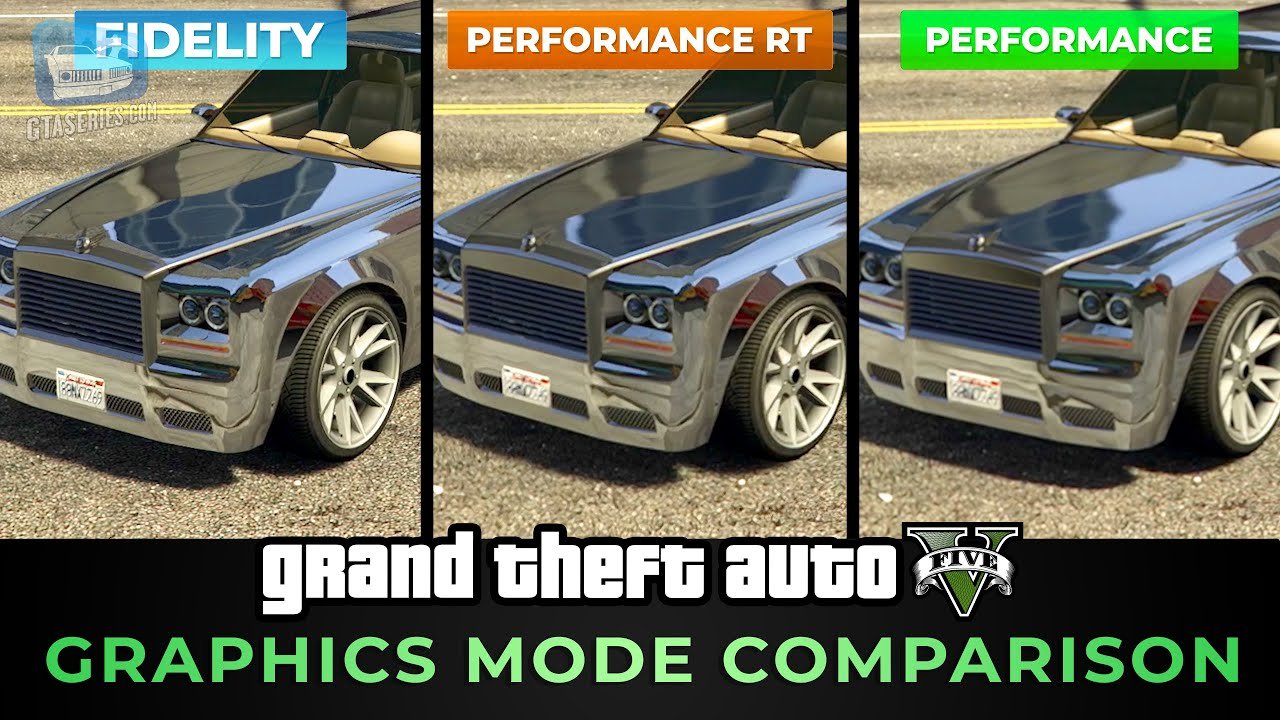
- Prioritize Performance: On newer consoles like PlayStation 5 and Xbox Series X/S, you may be able to select a performance mode. This mode often lowers resolution and some graphical settings to achieve a smoother frame rate.
- Ensure Game is Installed on Internal Drive: To make sure you get the best performance, install the game on the internal drive of your console or on the officially supported expansion hard drives.
General Tips to Improve Performance on Both PC and Consoles
These tips can help anyone, whether you’re on a PC or console:
- Close other programs: Before playing, close any other programs or apps running on your computer or console. These can use up memory and slow down your game.
- Keep your system updated: Make sure your operating system and graphics drivers (on PC) are updated. Updates often contain performance improvements and bug fixes.
- Check for game updates: Always have the latest version of the game installed, as updates often include performance patches.
- Restart your device: Sometimes, simply restarting your computer or console can fix problems.
- Check your internet connection: Try restarting your modem and router to improve your connection speed and stability.
Digging Deeper: Advanced Troubleshooting for PC
If you’ve tried all the basic stuff and your PC still isn’t running GTA 5 Online well, we need to try some advanced troubleshooting tips. These require a bit more technical know-how, but they can really make a big difference. So let’s get into it.
Monitoring Your System: Knowing What’s Going On
Before we change any settings, we need to see what’s happening with your system when you’re playing the game. This can help us figure out if a particular component (like your GPU or CPU) is struggling.
- Task Manager (Windows): Press Ctrl+Shift+Esc to open the Task Manager. Go to the “Performance” tab. While you play, keep an eye on CPU, GPU, and memory usage. If one of them is constantly maxing out, that’s likely a bottleneck.
- Resource Monitor (Windows): You can get to Resource Monitor through Task Manager. This tool gives you more detailed information about what’s happening in your system, like disk usage and network activity.
- Monitoring Software: For more detailed information, you can try third-party tools like MSI Afterburner or HWMonitor. These programs show your GPU temperature, clock speed, and other important details that can tell you if something is overheating or being held back.
Driver Updates: Keeping Everything Current
Outdated drivers are a common cause of performance issues, particularly with graphics cards. Here’s how you update them:
- NVIDIA Drivers: Go to the NVIDIA website and download the latest drivers for your graphics card. You can also use the NVIDIA GeForce Experience software to manage and update your drivers.
- AMD Drivers: Similarly, go to the AMD website and download the newest drivers for your AMD graphics card. You can also use the AMD Radeon Software.
- Intel Drivers: If you have an Intel CPU with integrated graphics, you can download the latest drivers from the Intel website.
Managing Background Processes: Reducing Load on Your PC
Sometimes, many apps are working in the background without you even knowing it. These can use up resources and make your game slow. Here’s how to manage them:
- Close Unnecessary Programs: Make sure you close any programs you aren’t using while playing games. This can free up memory and processing power.
- Disable Startup Programs: Some programs start automatically when you turn on your computer. Disable the startup of any programs you don’t need to start automatically. You can do this in the Task Manager under the Startup tab.
- Check System Tray: Look at the bottom-right corner of your screen (the System Tray). Close any running programs there that you don’t need. These can sometimes be working in the background without being seen.
Overclocking: (Use with Caution) Giving Your System a Boost
Overclocking is like giving your computer’s parts a small boost to make them work a bit faster. It should only be done by experienced users as it can damage your system if done improperly. If you do decide to try it, always proceed with caution.
- Overclocking Your GPU: Use software like MSI Afterburner to increase the clock speeds of your graphics card. Be careful not to increase the speeds too much, and keep a close eye on the temperature. If the GPU gets too hot, the overclock may not be stable.
- Overclocking Your CPU: This is more complex and requires adjusting settings in your computer’s BIOS. It’s best to consult with guides and resources specific to your CPU and motherboard if you plan to overclock your CPU. Overclocking your CPU can cause very serious issues if done incorrectly.
Adjusting the Game’s Configuration File
For advanced users, there is an additional settings file that you can manually adjust to try and improve performance. But make sure that you understand what you are doing. This method is not recommended for beginners.
- Accessing the File: The file is located in the Documents folder, inside the Rockstar Games folder, within the GTA V folder. The file you are looking for is called ‘settings.xml’.
- Adjusting the File: This method can be used to force certain settings, which are not present in the games’ settings, and to turn off certain effects completely. Before doing any change, make a backup copy of the file. Change only the settings you understand, as doing incorrect changes can make your game unplayable or unstable. There are many guides on the internet that explain the settings in the file, so before doing this method, make sure you have proper information on what you are going to do.
- Saving the Changes: Once you are done with the changes, make sure to save the file. Start the game and see if the performance improves.
Dealing with Common GTA Online Performance Problems
Let’s tackle some of the common performance hiccups that you might come across in GTA Online.
Lag: When the Game is Slow to Respond
Lag is probably the most common issue players face. It makes everything feel delayed, and it can make playing the game very frustrating. Here’s how to reduce it:
- Check Your Internet Connection: A poor internet connection is a major reason for lag. Restart your router and modem, and try a wired connection if you’re using Wi-Fi.
- Close Background Applications: Make sure no other programs are using your internet connection while you’re playing the game.
- Switch Game Servers: Sometimes, a particular server may be experiencing issues. Try switching to another server in the game settings.
- Lower Game Settings: Reducing your graphics settings can also make the game easier to run, which helps the internet connection load everything faster.
Stuttering: When the Game Freezes for Short Periods
Stuttering, or micro-stuttering, is when the game freezes for a very short amount of time, and then gets back to normal. This is often caused by CPU, hard drive or memory issues. Here are the tips for fixing the stuttering:
- Reduce Settings: Lowering your graphics settings can help with stuttering, especially shadow settings, and population density.
- Check Your Hard Drive/SSD: If your hard drive is slow, it can cause stuttering. Try to install the game on a SSD if you can. If you’re already using an SSD, make sure it has enough free space.
- Check for Memory Issues: If you have little RAM, it will cause stuttering. Try closing extra background programs or try to upgrade the RAM.
- Update Your Drivers: As we mentioned before, it can fix the stuttering as well.
Freezing: When the Game Stops Completely
When the game freezes completely, it’s extremely frustrating. Here’s how to deal with this:
- Check your hardware temperatures: Overheating can cause freezes. Use monitoring software to check CPU and GPU temperatures. Make sure all components are well ventilated and cleaned from dust.
- Check the game files: Sometimes the game files can be corrupted and cause freezing. Verify integrity of the game files through the game launcher you are using to run the game.
- Reinstall The Game: If nothing else is working, reinstalling the game can be a solution. Always make a backup copy of your save files before reinstalling the game.
- Check your system: Sometimes the hardware itself is failing, which can cause freezes. Try stress testing the components to make sure they are stable.
Graphical Glitches: Weird Visual Problems
If you see weird visual glitches like flickering textures, black patches, or odd character models, try these things:
- Update your drivers: Outdated drivers can cause graphical problems. Always try updating drivers first before doing any other changes.
- Verify game files: Corrupted game files can cause all sorts of issues. Use your game launcher to check the integrity of your game files.
- Check your graphics card: Make sure the graphics card is connected properly, and if the card is old, make sure it is still working correctly.
By understanding what causes performance issues and how to fix them, you can greatly improve your GTA 5 Online experience. Remember, every system is different, so you may need to try a combination of these tips to find what works best for you. Don’t be afraid to experiment with your settings and find the right balance of visual quality and smooth gameplay. With a bit of effort, you can enjoy all that Los Santos has to offer without constant interruptions.
Remember, every setup is unique, so finding the perfect balance might take some trial and error. Don’t be shy to experiment with different settings to see what works best for your specific situation. With a bit of patience and the right approach, you’ll be cruising around Los Santos, pulling off heists, and enjoying everything GTA 5 Online has to offer, without constant lag or stuttering!
GTA 5 Online – Performance / Performance RT / Fidelity Comparison
Final Thoughts
In summary, optimizing your settings and internet connection significantly impacts gta 5 online performance. Frame rate drops and lag often stem from outdated drivers or crowded servers. Fine-tuning graphics options provides a smoother gameplay experience.
Consistent troubleshooting helps maintain better gta 5 online performance. Experiment with different configurations to find the best balance for your system. A stable internet connection is crucial.

