
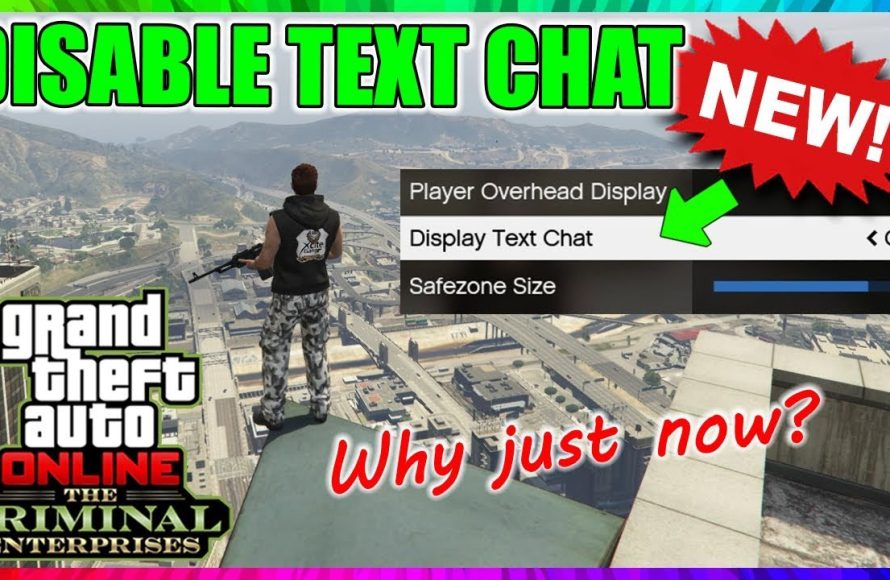
GTA 5 online text chat allows players to communicate with each other through typed messages during gameplay.
Ever wondered how everyone manages to coordinate those crazy heists in Los Santos? A big part of it comes down to the GTA 5 online text chat. This feature lets you send quick messages to your crew and other players in the session.
It is a fundamental part of the online experience, assisting players to form groups, plan missions, or just casually interact while causing mayhem. Getting a grasp of how to use this can really change how you experience the game.

GTA 5 Online Text Chat: Your Guide to Communicating in Los Santos
Have you ever been cruising down the streets of Los Santos in GTA 5 Online, trying to organize a heist, or maybe just wanted to chat with your friends, but couldn’t find your headset? That’s where the text chat comes in! It’s like a secret language for gamers – a way to talk without making a sound. It lets you send messages to everyone in your session, your crew, or even just your friends. But, navigating this system can be a bit tricky if you’re new to the game or if you haven’t explored all the little features. Let’s jump into all the cool things you can do with the text chat in GTA 5 Online. Let’s make you a text chat pro!
Accessing the Text Chat
Okay, first things first: how do you actually open the text chat? It’s not always obvious, and it can be different depending on what you’re playing on. Let’s break it down for each platform:
On PC
If you’re on a computer, it’s super easy. Just hit the ‘T’ key on your keyboard. This will bring up the chat box, and you can start typing away. Press Enter to send your message into the world.
On PlayStation and Xbox Consoles
For console gamers, it’s slightly different. You’ll need to press the D-pad down button. This opens the chat window. Now, to actually type, you will use the on-screen keyboard using your controller. After you finish writing, you will confirm and then the message will be sent. It might feel a little bit slow at first, but you’ll get faster with practice.
Understanding the Different Chat Channels
The text chat isn’t just one big message board. There are different “channels” that let you talk to specific groups. It’s like having different rooms for different chats. Here’s what you need to know:
Public Chat
The public chat is the biggest, and the loudest. This is where your messages go when you just press “send”. Everyone in the game session will see your words. It’s perfect for when you want to say hello to everyone, organize a big activity, or just have some casual chit-chat. Be mindful that everyone can see what you write, so maybe keep those secret plans out of public view.
Direct Messages or Private Chat
Want to talk to just one friend or teammate? Then direct messages are your best bet. You can directly message an individual player, and only they will see what you write. This is great for planning heists, helping a friend out, or having a private discussion away from the chaos of the public chat.
To send a DM on PC, you can type “/pm [player name] [your message]” in the public chat, or you can also use the player list from the interaction menu to choose someone to message. On consoles, you’ll need to use the menu to select the player you want to message. Select ‘message’ or ‘chat’ or similar option from the interaction menu.
Crew Chat
If you’re part of a crew, the crew chat is perfect for your team. Only members of your crew will see these messages. It’s like having your own private group chat! It’s great for organizing crew activities, like grinding missions, and having those crucial discussions with team members. To access this chat, you will usually need to select this option from the chat box. You might need to choose different categories to access the crew option.
Proximity Chat
In some instances, GTA Online also implements a proximity text chat. This means that you only see the text messages from people near you in the game world. As people move away from you, you won’t be able to see their messages and vice versa. This chat system promotes interactions in the in-game world and you will have to be close to each other in the game world to communicate. This is great for localized events, or if you are near a specific place or a particular building in the game, etc.
Using the Text Chat Effectively
Now that we know the basics, let’s talk about using the text chat like a pro. Here are some tips and tricks to make sure your messages are clear and get noticed.
Keep it Short and Sweet
No one likes reading huge walls of text. Keep your messages short and to the point. Use abbreviations and shorthand if they’re well-known in the GTA community. For example, “LFG” is ‘Looking For Group’, ‘AFK’ is ‘Away From Keyboard’ and ‘BRB’ is ‘Be Right Back’. However, make sure that abbreviations you are using are well known and it’s easy to understand for everyone. This will help everyone read quickly and understand your messages without wasting a lot of time. No need to write whole paragraph when just one or two short sentences will do the job.
Be Clear and Specific
When trying to organize an activity, be very clear about what you need and what you are planning to do. Don’t just say “heist?” instead, say “Need 3 for The Diamond Casino Heist, 25% cut, mic preferred”. This way, people know exactly what you are asking for, and there is no confusion. Specificity will definitely help you find people to join you quicker.
Use Emotes (Sometimes)
While you can’t send emojis in the traditional sense, you can use some basic text-based emotes to convey your emotions. For example, “:)” for happy, “:(” for sad, and “;)” for a wink. Don’t overdo it with emotes, but a few can add some personality to your chats. However, remember that not everyone might be familiar with the common usage of text based emotes, so make sure that you use it in an understandable way.
Don’t Spam
Nobody likes getting spammed with messages. If you are repeatedly sending messages in the public chat, people will get annoyed and might not take you seriously. If someone doesn’t reply the first time, don’t send the same message repeatedly. Give them time, or try a different method, such as sending a friend request or even a voice message.
Use a headset when needed
While text chat is helpful in many scenarios, voice chat is sometimes better for complex communication. When it comes to planning heists, communicating in-game strategy, or coordinating attacks it’s always better to use voice chat so that you can quickly communicate with other players without taking breaks from the action. Text chat can sometimes be slower when it comes to planning or communicating in the middle of an action, as you will have to write everything manually. Therefore, depending on the situation, it’s always good to use a headset when needed.
Common Text Chat Issues and How to Fix Them
Sometimes, the text chat can act a bit weird. Here are some of the common problems people run into and how you can fix them:
Chat Not Appearing
If you try to open the chat and nothing happens, check these few things. First, make sure you have actually pressed the correct key or the correct button. For PC players, make sure that your ‘T’ key is working correctly. Sometimes your keyboard might have issues, and you will need to use another keyboard to test that. For console players, make sure that the D-pad button is working correctly. Sometimes your controller can also be broken.
Second, try restarting your game. Sometimes a simple restart can fix a lot of these issues. Try closing the game and starting it again.
Third, check if your chat is enabled in game settings. Go to the settings menu and make sure that the text chat option is not disabled. You will find the text chat settings in the game’s main menu, usually inside game settings or network settings or similar option. If it’s disabled, simply enable it and that should fix the issue.
Chat is Laggy or Slow
If your text chat is taking a long time to appear or if your messages are slow to send, it may be because of your internet connection or server issues with GTA Online. Make sure that you have good internet connection with low ping. Try restarting your modem/router and see if it fixes your issue. You can also try switching to a wired connection if you are on a WiFi connection. If that doesn’t fix your problem, then there might be issues on the game server. You will just have to wait in that case, since there is nothing you can do from your end.
Messages are Not Sending
If you type a message and it doesn’t send, or if you get an error message, there could be a few things happening. Firstly, check your spelling and make sure there are no banned words. The game might block messages with inappropriate language, and that will result in your messages not sending. Try again using different words or check your message carefully. Secondly, check your internet connection because if there is no internet, you can’t communicate using the chat system. Finally, if none of these fixes the issue, then restarting your game might solve the problem.
Tips for a Safe and Fun Chat Experience
The text chat is all about having fun, but it’s important to stay safe. Here are a few things to remember:
Be Respectful
Treat everyone with respect. Avoid using foul language, hateful words, or making personal attacks on other players. Even though it’s just a game, words can still hurt people, so be nice to each other.
Don’t Share Personal Information
Never share your personal information, such as your real name, address, email, or phone number, with anyone in the chat. Online safety is very important, and sharing personal information can create a risk of safety issues. It’s always better to be cautious and not share information with unknown people.
Be Careful of Scammers
Be careful of people promising free in-game money, accounts, or other things that sound too good to be true. These are often scams, and it’s better to avoid clicking on any suspicious links or participating in any potentially risky activity. In simple words, if something is too good to be true, it usually is.
Report Bad Behavior
If someone is bullying you, sending inappropriate messages, or acting in a way that violates the rules of the game, you can report them. This helps keep the game community a safer place for everyone. There are many options to report other players via the interaction menu. Report toxic players and help keep the game community safe.
Advanced Text Chat Techniques
For those of you who want to take text chat to the next level, there are some more advanced techniques you can use:
Using Custom Keybinds on PC
On PC, you can actually bind different actions to a specific key. You can, for example, create a hotkey to open the chat, or even to send predefined messages with just one press of a button. To do this, you will need to dive into the game’s settings and check the options for key bindings. You can set a separate button for opening chat, or you can assign preset messages so that you don’t have to write the same messages again and again. This will save you a lot of time and also will help you in quickly writing preset messages.
For example, you can set a keybind for the phrase “Need help on a heist.” So you just have to press one button instead of typing it every time. Explore the keyboard binding settings to see what you can bind for the text chat options.
Using Text Chat as a Role Playing Tool
Many players in GTA Online use text chat to role-play different characters. This can add another level of fun and immersion to the game. For instance, you can role-play as a police officer and communicate with other players in that manner. If you’re into role-playing, the text chat is a crucial tool for engaging with other role players. Make sure that the other players also agree with your type of role-playing though.
Text chat opens up the game in many ways. You can use it to create short in-game stories or even mini role playing situations. You can be a cop, a criminal, or something else entirely. The possibilities are almost endless.
Using Chat for Trading
Text chat can also help in trading things inside the game, although you can’t trade in-game money. However, you can ask other players to join you in heists or missions in exchange for their help in yours. You can write a message like “I will help you on your heist if you help me with mine” or something similar. It’s not a direct trade in the game, but the text chat system can definitely help in creating scenarios for mutual benefits.
Text Chat Tips & Tricks Summary
Here’s a quick recap of all the tips we’ve talked about:
- Use ‘T’ on PC or D-pad down on consoles to open chat.
- Public chat is for everyone.
- Direct messages are for private conversations.
- Crew chat is just for your crew members.
- Keep messages short and clear.
- Don’t spam the chat.
- Be respectful to other players.
- Don’t share personal info.
- Report bad behavior.
By remembering all these tricks and tips, you will be an excellent text chat user in no time. The text chat in GTA Online might seem like a very simple feature, but it is extremely important for communication in the game. It’s important to know how to use the text chat properly for efficient communication.
So, next time you log into GTA 5 Online, give the text chat a try. It’s a great way to talk to people, plan some missions, and connect with other gamers. And now, you’re ready to chat like a pro in Los Santos. Happy gaming!
GTA Online – How to enable "Send Message" setting
Final Thoughts
Ultimately, GTA 5 Online text chat is a basic yet essential tool for communication. Players use it to coordinate heists, find teammates, or simply banter. It allows quick, written messages for various situations.
The text function often serves as an alternative when voice isn’t an option or preferred. GTA 5 Online text chat improves gameplay by facilitating interactions. It helps make the vast world feel more connected.

