
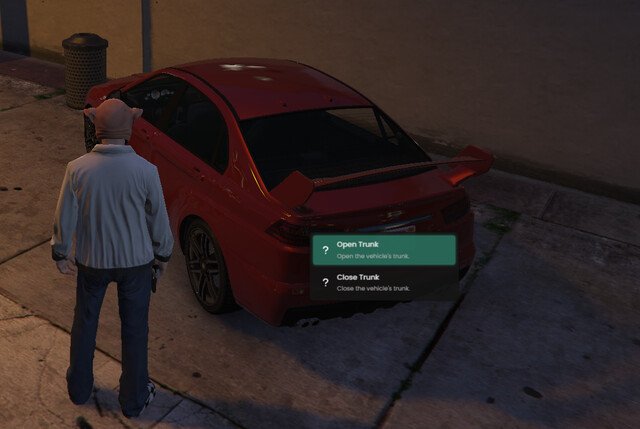
The GTA 5 Online user friendly interface could use some improvements; players often find the menus clunky and difficult to navigate efficiently.
Navigating Los Santos should be intuitive, right? But many players find the opposite when interacting with the GTA 5 online user friendly interface. The game’s menus, while packed with features, often feel cumbersome.
Finding the right session or managing your businesses can become a frustrating task. Gamers frequently express the desire for a more intuitive and simple experience. A better system could enhance the fun of playing.

GTA 5 Online User Friendly Interface: Navigating Los Santos with Ease
Grand Theft Auto V Online is a huge world full of exciting things to do. But sometimes, figuring out how to do those things can feel a bit like trying to find your way through a maze! That’s why having a good, easy-to-use interface is super important. The interface is like the control panel for the game, letting you access everything from your weapons to your friends to the many missions available. Let’s take a deep dive into how GTA Online’s interface works, focusing on what makes it helpful and where it could maybe be a little better. We’ll break down all the menus, maps, and helpful tools you use while playing so you can spend more time having fun and less time scratching your head.
Understanding the Main Menu
The main menu is your starting point for almost everything in GTA Online. You can access it by pressing the ‘Esc’ key on PC, the ‘Start’ button on PlayStation, or the ‘Menu’ button on Xbox. When you open it, you’ll see several sections. Let’s go through each one.
The ‘Online’ Tab
This is where you manage everything related to playing online. Let’s take a closer look:
- Find New Session: If you’re not happy with the current session, you can jump to a new one. This is great if you’re trying to find a session with specific types of players or want a fresh start.
- Invite Only Session: Want to play with just your friends? This option lets you create a private session only your invited pals can join.
- Crew Session: If you are part of a GTA Online crew, this choice allows you to hop into a session with your crew members. It’s a great way to play with the people you know.
- Play GTA Online: This button places you into a normal public lobby where you will meet with other players to go about the game, start missions and do whatever they please.
- Play Heists: This section lets you either start your own heist or join the ones other players have started. Heists are a big part of GTA Online and require team work and a lot of preparation.
- Jobs: From here you can join up for different kinds of jobs, including adversary modes, races, and other challenges. It is a good place to check out if you don’t know what to do next.
The ‘Settings’ Tab
This part lets you personalize your game to your liking:
- Graphics: Change the way the game looks. You can adjust resolution, texture quality, and other options to make the game run better on your computer or console.
- Audio: Tweak the sound levels. You can change the volume of music, sound effects, and voice chat.
- Controls: Customize the game’s controls. You can change which button does what, making it feel more natural to you.
- Display: Here you can tweak options like your in game hud and the brightness of your screen.
The ‘Map’ Tab
The map in GTA Online is your best friend. It is more than just a way to see where you are.
- Waypoints: Set markers for your destinations. This helps you navigate the huge world of Los Santos without getting lost.
- Quick GPS: You can quickly set the GPS to a location in your inventory or to a nearby point of interest to get to a location quickly.
- Icons: The map is filled with icons showing important places, missions, activities and more. The map is usually one of the first things you open when you log into GTA.
The ‘Inventory’ Tab
Your inventory is where you keep all your items, from weapons to clothing to snacks. It’s like your personal backpack for the game.
- Weapons: Choose the gun you want to use. You can also buy and customize your weapons in this menu.
- Clothing: Change the way your character looks. You can buy new clothes and accessories in stores or from this menu.
- Snacks: Eat snacks to restore your health. This is very important when you are in a tough situation.
- Body Armour: Put on armour to protect yourself from enemy fire. A must-have when you’re playing in dangerous situations.
The ‘Interaction’ Menu
The interaction menu is another way to quickly make changes to your game, find options, and more. You can open this menu by pressing “M” on PC, holding the touchpad on PlayStation, and holding the “View” button on Xbox. Let’s check it out.
- Inventory: This menu lets you quickly access your weapons, snacks, and armour. You can also choose to equip your body armor and eat snacks from this menu.
- Style: Lets you make fast changes to your character. It allows you to equip outfits, change your accessories and more.
- Vehicles: Quickly call up your vehicle. This menu also allows you to manage your vehicles and where they are placed in game.
- Properties: This menu allows you to manage your properties. You can also use the options in this menu to manage the businesses you own and find ways to get more money.
- SecureServ/CEO: Start your secure service work, or register yourself as a CEO for more opportunities.
- Misc: This menu lets you find passive mode and other options for your game.
Navigating the In-Game HUD
The HUD, or Heads-Up Display, is all the stuff you see on your screen while you play. It is important and very useful, but can be confusing at first. Let’s talk about it more.
The Mini-Map
The mini-map in the bottom left corner is a smaller version of the main map. It shows you your location, nearby roads, and other players. It is great for finding your way around in a pinch.
The Health and Armor Bars
These bars show how much health and armor you have. Always keep an eye on them, especially during gunfights. When your health reaches zero, you die.
Weapon Selection
At the bottom right corner, you will see what weapon you have equipped. You can easily switch between weapons with the weapon wheel. You can quickly find it with your controller or mouse and keyboard.
The Cash and Level
In the bottom right corner you can see your current in game cash, and your level. It’s a good way to see how far you have come.
The Objective Marker
The objective marker is usually in the top left corner. It shows you what you need to do next in a mission or job, keeping you on track and ensuring you don’t get lost.
Tips for a Smoother Experience
While GTA Online’s interface is generally helpful, there are some things you can do to make it even easier to use.
- Learn Shortcuts: GTA Online has many shortcuts that can save you time. For example, you can quickly switch weapons by tapping a number key on PC or a button on your controller. Learning these shortcuts will make you faster and more efficient in your gameplay.
- Use the Map Effectively: Take time to get used to the map and find all the most important locations. This is where you will find all of the businesses, jobs, heists and more.
- Customize Your Controls: If the default controls feel strange to you, change them! You can make the game feel much better if you use the control scheme that is more appropriate for you.
- Pay Attention to Tutorials: When you start the game, there are a lot of tutorials. You may be tempted to skip them, but it is important to take some time with these, as they will help you become a better player.
- Practice: Don’t be afraid to explore the menus and try new things. The more you play, the better you’ll get at using the interface. Take the time to learn the menus and find all of the ways the game can help you out.
Potential Improvements
While the interface is pretty good, there are always things that could be better. Here are a few areas where GTA Online could be improved.
Menu Overload
Sometimes, there are a lot of menus and sub-menus. This can make it hard to find what you need quickly. It would be nice if things were organized a little bit better.
Inconsistent Shortcuts
Some parts of the game have shortcuts while others don’t. A more consistent system of shortcuts would make the game much easier to navigate. Sometimes, it can get annoying to navigate through multiple menus just to switch out a weapon or change your outfit.
Too Much Clutter
The HUD can sometimes feel a bit cluttered, especially when there are a lot of players around. Simplifying things and making the HUD more customizable could help. Sometimes there are so many markers on the map that it can become overwhelming and cause the players to not know where they are going. It would help to have customizable markers or a setting that would hide some of them.
Lack of Clear Explanations
Some of the menus don’t have clear explanations. This can confuse new players. Adding more tooltips or tutorials would be very useful. It can also become a problem when trying to buy a specific item and not knowing exactly what it is.
Overall, GTA 5 Online has a pretty user-friendly interface. But like anything, there are places that could use a little improvement. The best way to get used to it is to play the game a lot and practice with the many different menus. With a little time and effort, you will be navigating Los Santos like a pro! Hopefully this article has provided you with the information you need to navigate through the many different menus and become a better player!
Modders Ruin GTA 5 Online on PC
Final Thoughts
Ultimately, GTA 5 Online provides a quite intuitive experience for most players. Navigating menus and accessing content feels simple, especially after some initial play time.
The game’s interface allows quick weapon switching and vehicle selection. Finding missions or joining friends works pretty well with this design.
Overall, the “gta 5 online user friendly interface” contributes to a generally accessible and enjoyable online gaming experience. It prioritizes functionality, enabling a smooth flow of gameplay.

