
You buy a game on Steam by finding it in the store, adding it to your cart, and completing the checkout process with your payment information.
Thinking of jumping into the world of PC gaming? You might be wondering, “how do i buy a game on steam?”. The process is quite straightforward.
This guide will quickly get you up and running so you can purchase games and start enjoying them. It’s easier than you might think, and it only takes a few steps.

How Do I Buy a Game on Steam?
So, you’re ready to dive into the wonderful world of PC gaming and Steam is your gateway! That’s awesome. Buying a game on Steam is pretty easy once you get the hang of it. It’s like shopping online, but instead of clothes or toys, you’re getting awesome video games. Let’s break it down step-by-step so you can start playing your favorite games soon.
Getting Started: Creating a Steam Account
Before you can buy any games, you need a Steam account. Think of it as your own personal locker for all your games. Here’s how to get one:
Go to the Steam Website
First, you’ll need to go to the official Steam website. Just type “Steam” into your web browser (like Chrome, Firefox, or Safari) and the official site will be the first result. Click on it!
Find the “Login” Button
Once you are on the Steam website, look for the “Login” button. It’s usually near the top right corner of the page. If you don’t have an account yet, you will click this button, but it will take you to a new page.
Click “Join Steam”
On the new page you will see an option called “Join Steam”. Go ahead and click it. This will take you to the account creation page.
Enter Your Email and Details
Now it’s time to put in your email address. Make sure it’s an email you use and check regularly. Steam will send you emails to verify your account. You’ll also need to choose where you live and prove that you are not a robot. After that, you need to agree to the terms of service. They’re basically the rules for using Steam.
Verify Your Email
After you fill in all these steps, Steam will email you a verification link. Go to your email inbox, find that email, and click on the verification link. This link will help complete the verification process for your account.
Create Your Steam Username and Password
After verifying, it’s time to create your Steam account user name and password. Choose something that you can easily remember, but be sure that your password is secure and not too easy for others to guess. Now you have your own personal steam account!
Navigating the Steam Store
Alright, you are in! Now comes the fun part: finding the games you want. Here’s how to explore the Steam store:
Using the Search Bar
If you know exactly what game you want, the easiest way to find it is by typing the name into the search bar. It’s usually at the top of the page in the Steam client or the website. For example, if you want to buy “Minecraft”, simply type it into the search bar and hit enter. You will see the game pop up in the results.
Browsing by Categories
Don’t know exactly what you are looking for? That’s ok. Steam has many categories of games, like adventure, action, simulation, role-playing games (RPGs), puzzle, strategy, and more. Click on the “Categories” menu to explore the different kinds of games available.
Checking Out the Front Page
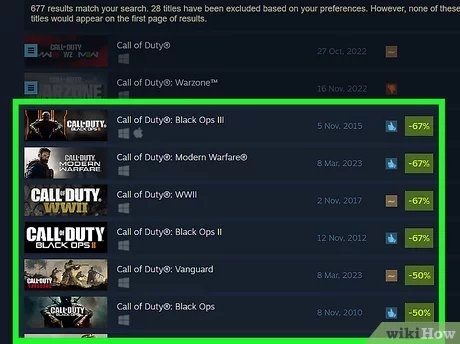
The front page of the Steam store is always changing. It shows you new releases, popular games, special sales, and other awesome games that Steam thinks you might like. It’s a good place to browse if you’re not sure what you want to play.
Reading Game Descriptions and Reviews
Before you buy any game, always take a moment to read the game description. This description will give you information about what the game is all about. Also check out the reviews from other players. The reviews are important because it will show you how others found the game and if they enjoyed the game. You can find this information under each game page.
Adding Games to Your Cart
So, you’ve found a game you want? Great! Now, let’s add it to your cart:
Clicking “Add to Cart”
When you click on a game page, you will see a green button that says “Add to Cart”. Click this button, and the game will be added to your virtual shopping cart. You can click this button when you want to add a game to your cart for purchase later.
Choosing Multiple Games
You can add multiple games to your cart, just like adding multiple items when you are shopping online. Just go through each game you like, and click “Add to Cart.” You can do this many times and then buy everything at once.
Viewing Your Cart
After adding games, you can click on the shopping cart icon (usually at the top of the page) to see everything you’ve added. Here you can remove games if you change your mind or check the final price of the items you have selected for purchase. This will allow you to review all games before paying.
Purchasing Your Games: Payment Methods
Now that you have games in your cart, it’s time to buy them. Steam has different ways to pay. Let’s take a look:
Credit/Debit Cards
One of the easiest ways to pay is using a credit or debit card. Steam accepts many major card providers, including Visa, Mastercard, American Express, and Discover. Simply select this option at checkout and fill in your card details.
PayPal
If you have a PayPal account, this is another easy way to pay. Select PayPal at checkout, and Steam will redirect you to the PayPal website to complete the payment process. This way you can use your balance or your linked card to make payments to Steam for games.
Steam Wallet Funds
The Steam Wallet is a way to add money to your Steam account. This is very helpful if you don’t want to use your credit or debit card directly. You can purchase Steam Wallet Codes in stores or online, or you can directly add money from your card or PayPal to your Steam wallet. Then, when you purchase a game, you will first use the funds from your Steam wallet. You can also get Steam Wallet gift cards, which are useful to gift other players!
Other Payment Methods
Steam also supports other payment methods. These payment methods include things like paysafe cards, bank transfers, and others. The available options will depend on your location and what Steam is currently supporting.
Completing the Purchase
After choosing your payment option, click the final purchase button. You will usually get a confirmation email to show that the transaction was completed successfully. Once done, the games will be available in your Steam library to download and play!
Downloading and Installing Your Games
After you buy a game, it doesn’t automatically appear on your computer. You have to download and install it. Here’s how:
Going to Your Steam Library
Open the Steam client (the app on your computer). Look for the “Library” button, usually at the top of the window. This will take you to a list of all the games you own.
Finding Your Game
Look for the game you want to install in your list of games. If you just bought the game, it will probably be at the top. The game will appear grayed out. This means it has not been installed yet.
Clicking the “Install” Button
Click on the name of the game you want to install. A new window will pop up, with a large “Install” button. Click this button to start the download and installation process.
The Download Process
The game will start downloading onto your computer. Depending on the size of the game and your internet speed, this might take some time. You can see the download progress on the bottom of the Steam client. Make sure you have good internet, because some games can be very big.
Playing Your Game!
Once the download and installation are complete, the “Install” button will change to a “Play” button. Click it and enjoy your new game!
Understanding Steam Sales and Discounts
One of the best things about Steam is the sales! Steam always has some kind of sales or discounts going on, so that you can find some really great games at a low price.
Seasonal Sales
Steam has big seasonal sales a few times a year. These include Summer, Winter, Halloween, and other special events. During these sales, lots of games go on sale, often with large discounts. Make sure to browse during these times to get really good deals.
Daily and Weekly Deals
Steam has daily deals and weekly deals, where they choose specific games to offer at a lower price. Check the front page of the store regularly to see what’s on sale. Sometimes they put really big games on sale for a good deal.
Wishlists
You can add games to a “Wishlist”. It is similar to keeping a list of games you would like to buy in the future. This list allows Steam to notify you when the games that you would like are on sale. This can help you get games that you want when the price is low.
Managing Your Steam Games
After you buy a few games, it will be important to understand how to manage them in your library.
Organizing Your Library
Your library can get a bit full if you buy many games. Steam offers the ability to create folders to organize your library to your liking. You can organize the library by genre, name, or however you want. You can also search using the search bar to quickly find a game in your collection.
Uninstalling Games
Sometimes you might want to make space on your computer. You can easily uninstall games through the steam library. Simply right-click the game, and select the uninstall option. This will remove the game from your computer, but you can always re-download it from your steam library later.
Updating Games
It is important to keep your games updated. Steam will automatically download updates for your games. Sometimes these updates are important for improving performance, fixing bugs, or even adding new content to games. Keep in mind the updates will not always happen right away, it depends on your settings.
Steam Community Features
Steam is not only about buying games. It’s a whole community of players!
Friends List
You can add your friends on Steam to see what they’re playing and play games together. This is a great way to stay in touch and have fun with friends online. You can also chat with your friends directly from Steam.
Forums and Discussions
Steam has discussion boards for every game. You can use the boards to ask for help, share your opinion, and find other people who like the same games that you do. It is a good way to connect with others and learn more about the game you are playing.
Steam Workshop
Many games allow users to make mods. Mods can change the game in many different ways. Some mods will add new items or content to games, and some mods will change the way the game looks. You can access and download these mods in the workshop section for specific games. It is a good way to improve or change up some of your favorite games.
Achievements and Trading Cards
As you play games on Steam you will get achievements. Achievements are like awards that you get for completing certain tasks in the game. Additionally, some games on Steam will give you trading cards, which can be traded, collected, or sold on the Steam marketplace. This is a fun way to add a bit more to your gaming experience.
Buying a game on Steam is a process that is quite easy once you get the hang of it. From creating your account to exploring the store, and downloading games, everything is very user friendly. Remember to explore, be safe online and most importantly have fun playing all of the new and amazing games. The steam platform offers much to discover, so enjoy your games!
How To Buy Games On Steam – Full Guide
Final Thoughts
To buy a game on Steam, first, find the game you want. Then add it to your cart. You’ll proceed to checkout.
Choose your payment method and complete the purchase. After payment, the game will become available in your library. This outlines how do I buy a game on steam. It is a straightforward process.

