
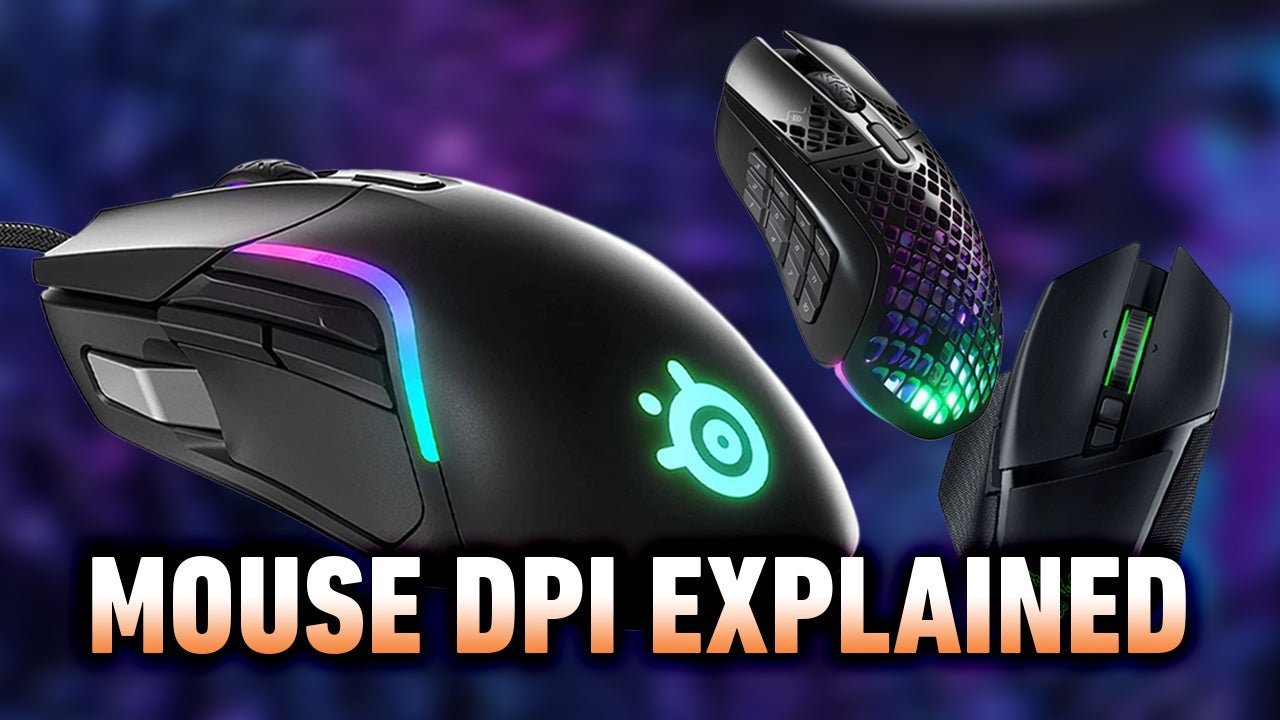
You cannot directly change your DPI within the Overwatch game settings. DPI is a hardware setting controlled by your mouse or its associated software.
Have you ever felt like your aiming in Overwatch was just a bit off? Maybe your cursor moves too fast or too slow, making it hard to hit those crucial shots. This often leads to the question, how to i change the dpi on my overwatch game? The answer isn’t within the game itself, but don’t worry, we can still adjust this vital sensitivity setting.
You’ll need to use your mouse’s software or the mouse itself to adjust its DPI. Most gaming mice come with dedicated software allowing for custom DPI settings and often onboard buttons for quick changes. This change will impact how sensitive your mouse is in Overwatch and all other applications you use.

How to I Change the DPI on My Overwatch Game
Okay, so you’re diving deep into the world of Overwatch and want to tweak your mouse settings. You’ve probably heard about DPI, or Dots Per Inch, and how it can affect your gameplay. It’s like giving your mouse a superpower! But what is DPI exactly, and how do you change it for Overwatch? Don’t worry, we’ll explain everything in a way that’s super easy to understand. Think of it like this: DPI is how many tiny steps your mouse cursor moves on the screen for every inch you move your actual mouse. A higher DPI means your cursor moves more for each inch, making it seem faster, while a lower DPI makes it move slower.
Understanding DPI and Its Impact on Overwatch
Before we jump into changing DPI, let’s chat a bit more about what it actually does. Imagine your mouse is a tiny explorer traveling across your screen. DPI is like how many steps that explorer takes per inch it moves on your desk.
What Happens with High DPI?
With a high DPI setting, your mouse cursor will zoom across your screen with even the smallest movement. This can be great for some things, like quickly looking around in a game or making fast turns. Think of heroes like Tracer or Genji; they often benefit from quicker turns and faster reactions. High DPI can make it easier to quickly react to enemies. However, it can also be harder to be precise, because you don’t have to move your mouse very much to move the cursor a lot.
What Happens with Low DPI?
Now, imagine your mouse with a low DPI. Your mouse cursor moves more slowly. This can make it easier to aim accurately. Think of Widowmaker or Ana, who need precise shots; lower DPI allows for smaller mouse movements, leading to more accurate shots. It’s like having a very careful and controlled hand. But, looking around or turning quickly will require you to move your mouse more which may make it seem slower.
Finding the Sweet Spot
The best DPI for you is a personal thing. What works great for your friend might feel terrible for you. It’s all about what makes your game feel comfortable and controlled. It is about finding that perfect balance between speed and accuracy. Most players will use a DPI setting between 400 and 1600. You might need to experiment a bit to find the best setting for your style of play and the heroes you like to play most often in Overwatch.
Methods to Adjust Your DPI Settings
Great, now that you understand why you’d want to change DPI, let’s talk about how you do it. You’ve got a couple of options, and we’ll go through each one, step-by-step. Generally, there are two main ways to change your DPI: using your mouse software, and using the in-game settings in Overwatch (indirectly by changing the sensitivity).
Using Your Mouse Software
Many gaming mice come with their own software. This software allows you to customize many aspects of your mouse, including its DPI. If you have a mouse from brands like Logitech, Razer, Corsair, or SteelSeries, you probably have this software installed.
Finding Your Mouse Software
- First, look for an icon for your mouse software in your system tray (usually in the lower right corner of your screen).
- If you don’t see it there, you can usually find it in your Start Menu or by searching for the name of your mouse brand or model.
Adjusting DPI in the Software
- Open up the mouse software.
- Look for a section about DPI or sensitivity. It might also be called performance settings or something similar.
- You will usually see a slider or numbers you can adjust to set your desired DPI. Some software might even allow you to create different DPI settings that you can quickly switch between with buttons on your mouse.
- Make sure to save your changes in the software after you’ve adjusted your DPI setting.
Remember, the exact steps may vary a little depending on your specific mouse software, but the overall idea is generally the same. Usually, you just find the DPI settings and move the slider around or use the number boxes.
Adjusting Sensitivity in Overwatch
While Overwatch itself doesn’t let you change DPI directly, it lets you adjust the sensitivity of your mouse. This sensitivity setting changes how far your cursor moves on the screen with every inch of physical movement of your mouse. Changing the in game sensitivity can have a similar effect as changing the actual DPI of your mouse.
How to Change Mouse Sensitivity in Overwatch
- Start Overwatch.
- Click on the “Options” button (usually the gear icon) in the main menu.
- Click on the “Controls” tab.
- Find the “Mouse Sensitivity” setting. It will be at the top of the list.
- Adjust the slider to your desired sensitivity.
- Click the “Apply” button to save the change.
The sensitivity setting in Overwatch is a percentage and determines how much your cursor moves when compared to the movement of your mouse. A higher setting means the cursor moves more for every inch of mouse movement. Lower sensitivity means less cursor movement. Keep in mind that changing your sensitivity here also changes how your aim feels, so make small adjustments to find the right setting for you.
The Relationship Between DPI and In-Game Sensitivity
It’s crucial to understand that DPI and in-game sensitivity work together. A higher DPI in your mouse settings will cause your cursor to move faster even with a lower sensitivity setting in Overwatch. Similarly, a lower DPI will make the cursor move slower, even with a higher sensitivity. Many players find that a lower DPI setting with a higher in-game sensitivity can offer a good blend of precision and quick turns, but it’s a personal choice and it is all about what feels most comfortable for you.
Experimentation and Finding Your Perfect Setting
Now, this is the fun part: experimenting! There is no “magic” number for DPI or sensitivity in Overwatch. What works great for a pro player might feel terrible for you. The only way to find your perfect settings is to spend some time trying different combinations.
Test It Out
- Go into the practice range in Overwatch. This way you can test different setting without the pressure of a real match.
- Move your mouse around and shoot at targets.
- Try small adjustments in your DPI in your mouse software and then the in game sensitivity. Then test how the small change effects your in-game performance.
- Keep going until you find a combination of DPI and sensitivity that feels just right.
Tips for Experimenting
- Start with small changes. Don’t move the DPI slider from one end to the other. It is better to move it in small increments at a time so you can feel how the small changes effect you.
- Give yourself time. You may not notice the change the second you change the setting. You might need to play a few games before you are comfortable with the new setting.
- Pay attention to how your aim feels and how easy it is to look around.
- Don’t be afraid to change it back if you don’t like a setting and try something different.
Common DPI Ranges and Preferences
While personal preference is key, here are some common DPI ranges and why players might use them:
- 400-800 DPI: Often used by players who prefer very precise aiming. This range can be very suitable for roles that require accuracy, like sniper heroes.
- 800-1600 DPI: This range is common for many players. It offers a good balance between precision and speed.
- 1600+ DPI: Some players prefer higher DPI, particularly those who like to be able to make fast turns.
Remember, these are just starting points. It’s about discovering what feels best for you and fits with your playstyle.
Adjusting for Different Heroes
Some players like to use different DPI and sensitivity settings depending on the hero they are playing. A high DPI might work well for a fast-moving hero like Lucio, while a lower DPI might be better for a hero like Widowmaker. This level of customization is a personal choice, and some players like to make these adjustments on the fly, especially when playing in custom game modes, or playing a specific map. If you have a mouse with customizable DPI buttons, it’s a good way to fine tune your settings for different characters.
Practical Examples
Let’s say you are currently playing a tank hero like D.Va and you have your mouse DPI set to 1600 with an in-game sensitivity of 5. Your aim seems a little jumpy. You may want to try lowering the dpi setting on your mouse to 800 while keeping the in game sensitivity at 5. After some practice, you find this new dpi feels more stable and allows for more accurate aiming with the cannon.
Another example might be playing a speedy hero like Tracer. You might want to experiment with a higher DPI of 1200 with a sensitivity of 6. You might find that the extra speed allows you to keep up with your blinks while still aiming.
The best way is to try out different settings in the practice range, or in a custom game.
Troubleshooting Common Issues
Sometimes, things don’t go as planned. Here are a few common problems and how to fix them.
Mouse Isn’t Responding
- Make sure your mouse is plugged in properly, or that your wireless mouse is charged.
- Try restarting your computer.
- Make sure your mouse drivers are up to date.
DPI Change Doesn’t Seem to Work
- Double check that you saved your settings in your mouse software.
- Double check you have pressed the apply button in Overwatch after changing the sensitivity
- If the issue persists, try closing and restarting the game and the mouse software.
Cursor Is Too Fast or Too Slow
- Revisit the experimentation section and spend some time in the practice range.
- Make sure that the dpi changes are not too big. Make small adjustments and try different settings.
The Importance of Consistency
Once you find a DPI and sensitivity setting that feels good, try to stick with it for a while. Changing your settings too often can make it harder to develop muscle memory for aiming. Aiming well is something that comes with practice, so keeping the settings consistent over time is important. With time, you will become more comfortable and skilled with your chosen settings.
Adjusting your DPI is just one piece of the puzzle in improving your Overwatch gameplay. It’s important to remember that there isn’t a single “best” setting, but instead, it’s about finding what feels right for you. So take the time to experiment, be patient, and get ready to see your aim improve.
Best Aim Settings in Overwatch 2..!
Final Thoughts
Changing your mouse DPI affects in-game sensitivity. Overwatch does not offer a direct setting to adjust DPI. You need to use your mouse software instead.
To change DPI, find the software that came with your mouse. This is where you set the DPI level. Altering this will change your aim and sensitivity within Overwatch. The question of ‘how to i change the dpi on my overwatch game’ is answered with your mouse settings. Remember, this DPI impacts all games, not just Overwatch.

