
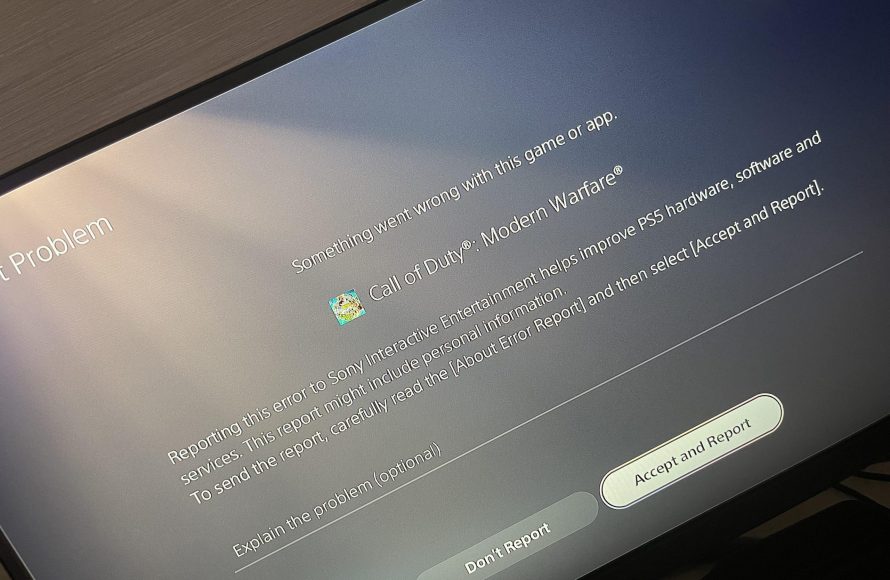
The most common reasons for your PS5 games keep crashing include software glitches, overheating, corrupted game files, or outdated system software.
Experiencing game crashes on your PS5? It’s frustrating when you’re deep into a game and suddenly get booted back to the main menu. If you are wondering, ‘why do my ps5 games keep crashing’, you are not alone. Many players face this issue, so lets explore possible causes.
Several factors can cause this problem. It ranges from simple software issues to more complex hardware concerns, we will address the common culprits. Pinpointing the exact cause will help you to find a solution and enjoy gaming again.

Why Do My PS5 Games Keep Crashing?
It’s super frustrating when you’re in the middle of an awesome game, and suddenly, it crashes! Your PS5 is supposed to be fun, not a source of stress. Let’s explore why your PlayStation 5 games might keep crashing. We will dive into different reasons, from simple fixes to more tricky issues. Think of it like being a detective, and we will solve this gaming mystery together!
Common Culprits: The Usual Suspects
Sometimes, the reasons behind game crashes are quite common and easy to fix. Let’s investigate the most frequent causes.
Overheating: When Your PS5 Gets Too Hot
Just like people, your PS5 can get too hot when it’s working hard. When the PS5 gets too hot, it can cause games to crash. This is like your console having a fever. Here’s how to tell if heat is the problem and what you can do about it:
- Is your PS5 in a well-ventilated area? Make sure there’s space all around it so air can flow freely. Avoid putting it in a tight cabinet or enclosed space. Think of your console as a plant that needs breathing room.
- Check the fans. Are the fans in your PS5 working properly? You should be able to hear them gently humming when the console is running. If they sound really loud, or if you don’t hear anything at all, that’s a sign something might be wrong.
- Dust build-up. Dust can act like a blanket, trapping the heat inside the console. Giving your PS5 a gentle clean can help. You can use a soft cloth and some compressed air to get rid of dust in the vents. It’s like giving your console a refreshing shower.
Software Bugs and Glitches
Sometimes, game crashes aren’t because of your console, but because of the game itself. Software can have tiny problems called bugs, which can cause all sorts of issues. Here’s what you can do about them:
- Check for Game Updates. Game developers often release updates to fix bugs. Make sure you have the latest version of the game. It’s like getting a new and improved version of the toy. Go to the game’s main menu and look for an option to check for updates.
- Check for System Updates. It’s not just games that get updates, your PS5 gets them too. System updates help make your console run better. Go to the System Settings on your PS5 to check for updates. It’s like giving your console a tune-up.
- Restart Your Game. Sometimes, simply closing the game and starting it again can fix temporary glitches. It’s like turning it off and on again for a fresh start.
Faulty or Corrupt Game Data
Imagine your game data like a picture. If some parts are missing or messed up, the picture won’t look right. The same thing happens with your games. If the game files are broken or corrupt, it can lead to crashes. Here’s what can cause this and how to manage it:
- Game Installation Issues: Did the game install correctly? Sometimes a game doesn’t install properly, leading to crashes. Try reinstalling the game. This helps ensure the game files are in perfect shape.
- External Storage Problems: If you are playing the game from an external storage drive, make sure the drive is working well and properly connected. Sometimes, problems with the external drive may affect games and cause crashes.
- Verify Game Files: PS5 has an option to verify the game files. Go to your game library and check if you can verify/rebuild game files. This is similar to checking all the pieces of a puzzle to make sure nothing’s missing.
More Complex Issues: When the Problem Isn’t Obvious
Sometimes, the crashes aren’t due to the simple things we talked about earlier. Let’s dive into some of the more complicated reasons why your PS5 games might be crashing.
Hardware Problems: Inside Your PS5
Just like any machine, your PS5 has parts inside that can sometimes have problems. If some parts aren’t working well, it can lead to games crashing. These problems are a little harder to fix.
- RAM Issues: The RAM (Random Access Memory) helps your PS5 handle lots of information quickly. If your RAM is damaged or faulty, it can cause game crashes. This issue is best looked at by a professional.
- Storage Problems: Problems with your PS5’s internal storage can cause issues with games, like crashing or freezing. It could be an indication of a hard drive or solid state drive failure.
- GPU Issues: The Graphics Processing Unit (GPU) is the part of your PS5 that makes the graphics for your game. If the GPU has problems, games might not work properly and crash, and it’s often a sign of a hardware failure. This also needs professional attention.
Network Problems: When Online Games Crash
If you’re playing online games and they keep crashing, the issue might not be your console but your network connection. Online games need a good, strong and stable internet to work properly.
- Weak Wi-Fi Signal: If your Wi-Fi signal isn’t strong enough, your game may crash or disconnect you from the server. Move closer to your router, or consider using a wired connection for a stronger, more reliable signal.
- Internet Slowdowns: If your internet is slow, the game may struggle to get the data it needs, causing it to crash. Other people using the internet at the same time can also cause slowdowns. Check your internet speed and see if your connection is too slow.
- Server Issues: Sometimes, the servers for the game itself may have issues. Check for game server issues on the game’s official page or on social media channels.
Power Supply Issues
Your PS5 needs a stable flow of power to work correctly. If there are problems with the power supply, it can lead to crashes and other issues.
- Power surges: Power surges or outages can damage your PS5. Always connect your console to a surge protector, which acts as a shield, protecting your console from sudden electrical spikes.
- Faulty Power Cable: A damaged power cable may result in power interruptions. Check the cable for any obvious cuts or kinks.
- Insufficient Power: If you have too many devices plugged in to the same power outlet, it could cause insufficient power for all the devices. Ensure your PS5 is connected to an outlet that is able to supply the correct amount of power.
Game Specific Issues
Sometimes the issue is not with your console but rather the game itself. Different games are coded differently and may have unique problems that can cause crashes.
- Unoptimized Games: Games that aren’t properly made or tested on PS5 may have more crashes than others. These are often called unoptimized games, and this is common in brand new game releases or games not designed for a console.
- Specific Game Bugs: Some games may have specific bugs that make them crash at certain points, or certain activities in the game. Check online forums for other players that have similar problems.
- Overclocking: Sometimes trying to make a game go faster than what it was designed for may cause the game to crash due to increased processing stress. If you have tried to overclock a game, try setting it back to the original settings.
Troubleshooting Steps: Taking Action
Now that we’ve covered many potential reasons for game crashes, let’s talk about what you can do. Here’s a step-by-step guide to help you manage the issue.
Basic Troubleshooting
Before we move onto complicated solutions, let’s try some basic steps:
- Restart your PS5: Turn off your PS5 completely. Wait a few minutes, then turn it back on. This is a simple fix that often works. Think of it as rebooting your brain.
- Close the Game: Don’t just press the PS button and leave it, close the game completely and try launching it again.
- Clean Your PS5: Get rid of any dust or debris from your console’s vents. This will help it stay cool.
- Check Connections: Make sure all your cables, including the power cable, and HDMI cable, are properly connected to both the console and the monitor.
Advanced Troubleshooting
If the basic steps don’t work, then it’s time for more detailed investigation.
- Rebuild the Database: Sometimes your PS5’s database can get messed up, and rebuilding the database can fix this. To do this, you need to start the PS5 in safe mode, so you must turn off your PS5 completely. Once it is off, hold the power button on the console, and wait for two beeps. This will boot it into safe mode, from here you can select option 5 “Rebuild Database”. This should help fix game crashes.
- Reinstall the Game: If a game keeps crashing, try removing it from your console, and downloading it again.
- Check Storage: Ensure there’s enough space on your PS5 for games to run. Low storage may result in games not being able to run correctly.
- Test Other Games: Check if it is just one game that is having issues, or if all of your games are crashing. If just one, the issue is most likely with the game itself.
- Factory Reset: This is the last option and should be used with caution. Factory resetting your console will wipe all your data, and return your PS5 to the same state it was in when it was new.
When to Seek Professional Help
If you have tried everything and your PS5 games are still crashing, it might be time to call the professionals. There could be a hardware problem that needs expert attention. Don’t hesitate to reach out to Sony support or a trusted repair shop for assistance. They have the tools and knowledge to diagnose and fix complex hardware issues.
Game crashes can be a real pain, but with a little patience and some detective work, you can often figure out why they’re happening and get back to gaming. Remember to keep your PS5 cool, updated, and properly connected, and most importantly, have fun!
By systematically addressing potential causes of game crashes—from overheating to software issues, and hardware to network problems— you can increase the overall performance of your PS5. These troubleshooting steps will guide you in the direction of a fix. These methods are intended to make sure you and other users are having a smoother gaming experience. This knowledge should provide comfort when facing frustrating game crashes.
How to Fix Games Crashing on PS5 | FIX PS5 Keep Crashing
Final Thoughts
In short, several factors cause game crashes on your PlayStation 5. Overheating, outdated software, or corrupted game files are common culprits. Make sure your console has proper ventilation to prevent heat build up.
Updating your system software and game files can often solve the problem. Addressing these issues head on is key to fixing ‘why do my ps5 games keep crashing’. If all else fails, a console reset might be necessary.

