
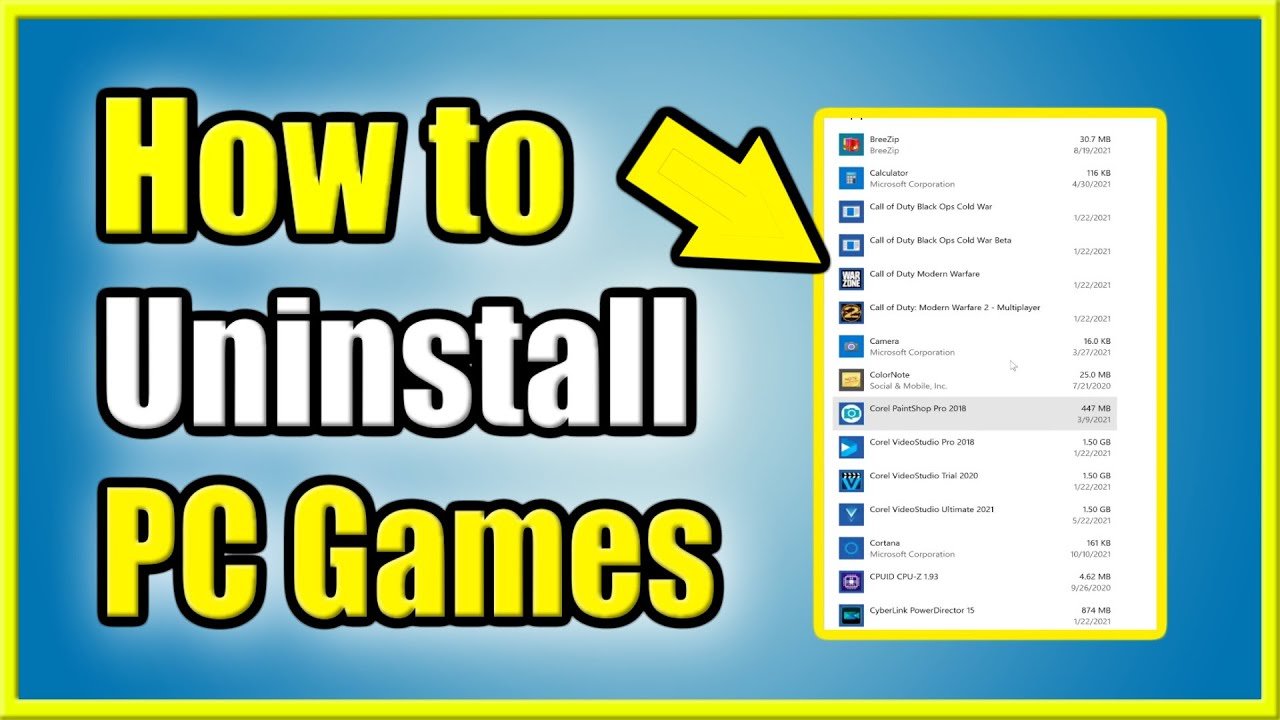
To delete a game, you typically need to navigate to your device’s settings, find the applications or installed games list, and then select the specific game you wish to remove, and choose the delete or uninstall option.
Ever found yourself with a game you no longer play, cluttering up your device? You might be wondering, how do I delete a game and free up valuable storage space. It’s a common question, and thankfully, removing games is generally quite simple.
The process usually involves a few straightforward steps, no matter what kind of device you use. We’ll guide you through the usual methods to get rid of those unwanted games quickly.

How Do I Delete a Game?
So, you’ve decided it’s time to say goodbye to a game. Maybe you’ve finished it, maybe you’re not enjoying it anymore, or maybe you just need some space on your device. Whatever the reason, deleting a game is a common thing, and it’s usually pretty easy to do. But, the way you do it can be different depending on what device you’re using. Let’s explore the different ways you can remove a game from your life.
Deleting Games on a Computer
Computers, whether they’re Windows PCs or Macs, have a few ways to get rid of games. The method you use will often depend on where you got the game from.
Uninstalling Games from the Control Panel (Windows)
If you installed a game like you would a regular program, it’s probably hanging out in your computer’s Control Panel. Here’s how you can find it and say “bye-bye”:
- First, click on the Windows icon (usually in the bottom-left corner of your screen).
- Type “Control Panel” and click on the result that comes up.
- Once you’re in the Control Panel, look for “Programs” and then click on “Programs and Features”. Sometimes it might say “Uninstall a program”.
- A list of everything you have installed on your computer will show up. Find the game you want to delete. You can type the name of the game to find it quicker.
- Click on the game and then click “Uninstall”.
- Follow the instructions that appear on the screen. Usually, you just need to click “Next” or “Yes” a couple of times.
- Once the process is complete, the game will be gone. Sometimes you may need to restart your computer.
Uninstalling Games from Apps & Features (Windows 10 & 11)
Windows 10 and Windows 11 have a slightly different way to get to your installed programs. It’s called Apps & Features. Here’s how you can use it:
- Click on the Windows icon.
- Type “Apps & Features” or just “Apps” and click the result that says “Apps & features” or something similar.
- You’ll see a list of installed apps and programs. Find your game. You can use the search box to find the game quicker.
- Click on the game. You’ll often see a button appear that says “Uninstall”. Click on that.
- The system may ask for confirmation. Click “Uninstall” again if it does.
- Follow any on-screen instructions to complete the process.
Deleting Games on macOS
For those using Apple computers, deleting games is a little different. Here’s what you do:
- Open the “Finder.” It’s the little face icon on the dock (usually at the bottom of your screen).
- Click on “Applications” in the left-hand sidebar.
- Find the game you want to delete in the list.
- Drag the game’s icon to the “Trash” icon on the dock.
- To completely remove the game, click and hold the Trash icon, then select “Empty Trash.”
Some Mac apps/games might also come with their own uninstaller. If you see that option, it’s a good idea to use it. You might find it inside the game’s folder in the Applications folder.
Removing Games from Game Launchers
Many computer games are managed by game launchers like Steam, Epic Games Store, GOG Galaxy, or Battle.net. Here’s how to get rid of a game through these launchers:
Deleting Games from Steam
Steam is a popular place for buying and playing games on PC.
- Open the Steam app.
- Go to your “Library.”
- Find the game you want to remove.
- Right-click on the game’s name.
- Click “Manage”, then select “Uninstall.”
- Click “Uninstall” again to confirm.
Removing Games from the Epic Games Store
- Open the Epic Games Launcher.
- Click on “Library”.
- Find the game and click the three dots next to it.
- Select “Uninstall.”
- Click “Uninstall” again to confirm.
Deleting Games from GOG Galaxy
- Open GOG Galaxy.
- Go to “Owned Games”.
- Find your game and click on it.
- Click the “More” button (often a small cog icon), then select “Manage” and “Uninstall”.
- Confirm the action when prompted.
Uninstalling Games from Battle.net
- Open the Battle.net app.
- Click on the game you want to delete.
- Click the cog icon next to the play button.
- Select “Uninstall Game.”
- Confirm when prompted.
Deleting Games on Consoles
Consoles like PlayStation, Xbox, and Nintendo Switch have their own unique ways of deleting games.
Deleting Games on PlayStation (PS4 & PS5)
Removing games on a PlayStation is usually simple. Here’s how:
PlayStation 4
- Go to the main screen (the one with all your game icons).
- Find the game you wish to remove.
- Highlight the game.
- Press the “Options” button on your controller. It’s the button with three horizontal lines.
- Select “Delete”.
- Confirm that you want to delete the game.
PlayStation 5
- Go to your “Game Library.”
- Find the game you want to remove.
- Press the “Options” button on your controller (it looks like three horizontal lines).
- Select “Delete.”
- Confirm when asked.
Deleting Games on Xbox (Xbox One & Xbox Series X/S)
Xbox consoles make deleting games a breeze:
Xbox One
- Go to “My games & apps.”
- Highlight the game you want to remove.
- Press the Menu button on your controller (it has three lines on it).
- Select “Manage game & add-ons.”
- Select “Uninstall.”
- Confirm your choice.
Xbox Series X/S
- Go to “My games & apps.”
- Find the game and highlight it.
- Press the Menu button.
- Select “Manage game & add-ons”.
- Select “Uninstall”.
- Confirm your decision.
Deleting Games on Nintendo Switch
The Nintendo Switch allows you to archive or delete game data. Here’s what to do:
- Go to the Home Menu.
- Find the game you want to remove.
- Press the “+” or “-” button on your controller.
- Select “Manage Software.”
- Choose “Delete Software.”
- Confirm your choice.
Note that if you select “Archive” instead of Delete, you will still have the game save but the game file itself will be removed. You can always re-download it later if you want to play it again.
Deleting Games on Mobile Devices
Mobile devices like smartphones and tablets are another place where we often play games. Deleting these games is usually straightforward.
Deleting Games on Android Phones and Tablets
The process for deleting games on Android devices is very similar to deleting other apps:
- Go to your phone or tablet’s home screen or app drawer.
- Find the game you want to remove.
- Tap and hold the game’s icon for a moment.
- Several options should appear. Drag the icon to “Uninstall” or press the “X” or “Uninstall” option, if one appears.
- Confirm that you want to delete it.
Alternatively, you can go to your device’s settings:
- Open Settings.
- Tap “Apps” or “Apps & Notifications”.
- Find and select the game you want to remove.
- Tap “Uninstall.”
- Confirm that you want to delete it.
Deleting Games on iPhone and iPad
On iPhones and iPads, you can delete games using two main methods.
- Go to your Home Screen.
- Find the game icon you want to get rid of.
- Press and hold on the game’s icon.
- A menu will show up, and you should see an “X” in the corner of the icon. Click the “X.” Or, you might see a “Remove App” option. Tap it.
- Confirm that you want to delete it.
You can also use the settings app to uninstall games:
- Open the “Settings” app.
- Scroll down and tap “General.”
- Tap “iPhone Storage” or “iPad Storage”.
- Find and select the game you want to remove.
- Tap “Delete App”.
- Confirm when prompted.
Clearing Game Data
Sometimes, you might not just want to uninstall the game, you may want to make sure that all the data is also deleted. Here’s what to keep in mind:
Clearing Game Saves on Computers
Game saves on computers can be in various locations. Some launchers like Steam offer cloud saves, meaning you don’t need to manually delete them from your computer. However, if you want to ensure that the save data is also removed, you often have to manually go through your computer’s hard drive, most of the time in the “Documents” folder, or somewhere in the game folder to find the folder for the game. The game folder can be found in “Program Files” or somewhere similar, depending on where you installed the game.
Clearing Game Saves on Consoles
On consoles, game saves are generally kept with your profile, or with the console’s internal storage. Deleting the game will remove game data, but you may want to remove your save file to start fresh or give the game to someone else. Here’s the basic idea. Keep in mind the menus might look slightly different on various systems, so please check your consoles menu for the appropriate options:
PlayStation (PS4 & PS5)
- Go to Settings.
- Find “Saved Data and Game/App Settings” and click on it.
- Choose “Saved Data (PS4)” or “Saved Data (PS5)”.
- Choose the appropriate option and select the game.
- Select “Delete”.
Xbox (Xbox One & Xbox Series X/S)
- Go to “My Games & apps”.
- Select the game.
- Select “Manage game & add-ons”.
- Select “Saved data”.
- Select the save data that you want to delete.
Nintendo Switch
- Go to Settings.
- Select “Data Management”.
- Choose “Delete Save Data”.
- Pick the game you wish to delete the save data for.
- Confirm your action.
Clearing Game Data on Mobile Devices
Mobile games also store their data. Here’s what to know:
Android
You can clear the game’s data through your settings:
- Go to Settings.
- Tap on “Apps” or “Apps & Notifications”.
- Find the game you want to delete data from.
- Tap “Storage”.
- Tap “Clear Data” or “Clear Storage”.
iPhone/iPad
Unlike Android, iOS doesn’t give you an easy way to clear app data. If you delete a game and re-download it, the data might still be there if the game uses iCloud. To delete iCloud game data, you might have to manually go into your iCloud settings, or check the game options for deleting data. The specific steps will depend on the game. Some games offer the option to start fresh in the game menu.
Deleting a game is often simple, but knowing the different steps on various devices can save you time. Now you have an idea of how to delete your games with confidence, no matter which system you’re on. Remember to always be careful with the deleting process, to avoid losing any data that you might want to keep, like save data.
Nintendo Switch: How to Uninstall / Delete Games & Apps
Final Thoughts
To remove a game, first locate it within your gaming platform’s library. Then, find the option to manage or delete it. This action removes it from your device.
The process varies depending on the console or PC client. Always confirm the action, as it usually cannot be undone. So, ‘how do i delete a game’ is a common query, and hopefully, this makes it clearer.

